Manage Websites and Application Recipients
The Website Builder page is where you set up a custom URL and define the default loan application connections. The settings on this page must be defined before launching your site. You can edit these settings anytime after your site is launched.
What would you like to do?
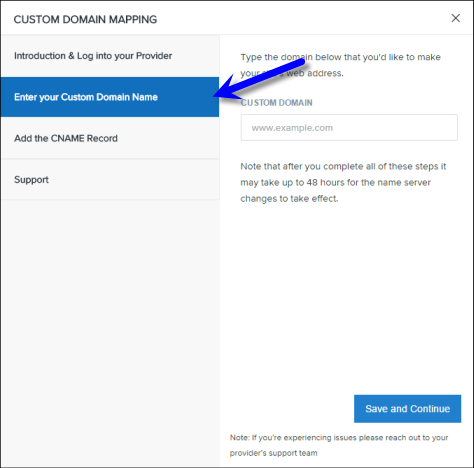
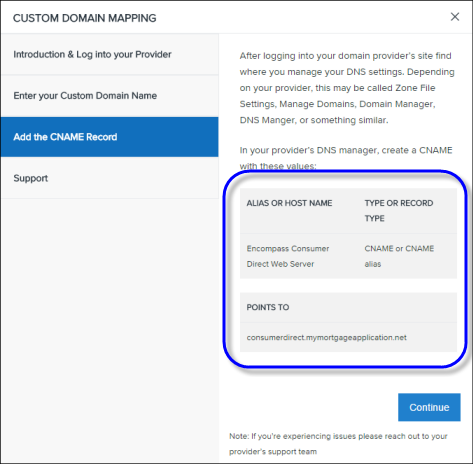
Your domain name is the actual name of your site (for example, http://www.A1loans.com). When you create a Consumer Connect site, the website builder assigns a domain to your site using the following format: yourfriendlytext.mymortgage-app.net. You can use this URL if you want or, if you have an existing domain for your organization, you can map it to your Consumer Connect URL.
Encompass will send status alerts to you through Consumer Connect Administrator even if you map a domain to your Consumer Connect site.
The default
Loan App Recipient is the Encompass user who is notified when the borrower submits an application without specifying a preferred loan officer. This person is assigned as the File Starter for all web applications. The
Loan App Folder is where the loans submitted via Encompass Consumer Connect are saved in Encompass.
The default Loan App Recipient and Loan App Folder must be set before you launch your site. If the default Loan App Recipient is not set and a loan is submitted by a borrower, an error is returned to the borrower and the loan will not be submitted.
To Set the Default Loan App Recipient and Folder:
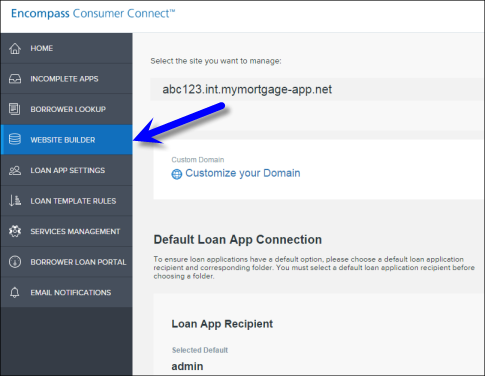
In the Encompass Consumer Connect administration portal, click Website Builder.
- Make sure the site you want to edit is selected from the drop-down list at the top of the page.
- Go to the Default Loan App Connection section.

Enter part or all of the recipient's Encompass User ID, then select it from the drop-down list.
If you do not see the Encompass User ID in the drop-down list, make sure the user has logged in to Encompass at least once, and then try again. The autofill feature populates these fields based on the user's matching information in Encompass. If the user's information is not entered in Encompass, the corresponding fields will not be auto-populated.
- Under Loan App Folder, select the corresponding folder from the drop-down list.
The autofill feature populates the drop-down list based on the user's matching information in Encompass. If the user's folder does not exist in Encompass, it will not appear in the drop-down list.
- Click Save.
Connect loan application folders to recipients so that when a loan is submitted through Consumer Connect, it will be saved to the correct folder in Encompass and the correct recipient will be notified.
To Connect Loan Application Folders to Recipients:
In the Encompass Consumer Connect administration portal, click Website Builder.
- Make sure the site you want to edit is selected from the drop-down list at the top of the page.
- Go to the Loan App Connection section.
- For each Loan Application Recipient, select the folder where new loan applications for the recipient will be saved in Encompass.
- When you are finished, click Save.
 Map Your Consumer Connect Site to Your Custom Domain