Template creation and use
 Overview
Overview
Settlement administrators with the necessary permissions can use basic information, documents typically associated with any existing loan, and standard fee items to create a loan template in Simplifile. This can help prevent the need for people to re‑enter the same information or add the same documents to every loan, which can help streamline the loan collaboration process. You can create a loan template from an existing loan, by copying an existing template, or from scratch. The creation method displays in the template’s activity log.
A settlement loan template can include document placeholders or documents you want to upload, a Disclosures page with fee items from a default MISMO fee set, messages to the lender, and a list of email addresses where Simplifile should send notifications about the loan.
Creating and editing a Loan Information template
Creating and editing a Loan Information template
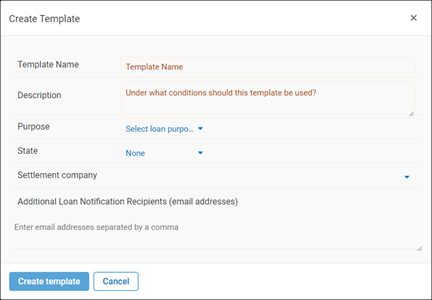
The person who creates a template gives the template a name and a description. If you are affiliated with multiple settlement agencies, you can set up a template for a specific agency. This assigns that agency to all loans that use the template. You can also add loan notification recipients, if desired. This sends notifications about any loan that uses this template to people other than the loan creator, its assigned settlement agent, and its assigned lender users. For more information, see Add people to a loan’s emailing list.
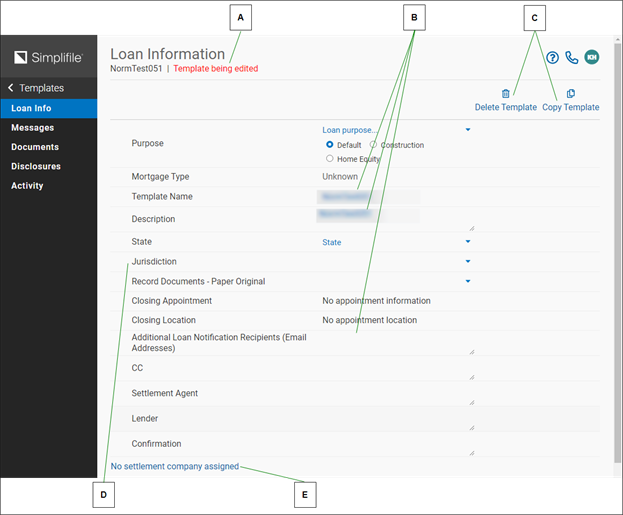
After you create the basic template shell or if you choose to edit an existing template, the following Loan Information Template being edited page displays.
| Letter | Description |
|---|---|
|
A |
A message reminds you when you are editing an existing template. |
|
B |
Edit the fields as necessary. |
|
C |
Select here to delete the template from the system or copy the template. |
|
D |
Choose whether the property address on loans using this template maps to a county (or jurisdiction) that eRecords. |
|
E |
To assign all loans that use this template to the same settlement company, select here and choose the company you want. You may also be able to choose a title company. |
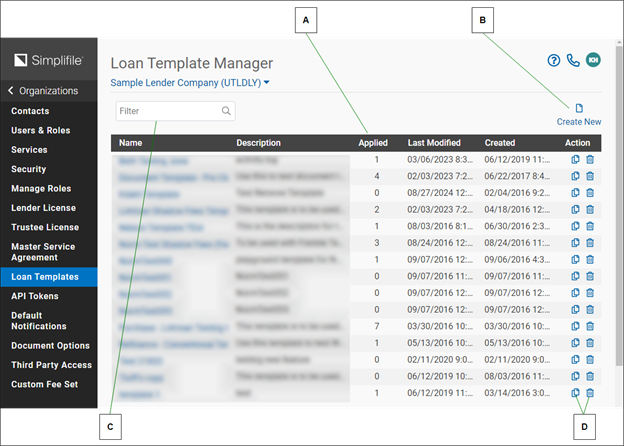
Administrators can manage templates from the Loan Template Manager page, where you can create, copy, edit, and remove loan templates.
| Letter | Description |
|---|---|
|
A |
The number of times a template has been applied to a loan displays in the Applied column. |
|
B |
Select here to create a template. |
|
C |
You can enter letters and numbers in the Filter field to display only templates whose names or descriptions contain what you enter. |
|
D |
To copy a template, select the copy icon. To edit an existing template, select the edit icon. |
How to create or edit a template shell
- In the navigation menu, select the Organizations item.
- Select the name of the organization whose templates you want to work with.
- In the navigation menu, select the Loan Templates item.
- In Simplifile, do one of the following:
- Create a loan you want to use as a template.
- Open an existing loan you want to use as a template.
The loan should have many fields that you always complete in the same way.
- To create a template from scratch or by copying an existing template, open any loan.
- To edit an existing template, open any loan.
-
In the upper right corner of the Loan Information page, select the Templates
 button and do one of the following:
- To create a template from the open loan, select Create template from current loan.
- To edit an existing template or create a template from scratch or by copying an existing template, select the Manage templates button. When the Loan Template Manager page displays, do one of the following:
- To create a template from scratch, select the Create New
 template button.
 - To edit a template, select its
 (Edit) button.
 - To copy a template and edit its information to
create a new template, select its
 (Copy Template) button and verify that you want to copy the
template.
(Copy Template) button and verify that you want to copy the
template. - To delete a template, select the
 (Delete Template) button.
- To create a template from scratch, select the Create New
- Add a name and description for the template and select the Create Template
 button.
 - Continue with How to complete or edit template details.
How to complete or edit template details
- Complete How to create or edit a template shell to display the Loan Information | Template being edited page.
- Complete or edit the following fields, as necessary:
- Template Name. Enter a unique name for the template.
- Description. Enter a description for the template.
- Jurisdiction. Choose whether the property address on loans using this template maps to a county (or jurisdiction) that has eRecording available.
- Additional Loan Notification Recipients. To send notifications about this loan to people other than the loan creator and the settlement agent, enter email addresses in this field.
- If you are affiliated with multiple settlement agencies, select No settlement company assigned and choose the agency where loans that use this template should be sent.
You may also be able to use a No title company assigned link to choose a title company.
- If desired, select the Messages item on the navigation menu and enter a message you want users to see when they first access any loan that uses this template. For more information, see Communicate with lenders.
- To add documents to your template, see Adding documents and document placeholders to a template.
- To add fees to your template, see Adding a Disclosures template.
Adding documents and document placeholders to a template
Adding documents and document placeholders to a template
Administrators can include documents when they add or edit a loan template. This helps improve the loan workflow because standard loan‑related documents can be added once instead of on each loan. Administrators can also add and edit document placeholders. A document placeholder lets the agent and the lender know that a specific type of document needs to be added to a loan created from this template.
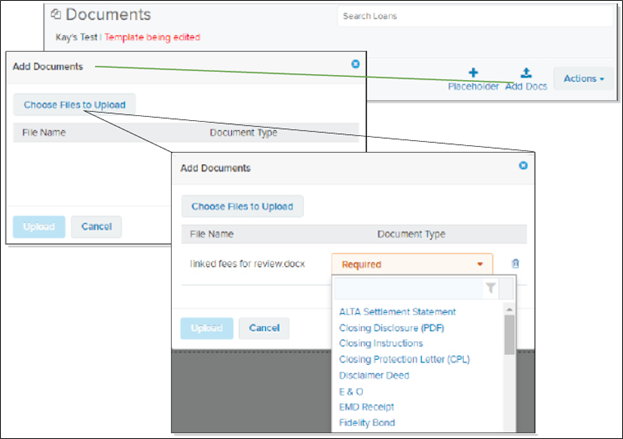
When you select the Add Docs  button on a template, a window displays. You use the Choose Files to Upload
  button to find and add files to upload. The files must be saved on a drive you can access from your computer. You can add multiple files at the same time.
The files you choose display on the Add Documents window. You must then choose a document type for each displayed document before you can complete the upload.
For more information about loan‑related documents, see Work with loan‑related documents.
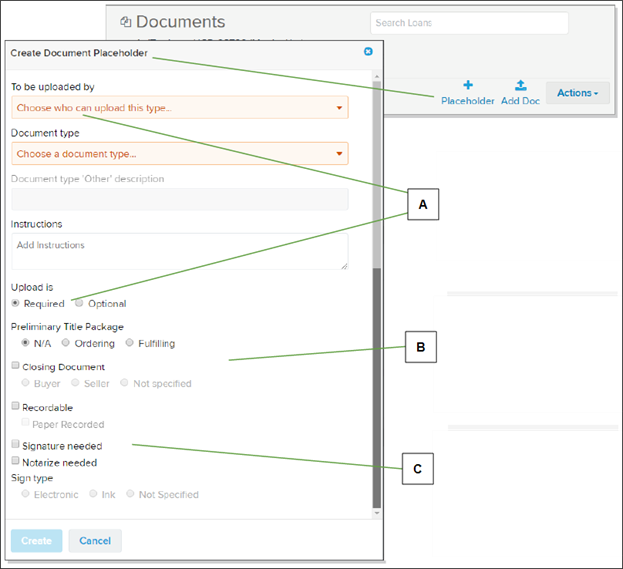
When you select the Placeholder link, the Create Document Placeholder window displays.
| Letter | Description |
|---|---|
|
A |
You can dictate who must upload the document and indicate whether the document is required or optional for the loan. |
|
B |
You can indicate whether documents that replace this placeholder relate to title delivery or are closing documents. |
|
C |
You can mark documents created for this placeholder as needing paper recording, signatures, notarization, and whether signatures can be electronic. |
A placeholder displays instructions instead of information about the document.
When created, you can select a placeholder header to make changes in its settings.
How to add or edit a Documents template
- Open the template where you want to work with documents or document placeholders. For instructions, see Creating and editing a Loan Information template.
- Select the Documents item on the left navigation menu.
- Do the following to add a document to the template:
- Select the Add Docs button in the upper right corner.
- When the Upload Documents window displays,
select the Choose Files to Upload button.
- Follow your browser’s instructions to find the file you want to add.
- Use the Required dropdown list to assign a document type to the document you want to upload.
- Repeat until you add all the documents you want.
- When you finish, select the Upload
 button.
- Select the Add Docs
- Do the following to add a placeholder for each document you want to include on all loans that use this template:
- Select the Placeholder
 button.
 - From the To be uploaded by dropdown list, choose who should upload the document.
- Choose the type of document to upload.
- Add Instructions. This information displays on the placeholder card on the Documents page.
- Choose whether the document is Required or Optional.
- In the Preliminary Title Package area, choose whether you are ordering the preliminary title package or the document is fulfilling the preliminary title package request.
- Mark whether the document is a closing document and, if so, whether it is for the buyer, the seller, or not specified.
- Mark whether the document is recordable and, if so, whether it must be recorded using paper copies.
Whether a signature and notarization are required, and whether they must be electronic or inked (wet). The electronic/ink requirement applies to one or both options.
- When you finish, select the Create
 button.
- Select the Placeholder
Adding a Disclosures template
Adding a Disclosures template
Most of the tools you use to add or edit a Disclosures page template are described in the Disclosures section of this guide. For more information, see Collaborate on disclosures. However, if you work with templates, you may be able to see and use some extra tools, such as those described in the figure below.

| Letter | Description |
|---|---|
|
A |
The S means that the settlement agent should complete the field. |
|
B |
Use a dropdown list to change the contents of a field. Select the x beside a field to leave the field blank. |
|
C |
You can leave a payment amount field blank. |

| Letter | Description |
|---|---|
|
A |
Empty fields display a question mark icon. The field displays the same way to the lender. |
|
B |
Select any field, including one with a question mark icon, to edit the fee. |
How to add or edit a Disclosures template
- Open the template where you want to work with disclosures. For instructions, see Creating and editing a Loan Information template.
- Select the Disclosures item on the left navigation menu.
- Select the Closing Disclosure item.
Applying a template to a loan
Applying a template to a loan
If your administrator has set it up, you can apply a template to a new or existing loan. This is helpful if you often use the same information and documents when you create a loan. Any applied template displays on the loan Activity page.
A template completes some fields and may include documents and messages that your administrator has added. You can then add, edit, and collaborate on fees in the same way as you do with any other loan. You must complete all required fields before you can apply the template. For information on template setup, see Review, change, save, or print basic loan information.
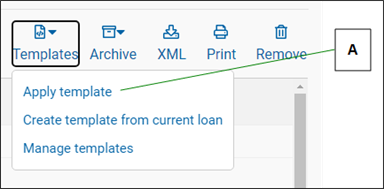
An agent who clicks the Template icon sees one of the following windows, depending on whether that agent has administrative rights.
| Letter | Description |
|---|---|
|
A |
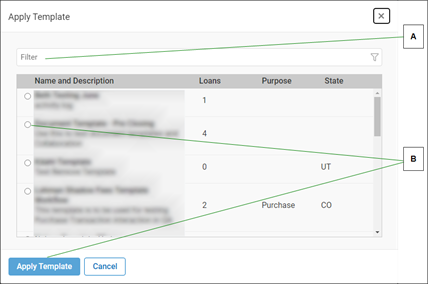
To apply a template, an administrator would choose Apply Template from the menu to display the Loan Templates window (shown on the below). For information on creating or managing templates, see Template creation and use. |
To apply a template, an administrator would choose Apply Template from the menu to display the Loan Templates window (shown below). For information on creating or managing templates, see Template creation and use.
| Letter | Description |
|---|---|
|
A |
Use the Filter field to limit the templates that display. |
|
B |
Mark the template you want to use and select the button at the bottom. |
| Letter | Description |
|---|---|
|
A |
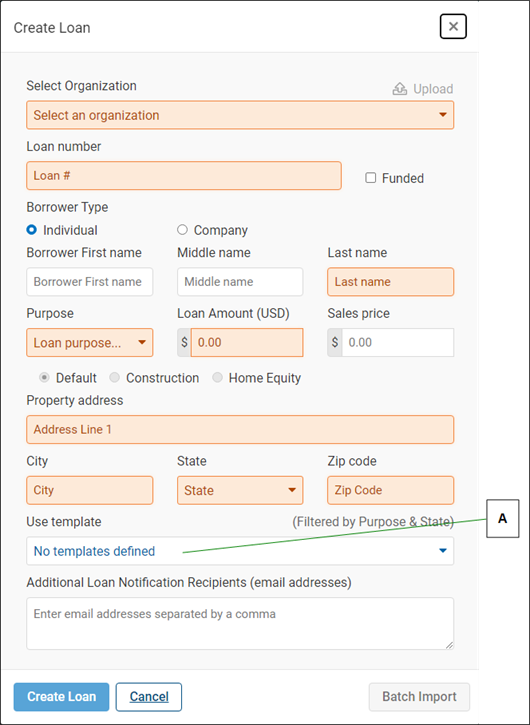
If a template exists in the system, you can choose the template from this dropdown list when you create a loan. This applies the template to the loan. This applies the template to the loan. For more information about creating a loan, see Loan creation. |
How to apply a template to a loan
- Find the Loan where you want to apply a template. For more information, see Find a loan.
- Select the card header or the loan number of the loan to display the Loan Information page.
- In the upper right corner, select the Templates button.
- Mark the template you want to apply. You can use the Filter field to search for a template.
- Select the Apply template button in the lower left corner.
Viewing a template’s action history
Viewing a template’s action history
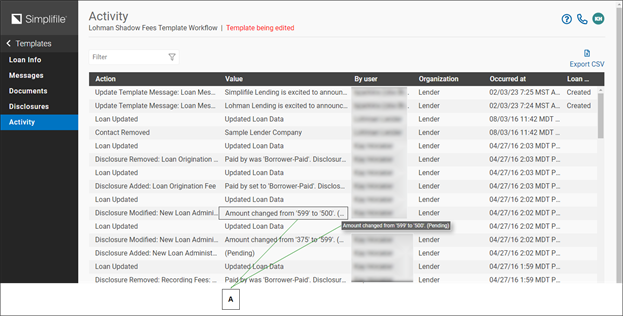
A template’s Activity page lets you view actions that have occurred in Simplifile for a specific template. You can see what happened (the Action), the specifics of the action (the Value), who performed the action (the user), the organization that took the action, and the date and time when the action occurred. The most recent actions display at the top of the list. Below is an example.
| Letter | Description |
|---|---|
|
A |
Hover your mouse pointer over any text that ends with the Menu |
 (ellipsis) button. This displays the complete text in a floating box.
How to view or download a template action history
- Select the header or loan number of any loan.
- In the upper right corner of the Loan Information page, select the Templates button and select the Manage Templates item from the dropdown list.
- On the Loan Template Manager page, select the Edit
 icon for the template whose action history you want to view or download.
 - In the navigation menu, select the Activity item.
- To download the action history, select the Export CSV item in the upper right corner of the Activity page.
- Follow your browser’s instructions to open and/or save your file.
Duplicate loan record merging
Duplicate loan record merging
When multiple organizations work on the same loan, it creates the potential for two or more parties to initiate or work on the same loan at the same time. Simplifile continually checks for duplicate loan records to help you avoid issues that may result from such actions. If Simplifile finds any duplicate loan records, you can choose to merge the records.
The fields Simplifile checks to avoid duplication include the following:
- Borrower names
- Loan number
- Settlement file number
- Property address
- Loan amount
- Sales price of property
Simplifile checks for duplicates any time any of these fields are updated.

| Letter | Description |
|---|---|
|
A |
Select here to merge the two loans. |
- When someone merges a loan, the following happens:
- Any new or edited fees become pending. The collaborating party must review and approve these fees.
- Any documents with the same name are treated as proposed versions of the existing document.
- Any removed documents become pending. The collaborating party must review and acknowledge these documents.
- The word merged is appended to the file number of the loan whose changes were applied to the remaining loan. This allows collaborators to review and unarchive the loan, if necessary. However, if both loans are active and the loan identifiers are not unique, Simplifile will again ask if the two loans should be merged. To avoid this, update one of the loan identifiers in one of the two loans.