Find a loan
 Overview
Overview
Any time the loan statuses display in the navigation menu, you can select one of the statuses to view loans with that status. If you are a settlement administrator, you can select Created to display loans that have not yet been assigned to a settlement agent. The system highlights the status in the left navigation menu so that you know the status of the displayed loans.
In both the Card view and List view of any status (Pre-Close, Post-Close, Archive, etc.), you can search for a specific loan. On the List view, you can choose which columns display, and the order of the display. You can also use several filters to limit which loans display. This can help you more easily find the loan you want.
Searching for a loan
Searching for a loan
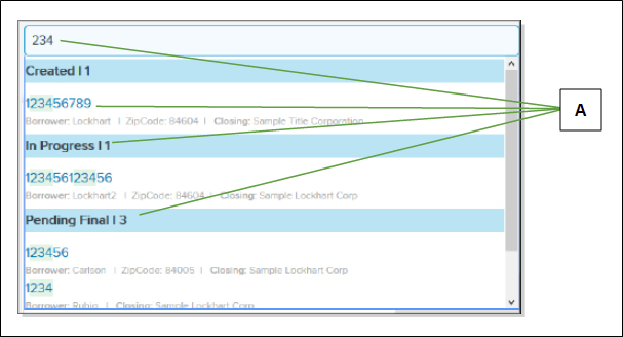
You can use the Search for loans tool (the magnifying glass in the upper right corner) to open the Search loans field to look for a specific loan. The Search loans field is used to search for loans of all statuses, regardless of what is displayed in the window. You can search using any loan attributes, such as the loan number, the name of the borrower, or the zip code. Below is an example.
| Letter | Description |
|---|---|
| A | The dropdown list displays any loan with a field that contains the information you enter in the Search for loans field. Headings group the loans by status. Enter text or numbers until you see the loan you want in the dropdown list. Then select the loan. This displays the Loan Information page for the loan. |
The Search Loans field displays at the top of the card view and the list view. It also displays in the upper‑right corner of each page of a loan (the Loan Info, Documents, Disclosures, Contacts, Messages, and Activity pages).
How to search for a loan
- In the Search loans field, begin to enter information you want to use as a search term. Keep entering information until the loan you want displays in the dropdown list.
You can enter information from any field on the Loan Information page. For example, enter the loan purpose, the city, or the status.
- When you see the loan you want, do one of the following:
- Review the information that displays.
- Select the card header or the loan number to display the Loan Information page. You can then use the links on the navigation menu to access all loan information.
Choosing list view columns and display order
Choosing list view columns and display order
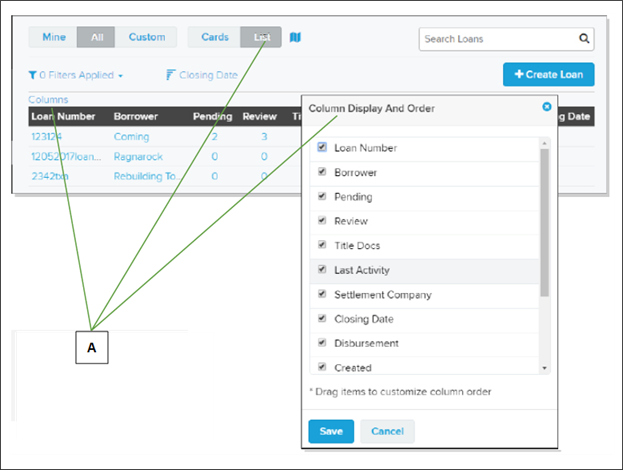
On the list view, you can choose which columns display, and in what order. This lets you view only the information you want, and see first the information that is more important to you.
| Letter | Description |
|---|---|
| A | First display the List view. Then select the Columns view above the table to display the Column Display and Order window. |
How to choose list view columns and display order
- At the top of the Loans list, select the List view to display the list view.
- Above the list of loans at the left side, select the Columns link to open the Column Display and Order window.
- Mark the boxes of the columns you want to display.
The columns you can choose can include the following:
- Settlement File Number
- Settlement Agent
- Street (property address)
- Borrower (borrower’s last name)
- Pending (number of collaboration items that need the lender’s review)
- Review (number of collaboration items that need your review)
- Title Docs (number of title‑related documents that need action)
- Last Activity (date and time of last activity on the loan).
- Closing Date
- Purpose (refinance or purchase)
- Lender (lender who created the loan)
- Disbursement (date funds were released)
- Created (date loan record was started in Simplifile)
- Paper Original (whether documents must have ink signatures instead of electronic signatures)
- Title Agent
- To change the column order, in the window, select a column name and drag it to the position where you want it to display. For example, drag Pending to the second position from the top to have the Pending column display in the second column from the left.
- When you finish and want to save your changes, select the OK
 button.
Filtering the loan display
Filtering the loan display
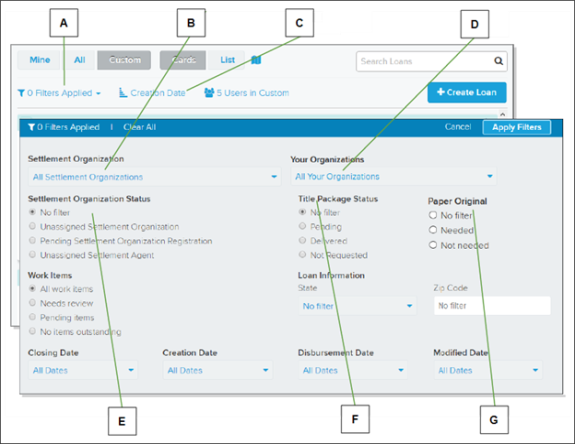
You can sort the loan list by date or by borrower last name. Simplifile also provides several filters that let you limit which loans display. You can use the filters alone or in combination to search for the loans you want. Filters are described below.
| Letter | Description |
|---|---|
| A | Select here to display or hide the loan filter window. |
| B | Use this dropdown list to display only loans assigned to a specific settlement organization. |
| C | Select here to sort the loans by various dates or by borrower last name. |
| D | If available, use this dropdown list to choose which organization’s loans should display. |
| E | View loans with unassigned or pending settlement organizations, or that have not been assigned to a settlement agent. |
| F | View loans based on the status of the preliminary title package. |
| G | View loans based on whether paper originals are needed. |
| Letter | Description |
|---|---|
|
A |
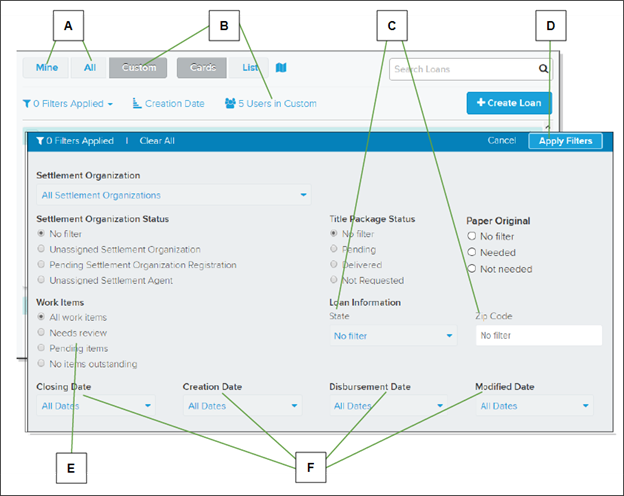
You can display loans assigned to you, or all loans. |
|
B |
Select the Custom |
|
C |
Use the State and Zip Code fields to limit the loan display by geographic area. |
|
D |
Be sure to apply the filters before you leave the window. |
|
E |
Choose to view loans with items that need review, that are pending collaborator action, or that do not need attention. |
|
F |
Use any of the date dropdown lists along the bottom of the window to limit the loan display by set date ranges. Options may include Today, Yesterday, This Week, Last Week, Next Week, This Month, Last Month, Next Month, This Year, and Last Year, depending on the date type chosen. |
How to filter the loan display
- To view loans with a specific status, in the navigation menu, select the status you want.
- To view only loans assigned to you, at the top of the page, select the Mine view.
- To create a custom list of one or more lender users whose loans you want to view, do one of the following:
- To set up a custom list, select the Custom
 view button and mark the agents whose loans you want to view.
 - To edit a custom user list, select the X Users in Custom link and mark the lender users whose loans you want to view. Select the X at the end of the number selected bar to clear all check marks.
- To set up a custom list, select the Custom
- To sort the loans by date or borrower last name, select the sort icon (
 ) and choose a sort order.
 - Select the Filters Applied button to do any of the following:
- To view loans assigned to settlement organizations, choose the organizations you want from the dropdown list in the Lender Organization section.
- If you are affiliated with multiple organizations and want to view loans assigned to specific organizations, choose the organizations you want from the dropdown list in the Your Organizations section.
- To view loans with unassigned or pending settlement organizations or loans that have not been assigned to a settlement agent, mark an option in the Lender Organization Status section.
- To display loans with a specific preliminary title package status, mark an option in the Title Package Status section.
- To display loans based on whether items need attention, mark an option in the Work Items section. If Any displays, select it to limit the display by type of item.
- To display loans with missing file numbers or unassigned settlement agents, mark one or both options in the Loan Information section.
- To display loans for properties in a specific state, choose the state from the State dropdown list.
- To display loans for properties with a specific zip code, enter the zip code in the Zip Code field.
- Use the Date dropdown lists at the bottom of the window to specify set date ranges to display.
- When you finish choosing filters, select the Apply Filters
 button.
QUICK TIP: To remove all filters, select X Filters Applied and select the Clear All  button in the filters header.