Work with loan‑related documents
 Overview
Overview
Both you and the lender can add documents to a loan. An upload or a placeholder creation begins the document collaboration process. You need to review and acknowledge or request a change to a document before collaboration can continue.
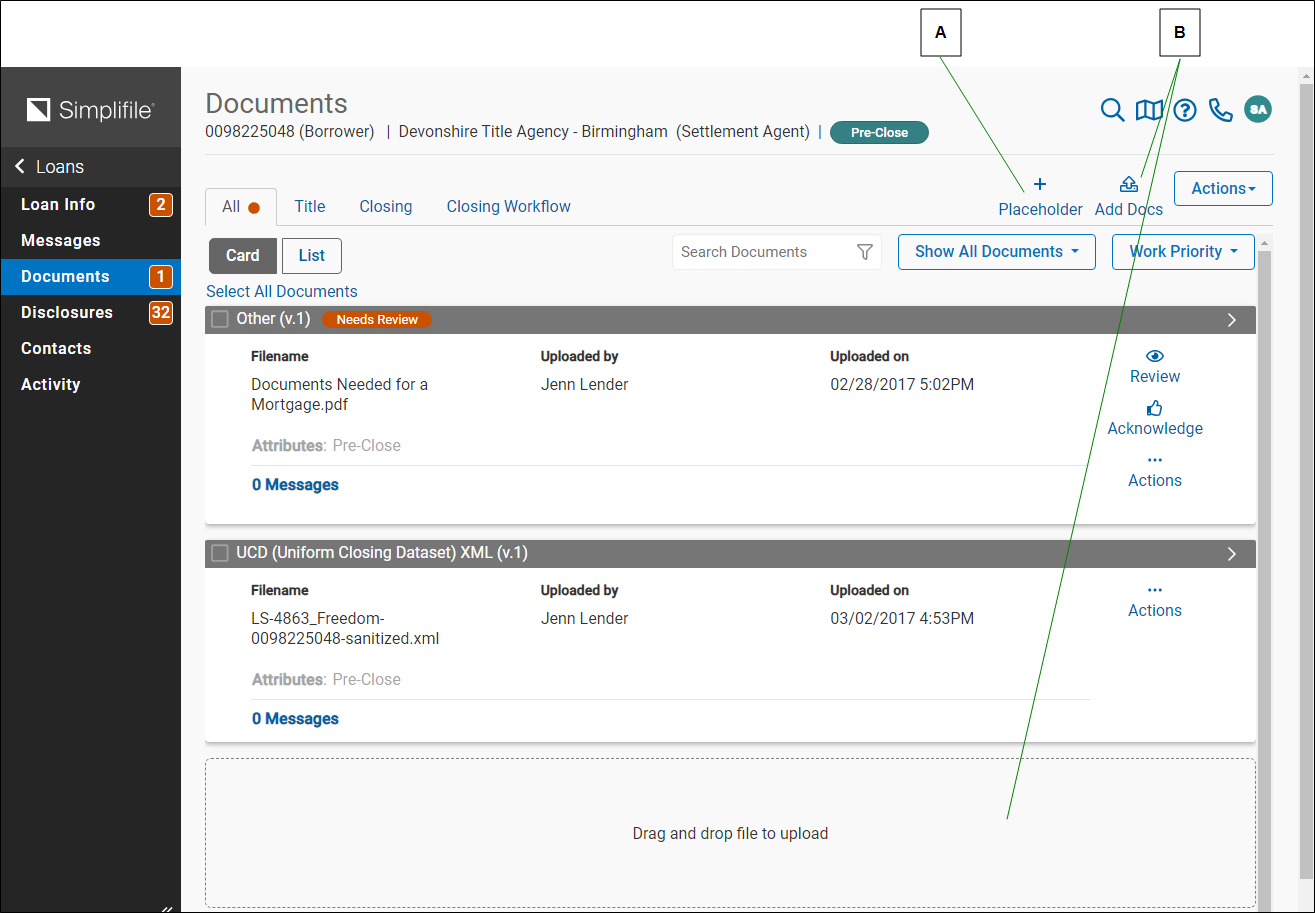
| Letter | Description |
|---|---|
| A | Select here to add a document placeholder. |
| B | Select here to add a document. You can also drag and drop a file from your computer to the area at the bottom of the document list to add it as a document. |
If necessary, you can change a document type. You can save, view, or print documents that you or the lender add to a loan. After both you and the lender acknowledge a document, either of you can request another change or review without having to upload a new version of the document.
Reviewing and adding loan‑related documents
Reviewing and adding loan‑related documents
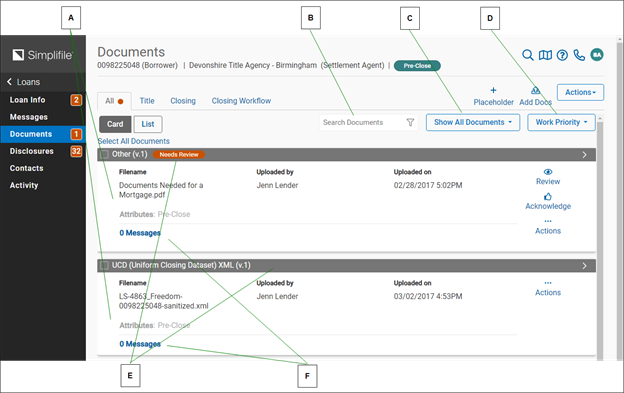
The Documents page lets you add loan‑related documents to Simplifile, and review documents the lender provides. Supported file types include .doc and .docx, .emf, .html, .jpeg and .jpg, .pdf, .tif and .tiff, .txt, .xps, .xml, .xlsx and .xls, .gif, .zip, and .gz. You can upload multiple documents at a time, drag and drop a document file, or add a zipped file containing multiple documents, if necessary (for example, as an executed lender package). Below is an example of the Documents page.
| Letter | Description |
|---|---|
| A | Cards containing information about documents attached to a loan display on this page. |
| B | Enter characters here to display only documents and placeholders whose type or file name contain the characters you enter. |
| C | Select here to limit the display by responsibility, to show only title‑ related documents, or to show documents with no outstanding items. |
| D | Select here to sort documents by modification date or by title. You can sort in ascending or descending order. |
| E | A blue label means your collaborator needs to perform an action. An orange label means you need to perform an action. |
| F | Select a message area on a document or placeholder to view or send a message about a specific document. For more information, see Communicate with lenders. |
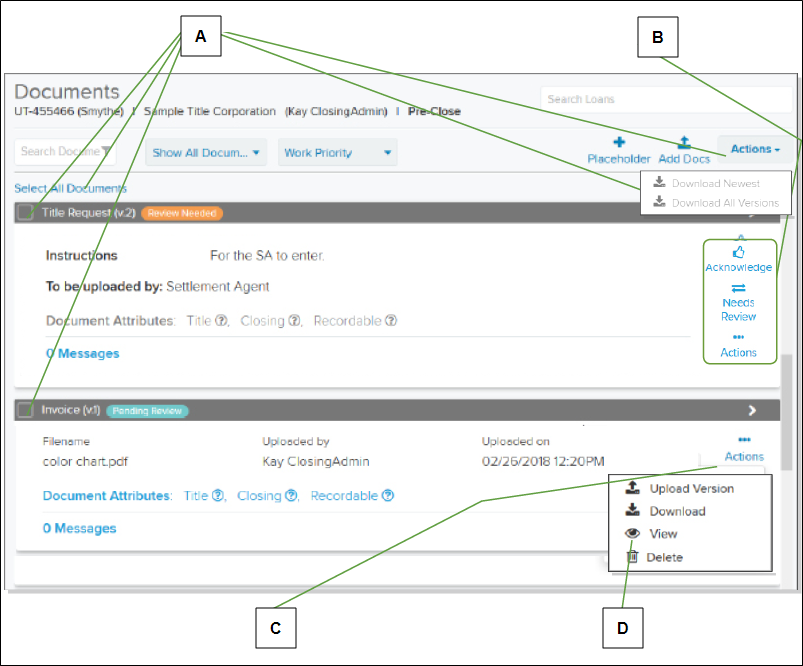
Documents you need to work on display at the top of the list, followed by documents waiting for your collaborator. Documents acknowledged by both display at the bottom. You can download one or more documents to review them.
| Letter | Description |
|---|---|
|
A |
Mark the boxes of uploaded documents and select the Actions |
|
B |
Use these icons to acknowledge a document or send a document to your collaborator for review. The document card and the loan action history track all actions taken. |
|
C |
Select the Actions |
|
D |
If the View option displays, you can open the document in your browser. |
Documents you add must be saved on a drive you can access from your computer. You can add multiple files at the same time. If you choose an invoice document type, you can apply the invoice to a specific loan fee. For more information on invoices, see Collaborate on disclosures.
The names of the files you choose display on the Add Documents window. Whether you upload documents or drag them from your folder, you must choose a document type for each document before you can complete the addition.
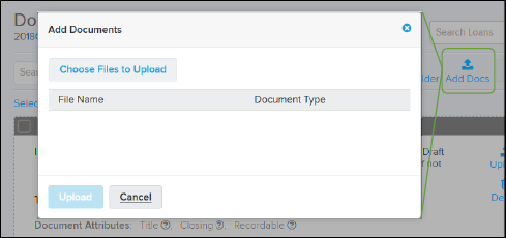
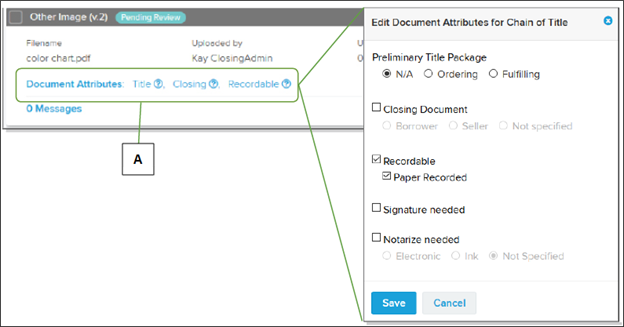
Depending on the document type and on your permission, you may also be able to set some document attributes.
| Letter | Description |
|---|---|
|
A |
If these options display on a document card, you can determine whether a document you uploaded is part of a title order or order fulfillment; a closing document for a borrower or seller; or requires paper recording, signatures, or notarization. |
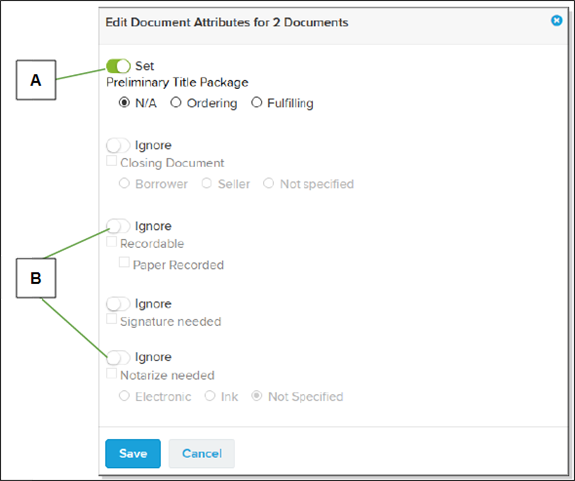
If you mark multiple documents and use the Actions  dropdown button to choose to edit document attributes, the attribute editing window lets you specify whether to set or ignore each attribute for all the documents you marked. Below is an example.
| Letter | Description |
|---|---|
| A | Assign an attribute the Set option to change the attributes of all the documents you marked to whatever you choose in the window. |
| B | An attribute assigned the Ignore option does not change that attribute for any of the documents you marked. |
How to review and add a document to a loan
QUICK TIP: If someone uploads a document in error, that person can select a trash can  icon to remove the document from Simplifile. A record of both the upload and the deletion will display on the Activity page.
- Find the loan where you want to review or add a document. For more information, see Find a loan.
- If necessary, select the card header or the loan number to display the Loan Information page.
- In the navigation menu, select the Documents item.
- If desired, use the following options to locate documents:
- Enter characters in the Search Documents field to display only documents whose type or file name contain the characters you enter.
- Use the Show all documents dropdown list to filter the items that display. You can view documents lenders that need to work on, documents the settlement agency needs to work on, title documents, or documents with no outstanding items.
- Use the Work Priority dropdown list to sort the display by modification date or title.
- If document attributes display, select them to make changes. You can indicate any or all of the following:
- Whether a document is part of a preliminary title package order or fulfills such an order.
- Whether a document is recordable and, if so, whether it must be recorded using paper copies.
- Whether a document is a closing document, and whether it is for a borrower or seller.
- Whether a signature and notarization are required, and whether they must be electronic or inked (wet). The electronic/ink requirement applies to one or both options.
- To add a document specified by a card, select the Upload button on the card and follow the prompts to find and upload the file you want.
- To add a document in addition to those required by cards, do the following:
- In the upper right corner, select the Add Docs
 button.
 - In the Add Document window that displays, select the Choose Files to Upload
 button and select the document you want to upload.
 - From the Required dropdown list in the Document Type column, choose the document type you want.
- Select the Upload button.
- In the upper right corner, select the Add Docs
QUICK TIP: To download a file, select the download icon ( ) for the file.
- Mark the boxes on the document cards or, to choose all the documents, select the Select All Documents button.
- select the Actions dropdown button in the top right corner and select the Edit Document Attributes button.
- For each attribute you want to apply, select the Ignore button. This changes the option to Set and lets you choose the value you want to apply. Leave attributes with the Ignore option to leave them as the already are.
Adding a document placeholder
Adding a document placeholder
A document placeholder lets you and your collaborator know that a specific type of document needs to be added to a loan. Whoever actually uploads the document uploads a version of that document. For more information, see Adding a version of a document. You can also add a document placeholder to a loan template. For more information, see Adding a document placeholder. The person who uploads a document can delete that document, if necessary.
| Letter | Description |
|---|---|
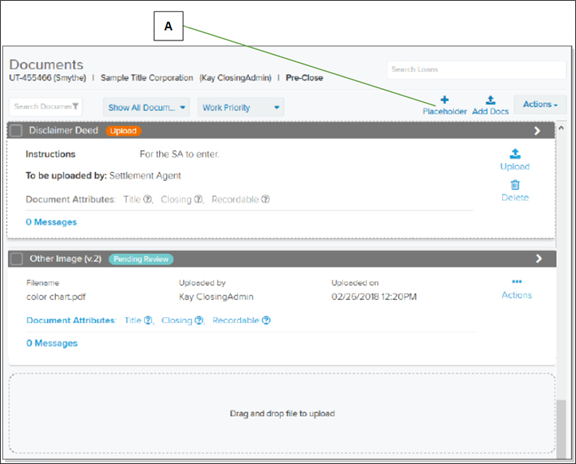
| A | Select here to add a document placeholder. |
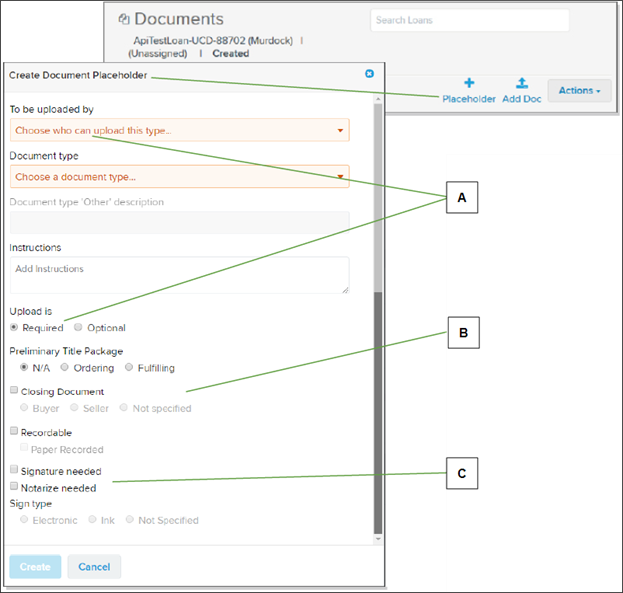
When you select the Placeholder link, the Create Document Placeholder window displays.
| Letter | Description |
|---|---|
| A | You can dictate who must upload the document and indicate whether the document is required or optional for the loan. |
| B | You can indicate whether documents that replace this placeholder relate to title delivery or are closing documents. |
| C | You can mark documents created for this placeholder as needing paper recording, signatures, notarization, and whether signatures can be electronic. |
Information about documents related to title display on a loan’s card view.
- If a placeholder exists for a title request, Prelim Title Package Not Requested displays. The lender will see a prompt to upload the title request.
- If a title request has been uploaded, Prelim Title Package Pending displays. the agent will see a prompt to upload any documents required for title delivery.
- When documents required for title delivery have been uploaded, Prelim Title Package Delivered displays.
How to add a document placeholder to a loan
- If necessary, access the Loan Information page for the loan where you want to add a document placeholder. For more information, see Find a loan.
- In the navigation menu, select the Documents item.
- Select the Placeholder button.
- Choose whether the lender or the settlement agent should be responsible to upload the document.
- Choose the type of document to upload.
- If desired, add Instructions. This information will display on the placeholder card on the Documents page.
- Choose any or all of the following:
- Whether the document is Required or Optional.
- If the document is related to the preliminary title package, whether it is part of the order or the fulfillment.
- Whether the document is a closing document and, if so, whether it is for the borrower, the seller, or not specified.
- Whether the document is recordable and, if so, whether it must be recorded using paper copies.
- Whether a signature and notarization are required, and whether they must be electronic or inked (wet). The electronic/ink requirement applies to one or both options.
-
When you finish, select the Create
 button.
Adding a version of a document
Adding a version of a document
To replace a placeholder with an actual document, you upload a version of the document. You and your collaborator can upload multiple versions, if desired. This lets you have multiple versions of a document available for reference. It also lets you track changes either you or your collaborator makes.
Version numbers display after the document name. After a document or a document placeholder is initially added to a loan, you access versions by selecting the title bar of the document card. Placeholders are not considered document versions.
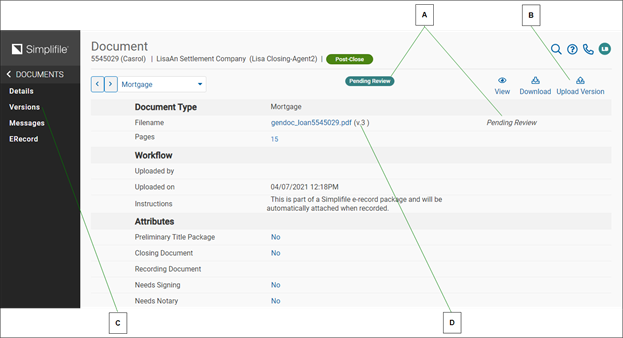
| Letter | Description |
|---|---|
| A | Use these icons to acknowledge a document version or ask the lender for a review. You must add a revision reason if you want a review. |
| B | You can upload a version of a document to remove a placeholder or to keep multiple versions of a document. |
| C | Use the VERSIONS link to view more information about the various files uploaded as this document (as shown on the next page). |
| D | Simplifile tracks the number of document versions uploaded. The most recent document is listed here, with the version number after the file name. |
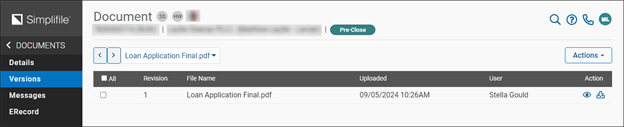
The Document Versions page lists all versions of a document, with the most recent version at the top.
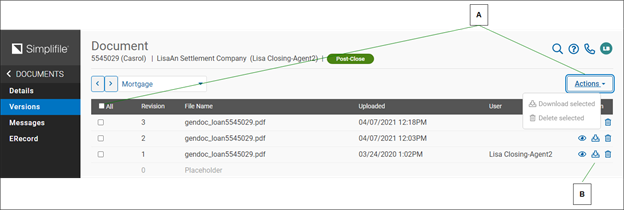
| Letter | Description |
|---|---|
| A | Mark the boxes of the document versions you want to download or remove from the loan. Then select the Actions item and choose what you want to do. |
| B | Use these icons to view or remove individual document versions. You can remove a document if you uploaded it. |
How to add a version of a document to a loan
- If necessary, access the Loan Information page for the loan where you want to add a version of a document. For more information, see Find a loan.
- In the navigation menu, select the Documents item.
- Select the Upload Version button.
- Follow your browser’s instructions to find and upload the document.
Reverting to a previous version of a document
Reverting to a previous version of a document
If necessary, you can revert to a previous version of a document you upload or to a document placeholder. For example, suppose that you upload a document, and then find it necessary to upload a new version of that document. If your collaborator does not acknowledge the new version but instead returns it to you for review, you have the option to upload another version or revert to the previous version. Below is an example.
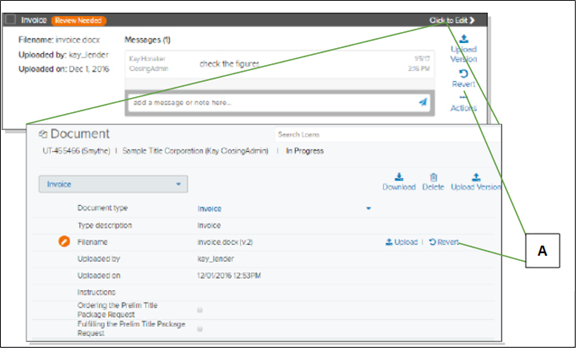
| Letter | Description |
|---|---|
| A | The option to revert displays on the document card and on the document page that displays when you select the document card header. |
When you select the Revert button, the next previous version becomes the current version and Simplifile removes the most recent version of the document. If the document started as a placeholder, the reversion can remove all versions and leave only the placeholder.
Changing a document type
Changing a document type
If necessary, you can change the document type assigned to an uploaded file. This is helpful if someone who uploads a file chooses the wrong document type.
Simplifile will accept only document types with valid file extensions.
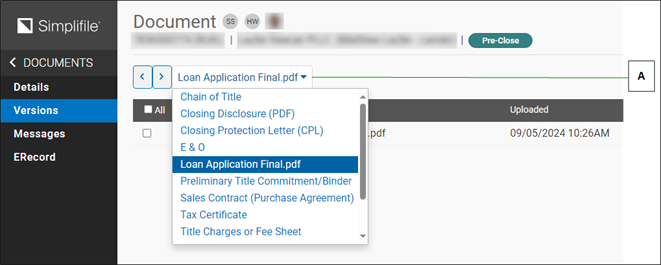
| Letter | Description |
|---|---|
| A | Choose a new document type from the dropdown list. |
How to change a document type
- If necessary, access the Loan Information page for the loan where you want to change a document type. For more information, see Find a loan.
- In the navigation menu, select the Documents item.
- Select the header of the document card where you want to change the document type.
- Use the dropdown list to choose the type of document you want.
- Add Instructions. This information will display on the placeholder card on the Documents page.
- If you are requesting the preliminary title package, mark Ordering the Prelim Title Package Request.
- If the document is part of the preliminary title package, mark Fulfilling the Prelim Title Package Request.
- Select the Save
 button.
List of common documents
List of common documents
The main document Simplifile uses is a Uniform Closing Dataset file (UCD.xml). The Federal Housing Finance Agency (FHFA) directed the development of this common industry dataset. The UCD attempts to standardize the data that is required for loan estimates and closing disclosures. It should follow MISMO 3.3 standards. For more information on disclosure items, see Collaborate on disclosures.
The data in an uploaded UCD.xml document automatically populates many Loan Information page and Disclosures page fields. Uploaded data overrides any existing data in the Loan Information page fields. Any fields on the Disclosures page with overwritten data are marked as changed: the information is labeled Pending if you uploaded the document, or as Review Needed if your collaborator uploaded the document.
Either you or the lender can upload a UCD.xml file. Below are some of the additional document types both you and the lender can upload:
- Closing Disclosure. This document provides information that helps buyers understand all of the costs related to a loan transaction, including the seller’s terms. If a borrower requests privacy, the seller receives a separate Seller Closing Disclosure that includes only information pertinent to the seller.
This document must be uploaded as a PDF.
- Loan Estimate. This document provides information that helps explain the key features, costs, and risks of a specific loan.
- Sales Contract (Purchase Agreement). A document that, depending on factors including the state where the real estate transaction is taking place, may be short with the intent to open negotiations or may be a complete contract that contains all information pertaining to the sale and which lacks only signatures.
Additional document types the lender may upload can include the following:
- Closing Instructions. This document provides an overview of the agreement between the lender and the settlement agent that lists the requirements and responsibilities for each step in the closing process. The list typically includes the information, documents, and proceeds the lender agrees to provide to the agent and the settlement services the agent agrees to provide for the lender.
Some loan types and states have specific requirements that may be included in an additional related document.
- Information Request. This term identifies any written request for information relating to a loan. An information request requires a written response that acknowledges receipt of the request followed by a search for the information and either a delivery of that information or a written notice that the information is not available.
- Lender Package. This is a set of documents that may include other documents listed here. For example, a lender package may include closing instructions, a list of fees charged, borrower financial documents, and a property appraisal, as well as other documents the settlement agent might need.
An Executed or Fully Executed Lender Package, generally uploaded by the agent, includes all signed and notarized (fully executed) lender and title documents.
Additional documents the agent may upload can include the following:
- Closing Protection Letter (CPL). This document is a legal agreement between the lender and the title insurance underwriter. It guarantees that the title agent will handle the lender’s funds and documents properly.
- Earnest Money Deposit Receipt (EMD). A title company generates this document when it receives the executed purchase agreement and earnest money check.
- Error and Omissions Compliance Agreement (E & O). This agreement protects the title insurer if any clerical or typographical errors occur during the execution of the title documents. The document assures that borrowers and lenders will work together to make any necessary corrections to the title documents.
- Executed or Fully Executed Lender Package. This package includes all signed and notarized (fully executed) lender and title documents.
- Fidelity Bond. This document is business insurance that protects high‑money industries against employee misconduct such as fraud or theft.
- Final Title (Final Title Insurance Policy). This document protects the lender against any property loss or encumbrances due to liens or defects in title to a property. It guarantees a free and clear title after close of escrow.
- Grant Deed. This conveyance document transfers a real property title from one party to another. Common granting deeds include the following:
- General Warranty Deed. Assures that the property title is free from encumbrances.
- Special Warranty Deed. Assures that the current property owner (the seller) has had no title issues while owning the property.
- Sole and Separate Deed. Used in community property states when a married person or a person with a registered domestic partner buys real property in only his or her name.
- Disclaimer Deed. Used in community property states when a married person or a person with a registered domestic partner relinquishes any claim to a certain real estate property to the other spouse or partner. This gives the other spouse or partner sole and separate ownership. The signer becomes the grantor while the spouse receiving the deed becomes the grantee.
If someone owns real property before marriage or acquires real estate as sole and separate property after marriage, the spouse must execute a disclaimer deed.
- Quitclaim Deed. Used to state that a person releases any claim or potential claim to a specific real property.
- Mechanics Lien Waiver. This document guarantees that no work or improvements have been done to a real property in the 120 days before closing. It is used to establish that the mechanic has received full payment for any work done on the property.
- Preliminary Title Commitment/Binder. A group of documents that include preliminary findings after escrow is opened and a title search is done. They can include the unexecuted title policy as well as any liens, exceptions, and encumbrances on a property that must be addressed before closing.
- Recording Package. A group of all lender and title documents that have been processed by the appropriate recording county (or jurisdiction).
- Settlement Statement. This document itemizes all fees and charges made to both borrowers and sellers in a real estate transaction loan.
The American Land and Title Association (ALTA) Settlement Statement is a standardized form developed by ALTA and required by the Real Estate Settlement Procedures Act (RESPA).
- Wiring Instructions. If real estate funds will be delivered using a wire transfer, these instructions provide the information necessary for the funds to be properly removed from one account and sent and deposited to another.
Viewing, saving, or printing loan documents
Viewing, saving, or printing loan documents
You can use the Print icon on the Loan Information page to open or save documents.
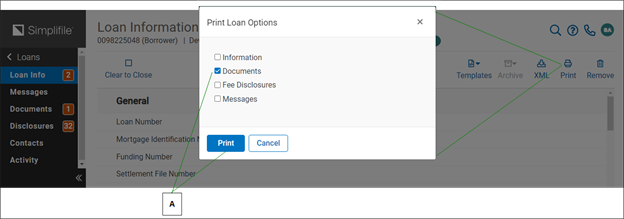
| Letter | Description |
|---|---|
| A | Select the Print button on the Loan Information page. In the window that opens, mark Documents and select the Print button. |
If you choose to save the documents, all documents are gathered into a zipped folder. The system saves each document in the zipped file as a separate document.
If you choose to open the zipped folder, the contents display in your computer’s file management system. Below is an example of how Windows displays the zipped files.
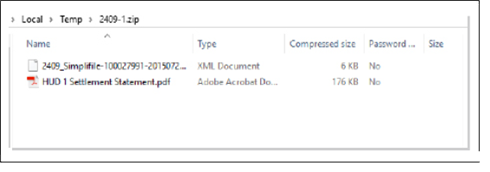
You can also view and save documents from the Documents page. You may also be able to view the document without downloading it first.
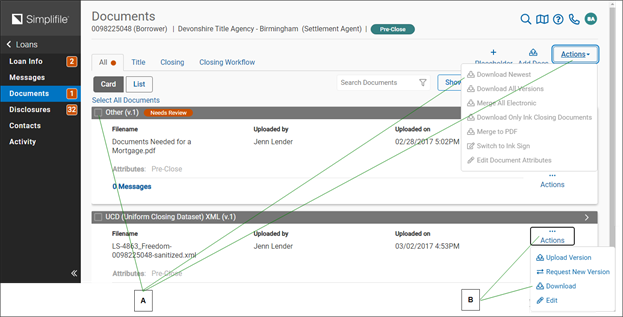
| Letter | Description |
|---|---|
| A | To download multiple documents into a zipped folder, mark the boxes of the documents you want to download. Then select the Actions dropdown button above the list of documents and choose what you want to download. You can also choose to merge all the documents into a single PDF. |
| B | Select the Actions dropdown button on a document card and use the icons that display to open and save a document (Download), add a different version of the document (Upload Version), or remove a document from the loan (Delete). If the View icon displays, select it to open the document in a separate tab. |
How to view, save, or print loan documents
QUICK TIP: If an eye icon ( ) displays, select the icon to view the document in a separate browser tab.
From the Loan Information page
- Open the Loan Information page.
- In the upper right corner, select the Print button.
- In the Print options window, mark Documents.
- Select the Print button .
Simplifile downloads all of the documents for this loan into a zipped folder.
- Follow your browser’s method to save the zipped folder.
- Find the zipped folder and extract the files.
QUICK TIP: Select the trash can icon on a document card to remove that document from Simplifile. You can remove only documents you have uploaded.
From the Documents page
QUICK TIP: If you have documents that must be eRecorded or that must be ink signed and/or notarized, you can select the Actions dropdown button and choose to download the most current versions of all electronic or all ink required documents.
- Open the Documents page. If necessary in the left navigation menu, select the Documents button.
QUICK TIP: If you have documents that must be eRecorded or that must be ink signed and/or notarized, you can select the Actions
dropdown button and choose to download the most current versions of all electronic or all ink required documents. - To view, save, or print a single document, select the Actions dropdown button on the document card. Then use the icons in the dropdown list to do any of the following, as available:
- Select the Download item to open or save the document.
- Select the Upload Version item to upload the document.
- Select the View
 item to open the document in a separate browser tab.
 - Use the Delete
 item to remove the document from the loan.
- To view, save or print multiple documents, do the following:
- Mark the box in the left corner of the document card of each document you want to access.
- Select the Actions dropdown button at the top right of the page, above the document cards.
- To download only the newest versions of the documents you marked, select the Download Newest
 item.
item. - To download all versions of the documents you marked, select the Download All Versions
 item.
item.
- Follow your browser’s method to open or save the files.
- Find the zipped folder and extract the files.
Re‑opening a document for collaboration
Re‑opening a document for collaboration
After both you and the lender acknowledge a document, collaboration on that document is typically complete. However, you or the lender can re‑initiate the collaborative process on that document, if needed.
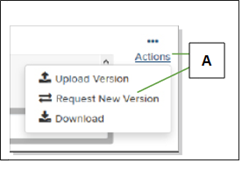
| Letter | Description |
|---|---|
| A | Use the Actions tools to request a new version of an acknowledged document. |
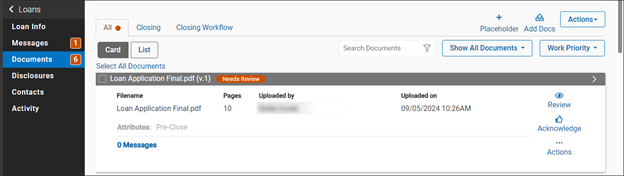
The system sends a message to the lender explaining the re‑opening. When you or the lender accesses the loan, the left navigation menu indicates that action is required in the Documents section of the loan.
How to re‑open a document for collaboration
- If necessary, access the Loan Information page for the loan whose document you want to re‑open for collaboration. For more information, see Find a loan.
- In the navigation menu, select the Documents item.
- On the card for the document you want to re‑ open for collaboration, select the Actions item on the upper right corner.
- Select the Request New Version item.
- Add a reason for the request.
- To require the collaborator to acknowledge the request, mark Require Acknowledgment.
- Select the Send
 button.
The collaborator can choose to upload a new version of the document, revert to the original version, or clear the request. For more information on reverting, see Reverting to a previous version of a document.
- Continue with collaboration as you would for any other document.