Review, change, save, or print basic loan information
 Overview
Overview
To review or update general information about a loan, select the card header or the number of the loan on either the card view or the list view. This opens the Loan Information page. The navigation menu changes to give you options for adding documents and reviewing information about the loan. Below is a partial example.
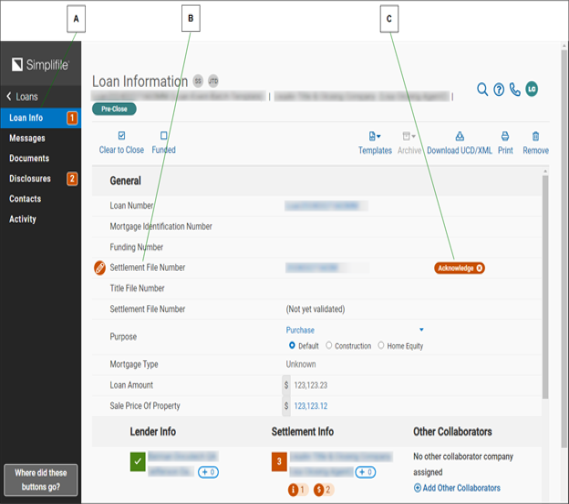
| Letter | Description |
|---|---|
| A | Use these links to work with the loan. For more information, see other sections of this user guide. |
| B | The agent must supply a file number before you can collaborate on this loan. You cannot edit this number. |
| C | Changes the agent makes that you must accept are marked Acknowledge. The number of these items may display in the navigation menu. |
You may need to acknowledge or edit information the agent provides on the Loan Information page. For example, you may need to acknowledge that a loan needs original paper documents returned if recorded.
If a number displays in an orange box in the navigation menu beside a page name, that many items need your attention on that page of the loan record. Items on the Loan Information page that need your attention are identified with an Acknowledge button. Items you can edit are marked with an edit icon ( ).
).
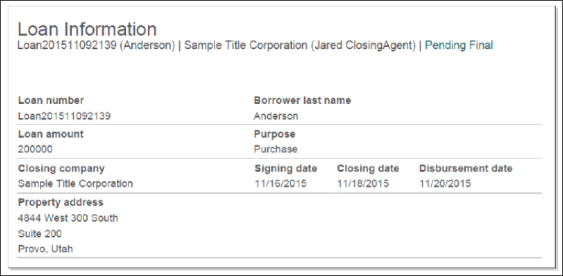
You can save or print a copy of the information that displays on the Loan Information page. Below is an example of the way this information prints.
How to review, change, save, or print loan information
How to review, change, save, or print loan information
- Find the loan whose information you want to review, save or print. For more information, see Find a loan.
- Select the card header or the loan number to display the Loan Information page.
- If desired, acknowledge or edit any changes made by your collaborator.
- In the upper right corner, select the Print button.
- In the Print options window, mark Information.
- Select the Print button.