Communicate with lenders
 Overview
Overview
You and the lender can use the Messages feature to communicate within Simplifile. You can work with messages in the following ways:
-
Create and view messages about individual fee items on the Disclosures page. If a message exists, bubble with a number
 button displays. The number indicates how many messages you have. Select the icon to display the messages.
To add a message to a fee, select the Menu
 (ellipsis) button at the end of the line and choose Chat About This Fee to open the message box.
 - On the Documents page, select the Messages link at the bottom of a document card to create and view messages about individual documents.
- Create and view messages about a specific document, placeholder, or document version on the document Messages page accessed from the left navigation menu after you select a document card header.
- Create and view general messages on the Messages page accessed from the left navigation menu when a document page is not open. All loan‑related messages, including those that are created and display on other Simplifile pages (as described above), display on the main Messages page. An example displays on the next page.
In some places, multiple messages scroll up and older messages are hidden. You can use the elevator bar to view these messages.
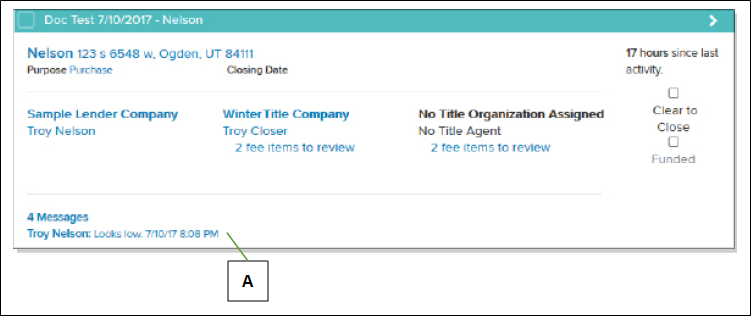
Below is an example of the messages area on a Pre‑Close loan card.
| Letter | Description |
|---|---|
| A | The most recent message displays, along with the name of the person who posted the message and a count of the number of messages relating to this loan. Select the link to view the Messages page (below). |
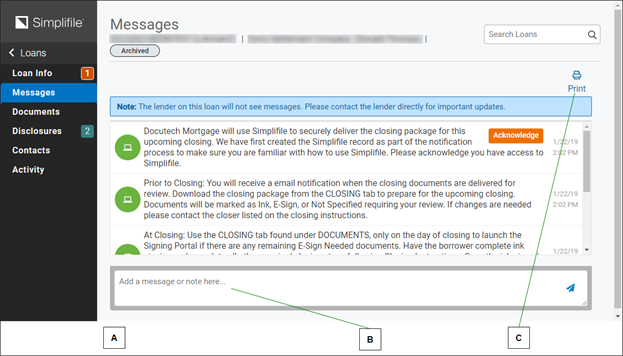
Select the messages link in a loan’s card view or a loan’s Messages link in the left navigation menu to view all of the messages for a specific loan. Below is an example of the Messages page.
| Letter | Description |
|---|---|
| A | On the Messages page, if there are blue links with the name of the fee type or document displays for fee‑ or document‑related messages. If you select a name, the appropriate loan page opens (such as Disclosures or Documents) and displays the message box. |
| B | Select here to add a message. Mark the box to require your collaborator to acknowledge they read the message. |
| C | Select here to print messages, as well as loan information, documents, and fee disclosures. |
You can select a fee name to respond to a fee message. Simplifile opens the Disclosures page and expands the section where the fee is located as well as the message box for the fee. You can then quickly send a reply.
Similarly, you can select a document name to respond to a document message. Simplifile opens the Document page. Select the Messages item in the document’s left navigation menu to access all of the document’s messages and send a reply.
The Messages page shows whether a message has been acknowledged, requires acknowledgment from you, or is pending acknowledgment from your collaborator.
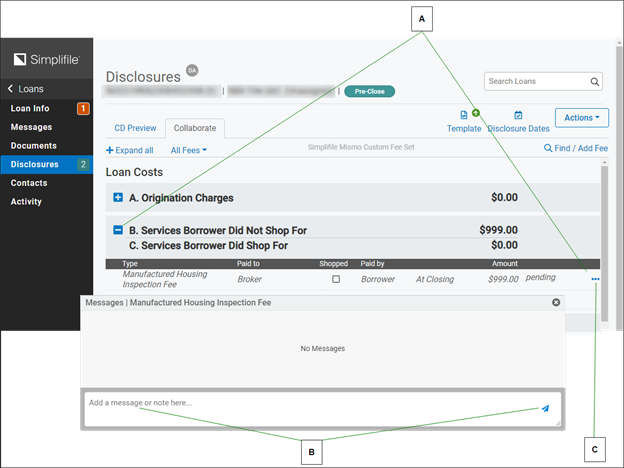
You can send messages to the lender from the Disclosures page. A numbered text balloon icon  displays if messages exist about a fee. Below is an example of the page.
| Letter | Description |
|---|---|
| A | You must expand the fee item sections to find the text balloons that contain numbers. This lets you see where the messages are, and how many you have for each fee item. |
| B | To create a new message string or respond to an existing message, select the Menu (ellipsis) button at the end of the fee line, choose Chat About This Fee, and enter your message. You can also select an existing text balloon. Require an acknowledgment, if desired. Select the Add button to send the message. |
| C | To read existing messages and respond, select the Menu (ellipsis) button and choose Chat about this Fee. |
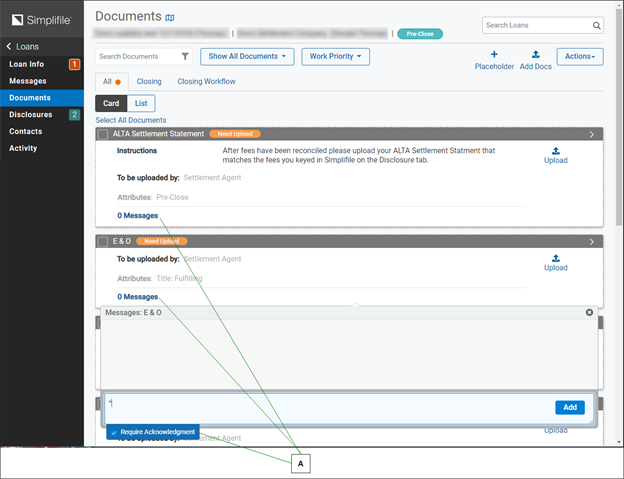
You can send messages from the Documents page about any document. Below is an example of the page.
| Letter | Description |
|---|---|
| A | Select the number of messages at the bottom of any document card to send a message about that document. Require an acknowledgment, if desired. Select the Add button to send the message. |
How to communicate with a lender
How to communicate with a lender
- Find the loan card whose lender you want to message. For more information, see Find a loan.
- On the loan card, view the message summary area.
- Do one of the following to display the Messages page:
- Select the message summary area.
- Select the loan header to open the Loan Information page. Then select the Messages item on the left navigation menu.
- To send a message, do the following:
- Add the text of the message in the Add message or note here field.
- If you want the lender to acknowledge that he or she saw the message, mark Require Acknowledgment.
- Select the Add button to send the message.
- To review or send messages about a fee, do the following:
- Open the loan with the fee you want to discuss.
- On the left navigation menu, select the Disclosures item.
- If necessary, expand the list of fees so you can find the one you want. You can select Expand all button at the top of the page or select a plus sign to expand a single section.
- Select bubble with a number button to review or create a message for a fee. If no balloon displays, select the Menu (ellipsis) button and choose Chat About This Fee.
- In the Add a message or note here box at the bottom of the message box, add the text of the message you want to send.
- To send the message, select the Add button.
- To review or send messages about a document, do the following:
- Open the loan with the document you want to discuss.
- On the left navigation menu, select the Documents item.
- Select the Messages link at the bottom of the document card you want to discuss.
- Enter the text of the message in the Add a message or note here field for the document.
- To send the message, select the Add button.