Document Builder setup tasks
 Document Builder configuration
Document Builder configuration
You can make some basic setup choices for each organization you are affiliated with that has a Document Builder license.
For information, see the Document Builder Configuration page topic.
Print driver setup
Print driver setup
Overview
If you submit documents to counties that do not eRecord, Simplifile can send those documents directly to the printer after they are prepared for submission. You must set up the Simplifile print driver if you want to use this functionality.
IMPORTANT: For the Print to Simplifile module to be displayed, the Third‑party Documents service must be enabled by Simplifile and the Third‑party Document User role must be added.
Signer and notary role assignment
Signer and notary role assignment
Overview
You need to assign the appropriate roles to any people at your organization who will use the Document Builder. Available roles include the following:
- Signer. Lets the person electronically sign packages when they are ready to be sent for recording. The signer can also generate and sign copy certifications.
- Notary Signer. Performs the same tasks as the signer, but can also add his or her notary credentials to the package.
- Printer. Lets the person access the print queue, which can contain recorded releases along with a borrower letter, or documents that were signed but will not be recorded.
- Reviewer. Reviews documents to verify they are ready to be sent for recording.
- Signing Administrator. Manages signing processes, including queue management and document review.
- Third Party Document User. Adds documents from third party document providers to be signed in Simplifile.
Assign roles
Assign roles
- In the left navigation menu, select the Organizations item.
- On the Organizations page, select the name of the organization for which you want to assign roles.
- On the left navigation menu, select ASSIGNMENTS.
- To assign a single person to be a notary or signer, select the plus sign to the right of the person’s name.
- To assign multiple users at once, mark the boxes at the left of the names. Then select Actions at the upper right of the table and choose Add Role Assignment.
- In the Filter roles column, find the Document Builder section.
- Mark the roles you want to assign.
- Select the Assign Role button.
Signer management
Signer management
Overview
Administrators use the Manage Documents page to assign documents to signers or notaries. This can help if you have multiple signers and one signer’s load is larger than another, or if a signer takes a leave from work for any reason. You can choose the columns that display in the assignments table.
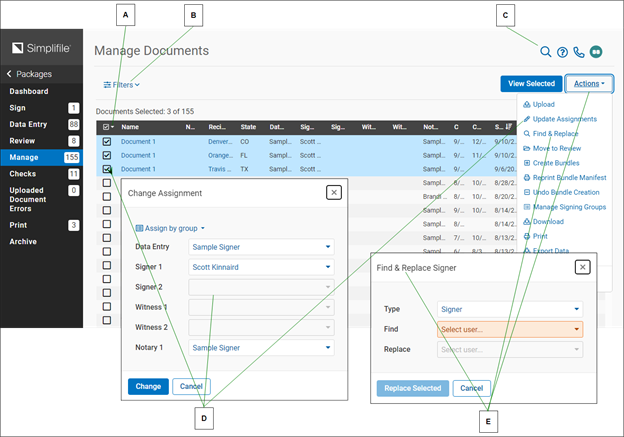
| Letter | Description |
|---|---|
| A | If an arrow displays beside a document name, select it to display or hide documents currently in the signing list for that county (or jurisdiction). |
| B | Select the Filters dropdown button and use the dropdown lists to limit the documents that display. |
| C | Use this field to search for the documents you want. |
| D | If all documents in a queue have been signed, the signer’s name displays in green. |
| E | Mark boxes in the first column of the table and choose Actions > Update Assignments to change assignments for the marked items. Changing a package assignment changes the assignment for all documents in the package. |
| F | Choose Actions > Find & Replace to change a notary or signer. |
Manage signers
Manage signers
- Use the Search field to find a name, county, or organization.
- Choose Actions > Customize Columns to choose the columns that display in the table.
- Open the Manage Documents page.
- If necessary, select the Select an organization item and choose whose signers you want to manage.
- If desired, select the Filters dropdown button and use the dropdown lists to limit the information that displays in the table.
- To change signers for a single item, select the edit
icon For that item. Then use the dropdown list
for the assignments you want to change to choose
the person who should be assigned to the marked
documents and select the Change
 button.
 - To change signers for multiple items, mark the boxes of the items you want to change. Then do one of the following:
- To find and change a signer or notary assigned to marked items, do the following:
- Select the Actions
 dropdown button and select the Find & Replace item.
 - In the Find & Replace window, select the user Type you want to replace.
- Use the Find dropdown list to choose the person you no longer want assigned to the items.
- Use the Replace dropdown list to choose the person you want to assign to the items.
- Select the Replace All button.
- Select the Actions
- To change one or more signer assignments for the items you marked at the same time, do the following:
- Select the Actions dropdown button and select the Update Assignments item.
- From the dropdown lists for the assignments you want to change, select the person who should be assigned to the marked documents.
- Select the Change item.
- Select the Actions
- To find and change a signer or notary assigned to marked items, do the following:
Signing groups
Signing groups
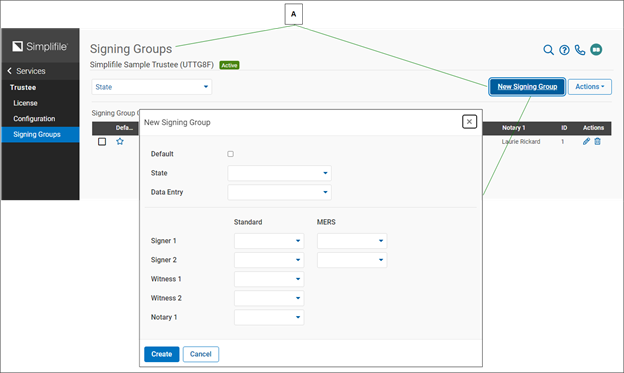
The Simplifile Document Builder lets you create signing groups that can help speed up your workflow. A signing group can automatically assign specified signers, witnesses, and notaries to a document. The participants provided depend on whether you specify the state where the document will be recorded, or the person who should complete data entry for a document. You can also create a default signing group that will assign participants to all documents that are not assigned to any other signing group.
| Letter | Description |
|---|---|
| A | Select here and choose the Signing Groups option. Then select New Signing Group and add the information you want the system to use for documents assigned to this signing group. |
| Letter | Description |
|---|---|
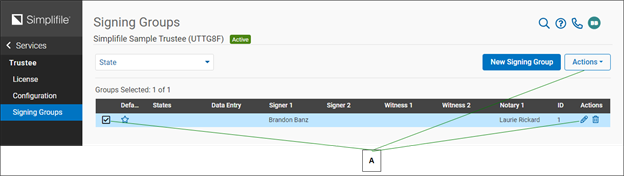
| A | You can edit a signing group at any time. You can also mark the boxes for signing groups and choose the Actions dropdown list to update assignments. |
Folder setup
Folder setup
You can set up folders to help you organize documents that are ready for signatures. For example, you could set up a folder for each signer and notary, or folders that separate signers and notaries into two groups. You could also set up a folder for each recording county (or jurisdiction) where you submit documents.
Reviewers can move documents to a folder after they review a document.
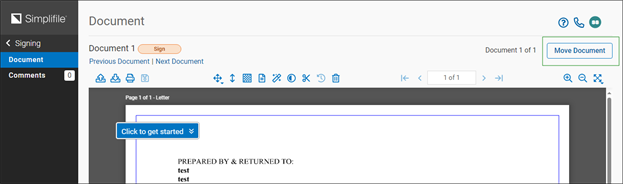
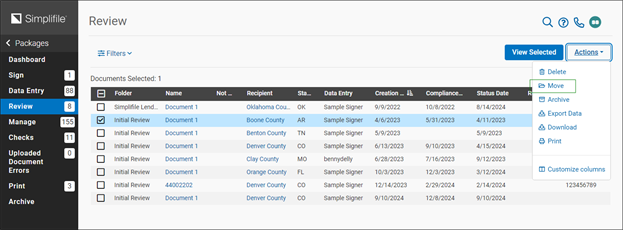
For information, see the Review page topic Set up folders task.