Manage Documents page
 Overview
Overview
- Document Builder (service)
- Signing Admin (role)
- Signer
I want to ...
I want to ...
Open the Manage Documents page
Open the Manage Documents page
- In the navigation menu, select the Signing item. The Dashboard page opens in the right panel and the navigation menu changes to display signing specific items with the Manage item selected.
- In the navigation menu, select the Manage item. The Manage List page opens in the right panel.
Manage signers
Manage signers
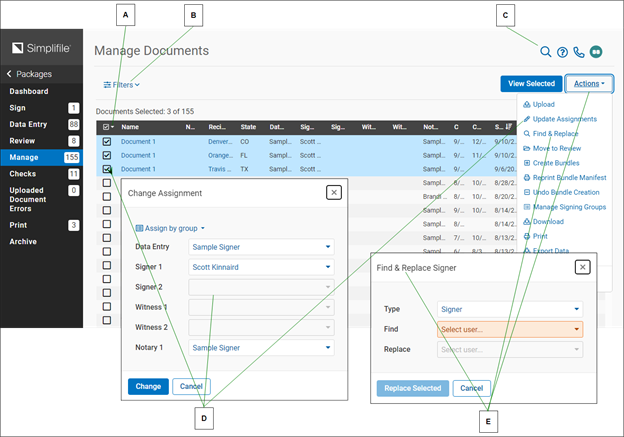
Administrators can assign documents to signers or notaries. This can help if you have multiple signers and one signer’s load is larger than another, or if a signer takes a leave from work for any reason. You can choose the columns that display in the assignments table.
| Letter | Description |
|---|---|
| A | If an arrow displays beside a name in the Recipient column, select it to display or hide documents currently in the signing list for that county (or jurisdiction). |
| B | Select the Filters dropdown button and use the dropdown lists to limit the documents that display. |
| C | Use this field to search for the documents you want. |
| D | If all documents in a queue have been signed, the signer’s name displays in green. |
| E | Mark boxes in the first column of the table and choose Actions > Update Assignments to change assignments for the marked items. Changing a package assignment changes the assignment for all documents in the package. |
|
F |
Choose Actions > Find & Replace to change a notary or signer. |
Use the Search field to find a name, county, or organization.
Choose Actions > Customize Columns to choose the columns that display in the table.
- Open the Manage Documents page.
- If desired, select the Filters dropdown button and use the dropdown lists to limit the information that displays in the table.
- To change signers for a single item, select the edit
icon For that item. Then use the dropdown list
for the assignments you want to change to choose
the person who should be assigned to the marked
documents and select the Change
 button.
 - To change signers for multiple items, mark the boxes of the items you want to change. Then do one of the following:
- To find and change a signer or notary assigned to marked items, do the following:
- Select the Actions
 dropdown button and select the Find & Replace item.
 - In the Find & Replace window, select the user Type you want to replace.
- Use the Find dropdown list to choose the person you no longer want assigned to the items.
- Use the Replace dropdown list to choose the person you want to assign to the items.
- Select the Replace All item.
- Select the Actions
- To change one or more signer assignments for the items you marked at the same time, do the following:
- Select the Actions dropdown button and select the Update Assignments items.
- From the dropdown lists for the assignments you want to change, choose the person who should be assigned to the marked documents.
- Select the Change item.
- Select the Actions
- To find and change a signer or notary assigned to marked items, do the following:
Mark a box to mark and change all the documents listed under that county (or jurisdiction).
Select an arrow ( ) beside a county (or jurisdiction) in the Recipient column to display
all documents for that county (or jurisdiction) and mark only
the boxes for documents you want to change.
) beside a county (or jurisdiction) in the Recipient column to display
all documents for that county (or jurisdiction) and mark only
the boxes for documents you want to change.