User account management (for administrators)
 Overview
Overview
Each person at your organization who will work with Simplifile needs to have his or her own user account in Simplifile. This lets multiple people log in to work in Simplifile at the same time without duplicating each others efforts. Separate accounts also let Simplifile log who performs which actions. You can add accounts to Simplifile, and assign roles to each user.
A user may forget his or her password. You can send a password reset notice to such a user so that Simplifile access can be restored. You can also unlock a user account if someone tries unsuccessfully to log in too many times and loses access to Simplifile.
Creating and editing user accounts
Creating and editing user accounts
When you add a user to Simplifile, you assign one or more roles to that person. Roles determine who can use specific features of Simplifile, and help the system identify who performs specific actions in Simplifile. This helps with auditing because the Simplifile system logs the actions each person takes.
The roles you can assign to eRecording users may include the following attributes:
- View Only. People with this designation can see documents but cannot work with them.
- User. People with this designation can prepare packages and documents. They can also submit packages to recording jurisdictions and run reports.
- Non‑Submitting. People with this designation can work with packages and documents but cannot submit them.
- Administrator. People with this designation can prepare packages and documents, submit packages, and perform tasks such as creating user accounts and running reports.
Administrators with the necessary permissions can add additional roles, as needed. For help adding roles, talk to your Simplifile representative. For more information about using roles, see Organizations and user roles (for users).
If necessary, you can edit existing Simplifile user contact information. However, only the user can change his or her password.
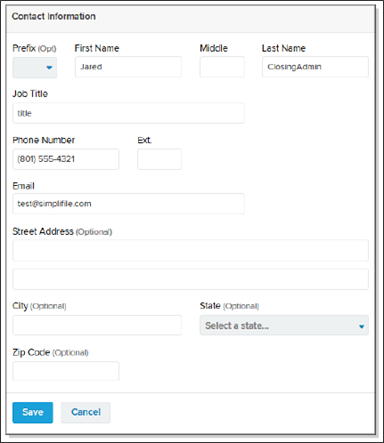
How to create and edit user accounts
To add new user accounts:
- Do one of the following:
- To add user accounts to multiple organizations at the same time, In the navigation menu, select the Users item.
- If you have an email program on your computer, you can select a person’s email address to send an email message to that person.
- Select the Add User
 button.
 - If necessary, choose the organizations where you want to add the person.
-
Enter the email address of the person you want to add.
To add more than one user with the same roles to the same organization, mark Add multiple users.
- In the Email Address field, enter as many email addresses as needed. Separate email addresses with commas. You can drag the corner of the box to make it larger, if necessary.
- Mark at least one role. If you are adding users to multiple organizations, the system displays only roles that the organizations have in common.
- If you are adding only one person, you can select the Next
 button and add the person’s details.
 - Select the Finish button.
To make changes in an existing user record:
- In the navigation menu, select the Users item.
- Select the Menu
 (ellipsis) button at the right of the person’s information and choose Edit User.
 - Hover your mouse over the displayed information and select the Edit button.
- Change the fields as necessary.
- Select the Save
 button.
Sending a password reset notification
Sending a password reset notification
You can set up password security. Simplifile users must change their own passwords. However, if necessary, you can send someone a reset notice. This can be helpful if someone is locked out of his or her account.
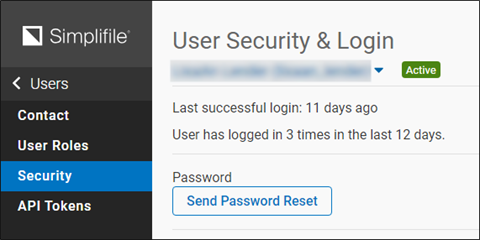
How to send a password reset notice
QUICK TIP: People can change their own security information by scrolling to the bottom of the left navigation menu and selecting their name, and then selecting the Change Password button in the Personal Application Settings section of the My Settings page. If you have set up security and support questions, people can also change their answers from the My Settings page.
- In the navigation menu, select the Users item.
- Find the name of the person who needs a password reset notice.
- Do one of the following:
- Select the Menu (ellipsis) button at the end of the row and choose Security from the dropdown list that displays.
- Select the name of the person. Then, in the navigation menu, select the Security item.
- Select the Menu
- Select the Send Password Reset button.
Unlocking a locked user account
Unlocking a locked user account
If someone makes too many unsuccessful login attempts, the account is locked. The person can no longer log in. Organization administrators can unlock a locked user account.
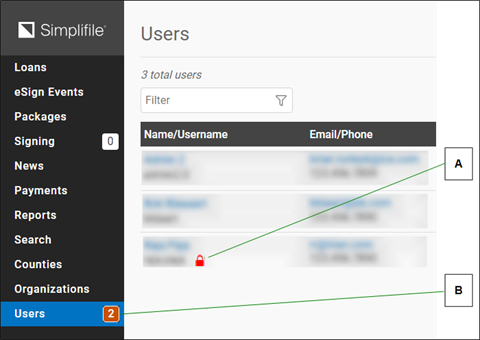
| Letter | Description |
|---|---|
| A | Select the lock beside the name of the locked account to unlock the account. |
| B | Administrators can see the number of locked accounts in the left navigation menu. |
How to unlock a locked user account
- In the navigation menu, select the Users item.
- Select the name of the person who needs his or her account unlocked. A locked account is indicated by a red padlock icon.
- Select the padlock icon to immediately unlock the account.