Example reports for Submitters
 Overview
Overview
This section includes descriptions and examples of the following Simplifile reports you can run from the Reports page:
- Accounting Download Report
- Banking Detail Report
- Banking Export Report
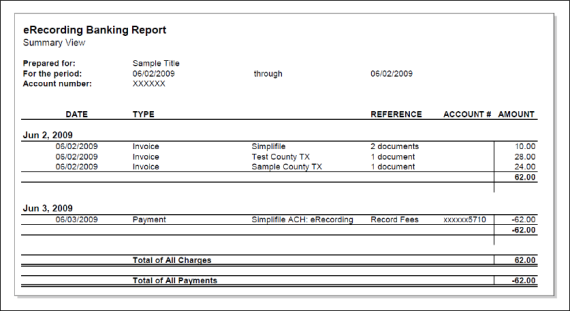
- Banking Report ‑ Summary View
- Fee Detail Export Report
- Package Status Report
- Pending Transactions Report
- Recording Report
- Rejection Analysis Report
- Rejection Analysis (by Package) Report
- Rejection Analysis (by User) Report
- Transaction Report
- User Activity Report
- User Status Report
If you have the eSign Service, you can run the following reports:
- Signing Notary
- Signing and Notary Statistics Report
- Signing Notary by Doc ID Report
- Signing Rejection Report
Simplifile also offers the following recorded document reports:
Report types
Report types
Accounting Download Report
Accounting Download Report
This report details Automatic Clearing House (ACH) payments. It is useful if you belong to several organizations (identified by cost center). The report displays the following information:
| Unique ACH number | Date of transaction |
| Bank date | Escrow file number |
| Amount | Cost center |
| Bank number | Comments |
| ACH total | Payee name |
Below is an example of the Accounting Download report.

Banking Detail Report
Banking Detail Report
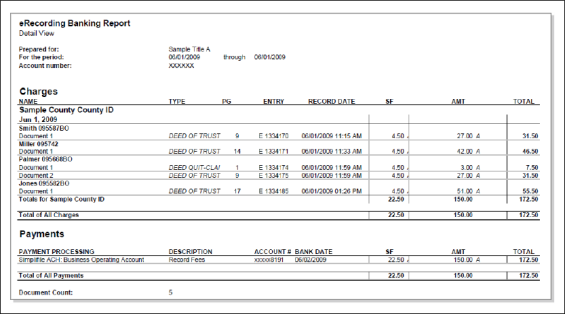
For each eRecording account for a specified date range, this report displays details about transactions that have been processed (cleared). It includes recording and license fees, bank returns, and resubmission fees. Individual charges are grouped for processing.
The Payments section of this report shows when and where payments have been made. If Simplifile credits or debits money from your account using ACH, the report displays the deposit date and bank account of the transfer. Items that have not been processed will display on the Pending Transactions Report.
Below is an example of the Banking Detail report.
Banking Export Report
Banking Export Report
This report is the same as the Banking Report that Simplifile runs each evening. It displays a simple view of banking transactions. In general, use this report to import information into another system. The CSV format works well for this report.
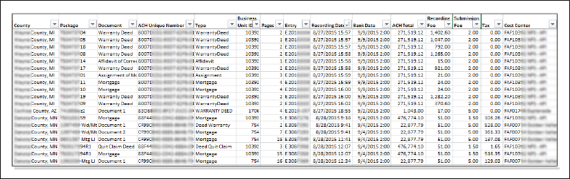
Some of the information you can export includes following:
- Who requested the recording
- The county where the information was sent
- The package name
- The type of document in the package
- How many pages the document includes
- The entry number
- The date and time the item was recorded
- The recording and submission fees
The report lets you export the following information, which you can import into a different system. The CSV format works well for this report.
Talk to your Simplifile account manager for information about additional content and formatting you may be able to include on this report.
Below is a partial example of the Banking Export report.
You can choose to display sales tax on this report.
 Fee Detail Export Report
Fee Detail Export Report
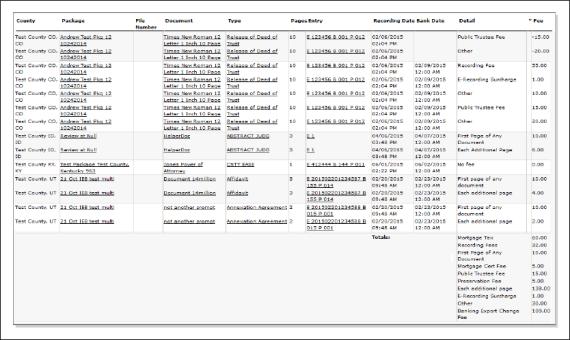
This report shows details for all fees associated with a document. The report includes the following information:
- Name of the recording county (or jurisdiction)
- Package name (select to display the Package Details page)
- File or loan number, if any
- Document name and type (select the name or the type to display the document in the document editor)
- Number of pages
- Entry number (select to display the Document History page)
- Recording date
- Bank date
- Details
- Fee amount
Below is a partial example of the Fee Detail report.
Package Status Report
Package Status Report
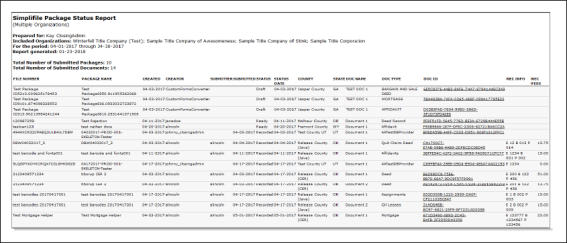
This report lets you view the status of all packages for a date range you choose. It displays the total number of submitted packages and the total number of submitted documents, as well as the following additional information:
- Package ID number and name
- Date the package was created, and by whom
- Person who submitted the report, and the date submitted
- Status of each package, and date that status took effect
- County and state where the package was submitted
- Name and type of each document in the package
- Document ID for each document (select to display the document in the document editor)
- For recorded documents, the recording information and dollar amount of fees charged
Below is a partial example.
Pending Transactions Report
Pending Transactions Report
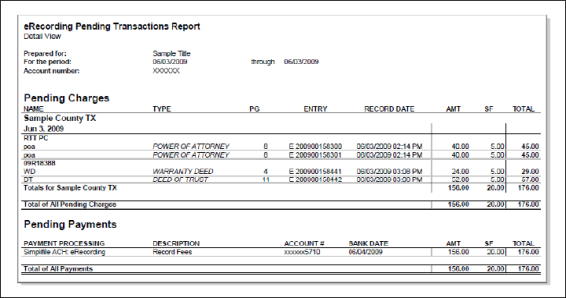
This report lists documents that have been recorded but whose payments have not been processed. It also lists estimated charges for any items that have been sent to a recording county (or jurisdiction) but which have not yet been recorded.
Items on this list become part of the Recording Report after you make and record payment. This is helpful if you need to reconcile before Simplifile’s workday ends.
Displayed information includes the following:
- Name of recording county (or jurisdiction)
- Package name
- Document name
- Type of document
- Number of pages in the document
- Entry number
- Date the document was recorded
- Any fee amounts
- Total amount due
- Submittable name
- Package name
- Name of the document
- Type of document
- Number of pages in the document
- Entry number
- Date the document was recorded
- Amount charged
- Total amount due
The bottom section of the report displays bank transfer information. Below is an example of the Pending Transactions report.
Recording Report
Recording Report
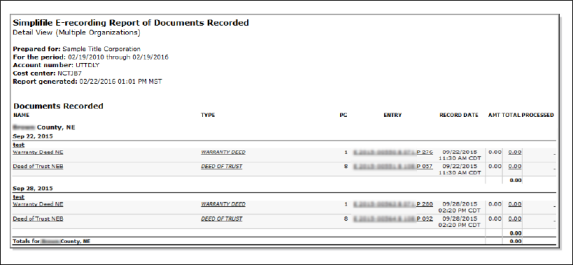
For each county where you submit documents for eRecording, this report shows information about the documents that were recorded within your specified date range. The report includes the following:
this report shows information about the documents that were recorded within your specified date range. The report includes the following:
- The package names (select to display the Package Details page)
- The document names (select to display a document in the document editor)
- The type of each document (select to display a document in the document editor)
- The number of pages in each document
- The entry number (select to display the document history, from which you can print a transaction report (see Transaction Report)
- The date the document was recorded
- Any fees charged for each document
- The processing date
The bottom section of the report displays a summary of recording fee totals for each recording county (or jurisdiction).
Below is a partial example of the Recording report.
Rejection Analysis Report
Rejection Analysis Report
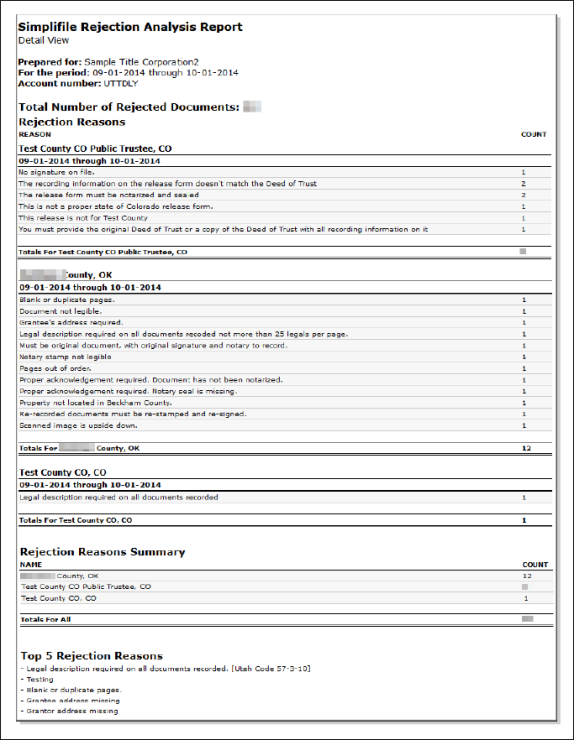
This report shows details about rejected documents for a time period you specify. It lists the recording jurisdictions that rejected documents, how many of each type of rejection were received, and the top five rejection reasons.
Below is an example of the Rejection Analysis report.
Rejection Analysis (by Package) Report
Rejection Analysis (by Package) Report
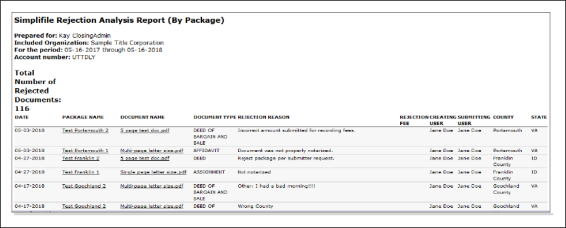
This report displays information about packages that contain rejected documents. For each rejected document, the reports shows the following:
- Date of rejection
- Name of the package containing the rejected document (select to display the Package Details page)
- Name of the rejected document (select to open the document in the document editor or viewer)
- Type of the rejected document
- Reason for rejection
- Any applicable rejection fee
- Name of person who submitted the package
- County and state where the package was submitted
Below is an example of a Rejection Analysis Report by Package report.
Rejection Analysis (by User) Report
Rejection Analysis (by User) Report
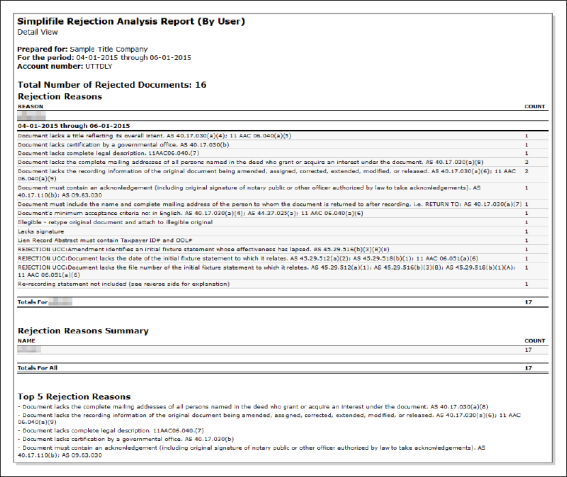
Like the main Rejection Analysis report, this report shows details about rejected documents for a time period you specify. However, this report groups rejected documents by the persons who submitted them. The report lists how many of each type of rejection were received, and the top five rejection reasons.
Below is an example of the Rejection Analysis by User report.
Transaction Report
Transaction Report
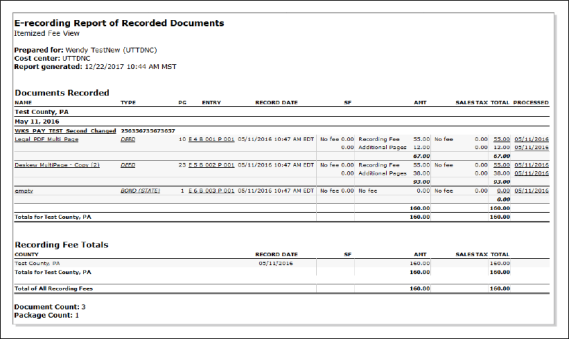
This report, also called the eRecording Report of Recorded Documents, is accessed from the Package History page. It gives a view of itemized fees charged for a specific recorded document. It displays the following information:
- The name of the
- The document name, type, and number of pages
- The document’s entry number and recording date
- The fees charged, itemized and totaled
- The date the fees were processed
The bottom section of the report displays the recording fee totals for the recording county (or jurisdiction), itemized and totaled. Document and package counts also display.
Below is an example of the Transaction report.
User Activity Report
User Activity Report
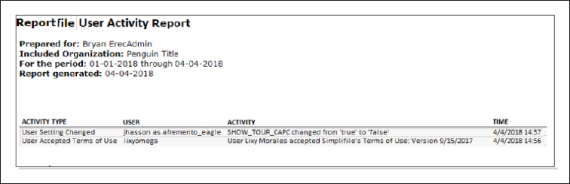
This report lets you display activity history items for organizations you choose. You specify the document and package activities you want in the report.
The report includes the name of the user who performed the activity and for which organization, and the name, description, and time of the activity. Below is an example of the report.
User Status Report
User Status Report
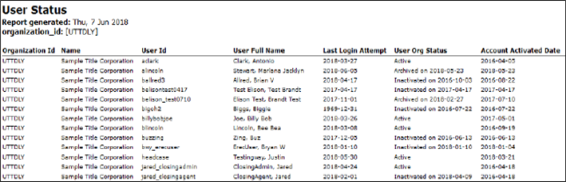
This report shows a list of all users in the organization you specify. It includes the following:
- The date the report was generated
- The ID and name of the organization you specify
- The user ID and name of every user at the organization
- The last time each user tried to log in to Simplifile
- The current status of each user account at the specified organization, including the date the account was archived or made inactive, if applicable
- The date the user’s account was activated
Below is an example of the User Status report.
eSign service reports
eSign service reports
If your organization has the eSign service installed and you have the signing administrator role, you can run several reports that give information about signing statistics.
Signing Notary
Signing Notary
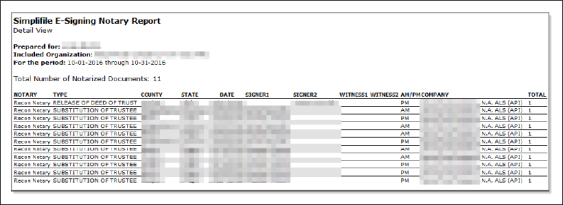
This report gives information about the documents that someone at your organization has notarized. In addition to the total number of documents notarized for the time period you specify, the report shows the following:
- The notary that performed each notarization
- The type of document notarized
- The county and state for which the document was notarized
- The date of the notarization
- The signers and witnesses
- Whether the notarization was performed in the morning or afternoon
- The company that performed the notarization
- The number of occurrences of each notarization
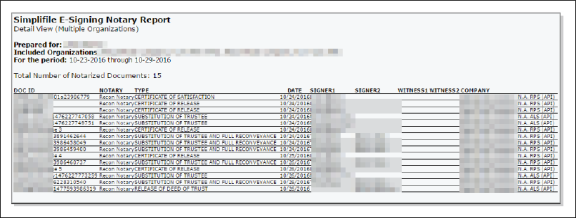
Below is an example of the Signing Notary report.
Signing and Notary Statistics Report
Signing and Notary Statistics Report
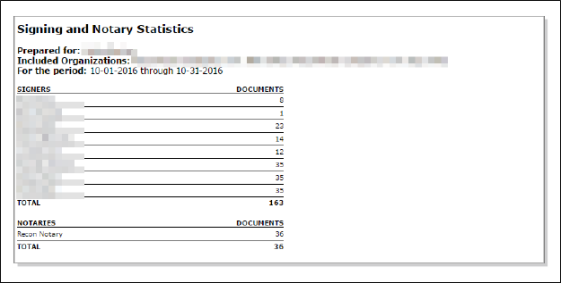
This report displays the signers and notaries who have verified documents at your organization. It gives each signer’s name and the number of documents each signed, as well as the total number of signed documents. The report also gives each notary’s name and the number of documents each notarized, as well as the total number of signed documents.
Below is an example of the Signing and Notary Statistics report.
Signing Notary by Doc ID Report
Signing Notary by Doc ID Report
This report gives the same information about notarized documents as the Signing Notary report, with the addition of the document ID. In addition to the total number of documents notarized for the time period you specify, the report shows the following:
- The document ID
- The notary that performed each notarization
- The type of document notarized
- The county and state for which the document was notarized
- The date of the notarization
- The signers and witnesses
- Whether the notarization was performed in the morning or afternoon
- The company that performed the notarization
- The number of occurrences of each notarization
Below is an example of the Signing Notary by Doc ID report.
Signing Rejection Report
Signing Rejection Report
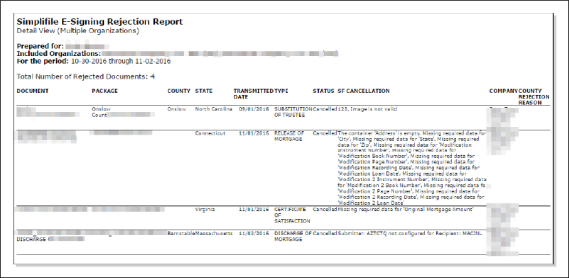
This report lets you view information about any documents a recording county (or jurisdiction) has rejected. In addition to the total number of rejected documents for the time period you specify, this report displays the following:
- The name of each rejected document
- The package that contains the rejected document
- The county and state that rejected the document
- The date the document was transmitted
- The type of document that was rejected
- The status of the document
- The reason for the rejection as defined in Simplifile
- The company that submitted the document
- The name of the person who rejected the document
- The reason for the rejection as given by the recording county (or jurisdiction)
Below is an example of the Signing Rejection report
Recorded documents
Recorded documents
You choose to include the reports described in this section when you download and print documents from the Package Details page.
Document Fee Report
Document Fee Report
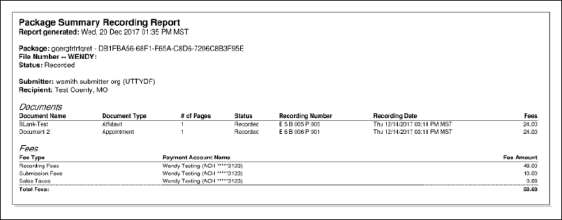
This report is very similar to the Package Fee Report, but runs on a single document if you mark a single document. It includes the following for each document in the package:
- Package name, file number, and status
- Submitter and recipient
- Document name, type, and number of pages
- Record number and date
- Fees for the document
Below is an example of the Document Fee Report.
Package Fee Report
Package Fee Report
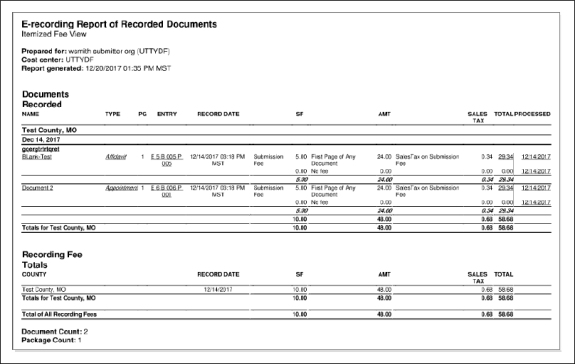
This report is the same report generated from the View Itemized Report link above the Documents table on the Package Details page. It includes the following for each document in the package:
- Document name, type, and number of pages
- Entry number
- Record date
- Itemized and totaled fees
- Processed date
Below is an example.
Package Fee Report (totals by document only) Report
Package Fee Report (totals by document only) Report
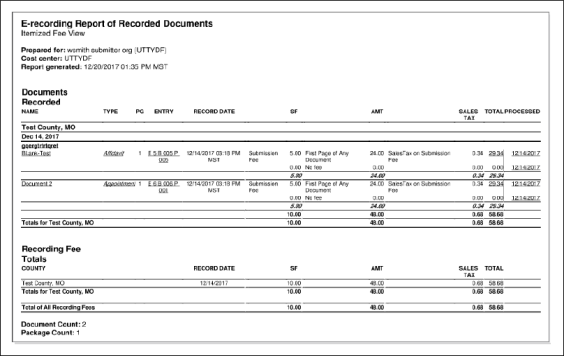
This report presents the information that displays on the Package Details page in a slightly different format. It includes the following for each document in the package:
- Package name, file number, and status
- Submitter and recipient
- Document name, type, and number of pages
- Record number and date
- Fees for the document
- Payment account name
Below is an example of the Package Fee Report.