Simplifile Utilities Setup page
 Overview
Overview
This topic provides information on how to use the Simplifile Utilities Setup page.
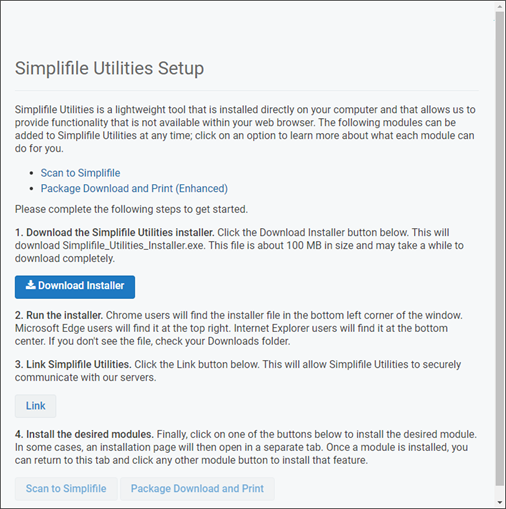
NOTE: When the Simplifile Utilities are installed on the computer, the Simplifile  button is displayed in the computer's taskbar "show hidden icons".
The Scan to Simplifile utility module allows users to send documents directly from their scanner to a Simplifile package without having to scan to a file on their desktop, and then upload the file to the package. It works with most TWAIN‑compatible scanners.
The Package Download and Print utility module provides the ability to download/print all the docs in a package to individual files in a location of their choosing, rather than how the browsers make you do it now ‑ as a single ZIP file in the default downloads folder.
I want to ...
I want to ...
 ) and select the Download and install the Simplifile Utilities
Download and install the Simplifile Utilities
- Open the Simplifile Utilities Setup page.
- Select the Download Installer button. The Simplifile_Utilities.exe is downloaded to the computer's download location.
- Go to the computer's download location and select the Simplifile_Utilities.exe file that was downloaded. The following window opens
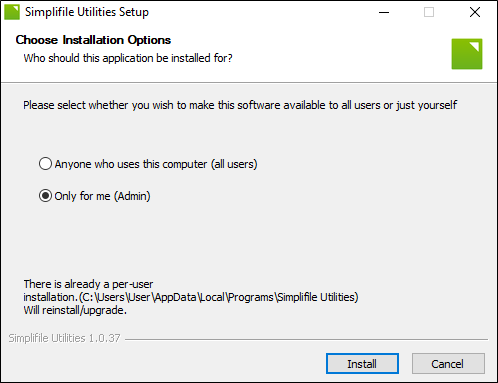
- Choose the wanted option:
- Anyone who uses this computer (all users)
- Only for me (Admin)
- Select the Install button.
- If the Simplifile Utilities Setup window open display "Simplifile Utilities is running. Click OK to close it.", select the OK
 button to close the Simplifile Utilities.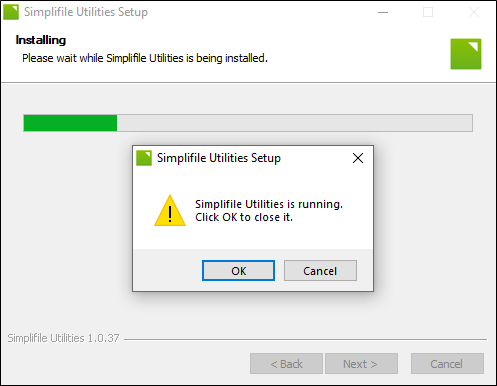
NOTE: The "Simplifile Utilities is running. Select the OK
 button to close it." window only appears when upgrading to a new version of the Simplifile Utilities. It won't appear if this is the first time the Simplifile Utilities are installed.
 - When the Completing Simplifile Utilities Setup is displayed, select the Finish button.
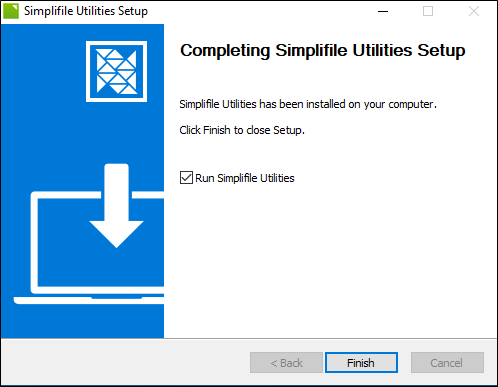
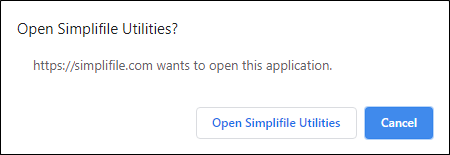
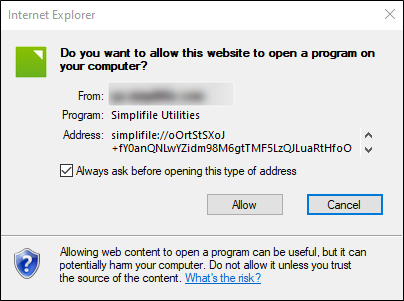
- The Open Simplifile Utilities? window opens.
If you are using Chrome, the window looks like:
If you are using Internet Explorer, the window looks like:
If you are using Edge, the window looks like:
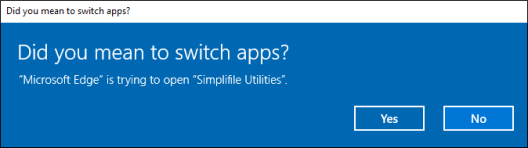
Select the applicable button to open the Simplifile Utilities Setup page.
- In the Simpleminded Utilities Setup page, select the Link button. A spinner appears next to the Link button. When the linking process completes, the spinner goes away and the page displays Linking Successful.
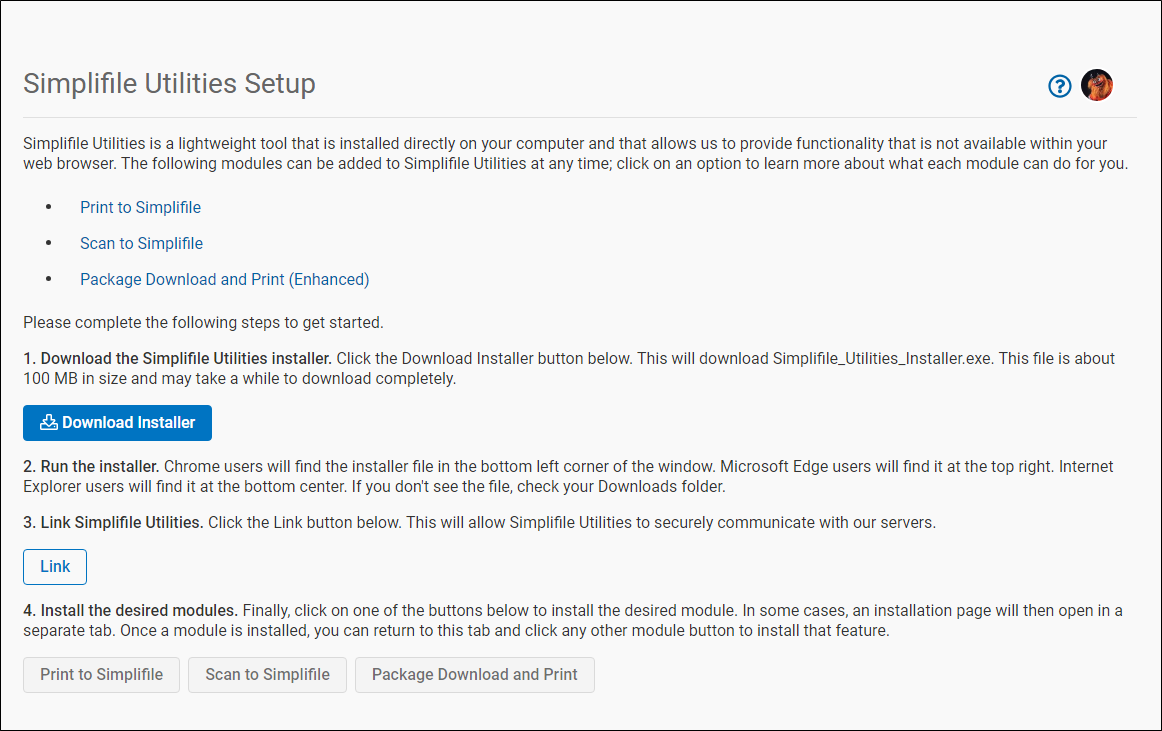
The Simplifile Utilities are now installed and the Simplifile logo (System Utilities) is displayed in the computer's system tray.
When the Simplifile Utilities module is installed, it can be accessed from several windows in the Simplifile user interface.
Install the Scan to Simplifile module
Install the Scan to Simplifile module
- Open Simplifile Utilities Setup page.
- In the Simplifile Utilities Setup page, go to Step 4.
- Select the Scan to Simplifile button.
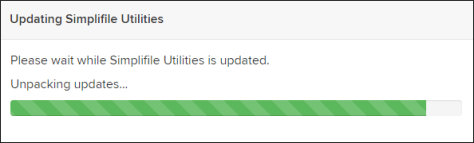
If the Simplifile utilities need to be updated the Updating Simplifile Utilities window opens. It may take a few minutes for the download to complete.
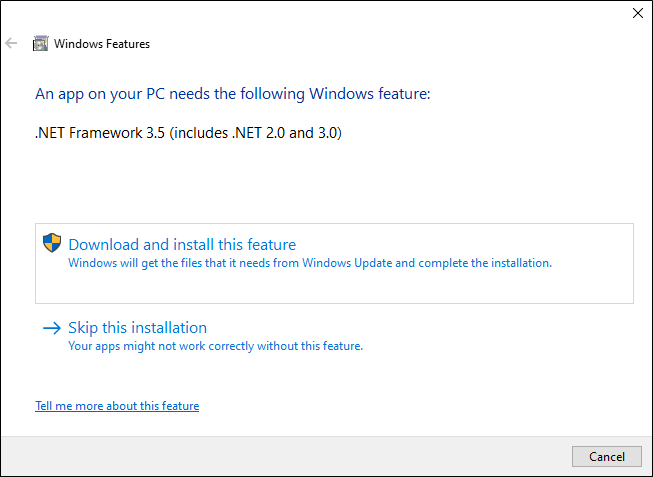
If the computer does not have .Net Framework 3.5 already installed, you will be prompted to install it. Most computers already have it installed.
- When the prerequisites are met, the Setup Scanning Options window opens.
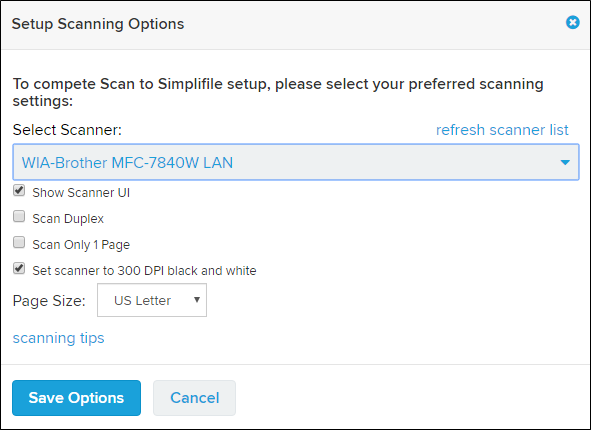
- In the Setup Scanning Options window, follow the instructions.
- When done, select the Save Options button. The window closes and the Simplifile Utilities Setup page Scan to Simplifile button turns white (is disabled) indicating the feature is installed.
Install the Package Download and Print module
Install the Package Download and Print module
- Open the Open the Simplifile Utilities Setup page.
- In the Simplifile Utilities Setup page, go to Step 4.
- Select the Package Download and Print button.
If the Simplifile utilities need to be updated the Updating Simplifile Utilities window opens. It may take a few minutes for the download to complete.
If the computer does not have .Net Framework 3.5 already installed, you will be prompted to install it. Most computers already have it installed.
- When the prerequisites are met, the window closes and Simplifile Utilities Setup page Package Download and Print button turns white (is disabled) indicating the feature is installed.
Related topics
Related topics
-
See the Simplifile Utilities topic.