Review Queue page
 Overview
Overview
This topic provides information on how to use the Review Queue page.
The Review Queue page displays each package as a box with a colored header. The documents contained in that package display in the box in the order in which the submitter intended them to be reviewed. Below is an example.
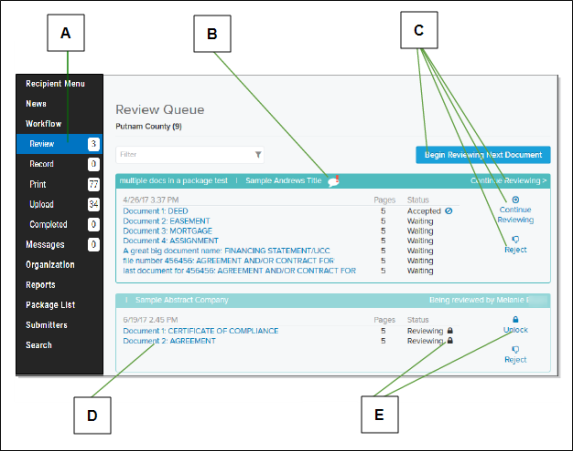
| Letter | Description |
|---|---|
| A | Select the Review item in the left navigation menu to display packages and their contents. |
| B | Select a balloon with an exclamation mark to view messages sent from the submitter. |
| C | Use links to begin or continue reviewing documents. In addition, if you need to, you can reject a package manually. This is helpful if a submitter requests the return of a submitted package before it is recorded. |
| D | Select a document name to access that specific document. |
| E | A lock indicates that another user is currently reviewing a specific document. If you have the necessary permission, you can unlock a document and take control to edit that document. |
Simplifile adds submitted packages to your Review Queue in the order in which they are received. You typically choose to review the next document in a queue. However, you can continue reviewing a package or document you have already begun reviewing, or choose to review a different document from the same or a different package. If you record based on submitted date, Simplifile holds any packages accepted out of submission date order and does not record them until the older packages are recorded.
- If you work with multiple jurisdictions, you can go to a queue that has documents with a more pressing return date.
- If you review a package out of order, when you finish reviewing the package, the system takes you to the oldest package in the queue.
- If you review the documents in a package out of order, the system continues through the list to the last document and then returns you to the first document in the package.
You must accept every recordable document in a package before you can record that package. A review can include checking margins and verifying fees. You may need to add your initials or stamps to a document or perform other tasks to prepare the document for recording.
A document’s status becomes Reviewing the first time anyone accesses that document from the reviewing queue. This status does not change until the document is either accepted or rejected. For more information on package and document statuses, see Recipient package and document statuses.
Depending on your settings, all of the documents in the same package as a document being reviewed may be locked and assigned to the same reviewer. The reviewer’s name displays in the Locked column for those documents. Other reviewers who log in begin with the next available package. While anyone who logs in to Simplifile can view any document, only the assigned reviewer can work on documents in a locked package. This prevents more than one person from working with the same package at the same time. However, if you have the necessary permission, you can take control of a locked document and review it yourself. This releases the previous reviewer’s lock.
After you review all documents in a package, if you have rejected even one, the entire package is returned to the submitter for review and re‑submission.
I want to ...
I want to ...
Open the Review Queue page
Open the Review Queue page
Method 1
- In the navigation menu, select the Workflow item Review sub item. The Review Queue page opens in the right panel and displays a list of the packages in the queue and the documents they contain.
Method 2
- In the navigation menu, select the Recipient Menu item. The Recipient Menu opens in the right panel.
- In the Recipient Menu page, select the Review Queue box. The Review Queue page opens in the right panel and displays a list of the packages in the queue and the documents they contain.
Display a document from the Review Queue page
Display a document from the Review Queue page
QUICK TIP: If you have queues from other submitters and any of those queues have documents that have been waiting longer than documents in the current queue, a clock icon ( ) displays.
- Hover the mouse pointer over the clock for more information.
- Select the icon to display the queue with the oldest documents.
- Open the Review Queue page.
- In the dropdown list near the top left corner, choose the recording county.
- If needed, use the Filter field display the wanted document or documents. The documents are listed below the Filter field.
- Choose a document from the list of packages in the queue.
- Do any of the following:
Task Action To review the next document in the queue,
select the Begin Reviewing Next Document
 button.
To begin reviewing documents in a specific package,
select the Begin Reviewing
 link at the right side of the package card header.
To continue reviewing the documents in a specific package in the order in which they are listed in that package,
select the Continue Reviewing
 link on the right side of the package card.
To work with a specific document,
select the document name.
To take control of a document locked by another person,
select the Unlock
 button. Then select the document name.
Reject a document
Reject a document
- Open the Record Queue page.
- In the dropdown list near the top left corner, choose the recording county.
- If needed, use the Filter field display the wanted document or documents. The documents are listed below the Filter field.
- Find the package that contains the document you want to reject.
- In the package header, select the Menu
 (ellipsis) button in the upper right corner.
 - Select the Reject documents in package item.
Set chime options
Set chime options
Chimes to notify users of new or pending items in the Review Queue have been available for some time, but adjusting these settings required contacting Simplifile Support. The Review Queue settings are now directly available through two new icons at the top of the Review Queue page.
- Open the Record Queue page.
-
In the Review Queue page title, select the gear icon.

-
Select the Speaker icon to turn chimes on or off, or they can select the Gear icon to gain access to the following options:
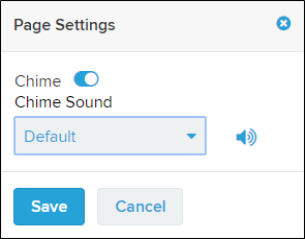
The Page Settings options include a number of alternate sounds under the Chime Sound setting that users can select.
- Select the Save
 button.