Record Queue page
 Overview
Overview
This topic provides information on how to use the Record Queue page.
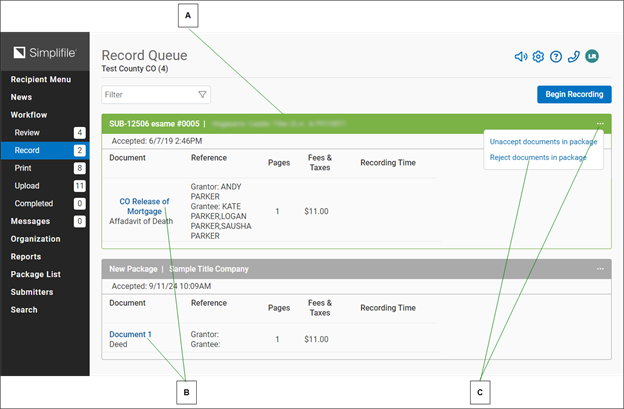
Below is a partial example of a recording queue.
| Letter | Description |
|---|---|
| A | The active package has a green header. |
| B | Select a document name to open the document in the document viewer. |
| c | Select the Menu  (ellipsis) button in the package header to choose to unaccept or reject documents in the package from the dropdown list that displays. (ellipsis) button in the package header to choose to unaccept or reject documents in the package from the dropdown list that displays. |
I want to ...
I want to ...
Record (apply stamps) and store package documents
Record (apply stamps) and store package documents
- Open the Record Queue page.
- In the dropdown list near the top left corner, choose the recording county.
- If needed, use the Filter field display the wanted document or documents. The documents are listed below the Filter field.
- For each document in the package being recorded, complete any necessary fields (such as the book or page number).
- After all items are correctly placed, select the Apply Stamps button.
- Make sure the documents are uploaded to your specified secure locations and printed, if desired.
NOTE: You can select the Menu (ellipsis) button at the right of a package header to unaccept or reject documents in that package.
Unaccept a document in a package from the Record Queue page
Unaccept a document in a package from the Record Queue page
- Open the Record Queue page.
- In the dropdown list near the top left corner, choose the recording county.
- If needed, use the Filter field display the wanted document or documents. The documents are listed below the Filter field.
- In the package header, select the Menu (ellipsis) button in the upper right corner. A menu opens
- Select the Unaccept Documents option. The Unaccept Details window opens.
- Select the Unaccept Documents in package button.
Reject a document in a package from the Record Queue page
Reject a document in a package from the Record Queue page
- Open the Record Queue page.
- If needed, user the Filter field to display the package that contains the document you want to reject.
- In the package header, select the Menu (ellipsis) button in the upper right corner. A menu opens
- Select the Reject Details option. The Reject Details window opens. You can drag the Rejection Details window to a new position on the screen, if necessary.
- Select the Reject documents in package button.
Set chime options
Set chime options
Chimes to notify users of new or pending items in the Review Queue have been available for some time, but adjusting these settings required contacting Simplifile Support. The Review Queue settings are now directly available through two new icons at the top of the Review Queue page.
- Open the Record Queue page.
-
In the Record Queue page title, select the gear icon.
-
Select the Speaker icon to turn chimes on or off, or they can select the Gear icon to gain access to the following options:
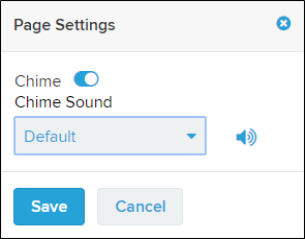
The Page Settings options include a number of alternate sounds under the Chime Sound setting that users can select.
- Select the Save
 button.