Task tracking
 Recent activity review
Recent activity review
The My Recent Activity table on the Recipient Menu page displays the documents you have worked on recently. It lists each document name and submitter, the action completed, and the date and time of each action. Below is a partial example.
Select a document name to open the document in the document viewer.

| Letter | Description |
|---|---|
| A | Select a document name to open the document in the Document Viewer. |
Daily work review
Daily work review
If desired, you can review each day’s recorded documents and packages. You can also print or upload each recorded document and package individually or in a group.
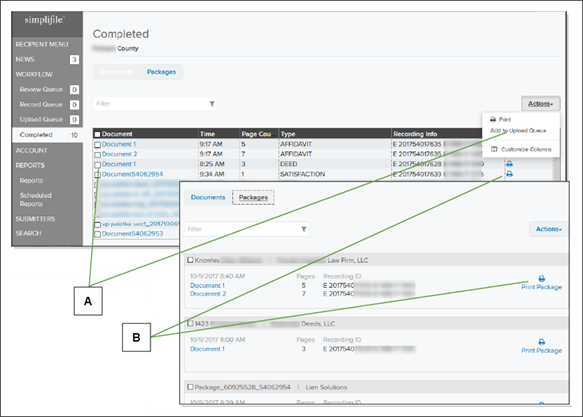
| Letter | Description |
|---|---|
| A | Mark boxes and use the Actions dropdown list to print or upload a document. |
| B | You can also print individual documents and packages. |
On the Documents tab, you can choose the columns that display in the Documents table. The available columns may include the following:
| Document name | Document type |
| Submitter | Document fees |
| Package ID | Recording information |
| Date the document was recorded | Grantee and grantor names |
| Time the document was recorded | Simplifile ID |
| Number of pages in the document | Print icon |
If desired, you can select a column heading to sort the table, and select it again to reverse the order. If you display the document fees, you can select a fee to view the fee details for a document.
On the Completed page you can select a link in the Recording Info column for a recorded document to display the action history for the package that contains the document. On the report, you can select links in the Type column to view a document in the document viewer, or in the Entry column to view a document history.
Below is an example.

| Letter | Description |
|---|---|
| A | Select here to display a Transaction report for the package. |
| B | Select a link in the Details column to view a document in the document viewer. |
Below is an example of the Packages tab on the Completed page.
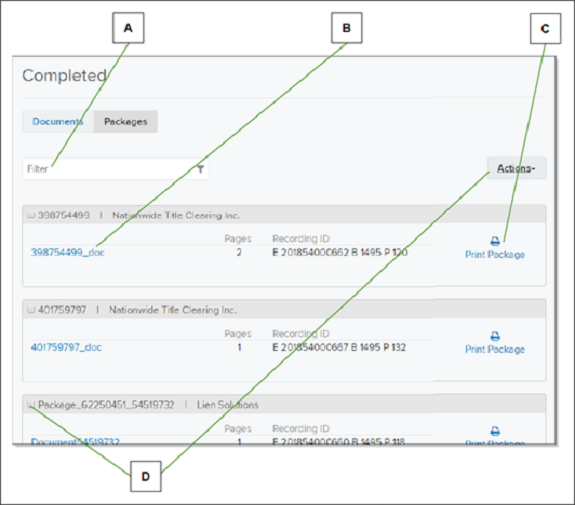
| Letter | Description |
|---|---|
| A | Use the Filter field to find a specific package by name. You can also enter part of a document name to find its containing package. |
| B | Select a document name to display the document in the viewer. |
| C | Select a Print Package icon to print the documents in that package. |
| D | To print or upload multiple packages, mark each package. Then use the Actions dropdown list and choose the action you want to perform. |
- To review your daily work, see the Task Tracking topic Daily work review.
Document activity history
Document activity history
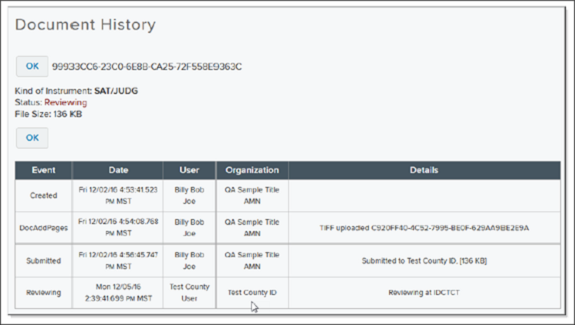
You can view a document’s activity history. This lets you view all actions taken for a document. Actions can include when the document was created and submitted and by whom, and whether the document is being reviewed and by whom. Helper document histories are included in this table.
Below is an example.
- To view the action history for a document, see the Document Viewer page topic task.