Work with loans
Simplifile provides a way for you to share all necessary documents with your lender, including the ability to prepare and agree on all fees contained in your loan’s disclosure document. Simplifile can also store contact information for other mortgage team members, and lets you track who does what during loan preparation, and when they do it.
Simplifile’s navigation menu lets you choose to view loans of various statuses. Depending on your permission, you can view loans that are Pre‑Close, Post‑Close, or Archived. For information about loan cards with Post‑Close statuses, see Post‑closing.
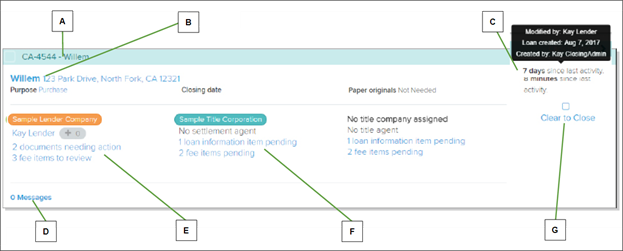
| Letter | Description |
|---|---|
| A | The loan ID displays in the card header. |
| B | The borrower’s last name displays before the property address. |
| C | The last updated information displays here. Hover your mouse pointer over the last activity information to display the name of the updater and the date of the update. |
| D | Message notifications display here. Select to go to the Messages page. |
| E | Lender company and assigned lender user names display here, along with incomplete tasks. |
| F | Settlement company and assigned agent names display here, along with incomplete tasks. |
| G | Status change tools display here when appropriate. |
Your company name in orange means you have tasks to complete for this loan. Likewise, a lender company name in blue means the lender has tasks to complete. If a collaborator’s tasks are complete or there are no tasks for a company, the company name displays in green.
The list view of a loan may display the following:
- Settlement file and loan numbers
- Property address
- Borrower’s last name
- Purpose of the loan
- Lender who created the loan
- Created, closing, and disbursement dates for the loan
- Settlement and title agent names
- Whether paper documents are required
- Number of loan items that are pending and that need review
- Number of title‑related documents that need action
- Date and time of last activity on the loan
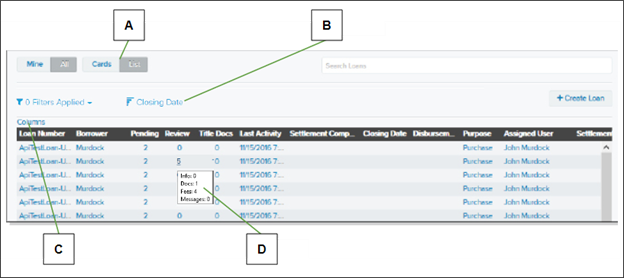
You can choose the columns that display and in what order. You may need to scroll to see all of the columns. Below is a partial example.
| Letter | Description |
|---|---|
| A |
Select the List |
| B |
Select here to sort the displayed loans by various dates. |
| C |
Select here to choose which columns display and in what order. |
| D |
Hover your mouse pointer over a number to view how many items have the column name status. For example, numbers in the Review column indicate how many of each item type you need to review. |
 view button to display loan information as a table. To view loan information in the Card view (as shown on the previous page), select the Cards
  view button.
You can search for specific loans in the system. You can also use filters to limit what loans display.
Select links in either view to access the details page for the type of item you selected. For example, select the borrower name to open the Contacts page, or select a Pending or Review number to open the Loan Information page.
As you collaborate on a loan, the system notifies you of the loan’s progress. A settlement agent assigned to a specific loan and the lender agent of a loan can message each other.
This section contains the following topics