Net Funds page
 Overview
Overview
You can use the Net Funds page to view credits and debits that affect the amount the lender sends in his or her funding wire. This can make it easier to reconcile the payment. Below is an example of the page.
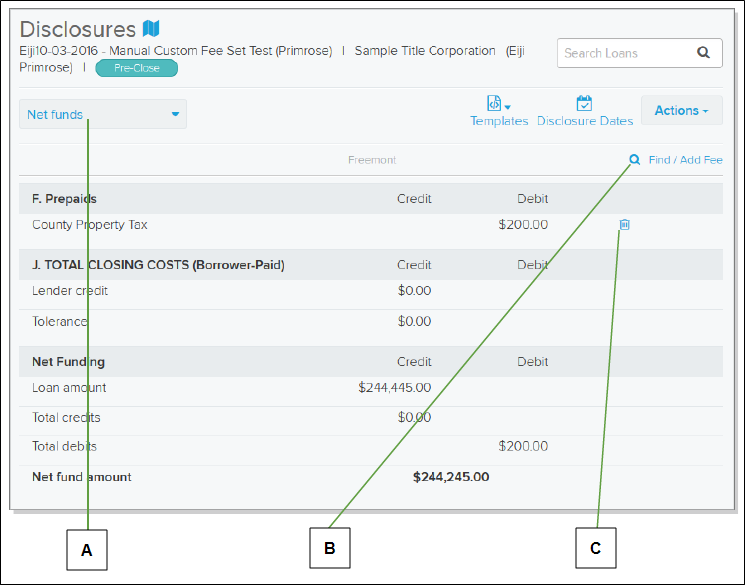
| Letter | Description |
|---|---|
|
A |
Choose Net Funds from this dropdown list. |
|
B |
Select here to add a fee to the tab. |
|
C |
Select a trash can |
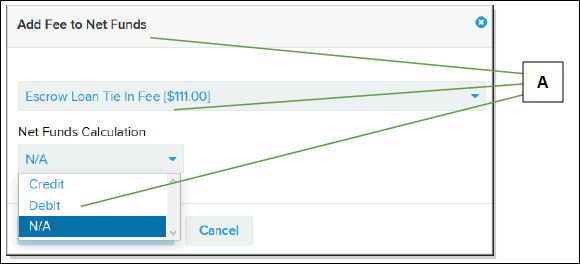
You can add and remove fees the lender adds to the tab manually. You can also add and remove fees to the tab if your agency initiated the loan.
| Letter | Description |
|---|---|
|
A |
Use the Find / Add Fee option on the Net Funds tab to choose the fee and indicate whether the fee is a debit or a credit before adding the fee. |
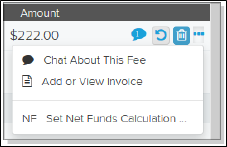
You and the lender can change the designation of a net funds fee from the Disclosures page. To do this, select the Menu  (ellipsis) button at the end of the fee row and choose Credit, Debit, or Not included from the dropdown list that displays. A plus or minus next to the NF indicates the fee’s current net funds designation.
How to work with net funds
How to work with net funds
QUICK TIP: To remove a fee, select the trash can  icon for the fee.
- Find the loan whose net funds you want to work with. For more information, see Find a loan.
- On the left navigation menu, select the Disclosures item.
- Verify that the fees you want to apply as net funds are marked correctly. To do this, select the Menu (ellipsis) button at the end of each fee row and choose Set Net Funds Calculation. Then choose the appropriate designation.
- From the fees dropdown list under the page name, choose Net Funds.
- To add a fee, do the following:
- Select the Find / Add Fee button.
- From the Item Type dropdown list, choose the type of fee you want to add.
- From the Net Funds Calculation dropdown list, choose whether the fee is a credit or debit.
- Select the Add Fee to Net Funds button.