Feature Enhancements in Encompass Investor Connect 26.2 Major Release
Support to Import Investor Loan Number into Encompass
Currently, Encompass Investor Connect supports sending the investor loan number through the bidirectional functionality but does not actually import the loan number into Encompass loans.
As part of this release, the ability to import the investor loan number into the loan has been added.
-
Lender must define the field where the investor loan number will be populated.
-
Once the field is defined:
-
The field will always be auto imported.
-
Update failures will be managed in the Auto Import Exceptions queue.
 New “Investor Loan Number” Section Added to Deliver Loans Setting Under Investor Connect Setup in Encompass Desktop Interface
A new Investor Loan Number section has been added to the Import Settings (formerly Auto Import) tab on the Deliver Loans setting in the Encompass desktop interface. This section will enable lenders to select where the investor loan number will be populated.
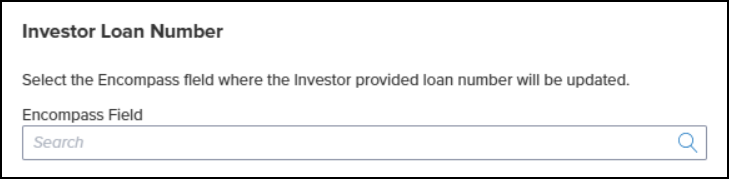
To Select an Encompass Field for the Investor Loan Number:
-
Log into Encompass as a system administrator.
-
On the menu bar, click Encompass, and then click Settings.
-
On the left panel, click Investor Connect Setup, and then click Deliver Loans.
-
On the Import Settings tab, navigate down to the Investor Loan Number section.
-
Click on the Magnifying Glass
 icon in the Search field.
 -
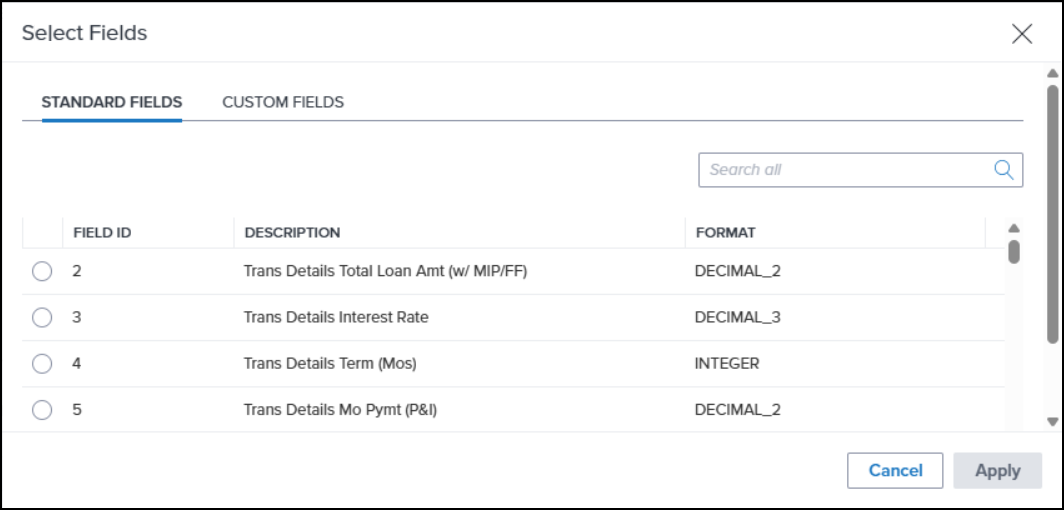
In the Select Field popup, choose which field to populate with the investor loan number from the list of Standard or Custom fields.
-
For a list of custom fields, click on the Custom Fields tab.
-
Only a field with a format of “String” can be selected. Otherwise, an error message “The field type is not supported for Investor Loan Number.” will be displayed.
-
Collection fields cannot be used for the investor loan number.
-
Click Apply.
-
Click Save on the Deliver Loans screen.
New “Investor Loan Number” Tab Added to Auto Import Exceptions
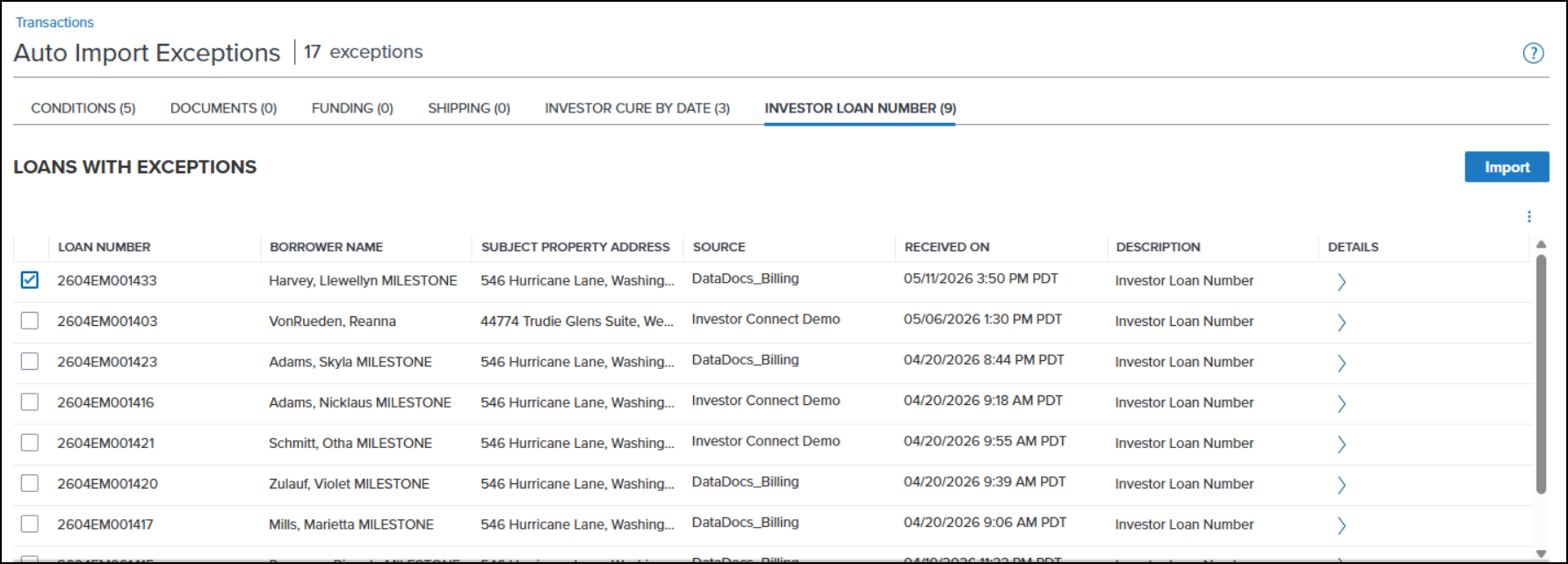
A new Investor Loan Number tab has been added to the Auto Import Exceptions modal (Pipeline>Loan Delivery Status>Auto Import Exceptions). If the Encompass field selected for the investor loan number fails to update, you can use the Auto Import Exceptions to manually import the loan number and clear the exception.
-
Select at least one loan to enable the Import button.
-
Select multiple loans to import their loan numbers all at once.
-
If a loan has more than one response, the loan number on the latest transaction (determined by received date/time) will be imported.
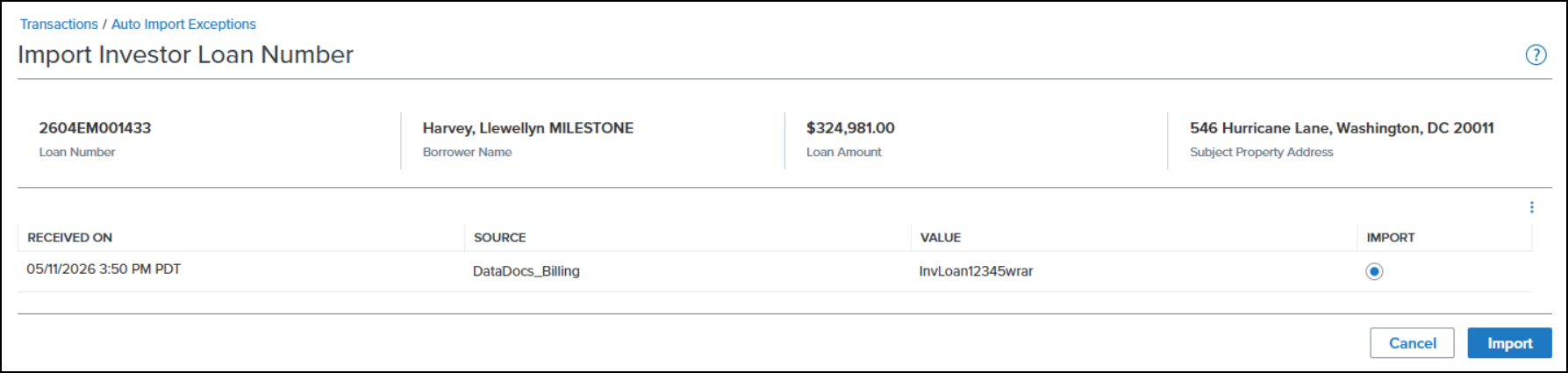
If you click > in the Details column of a loan, the Import Investor Loan Number page is displayed.
-
Select the Import radio button and then click Import to import the investor loan number for the selected loan only.
-
If the loan has more than one response, all the responses will be displayed.
Access Restrictions to Partner Uploaded Documents in eFolder
Currently, there are no access restrictions applied to documents sent by a partner through Encompass Investor Connect and saved in a lender’s eFolder. Any user with access to the eFolder can access these documents.
New “Documents” Section Added to Deliver Loans Setting Under Investor Connect Setup in Encompass Desktop Interface
A new Documents section has been added to the Import Settings (formerly Auto Import) tab on the Deliver Loans setting in the Encompass desktop interface. This section will enable lenders to assign the roles which will have access to documents received from partners.
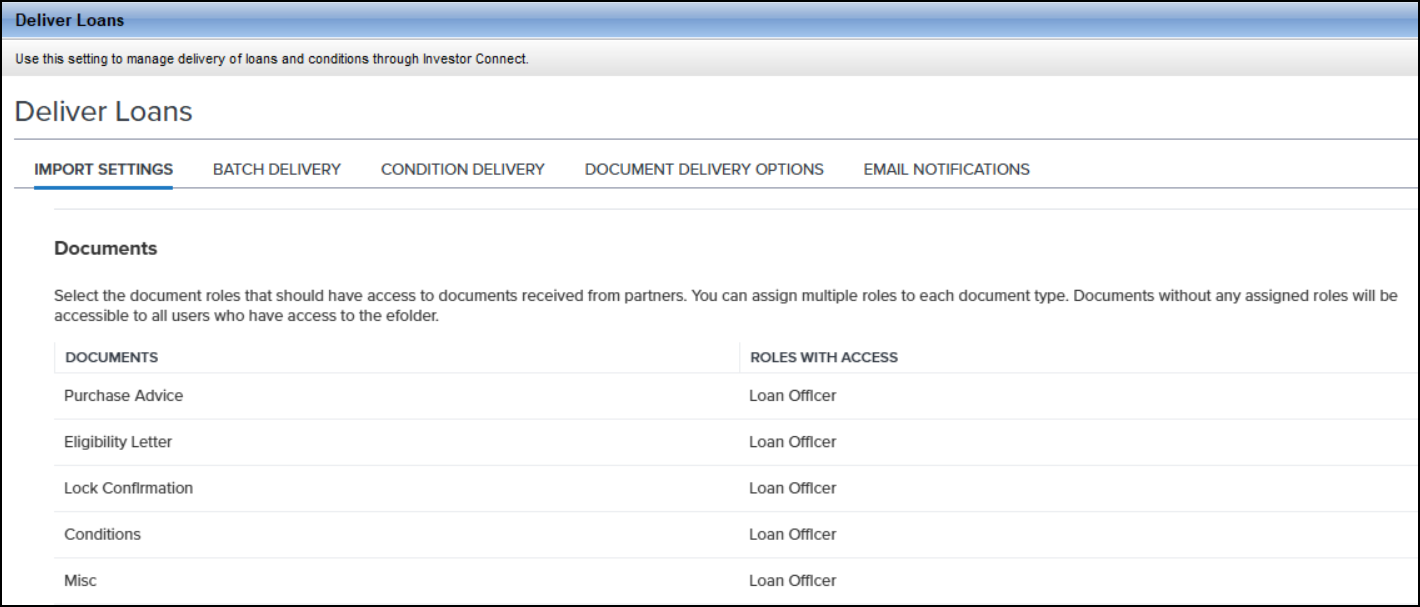
To Assign Roles to Partner Documents:
-
Log into Encompass as a system administrator.
-
On the menu bar, click Encompass, and then click Settings.
-
On the left panel, click Investor Connect Setup, and then click Deliver Loans.
-
On the Import Settings tab, navigate down to the Documents section.
-
Prior to this release, this tab was named “Auto Import”.
-
To assign a role to a document, click in the Roles with Access column, and then select one or more roles.
-
To delete a role, click the “x” to the right of the role name.

-
Documents with no roles assigned will be accessible to all users who can access the eFolder.
-
Click Save.
DND-34688
| Next Section: Fixed Issues | 
|
|

|
Previous Section: Introduction |