Feature Enhancements in Encompass Investor Connect 26.1 Major Release
Automated Loan Delivery Using Encompass Investor Connect
We are excited to announce that starting with the 26.1 release, automated loan delivery using Encompass Investor Connect will be available. Currently, the loan delivery process requires lenders to manually select the loans, choose an investor, complete all required fields, and then submit the loans for delivery. This can result in inefficiencies and potential delays. By using the new automated loan delivery feature, each of these steps can be handled automatically.
Lender Setup for Automated Loan Delivery
For lenders, the following setup is needed to use automated loan delivery.
Service Setup for an Investor via "Services Management" in the Encompass Web Interface
A service setup is required for all Investor Connect deliveries. If a service setup for an investor for delivery already exists, no changes are required. If a new investor for delivery (manual or automated) is needed, then a service setup must be configured.
The service setup is similar to the process currently used for manual delivery. For information on how to set up a service, refer to the following on the Encompass Investor Connect help website: the Manage Partner Accounts help topic, the Guides & Manuals page for investor addenda, and the Encompass Investor Connect Lender User's Guide.
Do not forget to toggle the Status to "On" for the service on the investor's Service Setups page.
If an investor is not displayed on the Services Management page but instead requires a Services Password Management setup via the Encompass desktop interface, then automated ordering will not be supported. We are working on making automated ordering available to all partners.
Automation credentials for the investor
This setup is similar to the process currently used to create credentials for manual delivery, but a new one must be configured for Automation.
-
On the Credentials page, select Add in the Automation Credentials section.

-
Use the same credentials you used for manual delivery. For information on how to set up credentials, refer to the Guides & Manuals page for investor addenda on the Encompass Investor Connect help website.
Automated Ordering Template via "Automated Ordering Templates" in the Encompass Web Interface
-
Log into the Encompass web interface as an administrator.
-
In the left menu, navigate to Services and then select Automated Ordering Templates.
-
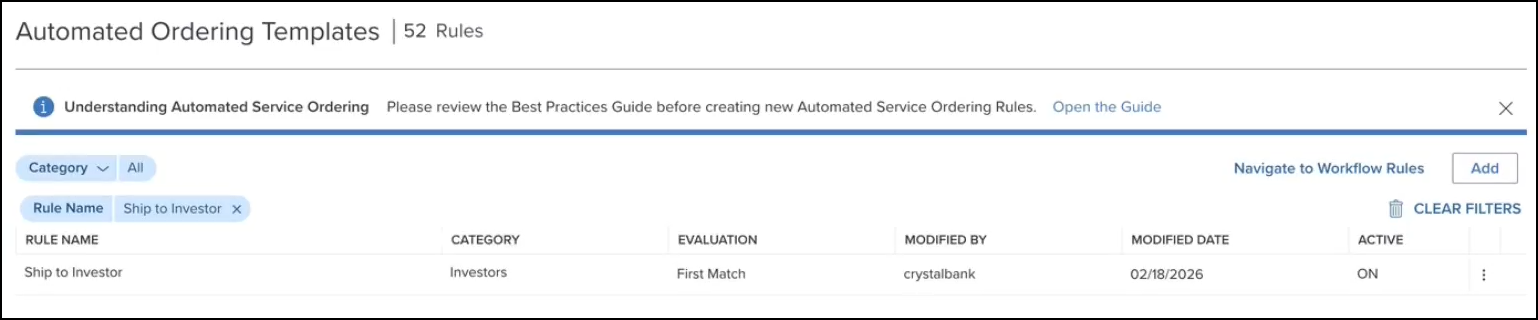
On the Automated Ordering Templates listing page, select Add.
-
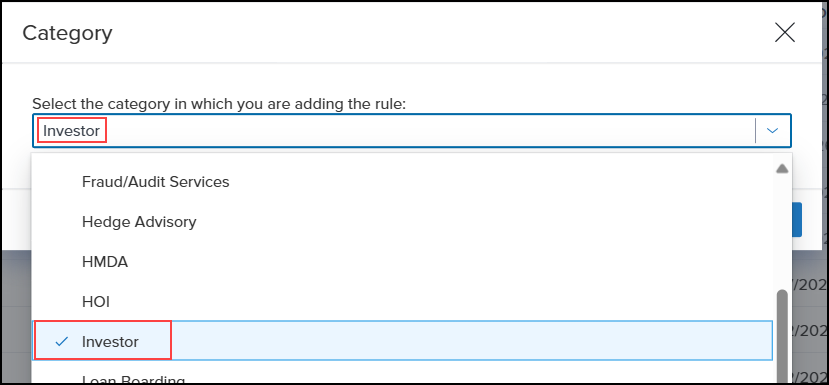
Select "Investor" for the category and then select Continue.
You can also use other Investor Connect supported categories such as "Warehouse Lender", "Due Diligence", or "Servicing" to set up automated loan delivery similar to the process being configured for investor, each having its own customized workflow.
-
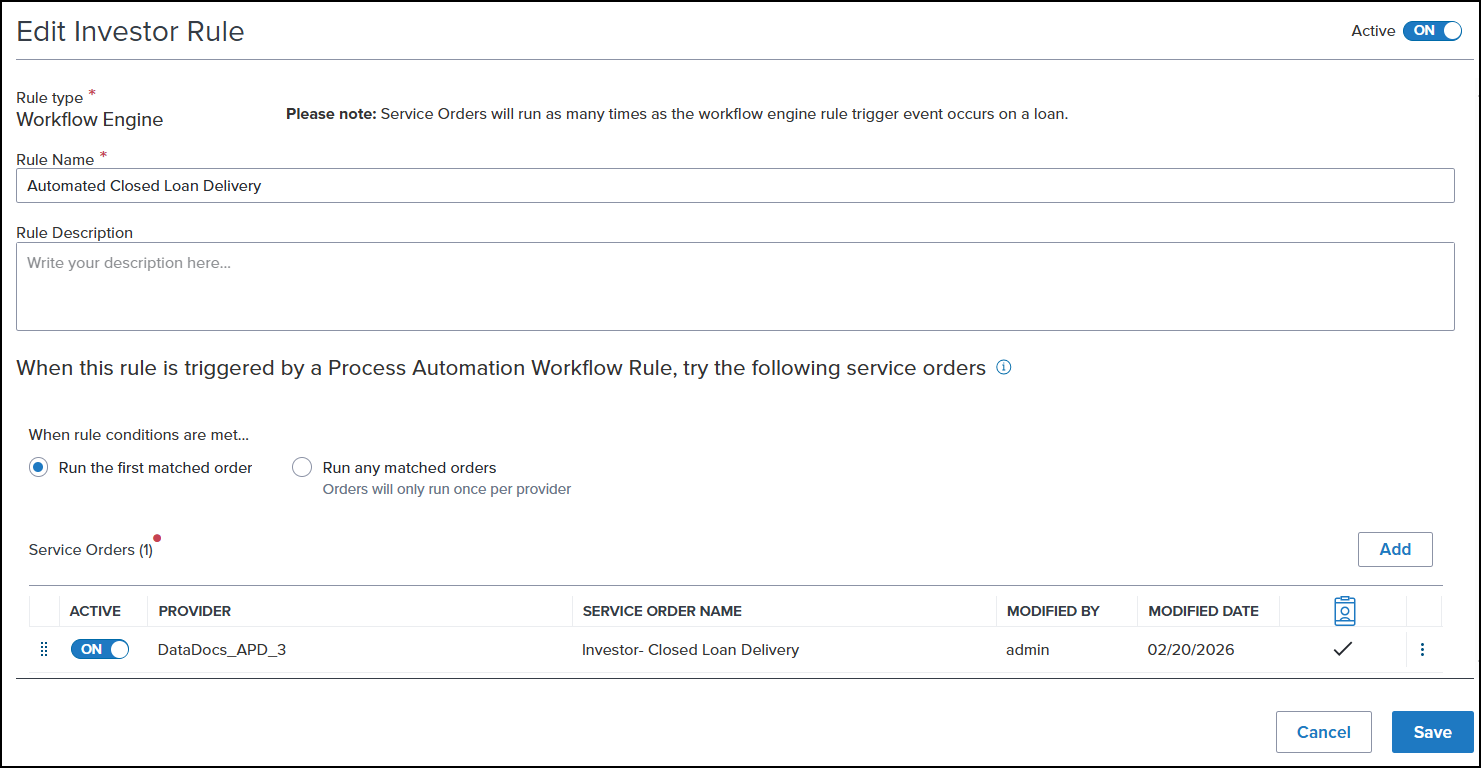
On the Investor Rule page, enter the following information. (Please note, instead of a new template, the screenshot below shows an existing automated ordering template.)
-
Enter a rule name. The rule name entered here will be used when defining your workflow rules.
-
Define a service order for your investor in the Service Order section.
You can set up service orders for all Investor Connect closed loan deliveries in the same way. One service order for each investor.
-
To define a service order, select Add.

-
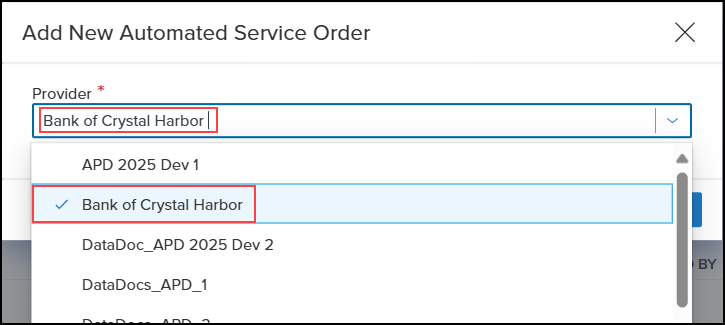
Select the investor for the Provider and then select Create.
If an investor is not displayed in the list, then automated ordering is not supported for them. We are working on making automated ordering available to all partners.
-
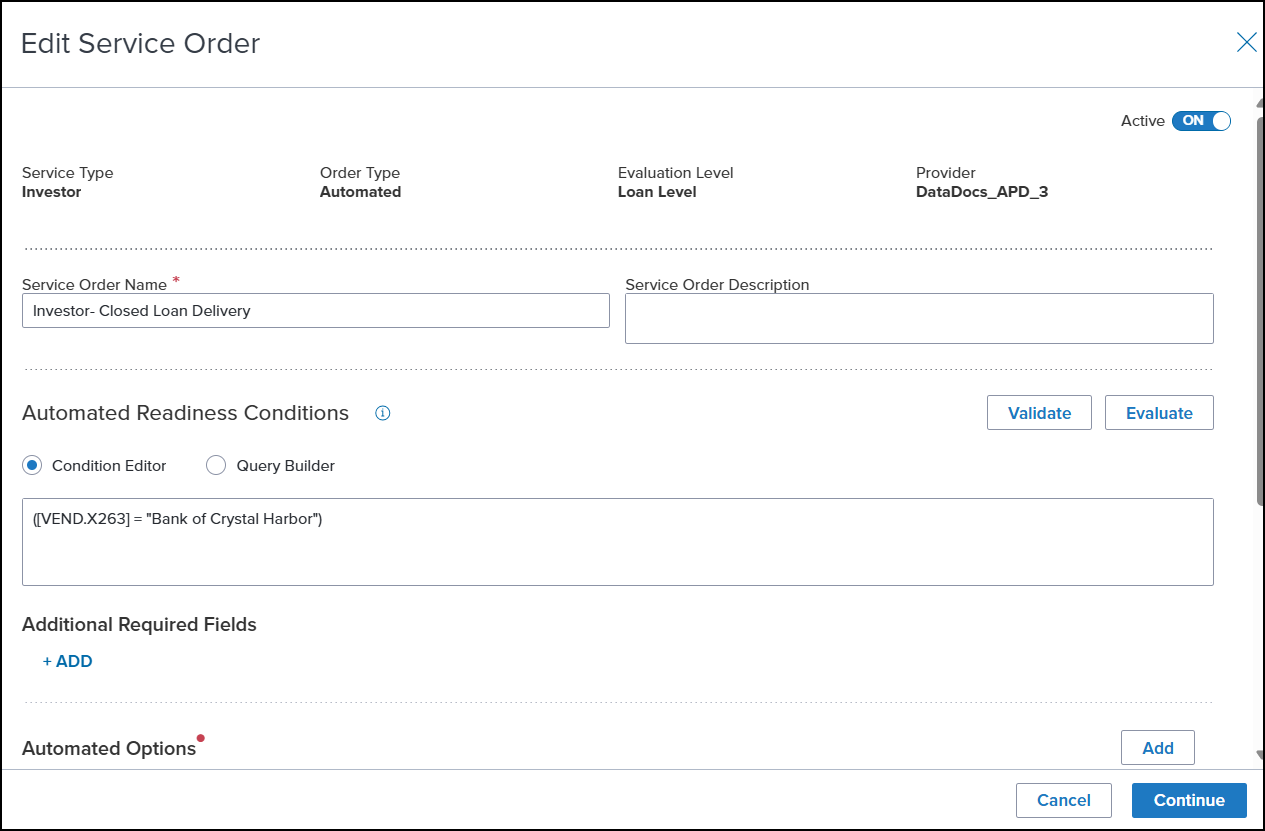
On the Service Order page, enter the following information. (Please note, instead of a new service order, the screenshot below shows an existing service order.)
-
Enter a service order name.
-
Define your conditions in the Automated Readiness Conditions section. These help the system determine which service order needs to be executed. In the screenshot above, a filter has been added using the investor name. The service order will only be executed when the investor name in field VEND.X263 is set to "Bank of Crystal Harbor".
-
Set up automated options in the Automated Options section. These are like templates to be used for the closed loan delivery to the selected investor.
-
To define an automated option, select Add.

-
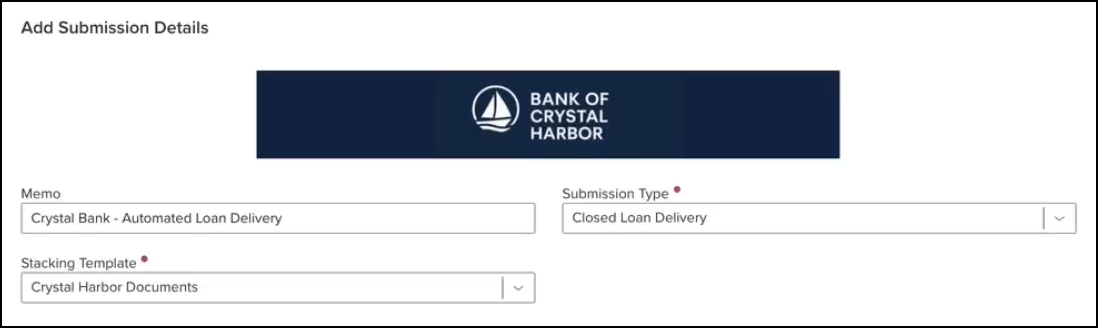
On the Add Submission Details page, enter the following information. (Please note, instead of a new automated option, the screenshot below shows an existing automated option.)
-
Select a submission type.
-
Select a stacking template if documents are required for delivery.
-
Optionally, you can add a short memo.
-
Select Save Template to save your template.
-
Set the Active toggle to "On".
-
Select Save to save your automated ordering template.
Workflow Rules via "Workflow Management" in the Encompass web interface
-
In the left menu, navigate to Workflow Management and then select Workflow Rules.
-
On the Workflow Rules listing page, select New Rule.

-
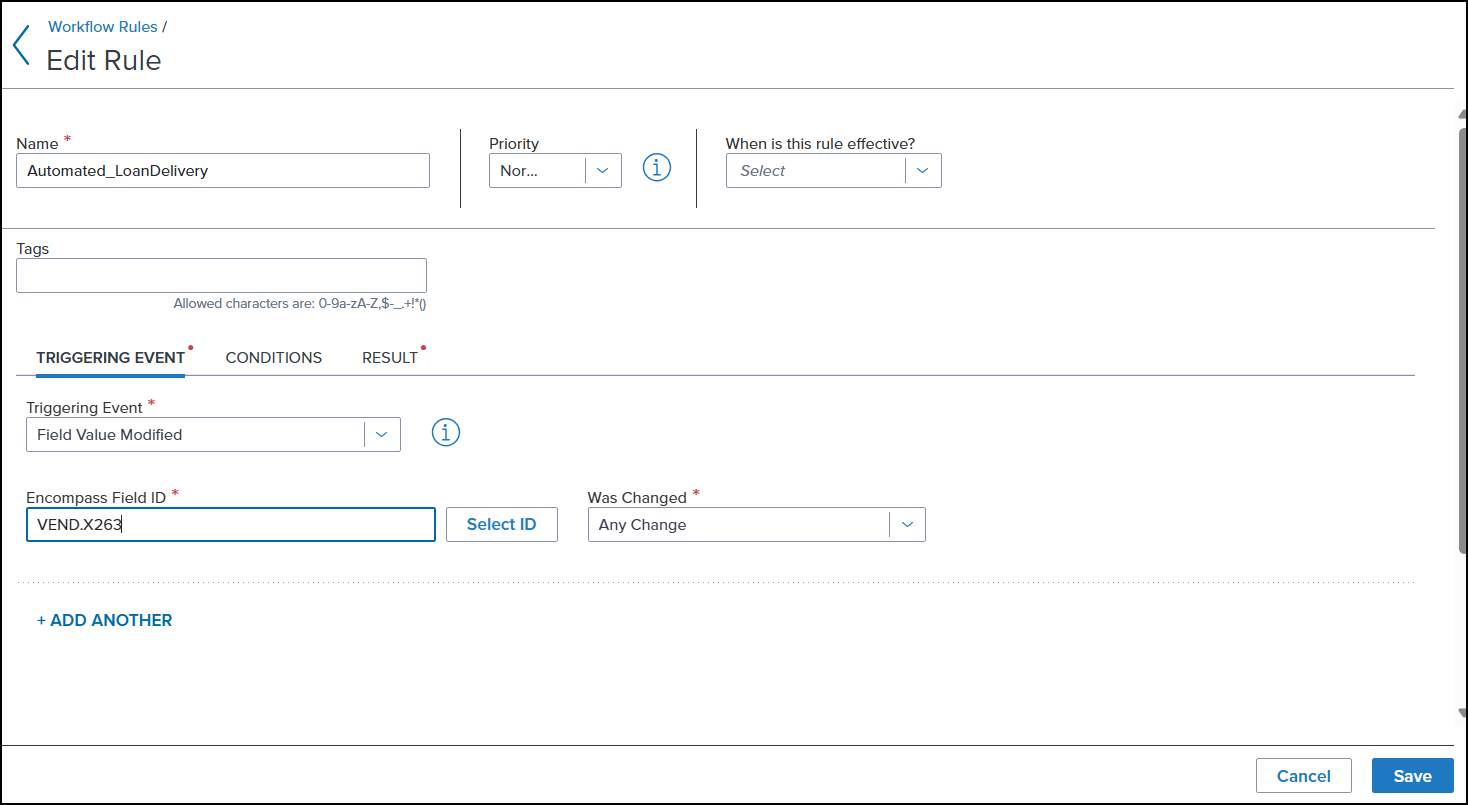
On the Rule page, enter the following information. (Please note, instead of a new workflow rule, the screenshot below shows an existing workflow rule.)
-
Enter a rule name.
-
Define your triggering event on the Triggering Event tab. In the screenshot above, the triggering event is a change to the investor name in the loan. Field VEND.X263 is being used for that purpose.
-
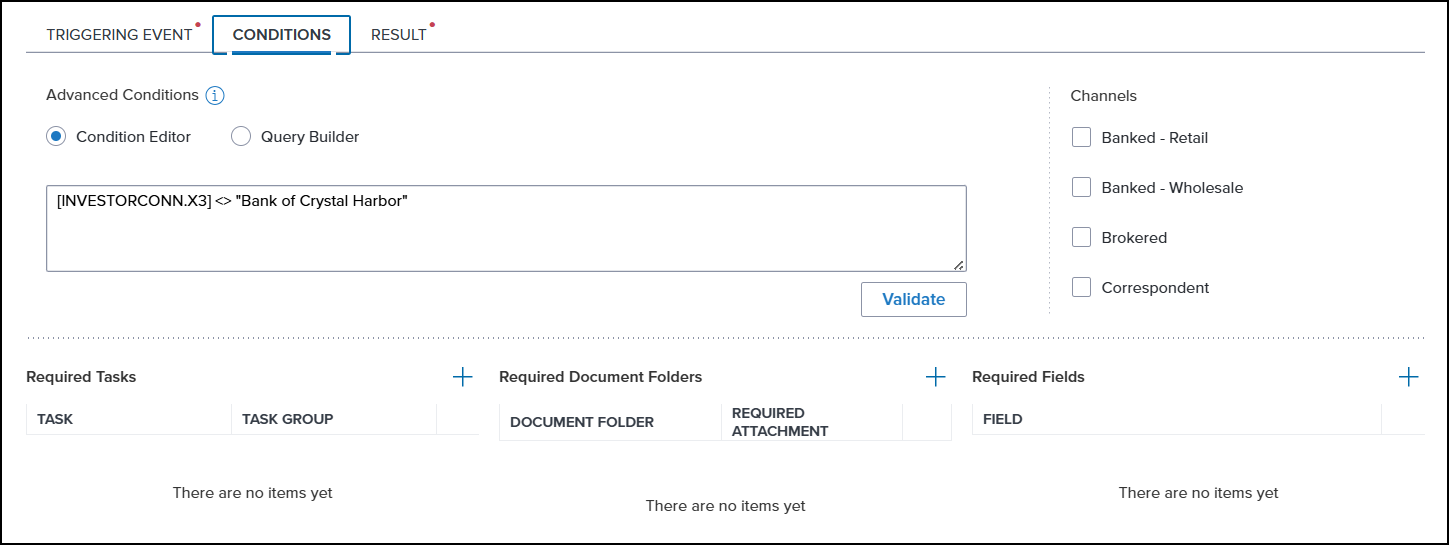
In some scenarios, you may need to define conditions. In the screenshot above, having a trigger of a change in field value could potentially result in multiple unwanted deliveries to investor.
-
You can avoid this scenario by defining a condition on the Conditions tab. In the screenshot below, we are using field INVESTORCONN.X3 to stop the trigger if the closed loan has already been delivered to the investor.
-
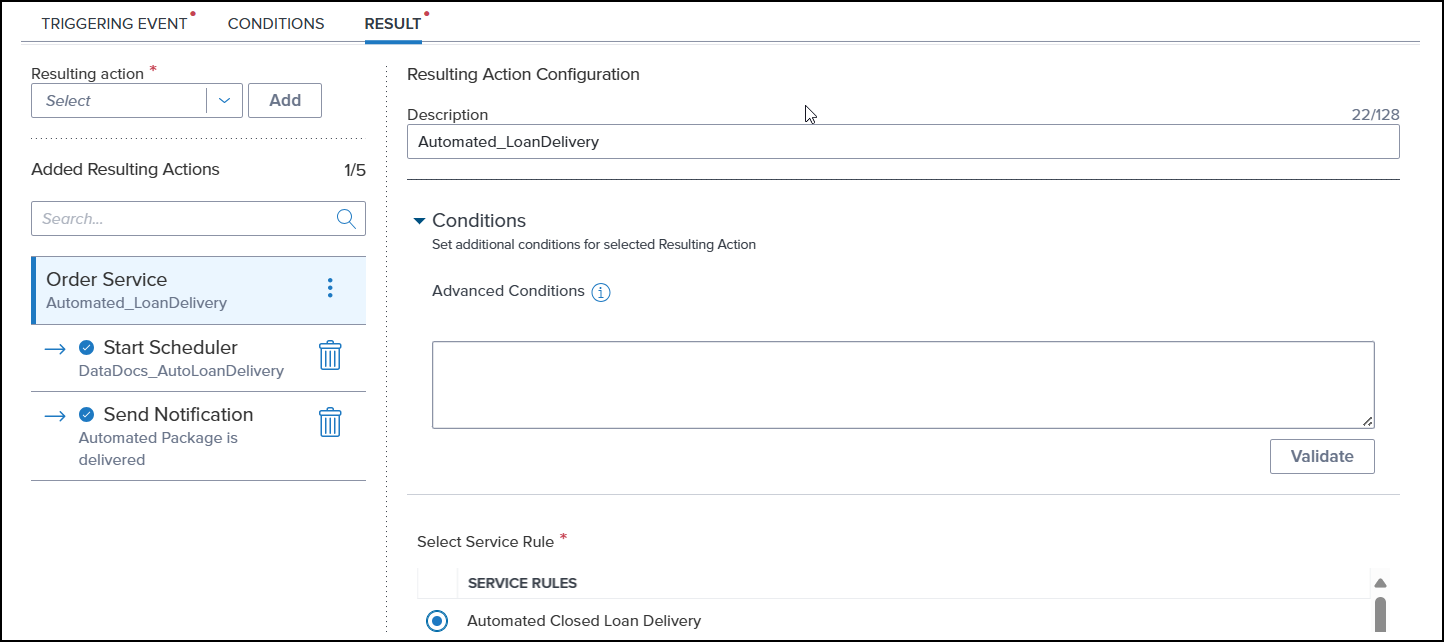
Define results on the Result tab. You must select an Order Service, enter a description under Resulting Action Configuration, and select a service rule.
-
The available service rules are taken from the automated ordering templates created by you.
-
Nested actions can be added to the Order Service action to start a scheduler, create tasks, and/or send notifications.
-
Select Save to save the rule.
-
On the Workflow Rules listing page, make sure the Active toggle is "On" for your rule.
Checking Delivery Status
You can check the status of a delivery by accessing the View Status page using either the Encompass web interface or the Encompass desktop interface.
Encompass web interface
-
Log into Encompass.
-
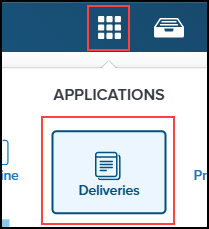
From the Pipeline page, select the App Launcher icon on the upper right corner of the page and then select Deliveries.
-
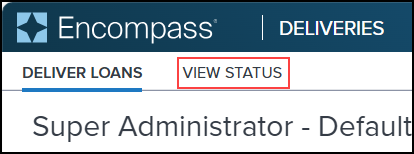
Select the View Status tab.
Encompass desktop interface
-
Log into Encompass.
-
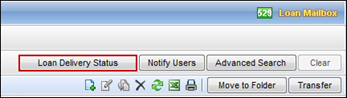
From the Pipeline page, click on the Loan Delivery Status button.
-
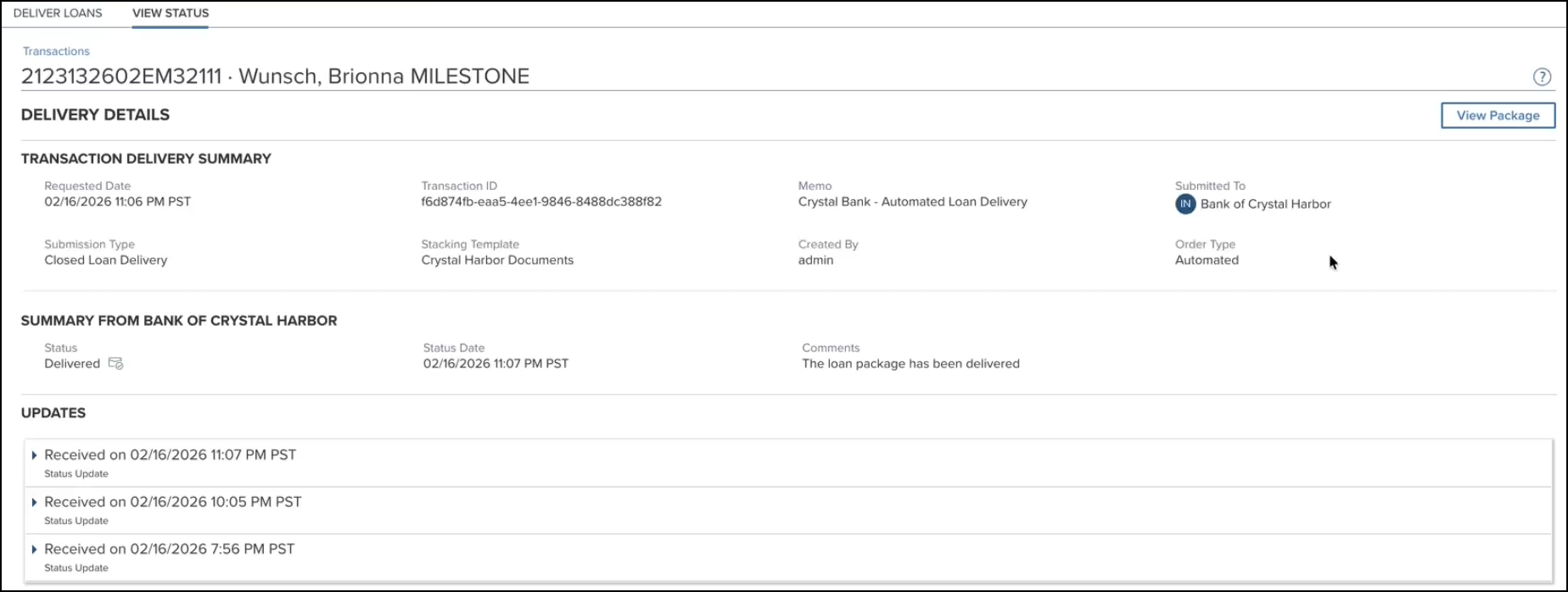
On the View Status page, you can check that the Delivery Status is "Delivered", the Submitted To is the correct investor, and the Order Type is "Automated".

-
Select a row to view that delivery's details.
-
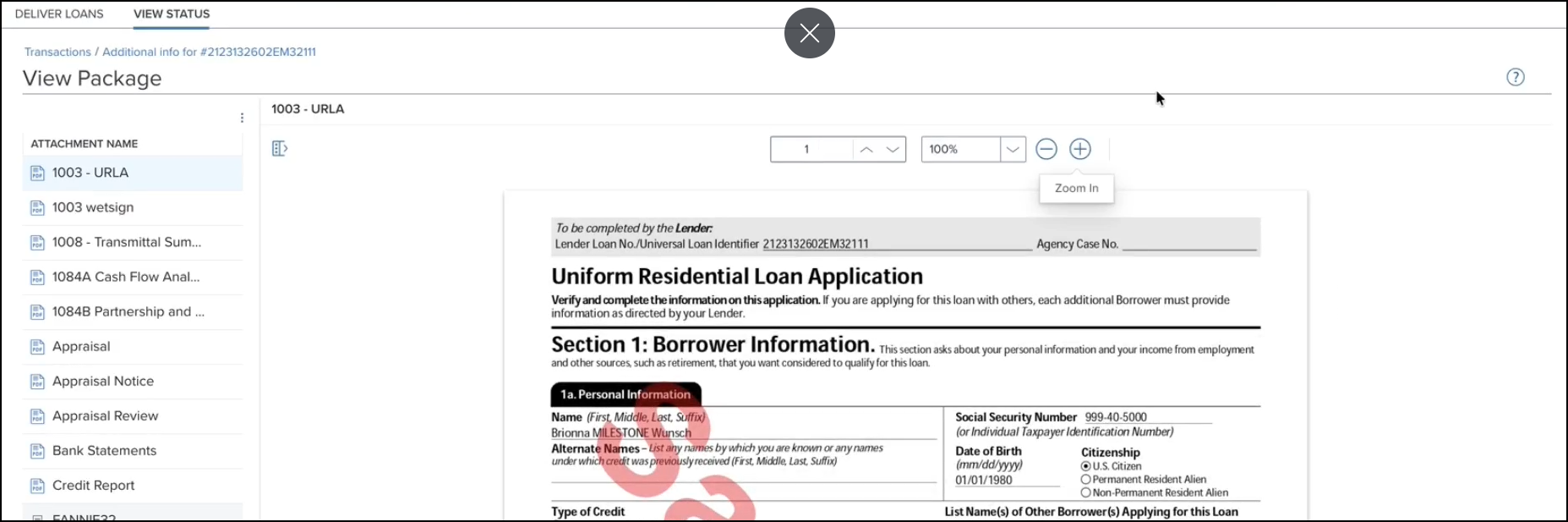
Select View Package to view the package contents.
Automation Audit
The Automation Audit page enables you to view the details of packages delivered using automation. The page offers you two views, by loan GUID or by attempted action.
The delivery status of a loan can be tracked using the Deliveries App in the Encompass web interface or the Loan Delivery Status tab in the Encompass desktop interface. The Automation Audit only shows that a package was triggered.
-
Log into the Encompass web interface.
-
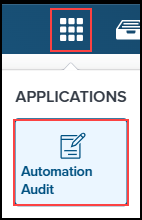
From the Pipeline page, select the App Launcher icon on the upper right corner of the page and then select Automation Audit.
-
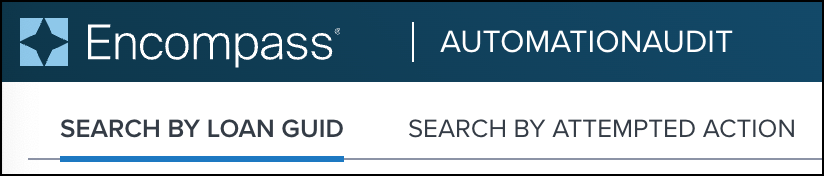
On the Automation Audit page, select either the Search by Loan GUID or Search by Attempted Action tab.
-
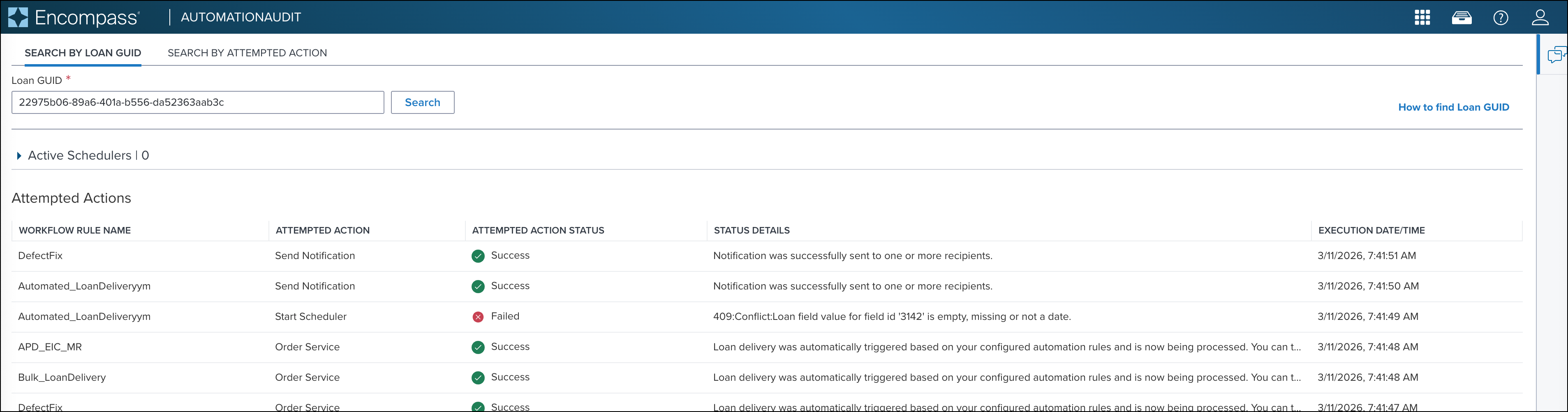
If Search by Loan GUID is selected, enter a Loan GUID and then select Search.

-
A list of transactions for the loan will be displayed.
-
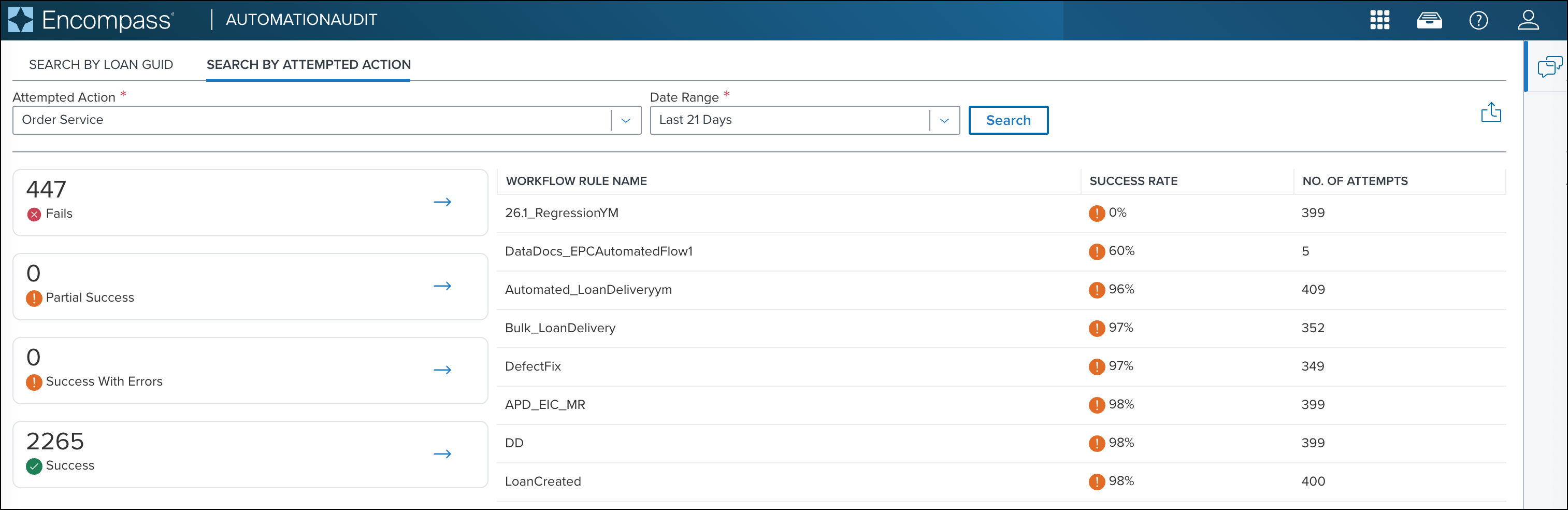
If Search by Attempted Action is selected, choose an action and a date range, and then select Search.

-
A list of information which fulfills the entered parameters is displayed.
-
For details about a success/fail status, a workflow rule, a success rate, or number of attempts, select the appropriate item. For example, if you select a workflow rule, a list of all loans that used the template is displayed.

Encompass to Encompass for Investors
We are also excited to announce that we are introducing features in Encompass that can be configured and used by partners to automate the process of receiving loans through Encompass Investor Connect and ingesting them into Encompass.
Sellers of the loan will see no impact to their experience and do not need to do anything for partners to take advantage of the Encompass to Encompass feature. However, we expect sellers to receive the benefit of reduced errors and more efficient transfer of data in their loan delivery processes.
Currently, sellers deliver loans to an investor using Investor Connect. The investor is notified using a Webhook that a loan with the necessary content as defined in their partner preferences is ready to be downloaded. The investor must implement and maintain their own software/utilities to download and ingest the .zip file into Encompass. This process introduces challenges to the investor: maintaining a manual process to review and ingest the loan, no visibility of the loan pipeline for standard users, implementing and managing custom utilities, and performance issues related to the incorrect use of Encompass Developer Connect APIs.
Encompass to Encompass introduces a seamless out-of-box configurable Investor Connect workflow for investors to receive loans from Encompass sellers and automatically import them into their own Encompass instance. The system provides enhanced loan status visibility and management.
If you are an investor and want access to the Encompass to Encompass features, contact your ICE representative. You will need to become an active partner on Investor Connect.
For detailed information about the Encompass to Encompass feature, refer to the Encompass to Encompass User Guide.
The following features are now supported:
-
Universal host adaptor to receive loans through Investor Connect
-
Support for receiving the following loan information:
-
ULAD
-
ILAD
-
Additional Data fields (standard Encompass fields only)
-
Documents
-
Configurable workflows
| Next Section: Fixed Issues | 
|
|

|
Previous Section: Introduction |