Manage Partner Accounts
Before your Encompass users can submit loan data and documents to a partner, you must enter partner account information and select the Encompass users who are authorized to submit data and documents to a partner.
Services Password Management (Method 1)
The Services Password Management tool enables administrators to set up login credentials (usernames, passwords, other applicable details) for individual Encompass users to use when ordering third-party services/products.
To Configure the Services Password Management Setting:
-
On the menu bar, click Encompass, and then click Settings.
-
On the left panel, click Company/User Setup, and then click Services Password Management.
-
Click the New icon.
-
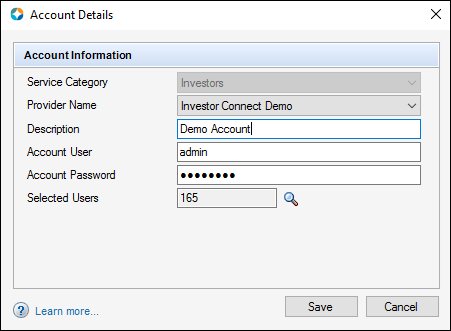
On the Accounts Details window, select an option from the Service Category dropdown list.
-
Select your partner's name from the Provider Name dropdown list. Based on your selection, additional fields will display below the Description field.
-
Enter a Description for the service.
-
Enter your Account User name and Account Password, and complete any additional fields on the window using the information your partner provided during the investor account set-up process.
Addenda to this guide are provided when partners required specific Account User name and Account Password information. Your Encompass administrator can access the addenda on the Guides & Documents page.
-
Click the Find icon (magnifying glass) next to the Selected Users field.
-
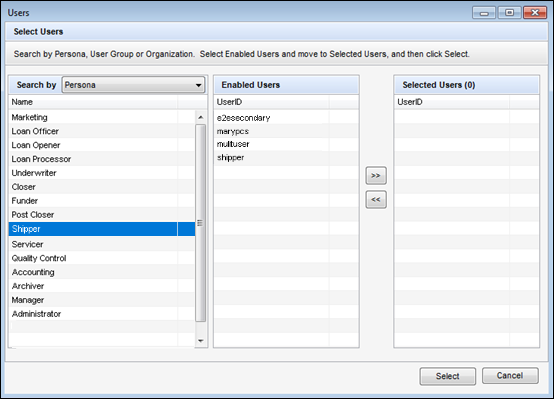
When the Select Users window displays, at the top of the Search By panel, select a search category (Persona, User Group, or Organization) from the dropdown list, and then select your search options in the list in the Search by panel.
-
In the Enabled Users panel, select the users who are authorized to deliver loan data and documents to the investor, and then click the right arrow to move them to the Selected Users panel.
-
Repeat steps 9 and 10 until all users have been selected, and then click Select.
-
On the Accounts Details window, click Save.
Services Management Page (Method 2)
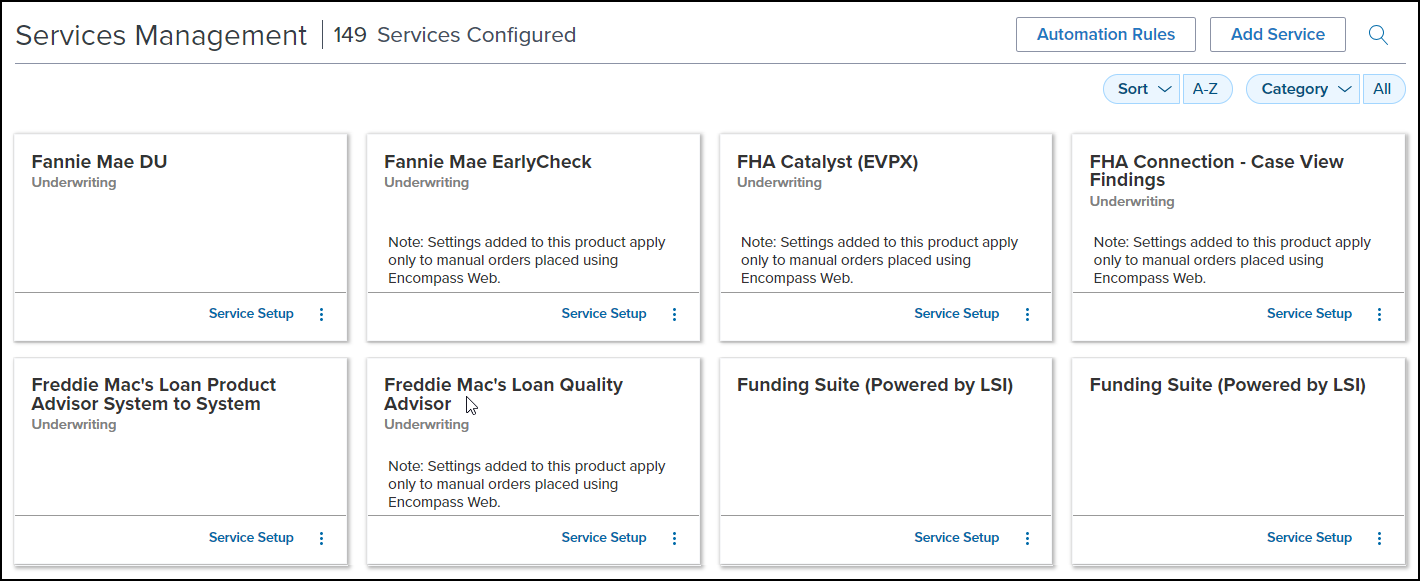
The Services Management page displays all existing service setups for Manual and Easy Order as cards, organized by partner (for Encompass Investor Connect partners, only manual orders are supported). From this page, administrators can sort the list of partners in ascending or descending order alphabetically. The list of partners can also be filtered by category. Each partner card provides access to existing service setups and credential configurations (field mapping, document mapping, automation rules and adding services are not applicable to Encompass Investor Connect).
To Configure the Services Management Page:
-
Log into the Encompass web interface as an Administrator.
-
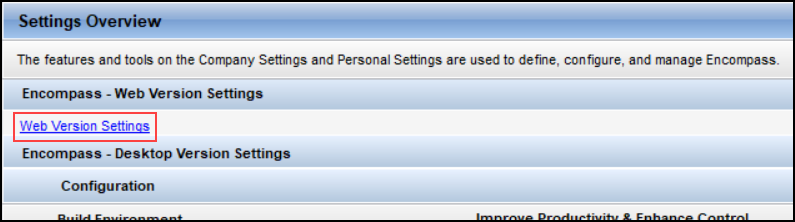
Alternatively, you can log into the Encompass desktop interface, go to Encompass>Settings>Settings Overview, and then select the Web Version Settings link.
-
From the Encompass Admin Portal, select Services and then select Services Management.
-
Select Add Service.
-
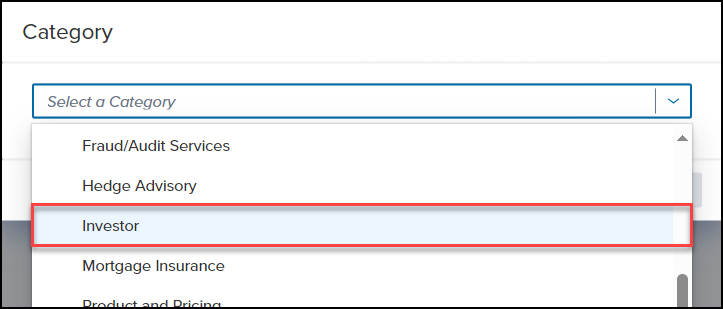
From the Category dropdown list, select Investor and then select Retrieve Products.
-
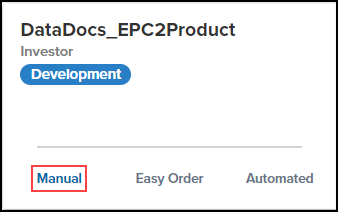
Locate the card for the partner you want to start a service setup for, and then select the Manual link.
-
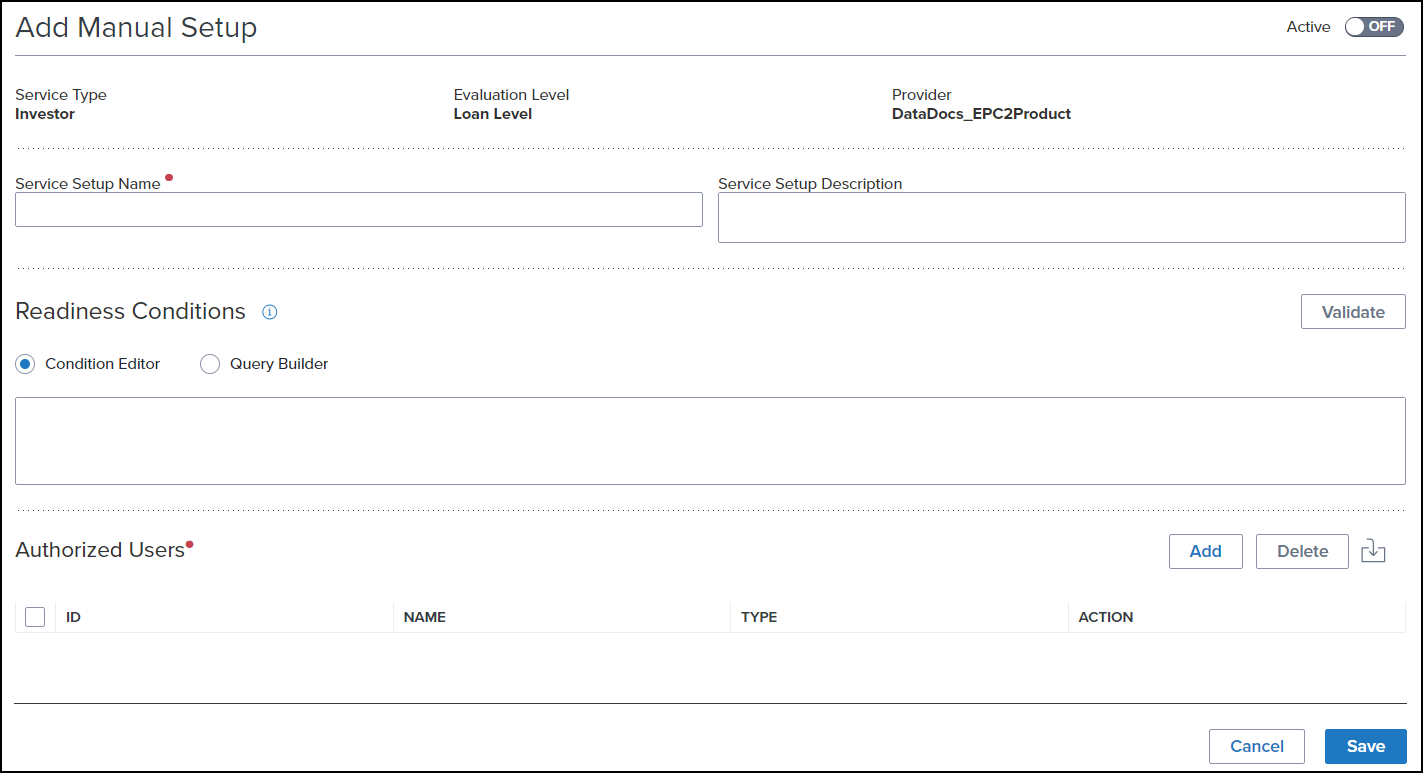
Complete the following fields/sections.
For Encompass Investor Connect, do not add any Readiness Conditions.
-
Enter a unique name for the setup in the Service Setup Name field.
-
Enter a description in the Service Setup Description field.
-
In the Authorized Users section, select Add and then navigate through the Category options to select the users who will use this setup.

-
To move a category, select the Down Arrow
 icon.
icon. -
To move an individual user to the Selected Users column, select the Move Arrow
 icon.
icon. -
To search for a specific user, select the Search
 icon.
icon. -
To remove a user from the Users section, select the checkbox in front of the user and then select Delete. Alternatively, you can select the Delete
 icon in the Action column of the user.
 -
To export a list of all users assigned in the User section, select the Download as CSV
 icon.
icon.
-
Once you have selected the users who will use this service setup, select Add.
All users for a service provider must be included in one manual service setup.
-
To activate the new services setup, select "On" for the Active toggle.
Only one manual service setup can be activated for each service provider. If you attempt to activate a second manual service setup for the same provider, a message, "An active manual service setup for the service product already exists.", is displayed.

-
Select Save.
Once you configure a manual order setup, you can configure credentials to be used for the orders placed through your providers. See the Credential Management section below for instructions on how to configure credentials for a manual order.
Credential Management
Some provider categories require that credentials be set up in the Encompass Admin portal. The Credentials section enables you to specify credentials for specific providers to be used by authorized Encompass web interface users.
When setting up credentials, each setting provides a single credential set that all users in that credential setting will share. Credentials that are different for each user are set up using a separate setting for each user.
To Add New Credentials for a Service Setup:
-
Log into the Encompass web interface as an Administrator.
-
From the Encompass Admin Portal, select Services and then select Services Management.
-
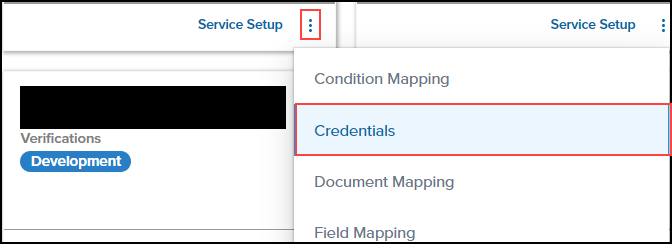
Locate the card for the partner you want to configure, select the icon next to Service Setup, and then select Credentials.
-
To add company credentials, select Add in the Company Credentials section.

-
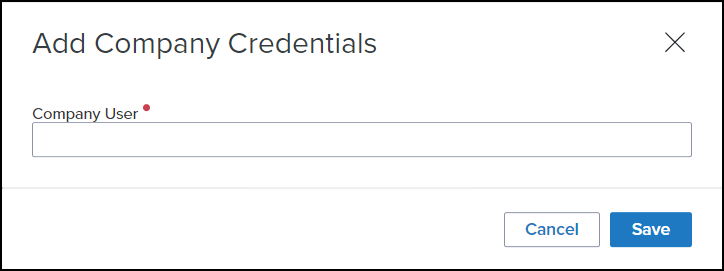
On the Add Company Credentials window, enter the company user and then select Save.
This information is partner specific and will change from partner to partner.
-
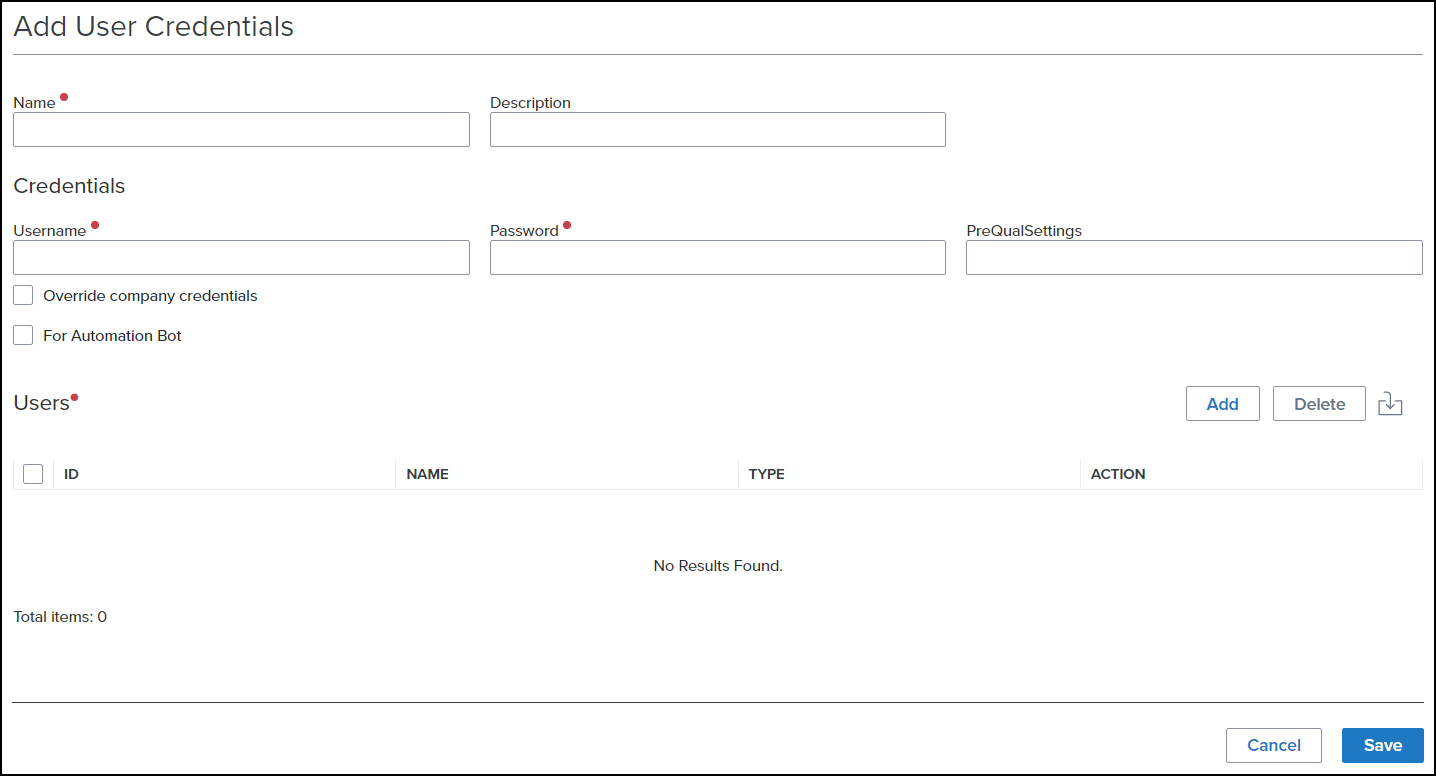
To add user credentials, select Add in the User Credentials section.
-
Complete the following fields/sections.
-
Enter a unique name for the setup in the Name field.
-
Enter a description in the Description field.
-
Enter the user name and password in the Username and Password fields.
-
Select Override company credentials to use these credentials instead of the credentials defined in step 4.
-
To select which users will use these credentials, Select Add in the Users section.
-
To save the new credential configuration, select Save.