.png)
Encompass 25.3 Persona-Based Release Notes
The Encompass Persona-Based release notes are broken down by common Encompass personas. We realize every organization may have slightly different functional definitions for these personas. As such, you may want to review each persona's release note segments before forwarding to ensure they match personas / roles within your organization.
How to Navigate Persona-Based Release Notes
To use the Persona-Based Release Notes page, use the navigation buttons described below:
-
Filter by Persona: Create and view a customized on-screen version of the release notes by selecting one or more persona checkboxes. To remove one or more personas, clear the corresponding checkbox for the persona being removed.
-
Persona Definitions: View general role definition guidelines for each persona.
-
Print by Persona: View a dedicated PDF version of the release notes aligned to each of the available Encompass persona by selecting a persona one at a time. A new window will open and display the selected PDF file.
Your customized on-screen version of the Persona-Based release notes include the following personas:
Notice for Closer/Funder Persona
Based on ICE Mortgage Technology's interpretation of the Closer/Funder role, this release does not include any features or updates that apply to this role.
If you're interested in learning more about what's new, or fixed issues in this release, you can review the full release notes here.
Notice for Post Closer Persona
Based on ICE Mortgage Technology's interpretation of the Post Closer role, this release does not include any features or updates that apply to this role.
If you're interested in learning more about what's new, or fixed issues in this release, you can review the full release notes here.
Feature Enhancements in Version 25.3
(Banker Edition)
This section discusses the updates and enhancements to existing forms, features, services, or settings that are provided in this release.
Encompass Forms & Tools
 New Option to Keep Subordinate HELOC Open
After Pay Off
New Option to Keep Subordinate HELOC Open
After Pay Off
(Updated on 7/18/2025)
Encompass 25.3 includes an update for the scenario where an existing subordinate HELOC is being paid off with a refinanced first mortgage, but the subordinate HELOC is to be left open.
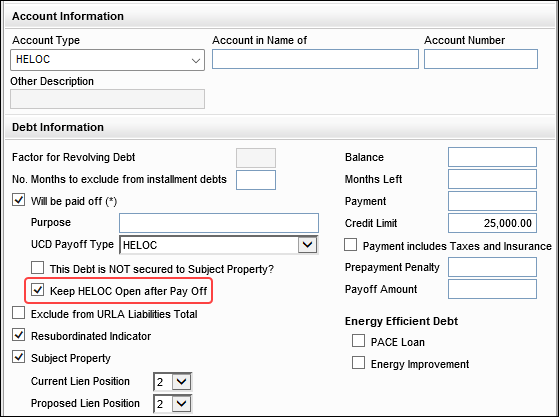
In previous versions of Encompass, when refinancing a loan there was no option to roll an existing subordinate Home Equity Line of Credit (HELOC) into the new mortgage. As a workaround, users were required to close to the existing HELOC and then open a new subordinate HELOC in the refinanced loan. In Encompass 25.3, users can now utilize the new Keep HELOC Open after Pay Off field (FL0019) on the Verification of Liabilities (VOL) input form to keep the existing subordinate HELOC open and roll it over to the new refinanced loan (where it remains in 2nd position).
Please note:
-
In order to properly set up a 2nd lien HELOC that you want to pay off with a new 1st mortgage and keep it open, you must select the Keep HELOC Open after Pay Off field (FL0019) and the Resubordinated Indicator checkbox (FL0126).
-
Any time you have a HELOC 2nd lien VOL, you must select the Resubordinated Indicator checkbox (FL0126) when financing a new 1st Mortgage when you want to keep the HELOC open- whether you are paying it off or you are not paying it off.
Migration Notes:
-
For non-active loans (1393) created prior to Encompass 25.3, the value in the HELOC Line Total field (CASASRN.X168) will be locked/retained if the loan includes a liability on the VOL that is a HELOC account (FL0008) for the Subject Property (FL0027) in lien position (FL0029) 1 or if this field is left blank.
Update to the LTV Factor of
FHA Maximum Mortgage for Cash Out Refinance Transactions
On the FHA Management input form's Prequalification tab, the system calculation for MORNET.X42 has been updated to use 80% as the maximum LTV/CLTV for cash out refinance loans. Previously, this field was calculated using 85% of the LTV factor. This change was made in accordance with HUD Mortgagee Letter 2019-11, which states that the maximum LTV/CLTV for cash out Refinance transactions for case numbers assigned on or after September 1, 2019 is 80%.
Please note, the new 80% LTV calculation will be applied to FHA cash out refinance loans with FHA Case Number Assignment Dates (3042) on or after than 9/1/2019 (or is blank). FHA cash out refinance loans with FHA Case Number Assignment Dates (3042) prior to 9/1/2019 will continue to use the 85% LTV calculation.
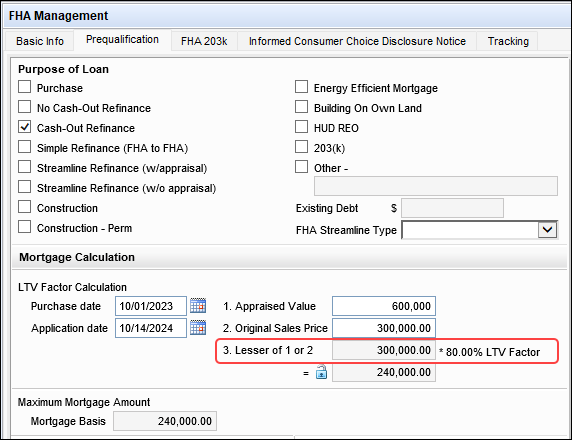
When the loan is an FHA cash out refinance and the Purchase date (1518) is 12 months or less from the Application date (745), the Lesser of 1 or 2 field (MORNET.X42) is populated with the lesser of the Appraised Value (356) or the Original Sales Price (EEM.63). Field 1154 is then populated with that lesser value multiplied by 80% of the LTV/CLTV.
When the loan is an FHA Cash out refinance and the Purchase date (1518) is greater than 12 months from the Application date (745), the Lesser of 1 or 2 field (MORNET.X42) is populated with the Appraised Value (356) multiplied by 80% of the LTV/CLTV.
New Option to Launch the Services Page in
Encompass Web Interface
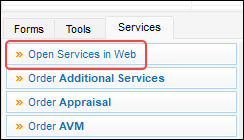
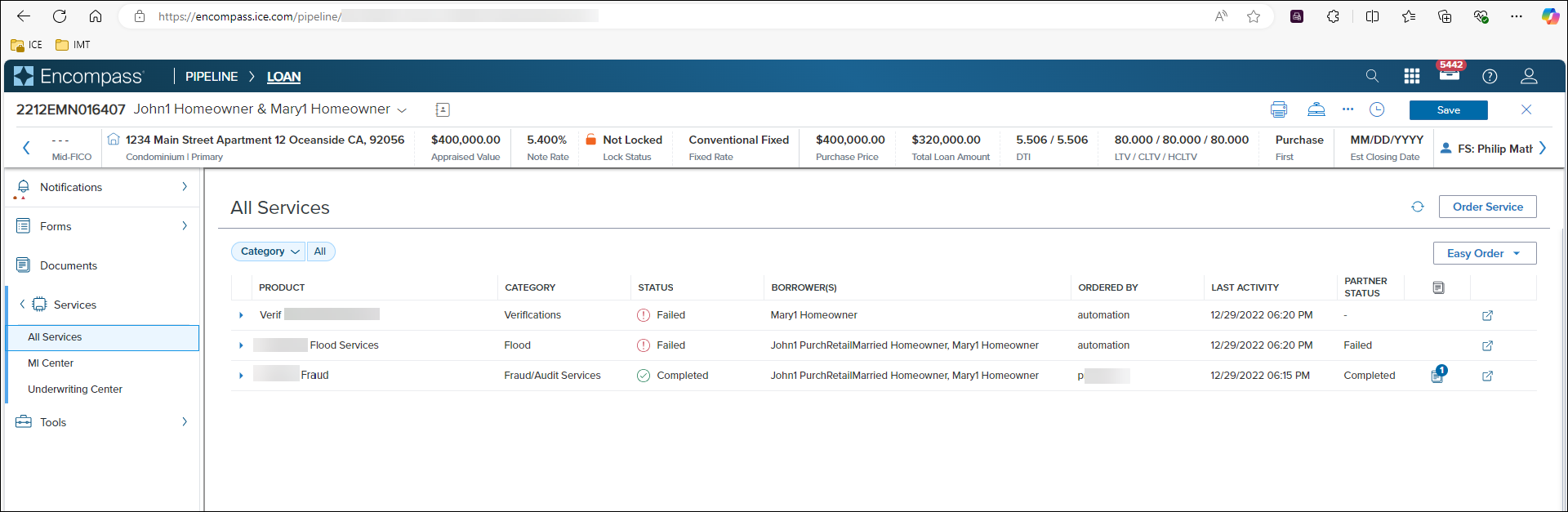
Using the new Open Services in Web option provided at the top of the Services tab when working in a loan in the desktop interface, users can now jump to the Services > All Services page inside the Encompass web interface. The All Services page is the central location for all current and future services in the Encompass web interface. Authorized users can order services from this page and view information about any services that have already been ordered for the loan. All orders are sorted by the Last Activity column in descending order. This enables users to see the latest changes to their service orders listed at the top.
All Services Page in Web Interface
Please note, this Open Services in Web option will only be displayed for users with the required Persona access rights. Users must have the Both desktop and web versions of Encompass access and the Services > All Services access rights in their assigned persona to access the Open Services in Web link from a loan.
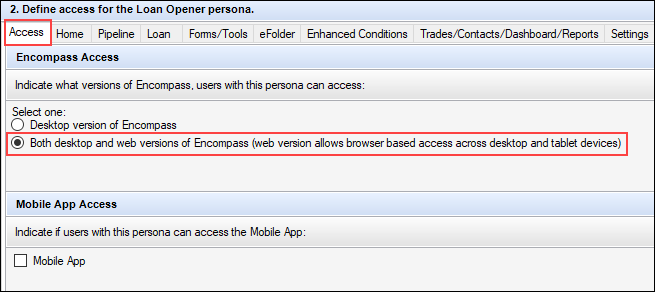
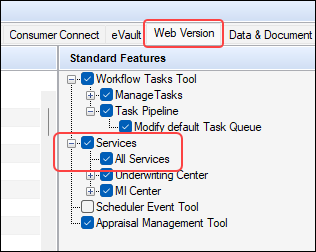
After jumping to the All Services page in the Encompass web interface, be sure to close the loan from this page before returning to the Encompass desktop interface. Simply closing the browser window or tab displaying the web interface will not close the loan. As a result, the loan will be locked for editing in the Encompass desktop interface until the 15-minute timeout in the web interface has lapsed.
Updates to USPS Subject Property Address Validation
Subject Property Address Validation
Updated to Allow Case Insensitive Data with Business Rules and More
With the USPS Address Validation service (introduced in Encompass 25.1), users can click the Validate Address button provided on the Borrower Summary - Origination and Borrower Summary - Processing input forms to validate the user-entered subject property address. This feature uses address information from the US Postal Service (USPS) to validate the following subject property information:
- Street Address (URLA.X73)
- City (12)
- State (14)
- ZIP Code (15)
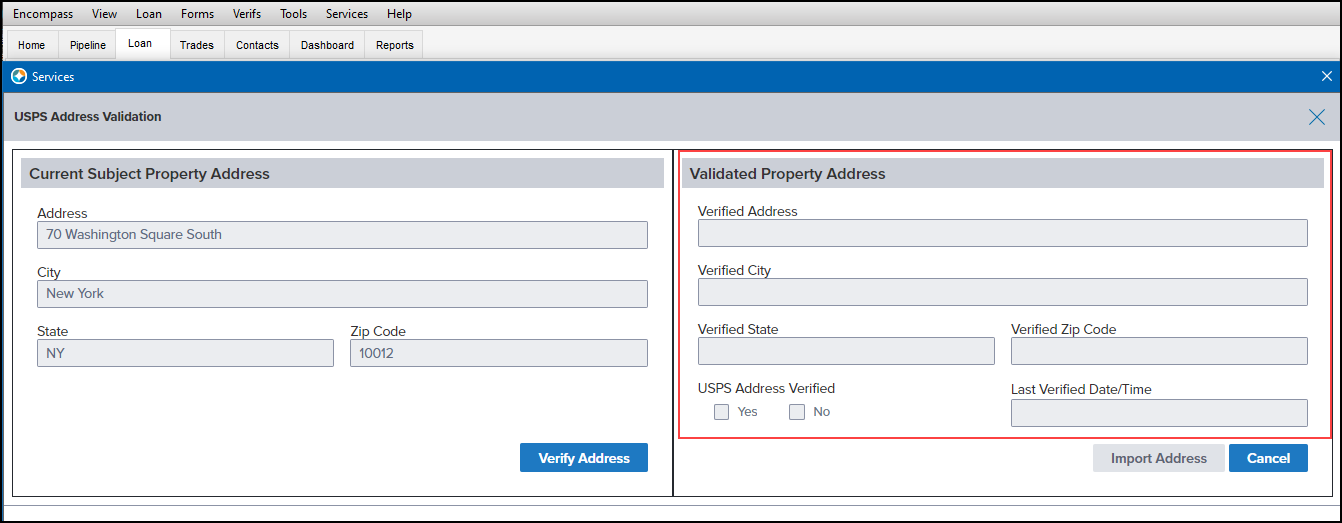
Once the address information is successfully validated, the address is considered invalidated if any of the subject property address fields listed above are later modified by the user to be different than the validated USPS address information. The validated address information is cleared out from the service window (as shown below) and the user will need to validate the newly entered address again. The validation service is case-insensitive, meaning that if the new data entered by the user is otherwise identical to the validated USPS address data except for the use of upper or lower case letters, the service still considers the newly entered address validated.
In Encompass 25.3, the service has been updated to also be case-insensitive when the subject property fields are modified by a business rule, Encompass SDK, or a plugin. Previously, when one of these methods was used to modify the subject property address, the service cleared out the validated address data if the modified address information was in lower or upper case that was different than the validated address data, but otherwise identical. Now, if the modified address data is identical to the validated data (case-insensitive), the validated address fields are not cleared out. If the modified address data is different than the validated data (case-insensitve), the validated data is cleared out.
New Fields in Encompass
New fields that have been added to the Encompass Reporting Database and/or to various forms and tools are described below.
New Grantor/Donor Name Field Added to
Verification of Gifts and Grants
A new Grantor/Donor Name field (URLARGG0126) has been added to the Verification of Gifts and Grants input form to enable users to document the name of a grantor or donor. This can be useful when multiple gifts or grants are present in the loan and it can also be used to check the donor's name against fraud watchlists.
New Service Provider Fields Added to
VOE and VOM
(Updated on 7/28/2025)
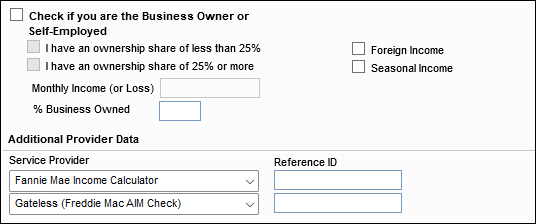
The following new dropdown fields have been added to the Verification of Employment (VOE) and Verification of Mortgage (VOM) in a new Additional Provider Data section to provide users with more options to add service provider information:
On the VOE:
-
Service Provider [for borrower] (BE0085, BE0086)
-
Service Provider [for co-borrower] (CE0085, CE0086)
-
Reference ID [for borrower] (BE0087, BE0088)
-
Reference ID [for co-borrower] (CE0087, CE0088)
VOE
On the VOM:
-
Service Provider (FM0062)
-
Reference ID (FM0063)
VOM
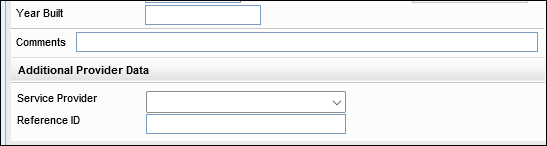
Please note that AUS (automated underwriting service) is not currently mapping to these new fields, so when AUS results are returned to Encompass, these fields will not be auto-populated. This mapping and auto-population is planned for a future Encompass release.
New Lock Expiration Date Field
Added to Lock Comparison Tool
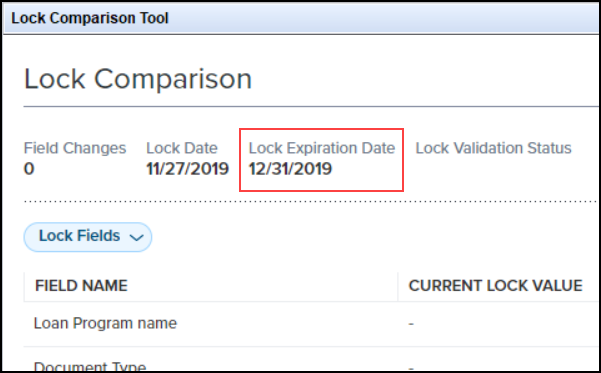
A new read-only Lock Expiration Date (field ID 762) field has been added to the Lock Comparison Tool to enable users to easily see that the lock is expired.
Updated Calculations for Profitability
to Support Zero Base Pricing When Auto-Lock Enabled
When Zero Based Par Pricing is enabled for a channel on the Product and Pricing setting and Auto-Lock is enabled (Encompass desktop interface), the Profitability Fee fields will be multiplied by -1. In addition, once the lock is confirmed, the Buy Side Lock and Pricing Profitability Fee fields on the Secondary Lock Tool will display in zero based pricing.
This enhancement supports zero base pricing with ICE PPE and is not applicable with any other product and pricing engine.
Trade Management
New Documents Tab Added to Loan
Trades
A new Documents tab has been added to Loan Trades. This tab enables you to upload a commitment letter and store the letter in the commitment.
The supported file types are jpeg, jpg, png, pdf, xls, and xlsx.
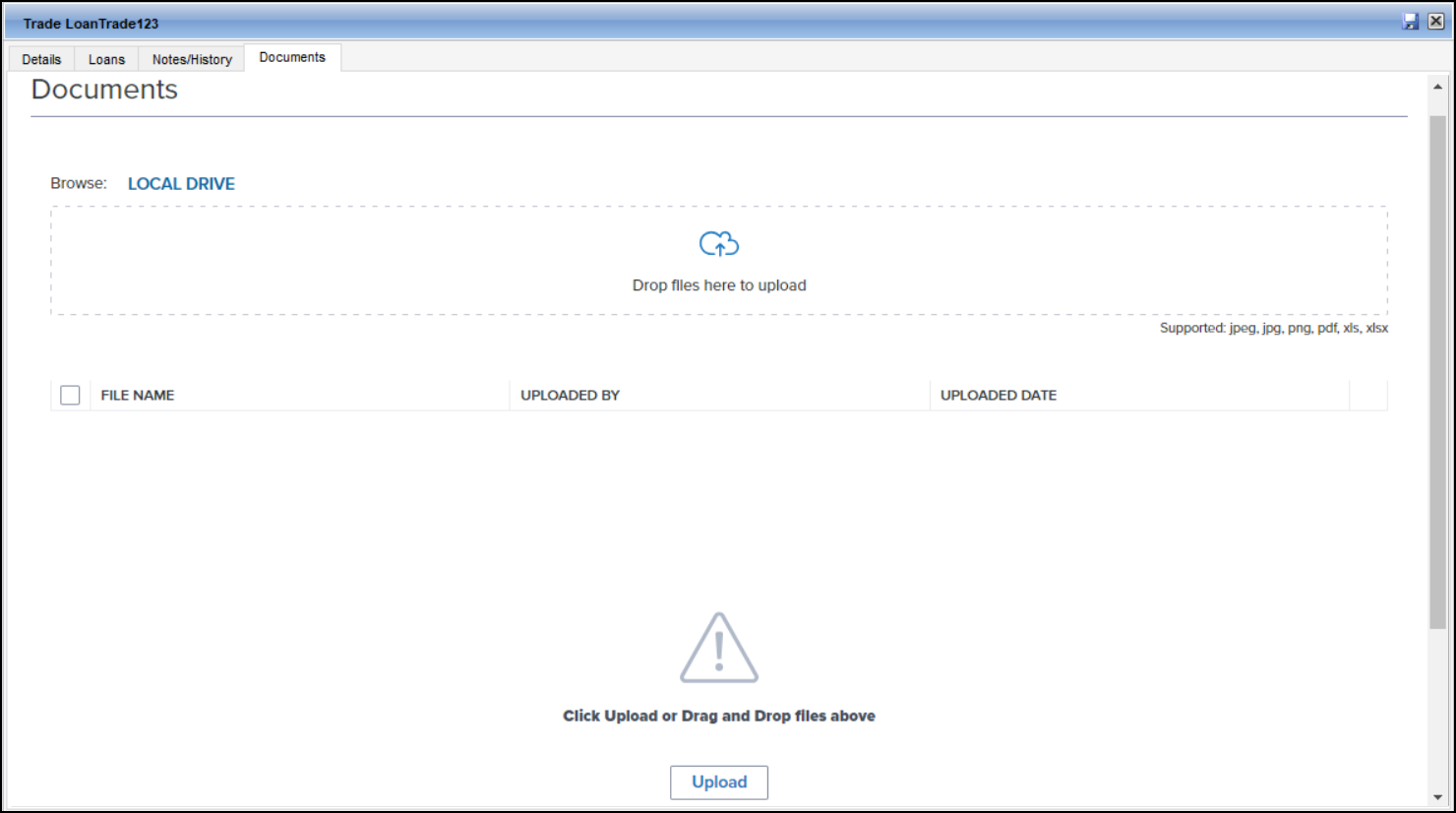
To Upload a Commitment Letter:
-
Log into Encompass.
-
Click the Trades tab and then click the Loan Trades tab.
-
From the Trades View, click the New Trade icon to create a new loan trade or double-click on an existing trade.
-
Click on the Documents tab.
-
The trade must have a Trade ID, otherwise the Documents tab cannot be accessed.
-
If you have the commitment letter file, you can drag and drop it into the text box with the label "Drop files here to upload". Otherwise, you can click on LOCAL DRIVE to browse for the commitment letter file, select it, and then click Open.
-
To delete a file, click on the Menu icon on the far right of the file's row and then click the Delete icon.
GSE Services & Integrations
For more GSE Integrations and Services 25.3 updates, see the GSE Release Notes.
Updates for the Rep and Warrant Tracker
Input Form
(Updated on 7/1/2025)
In Encompass 25.3 the Rep and Warrant tool in the Encompass web interface is being expanded with additional fields specific to digitally verified loans. This information will be useful for Encompass users leveraging the Fannie Mae and Freddie Mac automated underwriting integrations. As part of this update, a new collection of Employment and Income fields have been added to the Encompass Reporting Database. These fields will be used in the sections of the tool indicated below in the Encompass web interface only.
Please note that the new fields will not be populated with data from the income and employment verification fields in the Encompass desktop interface at this time. The data synchronization for these fields in both interfaces will be provided in a future Encompass release.
| Field Name | Field ID |
|---|---|
| Fannie Mae Employment Verification Section: | |
| Investor (string) | RWT0002 |
| Verification Type (string) | RWT0001 |
| Borrower Type (string) | RWT0003 |
| Employer Name (text field, string) | RWT0005 |
| Vendor Name (test field, string) | RWT0006 |
|
Report Type (test field, string) |
RWT0007 |
| Report ID (alphanumeric) | RWT0008 |
| Close By Date (date) | RWT0009 |
|
Status (Yes/No field) |
RWT0010 |
| Comments | RWT0011 |
| Fannie Mae Income Verification Section | |
| Investor (string) | RWT0002 |
| Verification Type (string) | RWT0001 |
| Borrower Type (string) | RWT0003 |
| Income Type (string) | RWT0004 |
| Vendor Match (text field, string) | RWT0012 |
| Report Type (test field, string) | RWT0007 |
| Report ID (alphanumeric) | RWT0008 |
| Validated Amount ($) | RWT0013 |
| Close By Date (date) | RWT0009 |
| Status (Yes/No field) | RWT0010 |
| Comments | RWT0011 |
| Freddie Mac Employment Verification Section | |
| Investor (string) | RWT0002 |
| Verification Type (string) | RWT0001 |
| Borrower Type (string) | RWT0003 |
| Employer Name (text field, string) | RWT0005 |
| Vendor Name (test field, string) | RWT0006 |
| Report ID (alphanumeric) | RWT0008 |
| Close By Date (date) | RWT0009 |
| Status (Yes/No field) | RWT0010 |
| Comments | RWT0011 |
| Freddie Mac Income Verification Section | |
| Investor (string) | RWT0002 |
| Verification Type (string) | RWT0001 |
| Borrower Type (string) | RWT0003 |
| Income Type (string) | RWT0004 |
| Employer Name (text field, string) | RWT0005 |
| Vendor Name (text field, string) | RWT0006 |
| Report ID (Alphanumeric) | RWT0008 |
| Income Amount ($) | RWT0013 |
| Close By Date (Date) | RWT0009 |
| Status (Yes/No) | RWT0010 |
| Comments | RWT0011 |
These fields are displayed in the Rep and Warrant tool in the Encompass web interface, but the field IDs are hidden and cannot be located with the Search Field ID tool. Since these fields are available in the Encompass Reporting Database, they may be added to a custom input form. These fields will be located with the Search Field ID tool when they are on a custom input form.
CBIZ-64811
Fannie Mae Income Calculator and Freddie Mac
AIM Fields Retired
The following fields for the Fannie Mae Income Calculator and Freddie Mac AIM Check have been retired:
- Fannie Mae Income Calculator: Belongs To (FANNIEIC0001)
- Fannie Mae Income Calculator: Verification Report Identifier (FANNIEIC0002)
- Freddie Mac AIM Check: Integrator (FAC0001)
- Freddie Mac AIM Check: Verification Report Identifier (FAC0002)
While these fields were already removed from the GSE Additional Provider Data input form in Encompass 25.2.0.1, the fields were still available in the Encompass Reporting Database. Please note the following:
-
If you had already added the field to a custom form prior to Encompass 25.3, the field will remain on the form, but it will now be read-only and cannot be modified.
-
If you had already added the field to the Selected Fields panel in the Encompass Reporting Database, you may still add these fields to custom forms, however, the fields will now be read-only and cannot be modified.
-
If you had not already added the field(s) to the Selected Fields panel, the field(s) are not reportable and cannot be added.
-
The field description in the Encompass Reporting Database has been updated with an (Obsolete) indicator at the end of the description.
Updates to ULDD/PDD Input Form
Appraisal Fields Now Displayed on the
ULDD/PDD Input Form
In Encompass 25.2, two new appraisal fields were added to Encompass, but they were not visible on the ULDD/PDD input form's Fannie Mae and Freddie Mac tabs:
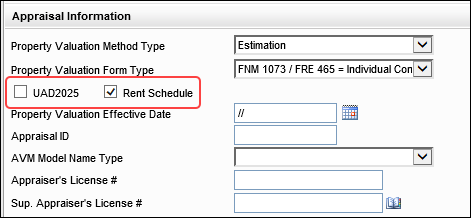
- UAD2025 (ULDD.X220)
- Rent Schedule (ULDD.X219)
In Encompass 25.3, these fields are now provided in the Appraisal Information section of the ULDD/PDD input form's Fannie Mae and Freddie Mac tabs. These fields are needed to support the new UAD/UCDP (Universal Appraisal Dataset/Uniform Collateral Data Portal®) process that is mandated by the GSE's effective 2026. The Rent Schedule field is newly added to the revised URAR report and is populated when an appraisal report is returned to Encompass. The UAD2025 indicator is needed for the ULDD integration with Freddie Mac and Fannie Mae.
CBIZ-65008, CBIZ-66307
Fields Added to Support New
UAD/UCDP Process
In addition to the UAD2025 and Rent Schedule fields discussed above, four new collection fields have been added to the Encompass Reporting Database to support the new UAD/UCDP (Universal Appraisal Dataset/Uniform Collateral Data Portal®) to electronically submit appraisal reports about conventional mortgages for loan delivery to Fannie Mae) process in the ULDD/PDD:
- Land Owned in Common (VAL00A038)
- Valuation Assignment Type (VAL00A039)
- Construction Method Type (VAL00A040)
- Project Legal Structure Type (VAL00A041)
Note that these fields are not displayed on any input forms or tools in the Encompass desktop interface. These fields are displayed in the Appraisal Management tool in the Encompass web interface only.
New Field Description for Land Owned
in Common UAD/UCDP Field
In Encompass 25.3, the field description for field VAL00A038 has been updated to better describe what the field is for. This field is available in the Encompass Reporting Database to support the new UAD/UCDP (Universal Appraisal Dataset/Uniform Collateral Data Portal®) to electronically submit appraisal reports about conventional mortgages for loan delivery to Fannie Mae) process in the ULDD/PDD.
| Original Field Description | New Field Description | Field ID |
|---|---|---|
| Correspondent Land Owned in Common Indicator | Correspondent Site Owned in Common Indicator | VAL00A038 |
Update to Support the Other
Enumeration for the Mortgage Insurance Premium Source Type Field
To support ULDD Phase 5 requirements, a new Other enumeration was added to the Mortgage Insurance Premium Source Type dropdown field (field ULDD.X49) in Encompass 24.3. However, there were existing field calculations that included field ULDD.X49 prior to the addition of the Other enumeration that were not updated to support the enumeration. When Other was selected for field ULDD.X49, it would be cleared from the field when the user saved the loan based on the selections made in related fields. Encompass has been updated so that the related field calculations for ULDD.X49 now support the Other enumeration.
New Fields Added to Support Multiple
Down Payment Sources for Ginnie Mae
The following new fields have been added to the Encompass Reporting Database to support multiple down payment sources for Ginnie Mae:
- Down Payment 1 Amount (ULDD.GNM.DownPayment1Amount)
- Down Payment 2 Amount (ULDD.GNM.DownPayment2Amount)
- Down Payment 2 Funds Type (ULDD.GNM.DownPayment2FundsType)
- Down Payment 2 Funds Type Other Description (ULDD.GNM.DownPayment2FundsTypeOtherDesc)
- Down Payment 3 Amount (ULDD.GNM.DownPayment3Amount)
- Down Payment 3 Funds Type (ULDD.GNM.DownPayment3FundsType)
- Down Payment 3 Funds Type Other Description (ULDD.GNM.DownPayment3FundsTypeOtherDesc)
- Down Payment 4 Amount (ULDD.GNM.DownPayment4Amount)
- Down Payment 4 Funds Type (ULDD.GNM.DownPayment4FundsType)
- Down Payment 4 Funds Type Other Description (ULDD.GNM.DownPayment4FundsTypeOtherDesc)
In addition, the field descriptions for the following two down payment source fields for Ginnie Mae have been updated in the Encompass Reporting Database to better describe the purpose of the field:
| Original Field Description | New Field Description | Field ID |
|---|---|---|
| Down Payment Funds Type | Down Payment 1 Funds Type | ULDD.GNM.DwnPymntFndsType |
| Other Down Payment Funds Type | Down Payment 1 Funds Type Other Description | ULDD.GNM.OtherDwnPymntFndsType |
In addition to the new field description for ULDD.GNM.DwnPymntFndsType, typos in the enumerations for the field have been corrected so that the enumerations are spelled correctly: Bridge Loan and Unsecured Borrowed Funds
If you added these fields to your Encompass Reporting Database prior to Encompass 25.3, you need to remove the field(s), and then add the field(s) back to your Encompass Reporting Database to see the new field descriptions and enumerations.
Updates for ICE Mortgage Analyzers Integrations
Credit Analyzer Messages Now Provide Data
Comparison Options
For companies that have purchased the ICE Mortgage Analyzers service, the green Credit Analyzer messages provided on the Alerts & Messages tab on the top-left of the Loan Workspace in an Encompass loan file have been updated to provide credit data comparison options. An Encompass user who has access to the service can click the green Credit Analyzer message entry on the tab to open the Credit Analyzer Message screen.
When file attachments for credit-related documents are imported into a loan, the Credit Analyzer scans the data in the attachments and compares it to the data in the Verification of Other Liability (VOOL) records in the loan. The message notification is generated when the Credit Analyzer has finished analyzing the data. Encompass users can use the information in the alert to compare and reconcile any credit data differences between the document attachments and the VOOL records.
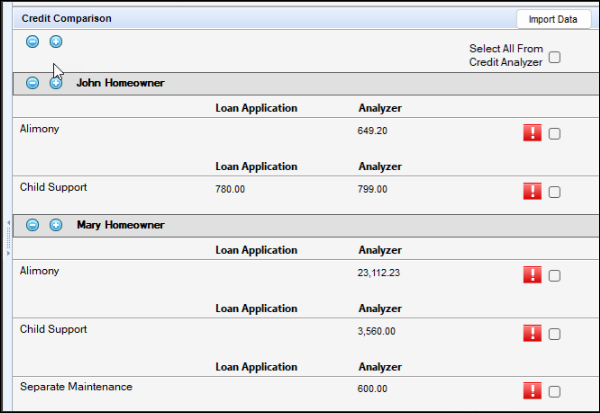
When you click a Credit Analyzer message, the window shown below opens in the Loan Workspace.
-
The three columns of data display the types of credit data (Child Support, Alimony, Separate Maintenance), the credit data from the corresponding Encompass loan application, and the corresponding data from the Credit Analyzer.
-
Dedicated expandable panels for each borrower and co-borrower are provided. Use the expand (+) and collapse (-) icons to expand and collapse each borrowers' credit panel displayed on the screen. Use the icons provided at the very top of the Credit Comparison section to expand and collapse all of the borrowers' credit panels that are listed.
-
A checkbox is provided to the right of each credit category. Select the checkbox for the category to import. You can select all categories at once by selecting the Select All From Credit Analyzer checkbox at the top of the section.
-
A red Exclamation Point icon displays to the right of the Encompass Data column for any fields that do not match.
Please note the following:
-
If there are multiple alimony, child support, or separate maintenance payments, the total amount of each type is consolidated and listed as the first credit record on the VOOL. For example, if there are three child support records for a borrower on the Credit Comparison screen, one for $450, one for $550, and one for $444, a single child support record of $1,444 is listed as the first record on the credit line (i.e., the first record of the VOOL) as shown below. In a future Encompass release these individual payments will be listed separately on the VOOL.

-
The Credit Analyzer consolidates multiple records together in each category (child support, alimony, separate maintenance) while the loan data maintains multiple, individual records. When there are multiple records, it is recommended that users either 1) retain the loan data for these records and do not import the analyzer data OR 2) import the analyzer data (the single consolidated amount) and delete the individual loan application records.
After selecting the credit analyzer data on the Credit Comparison screen, the user clicks the Import Data button in the Credit Comparison header to copy the information from the Credit Analyzer to the selected VOOL option. After a user clicks the Import Data button, a confirmation message displays to remind the user that importing the data will replace the credit amounts on the existing VOOLs.
After the user clicks OK, the data is imported, the alert clears, and Encompass opens the VOOL input form.
Access to the Import Data button is configured in the Personas setting. For details, refer to Personas Settings help topic.
When data is copied from the Credit Comparison screen:
-
Blank fields in the analyzer will clear the value in a corresponding Encompass field when a VOOL has existing data in the field.
-
When an Encompass field does not have a corresponding field in the Credit Analyzer, the Encompass value is retained.
-
Additional existing Encompass VOOL records are not replaced when data is copied. They must be deleted manually by a user.
As part of this enhancement, a new Import Source field has been added to the VOOL. This field indicates Analyzer when the data is imported from the credit analyzer or Encompass when the data is imported from the loan file. Please note that for existing loans created prior to Encompass 25.3, the Import Source field will be blank (i.e., not populated). These loans will not be updated with the Encompass indicator in the Import Source field.

CBIZ-63815, CBIZ-64584, CBIZ-64825
New Analyzer Credit Import Date Field
A new Analyzer Credit Import Date field (5065) has been added to the Encompass Reporting Database to collect the date when a user imports Credit Analyzer data to a loan in Encompass. This date will be used by Credit Analyzer to add the credit worksheet to the eFolder.
Note that this field is not available on any standard Encompass input forms or tools. They are provided in the Encompass Reporting Database only. The field may be added to custom input forms.
New Freddie Mac AIM Eligibility
Indicators Added to Income Analyzer Message Screen
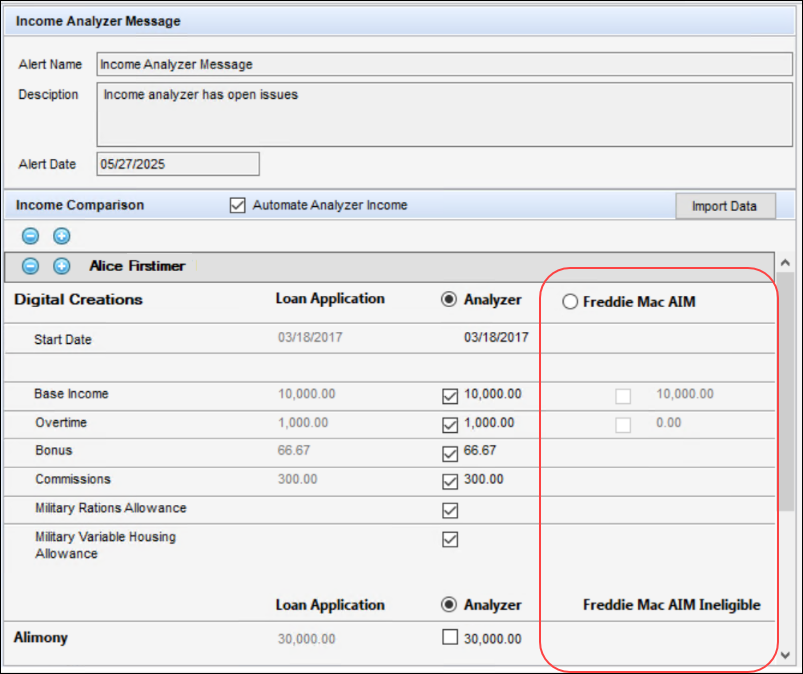
In the Income Comparison section of the Income Analyzer Message screen, when a loan is AIM eligible based on findings from Income Analyzers, a new Freddie Mac AIM indicator is now displayed next to the applicable employer data in the Analyzer column. AIM (Asset and Income Modeler) from Freddie Mac automates the assessment of borrower income and employment for lenders. This eligibility status is provided to help users decide if they want to use AIM eligible data from the Income Analyzer or keep the data currently in the loan application. Select the Freddie Mac AIM indicator to indicate that you are importing AIM eligible data.
Please note, Freddie Mac's AIM tool is helping lenders assess borrower assets, income, and employment to determine eligibility for representation and warranty (R&W) relief. Meaning that loans using AIM eligible data from the Income Analyzer Message screen could potentially receive R&W relief, but that is dependent on Freddie Mac's evaluation and enforcement of certain selling reps and warranties related to the borrower's assets and income.
When the data is not eligible for AIM, a Freddie Mac AIM Ineligible indicator is displayed.
When the supporting documentation is filed in the loan - currently that is the Paystub and W2 - the Freddie Mac application is requested to perform the calculations. When this is complete, the AIM Check status and income calculations are sent to the Income Analyzer where they can be selected. The selected income is then available for transfer to Encompass where it's provided in the Income Analyzer Message screen and the user can elect to import it into the loan file.
When AIM income is selected in the Income Analyzer, it can then be imported in the Income Analyzer Message in Encompass. When AIM income is selected, all AIM income types - like Base, OT, Commission - are selected automatically and all those selections must be selected to keep AIM eligibility. A hybrid approach, wherein income is derived partly from Income Analyzer and partly from AIM, should not be used. Any time the whole AIM income is not being used, the user should select one of the Analyzer calculated amounts and not use AIM income calculations from the Income Analyzer.
Updates to Field Labels and Enumerations for
Analyzer Data on Verification Input Forms
Updates have been made to verification input forms (VOD, VOE, VOM, Verification of Other Income, Verification of Other Liability) to better represent the mortgage analyzer data represented on these forms when it is imported from the Income Analyzer Message or the Asset Analyzer Message screen:
-
The Source column has been re-named Import Source
-
The column indicating the type of analyzer where the data is imported from has been re-named to Analyzer and the specific analyzer type is no longer used (for example, Income Analyzer). The date and time of the import has also been removed.
-
For new loans in Encompass 25.3, whenever applicable income data that was imported from an analyzer is then changed in the loan file, the Import Source column will be updated with an Encompass indicator. (When the data is imported from an analyzer, the Import Source indicator is Analyzer.)

Field IDs Assigned to Data
& Document Automation Import Buttons
Field IDs have been assigned to the following Mortgage Analyzers Import Data buttons that are provided in the analyzer messages that display when there is a difference between the data in the loan and the data returned by the Income, Asset, or Credit analyzers. Administrators can use these IDs to create Persona Access to Fields and Field Data Entry business rules for managing user access to these buttons and when the analyzer data can be imported into the loan.
- DDAINCOMEIMPORT (Import Data button on the Income Analyzer Message screen)
- DDAASSETIMPORT (Import Data button on the Asset Analyzer Message screen)
- DDACREDITIMPORT (Import Data button on the Credit Analyzer Message screen)
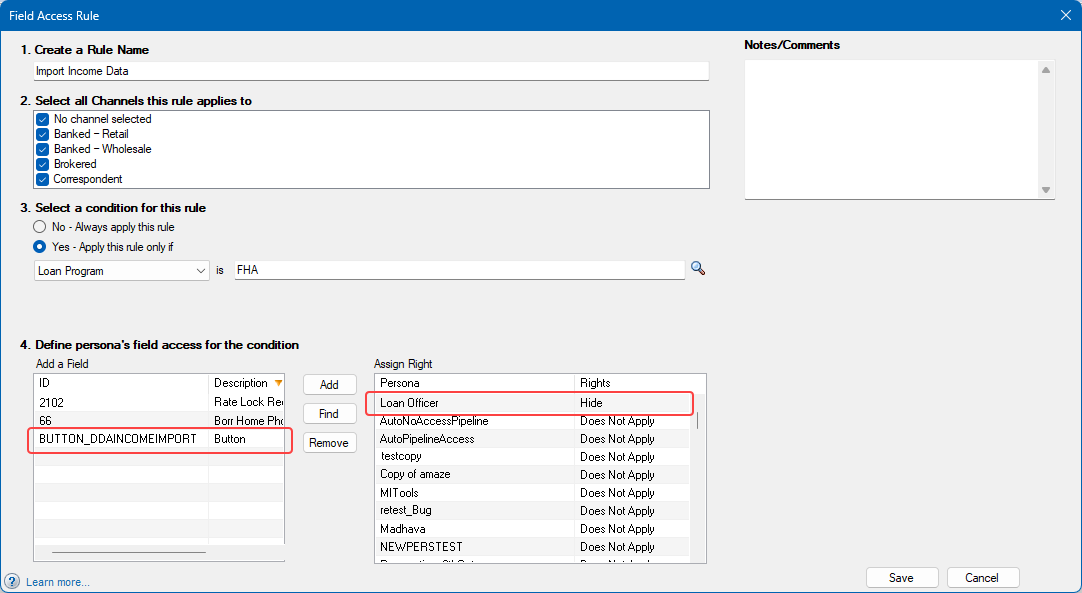
When creating a business rule for an Import Data button, you must add the BUTTON_ prefix before the button's field ID. For example, here is a Persona Access to Fields business rule set up to hide the Import Data button on the Income Analyzer Message screen from loan officers working in FHA loans:
Please note, the Import Income Analyzer Data Personas setting takes precedence over these business rules. A persona that has this Import Income Analyzers Data permission will continue to have access to the Import Data button on the Income Analyzer Message even if a Persona Access to Fields or Field Data Entry business rule designed to hide or deactivate the button is applied. (The Import Income Analyzer Data permission option is located on the Data & Document Automation and Mortgage Analyzers tab in the Personas setting.)
New Field Descriptions for ICE Mortgage
Analyzers Exclusion Fields to Use with Business Rules
For companies that purchased the ICE Mortgage Analyzers, new fields were introduced
in the Encompass Reporting Database in the 25.1 Major Release
| Original Field Description | New Field Description | Field ID |
|---|---|---|
| AUS Analyzer Exclusion Indicator | Customer Exclusion Indicator for AUS Analyzer | ANALYZER.X28 |
| AUS Analyzer Exclusion Reason | Customer Exclusion Reason for AUS Analyzer | ANALYZER.X29 |
| Audit Analyzer Exclusion Indicator | Customer Exclusion Indicator for Audit Analyzer | ANALYZER.X30 |
| Audit Analyzer Exclusion Reason | Customer Exclusion Reason for Audit Analyzer | ANALYZER.X31 |
| Credit Analyzer Exclusion Indicator | Customer Exclusion Indicator for Credit Analyzer | ANALYZER.X32 |
| Credit Analyzer Exclusion Reason | Customer Exclusion Reason for Credit Analyzer | ANALYZER.X33 |
| Income Analyzer Exclusion Indicator | Customer Exclusion Indicator for Income Analyzer | ANALYZER.X34 |
| Income Analyzer Exclusion Reason | Customer Exclusion Reason for Income Analyzer | ANALYZER.X35 |
| Asset Analyzer Exclusion Indicator | Customer Exclusion Indicator for Asset Analyzer | ANALYZER.X36 |
| Asset Analyzer Exclusion Reason | Customer Exclusion Reason for Asset Analyzer | ANALYZER.X37 |
| Collateral Analyzer Exclusion Indicator | Customer Exclusion Indicator for Collateral Analyzer | ANALYZER.X38 |
| Collateral Analyzer Exclusion Reason | Customer Exclusion Reason for Collateral Analyzer | ANALYZER.X39 |
Please note:
-
These fields are not available on any standard Encompass input forms or tools. They are provided in the Encompass Reporting Database only. They may be added to custom input forms and business rules.
-
If you added these fields to your Encompass Reporting Database prior to Encompass 25.3, you need to remove the field(s), and then add the field(s) back to your Encompass Reporting Database to see the new field descriptions.
New fields are also being added to the Encompass Reporting Database to enable analyzers users in Encompass to see the reason opting out of the analyzer data. The reasons are visible in the Mortgage Analyzers and are being copied to Encompass and stored in these fields so users do not have to open the Mortgage Analyzers to learn the reason for the opt-out. These fields are not displayed on any standard Encompass input forms or tools. Add the field(s) to a custom input form to see the corresponding reason for opting out of the analyzer data.
| Field Description | Field ID |
|---|---|
| Exclusion Reason from AUS Analyzer | ANALYZER.X44 |
| Exclusion Reason from Audit Analyzer | ANALYZER.X45 |
| Exclusion Reason from Credit Analyzer | ANALYZER.X46 |
| Exclusion Reason from Income Analyzer | ANALYZER.X47 |
| Exclusion Reason from Asset Analyzer | ANALYZER.X48 |
| Exclusion Reason from Collateral Analyzer | ANALYZER.X49 |
New Document Validation Exception Exists
Field
A new Doc Validation Exception Exists field (ANALYZER.X43) has been added to the Encompass Reporting Database. Document validation is part of the Business Association app within the ICE Mortgage Analyzers. When there is a document that cannot be associated to a borrower or to an insurance policy or to a property it will be provided in the Business Association app where the user can then make the association.
This field indicates (Yes/No) when an association cannot be made (i.e., a document validation exception exists). This field is not provided on any input forms or tools, but it can be added to custom input forms and business rules that are triggered based on the status of this field (Yes or No).
Updates for Correspondent Lending
New Correspondent Channel Fee Variance
Setting for Fee Level Disclosures
An update to the Compliance Review Setup setting that is used to manage how the Encompass Compliance Service (ECS) reviews are performed has been made to address an issue related to fee rounding on the Loan Estimate (LE) that was triggering FAIL status messages for correspondent lenders when disclosing the Closing Disclosure (CD).
When a Correspondent Lender disclosed the CD, the values disclosed and saved in the disclosure tracking record were the unrounded values. However, when compared to the values disclosed and saved in the disclosure tracking record for the LE, a mismatch occurred due to the rounded values on the LE. This resulted in unintended false FAIL status messages.
To address this, a new Corresponded Channel Fee Variance option is now available that enables correspondent lenders to specify a new Corresponded Channel Fee Variance amount and apply a tolerance amount to account for rounding of dollar amounts on the LE. This tolerance amount is applied to the LE values in the Disclosure Tracking record when comparing the LE to the CD, using Fee Level Disclosures.
To Enable the Correspondent Channel Fee Variance Setting:
-
On the menu bar, click Encompass, and then click Settings.
-
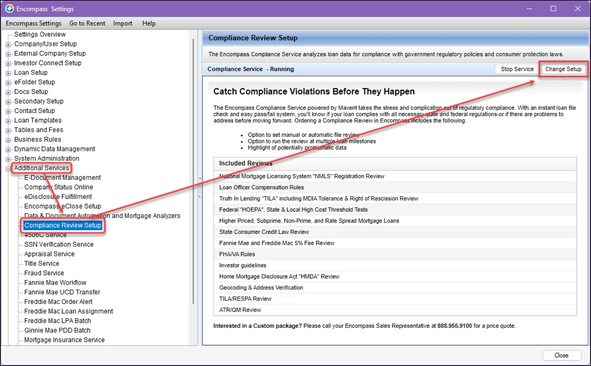
On the left panel, click Additional Services > Compliance Review Setup, and then click the Change Setup button in the upper-right corner. The Compliance Review Setup window opens.
-
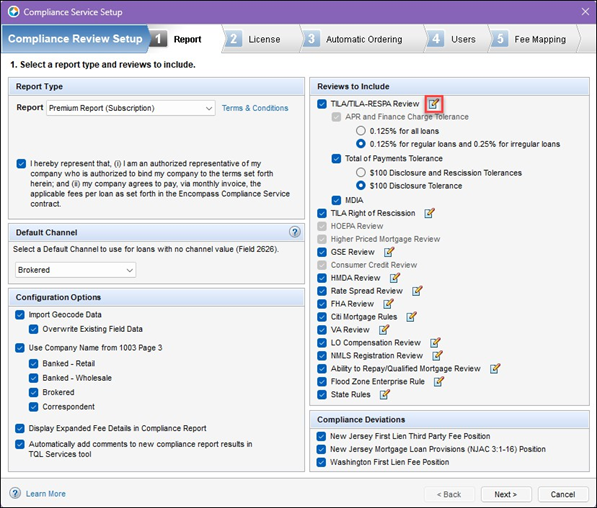
On the Report tab, click the Edit icon for TILA/TILA-Respa Review under the Reviews to Include section. The TILA/TILA-RESPA Review Run Condition window opens.
-
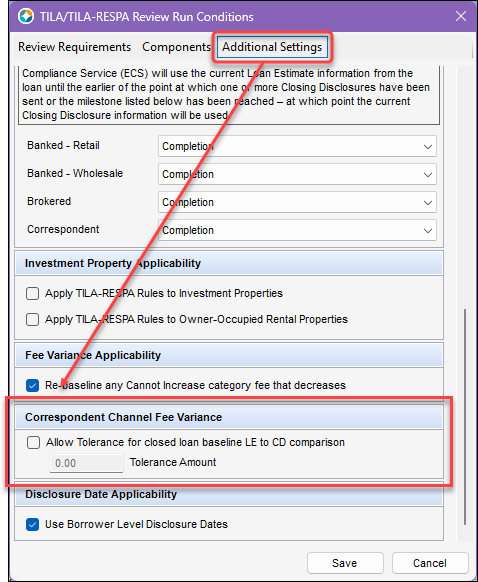
Click the Additional Settings tab and locate the Correspondent Channel Fee Variance option.
-
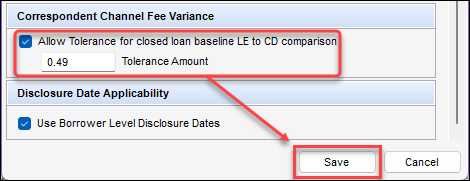
Select the Allow Tolerance for closed loan baseline LE to CD comparison checkbox, enter an amount greater than or equal to zero for the Tolerance Amount, and then click Save.
-
Click the Next button until you reach the Fee Mapping tab, and then click Finish.
The functionality described above is optional. Regulation Z, comment 19(e)(3)(i)-7 provides: "Use of unrounded numbers. Sections 1026.37(o)(4) and 1026.38(t)(4) require that the dollar amounts of certain charges disclosed on the Loan Estimate and Closing Disclosure, respectively, to be rounded to the nearest whole dollar. However, to conduct the good faith analysis required under § 1026.19(e)(3)(i) and (ii), the creditor should use unrounded numbers to compare the actual charge paid by or imposed on the consumer for a settlement service with the estimated cost of the service."
Here is an example of how the tolerance amount will be added to LE values in the Cannot increase and the Cannot increase more than 10% categories based on the Allow Tolerance... setting.
| LE Rounded Value | Tolerance Amount Applied | LE Tolerance Amount | CD Unrounded Value | Status |
|---|---|---|---|---|
| 75 | 0.49 | 75.49 | 75.15 | PASS |
| 75 | 0.49 | 75.49 | 75.50 | FAIL |
| 75 | 0.49 | 75.49 | 77.15 | FAIL |
| 75 | 0.49 | 76.49 | 76.15 | PASS |
| 75 | 0.49 | 76.49 | 77.15 | FAIL |
| 75 | 0.49 | 76.49 | 75.60 | PASS |
Here is an example of how the tolerance amount will be subtracted from LE values in the Cannot decrease categories based on the Allow Tolerance... setting.
| LE Rounded Value | Tolerance Amount Applied | LE Tolerance Amount | CD Unrounded Value | Status |
|---|---|---|---|---|
| 75 | 0.49 | 74.51 | 74.85 | PASS |
| 75 | 0.49 | 74.51 | 74.50 | FAIL |
| 75 | 0.49 | 74.51 | 72.85 | FAIL |
| 75 | 0.49 | 75.51 | 75.85 | PASS |
| 75 | 0.49 | 75.51 | 74.85 | FAIL |
| 75 | 0.49 | 75.51 | 76.40 | PASS |
CBIZ-65950, CE-54640, CE-54689, CE-54695
New Meets Tolerance Field
As part of the new Correspondent Channel Fee Variance setting, a new read-only Meets Tolerance field (COMPLIANCEREVIEW.X33) has been added to the Encompass Reporting Database. This new field will be selected by the system when the data meets the tolerance amount and therefore Encompass will not trigger a fee alert message.
This field is not provided on any input forms or tools. It is included in the Encompass Reporting Database and can be added to custom input forms.
Electronic Document Management (EDM)
eSign Events: New eSigning Provider
For the past several years, electronic signing (eSigning) within Encompass has been facilitated by a third-party, Docusign, in all areas where eSigning is supported (except for hybrid eClose). Beginning with this Encompass 25.3 release, the signing platform has transitioned to ICE's eSign Events for all electronic documents in all environments. No setup or user action is required. This change has no impact on non-platform signing solutions.
Again, in Encompass 25.3, eSign Events is now used for eSigning for all electronic documents in all environments. Docusign is no longer available for use in Encompass.
Additional Information
While eSign Events is a new signing provider, the user experience is intuitive and will be familiar to Encompass users who previously utilized Docusign for eSigning.
When a borrower or other signer clicks eSign to begin signing, they are taken to a new eSign Events location with a slightly different theme, but the tasks the borrower or other signers need to complete are the same as they were with Docusign.
Review KA #000116011 - eSign Events: New eSigning Provider Coming in Encompass 25.3 to learn more about the benefits of eSign Events and to view a feature comparison to understand how the eSign Events flow compares to the Docusign experience.
eFolder's Send to Lenders Option is
Removed
In Encompass 25.3, the Send button in the eFolder has been changed from a dropdown component to a standard button. As part of this update, the Send Files to Lender... option has been removed and is no longer available in Encompass. In previous versions of Encompass, this option was provided to users so they can submit loans to their lenders and investors from the eFolder. This functionality is provided in Encompass Investor Connect. Users can utilize that application going forward to submit loans to their lenders and investors.
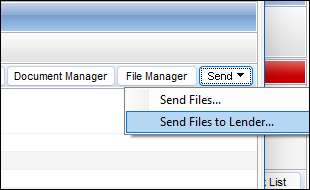
In Encompass 25.3, clicking the Send button can be used to send files to borrowers. Prior to this update, users were required to click the Send button, and then select the Send Files option to send files to borrowers.
DOCP-77366
Encompass Settings
New Option for Administrators to Set the
Client IDs to Use for the Loan Mailbox
A new option has been added to the Server Settings Manager in the Encompass Admin Tools to give administrators the ability to manage the list of available Encompass Client IDs that will be available to users when they are transferring a loan via the Loan Mailbox. Some lenders were having issues with Encompass users entering an incorrect Client ID when transferring a loan, which results in the loan being transferred to the wrong Encompass instance. To help reduce the risk of transferring a loan to the wrong instance, administrators can now use this new option to provide the list of eligible Client IDs that may be used.
To add a Client ID, administrators will navigate to the Encompass Admin Tools > Settings Manager, and then select Policies from the Category dropdown list. Then click the Set Client IDs For Mailbox button.
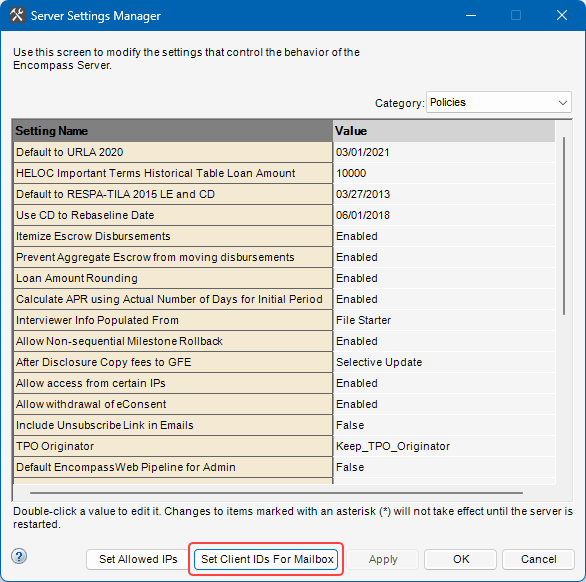
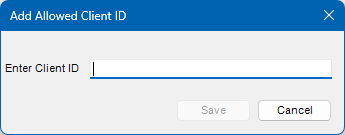
In the resulting Allowed Client IDs For Loan Mailbox pop-up window, click the New icon, and then type the Client ID. When finished, click Save.
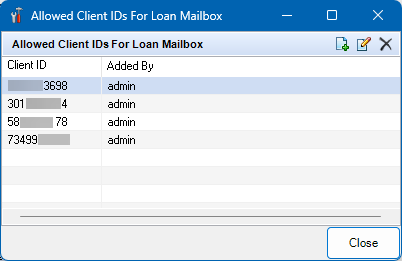
Use the icons provided to add, edit, or delete client IDs here. When finished, click Close.
When an Encompass user is transferring a loan from one Encompass instance to another, the list of Client IDs provided by the administrator is provided in the Client ID dropdown list. Users are not permitted to manually type a Client ID here.
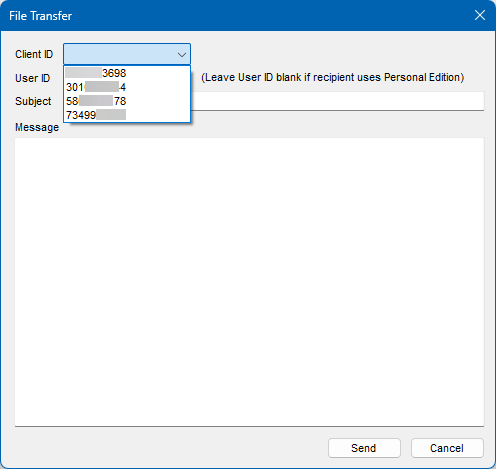
It is important to note that beginning in Encompass 25.3, the Client ID field and dropdown list in the File Transfer pop-up window will be blank/empty by default. The administrator must use the new Set Client IDs For Mailbox option to add at least one Client ID to the list of allowed Client IDs before users will be able to transfer a loan. Since users are no longer permitted to manually add a Client ID when transferring a loan, they cannot transfer a loan until the administrator provides a Client ID for them to use.
Update to Loan Custom Field Editor to
Prevent Extra Spaces in the Field ID
Updates have been made to the Encompass Settings > Loan Setup > Loan Custom Fields setting to prevent extra spaces from being included at the beginning or end of the field ID provided by administrators creating new custom fields. It was determined that once a custom field with extra spaces in the field ID was added to the Encompass Reporting Database, it resulted in an 'Invalid Column' error being triggered when users attempted to create and save a new loan file in Encompass. To prevent this issue, extra spaces at the beginning or end of the field ID are now automatically removed from the Field ID field when a new custom field is created. Administrators were already prevented from including extra spaces in the field IDs when they were manually typed, but they were permitted when the field ID was copied and pasted from another source. Now the extra spaces in the field IDs are automatically removed if they have been copied and pasted into the field when the new custom field is created.
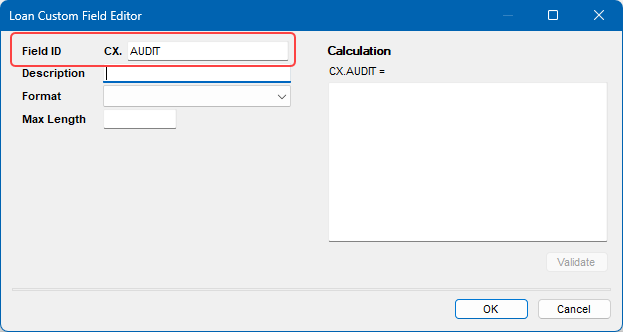
Please note, this new update applies only to new custom fields created in Encompass 25.3 or later. If you have any existing custom fields in the Encompass Reporting Database with extra spaces at the beginning or end of the field ID, they will not be updated. To address this in your instance, you can remove the custom field from the Encompass Reporting Database. Once the field is removed, users will no longer receive the 'Invalid Column Name' error when creating a new loan. If you want to re-add the custom field to the database, update the field ID in the Loan Custom Field Editor to remove the extra spaces from the beginning and end of the ID. Then you can add the updated custom field to the Encompass Reporting Database.
New 50 Character Limit when Naming New Loan
Folders
When creating a new loan folder in the Encompass Settings > Loan Setup > Loan Folders, the folder name is now required to be 50 characters or less.
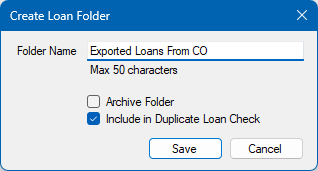
This limit has been put in place to help reduce the possibility of the network path of the loan folder being so long that it causes errors when users attempt to open the folder from their Pipeline.
This character limit applies to new loan folders created in Encompass 25.3 or later. Existing loan folders created in previous versions of Encompass with folder names that exceed 50 characters will not be updated and the original folder names will remain.
New Prompt to Reassign Loans Before Deleting
User from TPO Company Added to External Company Setup Company Details
Prior to deleting a user with a Loan Officer and/or Loan Processor persona from a Third Party Originator on the External Company Setup Company Details main screen, a prompt will be displayed that allows loans to be reassigned from the soon-to-be deleted user to another user.
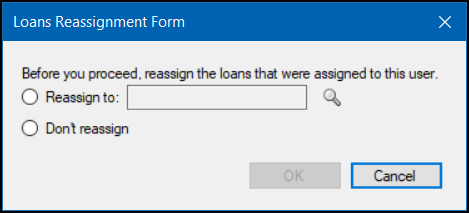
To Reassign Loans:
-
On the menu bar, click Encompass, and then click Settings.
-
On the left panel, click External Company Setup, and then click Company Details.
-
Expand the Third Party Originator (TPO) folder and locate the TPO with the user you want to delete.
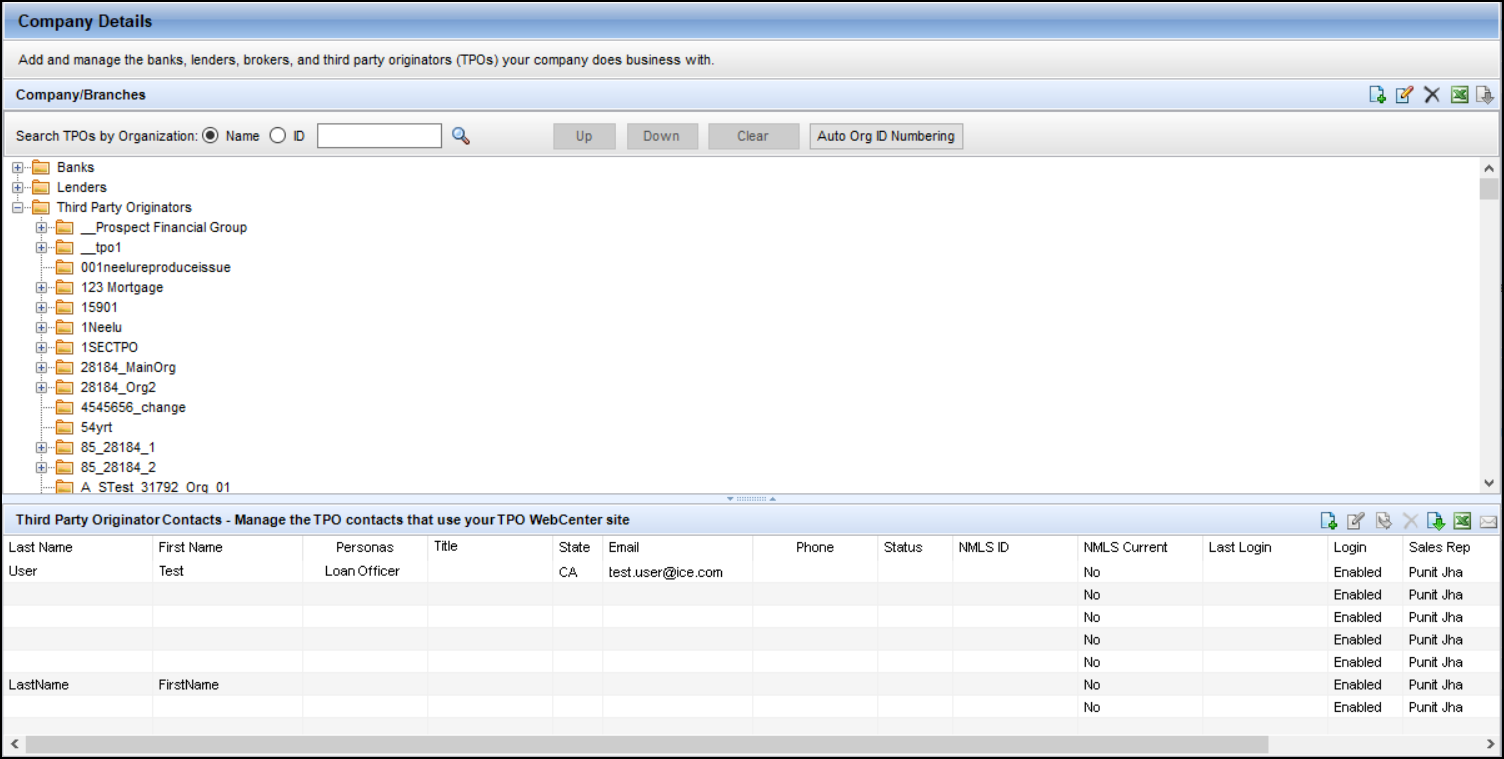
-
In the lower panel, highlight the user you want to delete and then click the Delete icon.

-
When prompted, click Yes to delete the user.
-
The Loans Reassignment Form is displayed.
-
If you do not want to reassign loans, select the Don't reassign radio button.
-
If you want to reassign loans, select the Reassign to radio button.
-
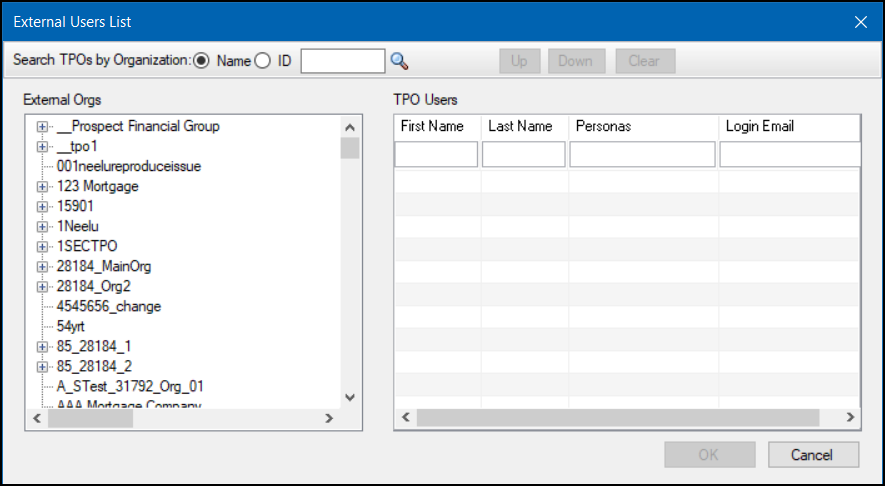
Click the Search icon. The External Users List is displayed.
-
All TPO organizations with their child organizations are listed.
-
You can search the TPOs by Organization Name or Organization ID.
-
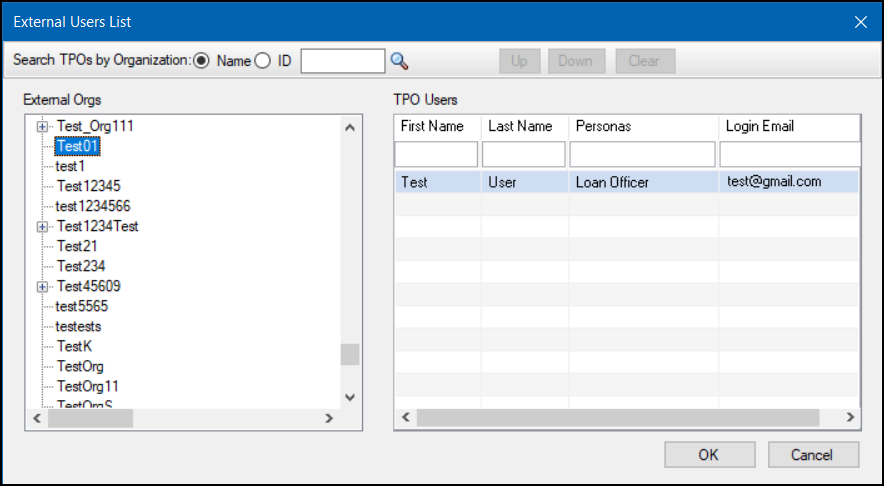
Select the TPO organization or child organization with the user you want to reassign the loans to.
-
You can only select one organization.
-
All LO/LP users within the selected organization will be displayed in the TPO Users panel.
-
Select the user you want to reassign the loans to and then click OK.
-
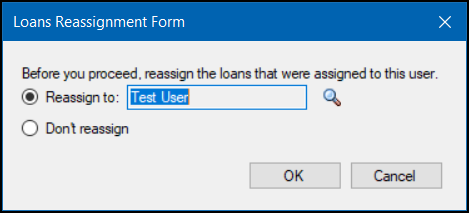
You are returned to the Loans Reassignment Form and the user you selected will be displayed in the field.
-
Click OK to delete the user.
-
A message stating "All loans have been reassigned to [Selected User]" is displayed.
New Loan Template Option to Use the Left
Navigation Menu Provided with the Web Interface
A new option - Web Left Navigation Template - is now provided in the Loan Template Sets setting. Here the administrator can select a Loan Left Navigation template that's been configured in the Encompass web interface Admin portal to include with the loan template. When a loan using the loan template is opened in the Encompass web interface, the Loan Left Navigation template is applied and the left navigation menu is displayed accordingly. For more information about Loan Left Navigation templates, review the online help.
The available templates to select for this field are all the templates stored in the Encompass web interface Admin portal (in the Company/User Setup > Loan Left Navigation page). Note that the Standard template, which is the default template for all instances in the Encompass web interface, is not included for this new Web Left Navigation Template feature. It will be used in the web interface only when no other template is selected.
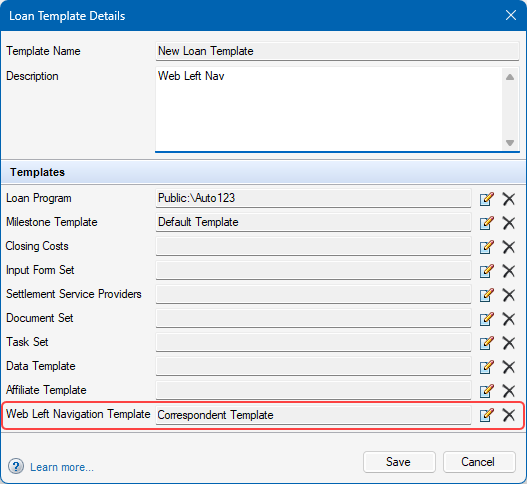
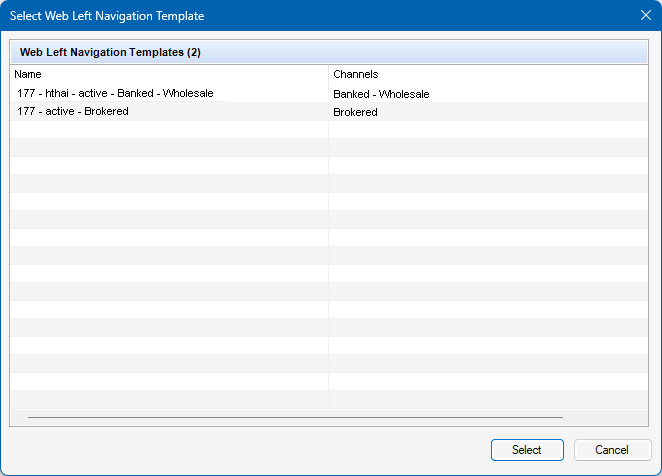
Again, the templates listed in this pop-up window are all the templates located in the Loan Left Navigation setting in the Encompass web interface:
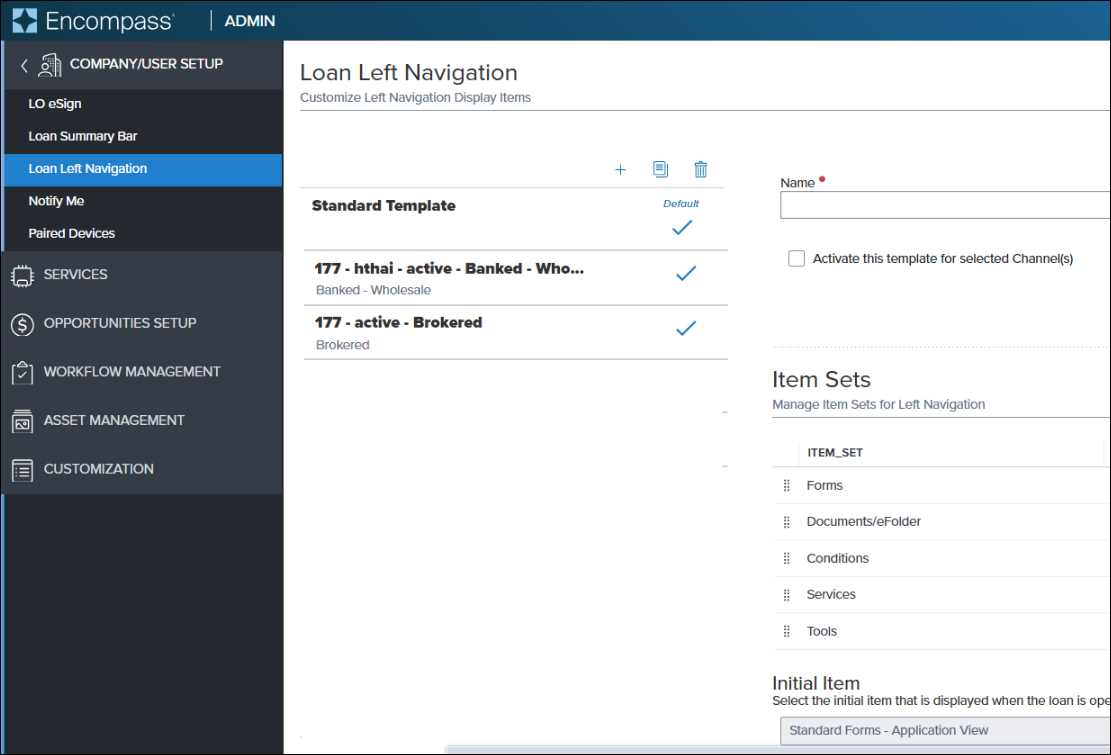
-
If you select a template to apply, and then later that template is deleted from the Loan Left Navigation admin page in the web interface, the Web Left Navigation Template field in the Loan Template Details pop-up window will be blank the next time the administrator opens it. The administrator will need to select a different template for this field if needed.
-
There is no indication or warning message in the Loan Template Details pop-up window to indicate that the selected Web Left Navigation Template is deactivated. It is the responsibility of the administrator to select a different template if needed.
CBIZ-64601, NICE-54177, NICE-52023
Encompass Developer Connect APIs
Transitioning from Encompass SDK to
Developer Connect APIs
Beginning in Encompass 25.4, users logging in with the admin user ID, as well as users assigned with the Administrator or Super Administrator persona, will receive a warning message explaining that access to Encompass SDK-based plugins and applications will soon end. This message displays for these users in Encompass instances that have Encompass SDK plugins.
ICE will be transitioning from legacy Encompass SDK (Software Development Kit) integrations in October 2025. This enables our clients, partners and ICE to continue to innovate and automate by eliminating legacy integrations and focusing on modern technology. ICE is transitioning clients and partners off SDK-based applications and plug-ins (lender, partner and ICE created) by October 31, 2025.
-
Standalone SDK modules (transition to Developer Connect APIs)
-
SDK loan plugins (migrate to SSF framework and NG plugin framework)
For more information, refer to the Encompass SDK Transition page.
APIs for the most common SDK functions and native Encompass functionality will eliminate the need for many legacy SDK use cases. Encompass APIs are interoperable across web and desktop, as both user interfaces sit on top of the same underlying Encompass loan file. Alternatives to SDK functionality are available with more coming. There may not be 100% parity, but we will provide the most common functions and alternatives. For more information, refer to the Transitioning from SDKs and Legacy Integrations - FAQs.
Fixed Issues for Version 25.3 (Banker
Edition)
This section describes the issues that have been fixed in this release.
Why we fixed these issues: These issues were fixed to improve usability and to help ensure Encompass is operating as expected. The issues that are chosen to be fixed are based on the severity of their impact to clients and client feedback.
Encompass Forms and Tools
Update to Adjusted Fully Indexed Rate
Rounding Calculation for HELOC Loans
(Updated on 8/27/2025)
To help ensure the Adjusted Fully Indexed Rate field (3296) is populated correctly for adjustable rate HELOC transactions, the system calculation for this field has been updated.
The previous calculation used with HELOC loans for 3296 was:
The Margin (689) + the Index (688) - 0.49, rounded to an integer based on the rounding logic indicated in field SYS.X1 (round up or round down) and 1700 (the nearest value to round to).
The new calculation used with HELOC loans for 3296 is:
The Margin (689) + the Index (688), rounded to an integer based on the rounding logic indicated in field SYS.X1 (round up or round down) and 1700 (the nearest value to round to).
Fee Level Disclosures: Update to
Address Issue with Good Faith Fee Variance Violated Alert
The Good Faith Fee Variance Violated alert is generated when there is a variance between the LE and 2015 Itemization in the Total Good Faith Amount section (field ID FV.X345) of the Fee Variance Worksheet or when there is a variance between the CD and 2015 Itemization in the Total Good Faith Amount section (field ID FV.X347) on the worksheet. An issue was introduced in Encompass 23.1 with this alert and closing cost fees entered on lines 1203, 1204, or 1205 of the 2015 Itemization. When a fee entered on one of these lines created an applicable fee variance, and new fees were added to other lines on the 2015 Itemization, the alert was triggered as expected for both fees, but when the user took the needed action to clear the alert for one of the fee lines, the alert was actually cleared for fees on lines 1203, 1204, or 1205 too.
For example, when a fee on Line 1203 of the 2015 Itemization was disclosed as Seller Obligated, and then changed to Borrower Paid, and an additional new fee was then added to the 2015 Fee Itemization input form, the Good Faith Fee Variance Violated alert was triggered as expected showing both fees. However, when a valid Change of Circumstance was added for the newly added fee (not the fee on Line 1203), and then the LE was redisclosed, the Good Faith Fee Variance Violated alert was cleared for the newly added fee and the fee on Line 1203.
This issue has been fixed and now the alert is only cleared for the fee lines that are actually updated to clear the alert.
New Rounding Logic for LTV Ratios for
FHA and VA Loans
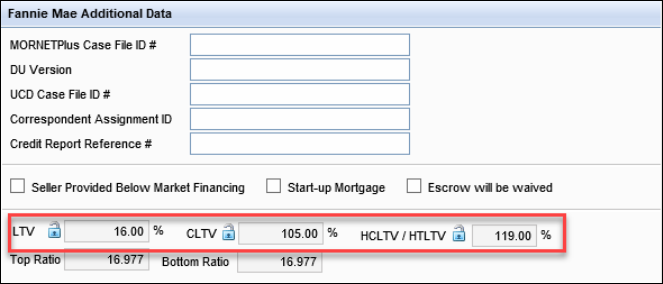
On FHA and VA loans, Fannie Mae's Desktop Underwriter (DU) was indicating different LTV ratios than what was calculated by Encompass. This discrepancy occurred because Encompass was rounding the ratio up, while DU was not (i.e., DU indicated 96.50% while the ratio on the AUS Tracking tool in Encompass indicated 97.00%.) To address this issue in Encompass 25.3, Encompass has been updated to calculate the LTV for FHA and VA loans the same way DU does. Here is how the rounding for LTV (MORNET.X75), CLTV (MORNET.X76), and HCLTV (MORNET.X77) for FHA and VA will be rounded in new loans started in Encompass 25.3:
-
These ratios will display two digits past the decimal, rounding up half on the third decimal.
-
If the third digit past the decimal is 5 or higher, the ratio will be rounded up.
-
If the third digit past the decimal is below 5, the ratio will be rounded down.
Migration Notes:
-
For existing FHA and VA loans created prior to Encompass 25.3 that have LTV, CLTV, or HCLTV/HTLTV values that have been locked, the locked values will be retained.
-
For FHA and VA loans that are in an inactive status (i.e., the Current Status (1393) is not set to Active Loan), they will not be updated. The fields for LTV, CLTV, and HCLTV/HTLTV will be locked to retain their current value.
-
For FHA and VA loans that are in active status (i.e., the Current Status (1393) is set to Active Loan), the new rounding logic will be applied.
Update for Construction Refinance Loans
For Construction only or Construction - Perm loans (19) that are refinanced (Constr.Refi), the Refinance with Original Creditor Yes/No checkboxes (QM.X2) are now activated and may be selected on the 1003 URLA - Lender, RegZ - LE, RegZ - CD, and the Rural Assistance URLA tab on the USDA Management input forms. In previous versions of Encompass, the Refinance with Original Creditor Yes/No checkboxes were cleared out and deactivated for these loans, which prevented users from making a selection.
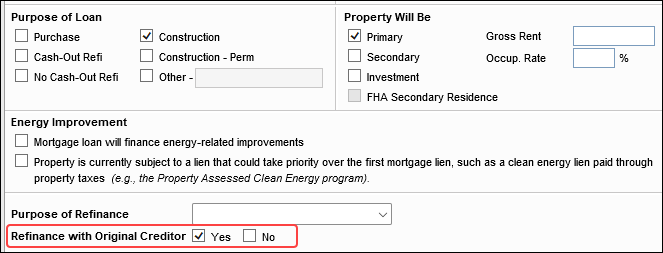
When the loan is a Construction or Construction - Perm loan (19) but it is not being refinanced (i.e., the Refinance Owned (Constr.Refi) checkbox is not selected), then the Refinance with Original Creditor Yes/No checkboxes will continue to be cleared out and deactivated.
When Final Buy Price is Locked it is Still
Considered when Calculating the Final Buy Amount
In previous versions of Encompass, when the Final Buy Amount (3578) on the Correspondent Purchase Advice loan was locked, the value was not used when calculating the Final Buy Price (3583). Instead, the Final Buy Price was always calculated using the system calculated value for the Final Buy Amount instead of the locked value in the field. This could result in the incorrect buy amount being wired to investors. Starting in Encompass 25.3, the Final Buy Price will be calculated based on the locked value in the Final Buy Amount field when applicable. If the Final Buy Amount value is system calculated (i.e., not locked), then the system calculated value will be used as expected.
Update for the Co-Borrower Housing
Counseling Agency Field on the 1003 URLA - Lender Input Form
In previous versions of Encompass, on the 1003 URLA - Lender input form, an Edit icon was provided next to the Co-Borrower field where the Housing Counseling Agency number for the co-borrower could be entered (URLA.X161). Clicking this icon resulted in the Quick Entry - Home Counseling Providers pop-up window where the Home Counseling agency contact information could be entered, along with options to add additional agencies to the Home Counseling Provider List. However, the data entered in this quick entry window is only intended for the borrower. The information added here, though intended for the co-borrower, was populating to the borrower specific fields. To address this issue, the Edit icon for co-borrower field URLA.X161 has been removed.
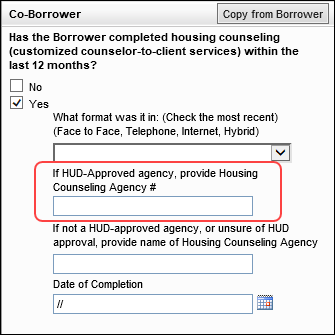
As an alternative to the Edit icon previously provided for URLA.X161, users can click the Copy from Borrower button in the Co-Borrower section to populate the co-borrower information. In addition, the Housing Counseling fields for the borrower and co-borrower do allow manual data entry. If different agency information is needed for the co-borrower or borrower, it can be manually entered.
Typo Fixed on ULDD/PDD's Fannie Mae Tab
On the ULDD/PDD input form's Fannie Mae tab, the Transaction Details box, the name of the MERS Registration Status Type field (ULDD.X215) was incorrectly displayed as MERG Registration Status Type. This typo has been fixed.
Lock Date No Longer Updated to
Current Date If Get Buy Side Pricing Selected When Lock Revised
An issue occurred where the Lock Date (field ID 2149) field on the Secondary Lock Tool was erroneously updated to the current date when an existing lock was revised, Get Buy Side Pricing was clicked, pricing was selected in ICE PPE, and then the pricing data was imported back to Encompass. This issue has been resolved and the original lock date is now imported into the Lock Date field.
This issue only occurred when the Encompass Product & Pricing Service integration was used for the original lock.
Encompass No Longer Freezes When TPO
Information Tool Opens
An issue occurred when a TPO Organization with an extremely large number of external users was selected on the TPO Information tool. Encompass froze indefinitely because the tool attempted to populate the Loan Officer Name (field ID TPO.X62), Loan Processor Name (field ID TPO.X75), and Correspondent File Contact Name (field ID TPO.X96) dropdown fields from the pool of external users, based on the user's role.
This issue has been resolved as follows:
-
The Loan Officer Name, Loan Processor Name, and Correspondent File Contact Name dropdown fields have been replaced with read-only fields.
-
An Edit icon has been added to each field. When the Edit icon is selected, a popup of all available external users, based on the user's role, is displayed.
If no contacts are available, a message "No Contacts found!" is displayed.
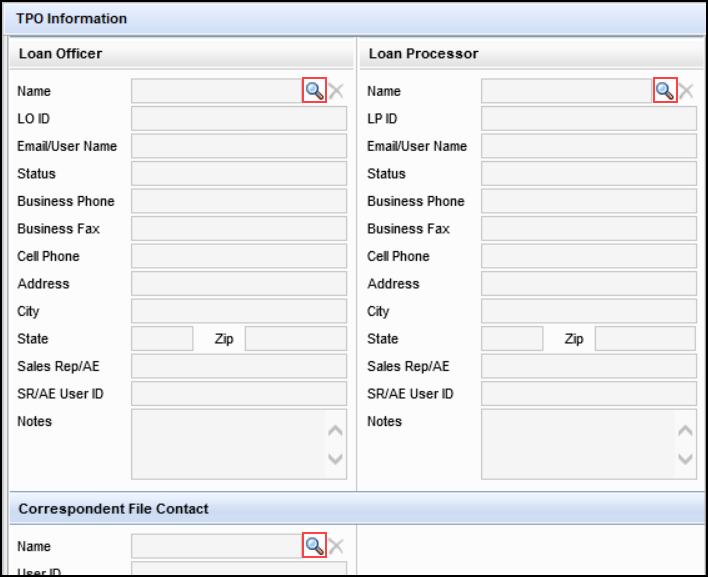
-
When the TPO Information tool is subsequently accessed, only the external users selected in the Loan Officer Name, Loan Processor Name, and Correspondent File Contact Name fields are retrieved. If a field is blank, no external user is retrieved until one is selected.
Encompass Settings
Coming Soon: Update to Address Issue with
the Encompass Password Policy
The Force user to change password option and the password expiration policy in Encompass were not being honored in certain applications and users were permitted to log in with their expired Encompass password. In the Encompass 25.4 release currently targeted for November 2025, this issue will be addressed. This may result in many users being blocked from logging into their application until they change their password as soon as their company upgrades to Encompass 25.4 in Production environments.
Details and Impacted Users:
When the Encompass administrator selects the Force user to change password option on a user's profile, or if the password has expired based on the Password Expiration policy (# of Days to Expiration option managed in Admin Tools > Server Settings Manager > Password), the next time the user attempts to log into an application they should be prevented from logging in until the password is changed. However, this setting was not being enforced for Encompass users logging into the following applications with their expired Encompass password:
- Encompass web interface
- Encompass Consumer Connect Admin portal
- Encompass Data Connect
- Encompass TPO Connect website
- Encompass TPO Connect Admin Portal
- Encompass Developer Connect API (OAuth Token response)
- Encompass Developer Connect Portal (API Keys, SSO Setup, MFA setup)
- Insights
- ICE Mortgage Technology Resource Center (Login with Encompass via Access Login)
- Marketplace (login with Encompass via Access Login)Details and Impacted Users:
In addition, the password expired policy was also not being enforced for external TPO users logging into their assigned TPO Connect websites. If the administrator reset the TPO user password, or if the password had expired based on the Password Expiration policy (# of Days to Expiration managed in Admin Tools > Server Settings Manager > Password), the TPO user was still able to log in with their temporary or expired password.
Starting with the Encompass 25.4 release, if the user's password has expired or if the Force user to change password option has been selected on their user profile, the user will be prevented from logging into the applications listed above until their password is changed. The users will be required to change their password by logging into the Encompass desktop interface and then following the steps in the resulting change password pop-up notification. They may also contact their Encompass system administrator for assistance.
External TPO users will also receive a change password pop-up notification when they try to log into their TPO Connect website. They must follow the steps in the notification to change their password.
Please note, this change does not impact Encompass desktop interface users, nor users who are signing in with their company SSO.
Recommendations:
To help reduce the number of users who will be required to change their password when Encompass 25.4 is released, administrators can notify intended users now to proactively change their password prior to the Encompass 25.4 release. In addition, it is recommended that Encompass administrators review the user profiles to determine that the Force user to change password option is only selected for the intended users who should be required to change their password.
TPO Connect administrators can also notify external TPO users to change their password prior to the Encompass 25.4 release.
Persona Access to Fields Business Rules Now
Operating Correctly for the Automate Analyzer Income Checkbox
An issue occurred where Persona Access to Fields business rules set up to hide or deactivate the Automate Analyzer Income checkbox (ANALYZER.X18) on the Income Analyzer Message screen based on the user's assigned persona was not operating correctly. The checkbox field was still displayed and active for users with the assigned persona even though the rule was set up to hide it or deactivate it from them. This issue has been resolved and the Persona Access to Fields business rules are now operating correctly and the rule is enforced as expected.
Itemization Fee Management Table Issue
Resolved
An issue occurred with the Encompass Settings > Tables and Fees > Itemization Fee Management table where the compliance fees selected in the table were not displaying in the correct section of the 2015 Itemization input form. Specifically, if a compliance fee was selected to display in a section of the Itemization input form, the fee was actually displaying in the section below the section selected in the Itemization Fee Management table. For example, if the Title Search fee was indicated in the Itemization Fee Management table to display in Section 1100 of the form, the fee was actually displaying in Section 1200 of the 2015 Itemization input form. The cause of this issue was identified and addressed. The compliance fees are now displaying in the correct section of the Itemization form based on the section indicated in the Itemization Fee Management table.
Encompass Developer Connect APIs
InternalUser Webhook Events No Longer
Generated When Admin User Logs into Encompass Settings
An issue occurred where InternalUser webhook update events were being generated each time an administrator user simply logged into the Encompass desktop interface and then opened the Encompass > Settings screen. These webhook events should have only been generated when a user profile for an internal user was updated in Encompass Settings > Company/User Setup > Organization/Users > User Details. This issue has been resolved and the extraneous webhook events are no longer generated when an administrator opens the Encompass Settings.
Transitioning from Encompass SDK to
Developer Connect APIs
ICE will be transitioning from legacy Encompass SDK (Software Development Kit) integrations in Encompass 25.4. This enables our clients, partners and ICE to continue to innovate and automate by eliminating legacy integrations and focusing on modern technology. ICE is transitioning clients and partners off SDK-based applications and plug-ins (lender, partner and ICE created) by October 31, 2025.
-
Standalone SDK modules (transition to Developer Connect APIs)
-
SDK loan plugins (migrate to SSF framework and NG plugin framework)
APIs for the most common SDK functions and native Encompass functionality will eliminate the need for many legacy SDK use cases. Encompass APIs are interoperable across web and desktop, as both user interfaces sit on top of the same underlying Encompass loan file. Alternatives to SDK functionality are available with more coming. There may not be 100% parity, but we will provide the most common functions and alternatives. For more information, refer to the Transitioning from SDKs and Legacy Integrations - FAQs.
Here is a list of the known Plugin issues that have been addressed or are targeted for to be fixed in upcoming Encompass releases.
| Known Issue | Encompass Release for Fix |
|---|---|
| Plugins 2.0 premilestoneComplete event not returning Data parameter in Encompass desktop interface (NICE-53462) | 25.3 |
| Plugins 2.0 precommit event not returning Data parameter in Encompass desktop interface (NICE-53422) | 25.3 |
| Plugins 2.0 precommit event not allowing cancel in Encompass desktop interface (NICE-53421) | 25.3 |
| Plugins 2.0 premilestoneComplete event not allowing cancel in Encompass desktop interface (NICE-53463) | 25.3 |
| Plugins 2.0: SSF getField() method must match case of custom field name or error is returned (ENCW-122154) | 25.4 (Targeted) |
| Plugins 2.0: getfield() of custom field of format 'Y/N' returns different values in desktop and web (NICE-53298) | 25.4 (Targeted) |
.png)