Feature Enhancements in Version 26.1
This section discusses the updates and enhancements to existing forms, features, services, or settings that are provided in this release.
Updates to ICE PPE
"ICE PPE" refers to the new User experience (introduced as part of the 24.2 release) using the Encompass Partner Connect (EPC) interface.
Support for Partially Financed USDA Guarantee Fee Loans
Currently in Encompass, the Upfront Government Fee functionality only supports fully financed USDA Guarantee Fee loans. As part of this release, Encompass will start to support partially financed USDA Guarantee Fee loans.
 New Calculation for Partially Financed Upfront Fees
A new calculation for partially financed upfront fees has been added to Encompass.
-
The Factor will be calculated based on the amount being financed.
Amount Financed + Base Loan Amount = Total Loan Amount
Then
Total Fee Amount = Fee % * Total Loan Amount
-
This calculation will be triggered when a lock is requested, when an applicable field is updated on the Lock Request Form, or for a Float.
On the Search page, the Factor will be displayed out to 6 digits.
Support for Attribution Categories
This feature enables Clients to create Paid By and Adjustment Reason categories for use with manual adjusters. These categories will allow reports to be run that sum across the various Encompass fields where adjustments might be stored to create an aggregated value for a particular category/adjustment grouping.
New Attribution Categories Page Setting Added Under Settings
A new Attribution Categories Page setting has been added under Settings. This new setting enables attribution category abbreviations to be configured.
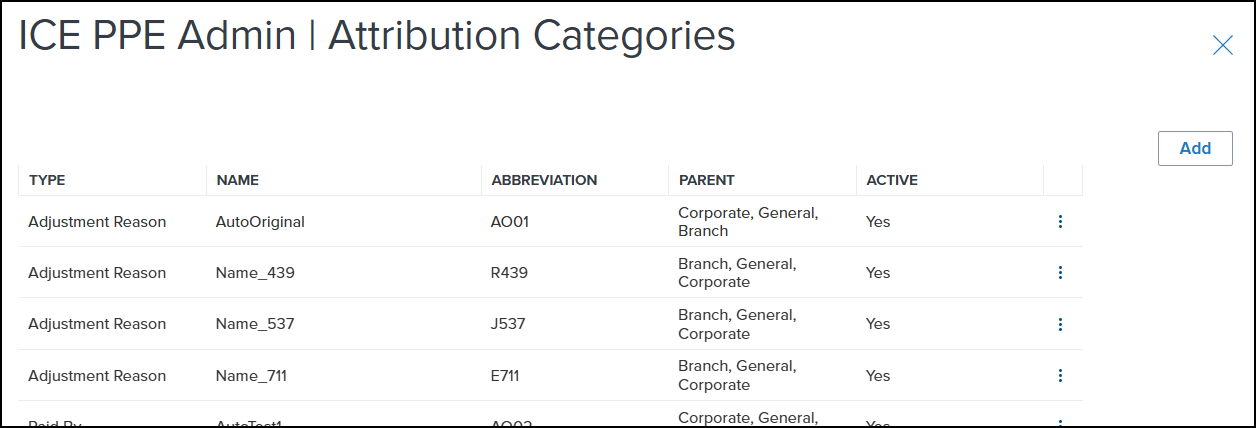
To Add an Attribution Category:
-
Log into ICE PPE as a Client admin.
-
Select on the Settings tab.
-
Select the Attribution Categories Page link.
-
On the Attribution Categories listing page, select Add.
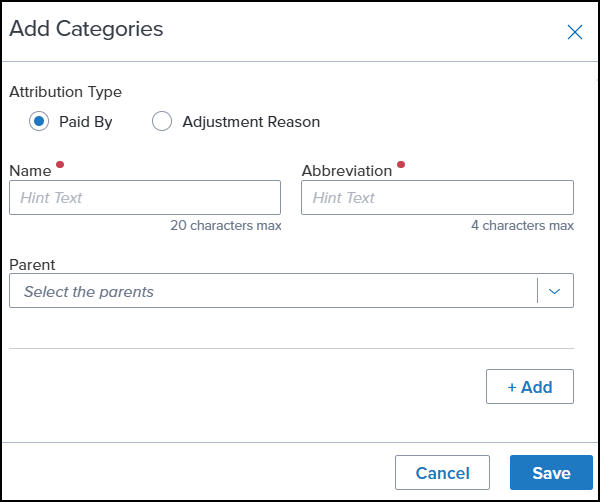
-
On the Add Categories slide in panel, select either “Paid By” or ” Adjustment Reason” for the Attribution Type.
-
Enter a unique name for the category. Up to 20 characters will be supported.
-
Enter the abbreviation for the category. Up to 4 characters will be supported.
-
Optionally, select a Parent (Corporate, General or Branch).
Selecting multiple Parents is allowed.
-
Select +Add to configure another category.
-
Select Save to save all configured attribution categories.
To Edit or Deactivate/Reactivate an Attribution Category:
-
On the Attribution Categories listing page, select the Menu
 icon on the far right of the attribution category you would like to modify.
 -
Select Edit to edit the category.
-
Select Deactivate/Reactivate to remove/reinstate category.
-
Deactivation is like a soft delete. Reactivation reverses a deactivation.
-
The Active column on the Attribution Categories listing page will display “No” if the attribution category is deactivated.
Paid By and Adjustment Reason for Relocks
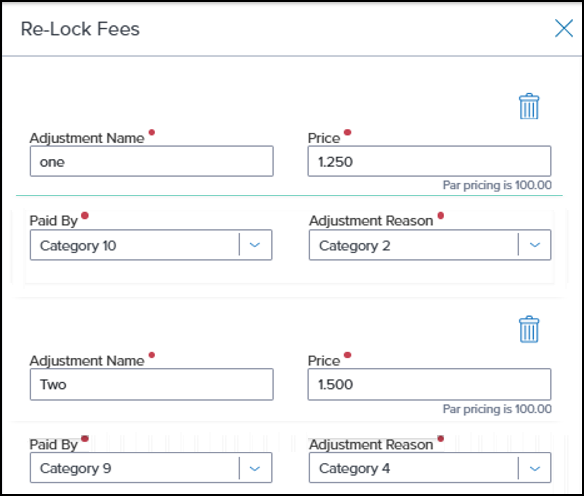
Paid By and Adjustment Reason fields have been added to Relocks. The two fields are required to apply a relock to Buyside Pricing.
-
A Paid By attribution category will only be available if its Parent includes “General”.
-
An Adjustment Reason attribution category will only be available if its Parent includes “General”.
-
If Paid By or Adjustment Reason have no categories where its Parent includes “General”, then that category will not be displayed at all.
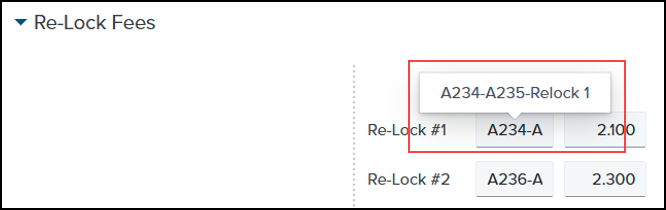
Encompass will display the relock from ICE PPE as “PaidByAbbr - ReasonAbbr - Description” on the Secondary Lock Tool and the Pricing Details panel.
Paid By and Adjustment Reason for Custom Adjustments
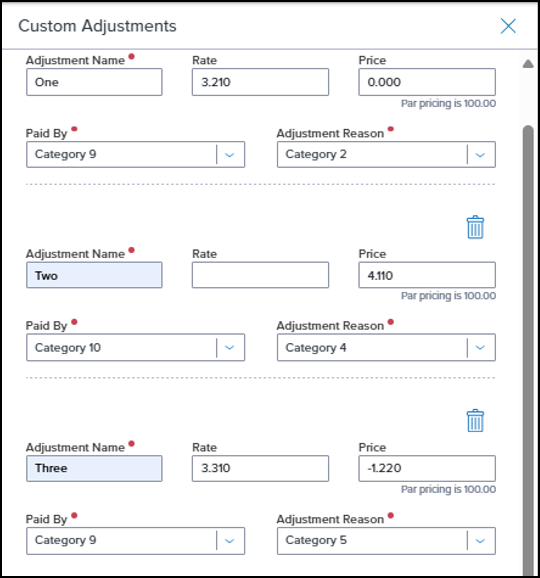
Paid By and Adjustment Reason fields have been added to Custom adjustments. The two fields are required to apply an adjustment to Buyside Pricing.
-
A Paid By attribution category will only be available if its Parent includes “General”.
-
An Adjustment Reason attribution category will only be available if its Parent includes “General”.
-
If Paid By or Adjustment Reason have no categories where its Parent includes “General”, then that category will not be displayed at all.
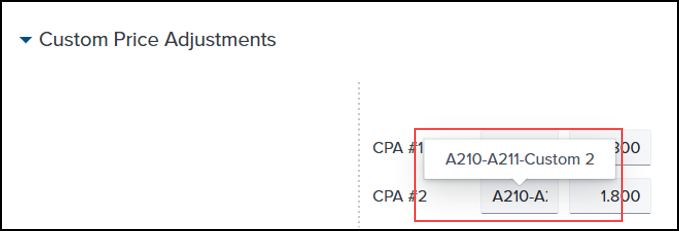
Encompass will display the adjustments from ICE PPE as “PaidByAbbr - ReasonAbbr - Description” on the Secondary Lock Tool and the Pricing Details panel.
Paid By and Adjustment Reason for Branch and Corporate Concessions
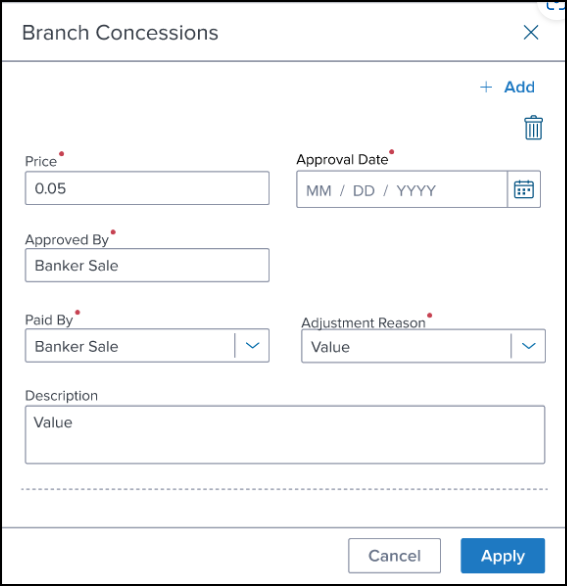
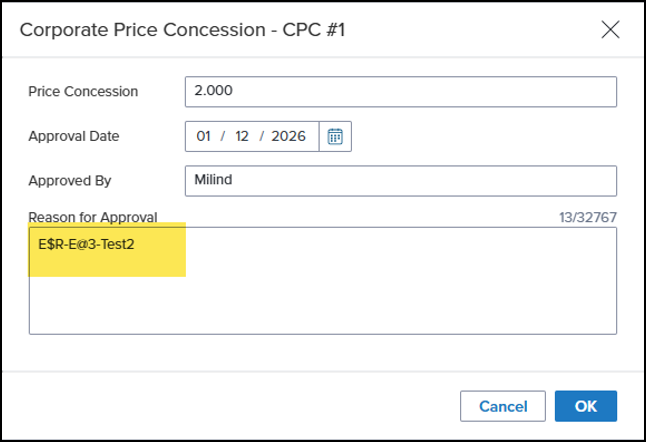
Paid By and Adjustment Reason fields have been added to Branch and Corporate concessions. The two fields are required to apply a concession to Buyside Pricing.
-
A Paid By/ Adjustment Reason attribution category will only be available for Branch concessions if its Parent includes “Branch”.
-
A Paid By/ Adjustment Reason attribution category will only be available for Corporate concessions if its Parent includes “Corporate”.
-
If Paid By or Adjustment Reason have no categories where its Parent includes “Branch” or “Corporate” respectively, then that category will not be displayed at all.
Encompass will display the concession from ICE PPE as “PaidByAbbr - ReasonAbbr - Description on the Secondary Lock Tool and the Pricing Details panel.
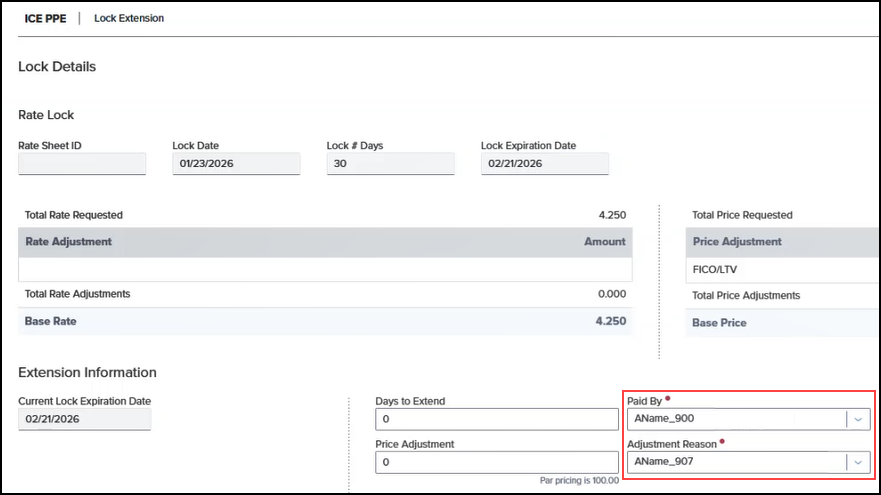
Paid By and Adjustment Reason on Lock Extension Request
Paid By and Adjustment Reason fields have been added to the Lock Extension Request. The two fields will allow abbreviations to be assigned to lock extensions.
-
Paid By will only be displayed if the user is assigned the “Lock Desk” role.
-
A Paid By attribution category will only be available if its Parent includes “General”.
-
Adjustment Reason will only be displayed if the user is assigned the “Edit/Add Custom Adjustors” User Role.
-
An Adjustment Reason attribution category will only be available if its Parent includes “General”.
-
If Paid By or Adjustment Reason have no categories where its Parent includes “General”, then that category will not be displayed at all.
-
ICE PPE will format the comment sent to Encompass as “User Comment|||ABBR-ABBR”.
Encompass will display the comment from ICE PPE as “PaidByAbbr - ReasonAbbr - (# of Days to Extend)” on the Secondary Lock Tool and the Pricing Details panel.

Additional Enhancements
Support Custom Fields for Float
Custom field values will now be saved on the Search page when a user Floats a loan and then returns to it. When a user returns to the loan to reprice and lock, they do not have to reenter the values in the custom fields displayed in the Additional Fields section.
Updated Float Logic
The Float logic has been updated to enable a Float for locks that have been cancelled or expired. When the Float (ICE PPE Only) option on the Options page(under Settings) is enabled, a Float button will be displayed on the Summary page when a lock’s status is cancelled or expired.
Updated Sorting on Results Page If Price Increases and Decreases When Moving Up Rate Stack
The sort order on the Results page has been updated if the price increases and decreases when moving up the rate stack. This will apply to the Target Rate and Target Price for 100 Base or Zero Base pricing.
100 Base
-
Target Rate
-
The lowest rate will be displayed at the top.
-
When there are duplicates of the same rate, the highest price will be displayed first.
-
For example, if the Target Rate is 5%, the prices will be sorted as follows:
4.99, 102.25
5.00, 106.25
5.00, 106.20
5.00, 99.50
-
Target Price
-
The lowest rate will be displayed at the top.
-
When there are duplicates of the same rate, the highest price will be displayed first.
-
For example, if the Target Price is 102, the prices will be sorted as follows:
4.99, 102.25
5.00, 102.50
5.00, 101.00
5.00, 99.50
Zero Base
-
Target Rate
-
The lowest rate will be displayed at the top.
-
When there are duplicates of the same rate, the lowest price will be displayed first.
-
For example, if the Target Rate is 5%, the prices will be sorted as follows:
4.99, -1.5
5.00, -1.35
5.00, -1.0
5.00, 0.5
-
Target Price
-
The lowest rate will be displayed at the top.
-
When there are duplicates of the same rate, the closest to target price will be displayed first.
-
For example, if the Target Price is -1.0, the prices will be sorted as follows:
4.99, -1.5
5.00, -1.35
5.00, -1.0
5.00, 0.5
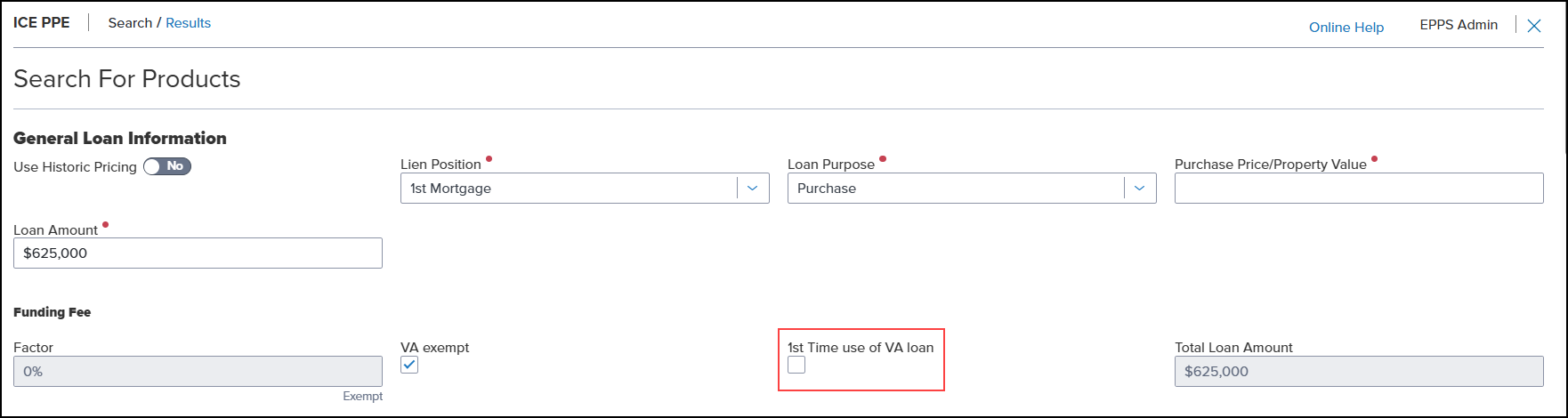
New 1st Time Use of VA Loan Checkbox Added to Search Page
A new 1st Time use of VA loan checkbox has been added to the General Loan Information section of the Search page.
-
The default value will be determined by field ID VASUMM.X49.
-
If “True”, the checkbox will be selected.
-
If “False”, the checkbox will be blank.
-
The checkbox will update the Fee Factor based on the ICE PPE configured field.
-
When the value is switched, the Fee Factor used by ICE PPE will be updated and a user can use the ICE PPE Fee Factor if the Encompass fee is different than the VA fee in ICE PPE.
-
The Fee Factor for VA loans will change based on the 1st Time use of VA loan checkbox.
-
If the VA exempt checkbox is selected, the fee will be updated to “0.00” regardless of whether the 1st Time use of VA loan checkbox is selected.
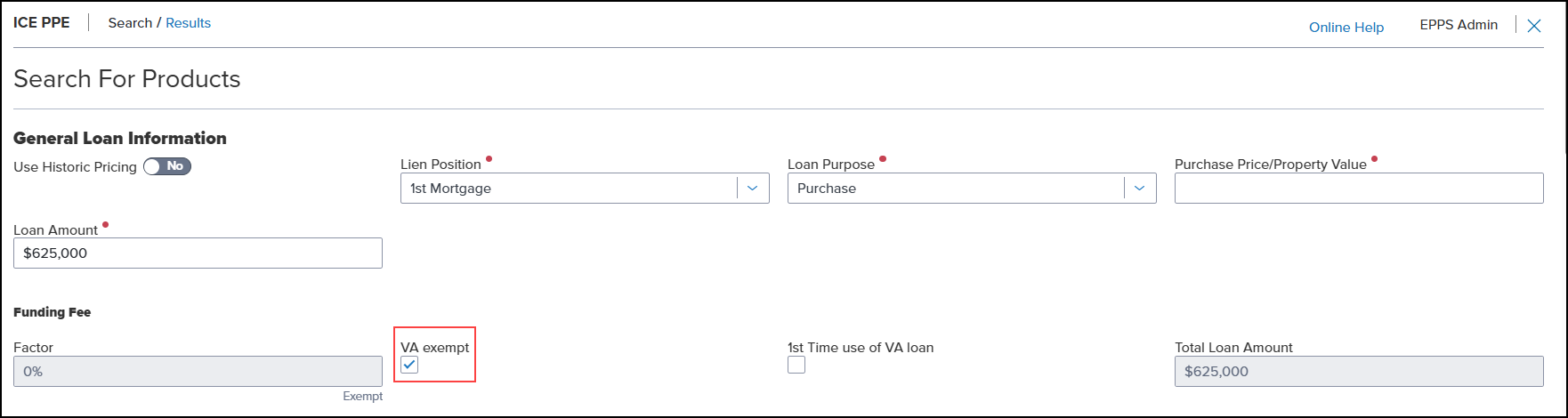
New VA Exempt Checkbox Added to Search Page
A new VA exempt checkbox has been added to the General Loan Information section of the Search page.
-
The default value will be determined by field ID 990.
-
If “True”, the checkbox will be selected.
-
If “False”, the checkbox will be blank.
-
If the checkbox is selected, the Fee Factor will be set to “0.00”.
Updated Pricing Documents Generated When Using ICE PPE
Currently in ICE PPE, pricing documents generated when using ICE PPE are titled using generic terms (“Product and Pricing” or “Loan Officer”), which makes identifying the transaction associated with the document (Lock Request, Buy Side, and Sell Side) difficult. As part of this release, each document type will be updated with the following titles to clearly identify the transaction with the document:
-
When a document is created via a Lock Request it will be named "Pricing Table - Lock Request" and “Loan Officer” will be displayed in the upper right corner.
-
When a document is created via a Buy Side accept lock it will be named "Pricing Table - Buy Side" and “Secondary Buy Side” will be displayed in the upper right corner.
-
When a document is created via a Sell Side accept lock it will be named "Pricing Table - Sell Side" and “Secondary Sell Side” will be displayed in the upper right corner.
New "View Loan Forms" Button Added to Search, Results, Summary Pages
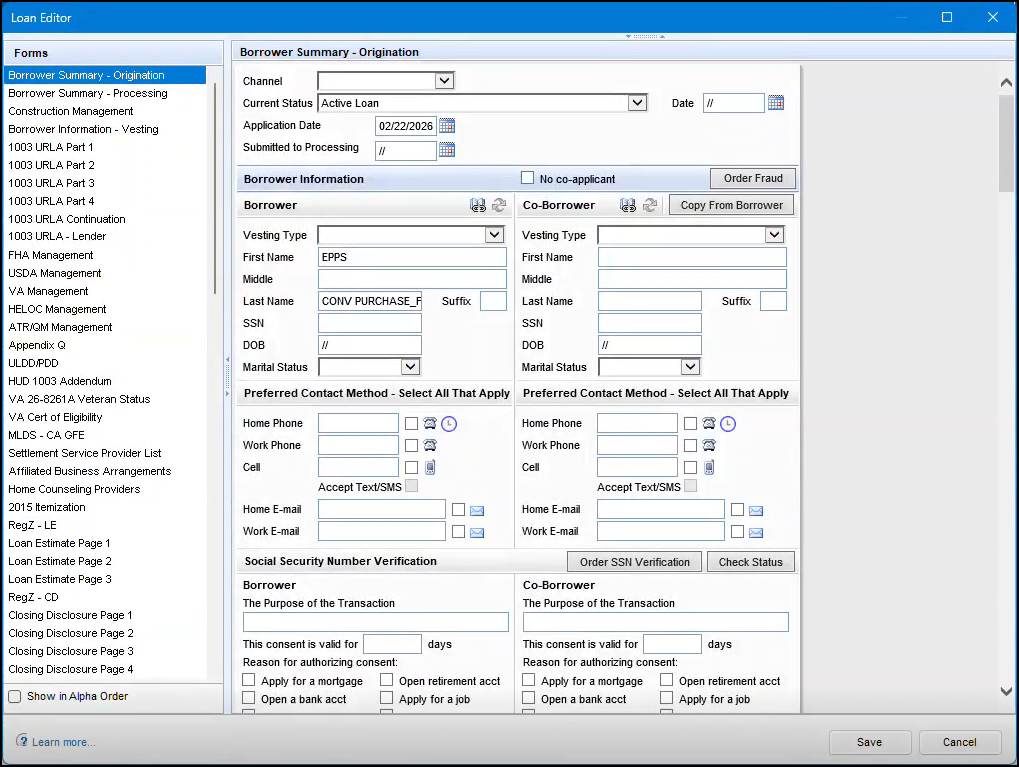
A new View Loan Forms button has been added to the Search, Results, and Summary pages. When selected, this button will open the Loan Editor in the Encompass desktop interface, which will enable a user to edit Encompass loan data without having to close ICE PPE.
This enhancement is only available when a loan is priced using ICE PPE from the Encompass desktop interface.
To Access the Loan Editor:
-
Log into Encompass desktop interface.
-
Price a loan (Get Pricing) from the Lock Request Form using ICE PPE.
-
On the Search page, select View Loan Forms.
The button is also available on the Results and Summary pages.

-
The Loan Editor opens in Encompass desktop interface.
-
Make your changes, and then select Save.
The changes you save in the Encompass form will automatically be updated and saved in ICE PPE.
-
You will be returned to the Search page (or the page from where you accessed the button).
Updates to Classic EPPS
"Classic EPPS" refers to the User interface for pricing loans, Administration, and the integration that preceded ICE PPE (introduced as part of the 24.2 release).
Support for Partially Financed USDA Guarantee Fee Loans
Currently in Encompass, the Upfront Government Fee functionality only supports fully financed USDA Guarantee Fee loans. As part of this release, Encompass will start to support partially financed USDA Guarantee Fee loans.
Updated Behavior of Lock Checkbox on Lock Request Form When Paid in Cash Entered for FHA, VA, USDA Loans
The behavior of the Lock checkbox on the Lock Request Form has been updated for FHA, VA, and USDA loans. Depending on the value entered on the Paid in Cash field, the Lock checkbox will be selected or left blank.
-
When the Paid in Cash is less than $1, only the Fee Factor will be written back to Encompass.
-
This will automatically populate the Fee Amount and Total Loan Amount.
-
When the Paid in Cash amount is more than $1, the Fee Amount and Paid in Cash amount will be written back to Encompass. Additionally, the Lock checkbox will be selected.
-
This will automatically calculate the Total Loan Amount.
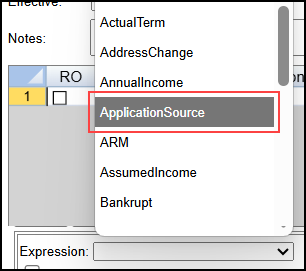
New “ApplicationSource” Expression Added to Condition and Matrix Definitions
A new “ApplicationSource” expression has been added to the Condition and Matrix (Matrix and Rate Matrix) Definitions. The value of the ApplicationSource is equal to the value from the Loan.ApplicationSource.
This Expression will only be evaluated when pricing a loan using ICE PPE.
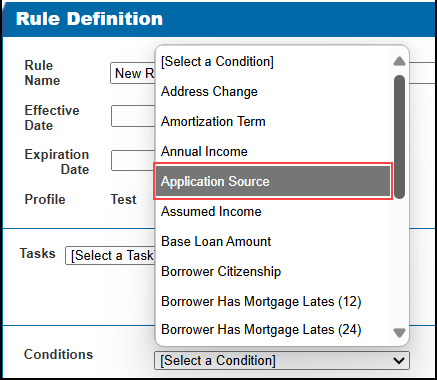
New “ApplicationSource” Condition Added to Rule Definition
A new “ApplicationSource” Condition has been added to the Rule Definition. This condition is a multi-select dropdown list containing the enumerated values in the ApplicationSource table.
This Condition will only be evaluated when pricing a loan using ICE PPE.
Additional Enhancements
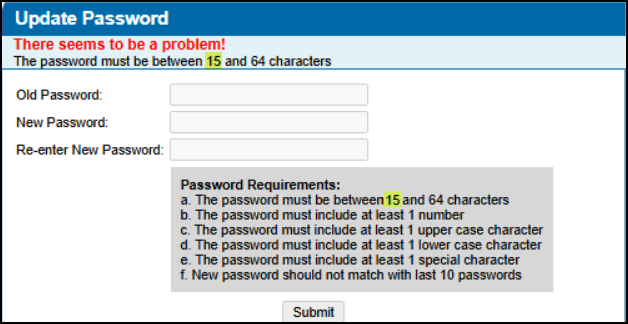
Updated Password Requirements on Update Password Page
Line "a." in the Password Requirements section on the Update Password page has been updated to match the minimum number of characters (15) allowed as indicated in the error message at the top of the page.
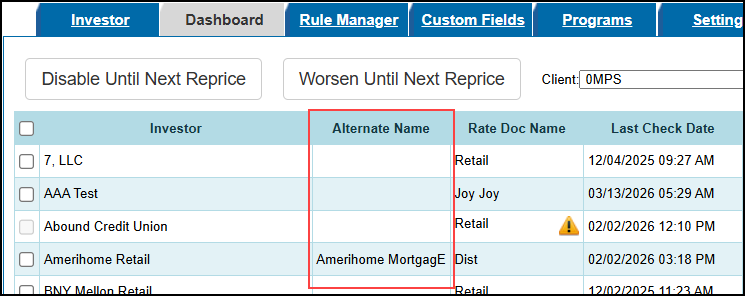
New Alternate Name Column Added to Client Dashboard
A new Alternate Name column has been added to the Client Dashboard. This column will display an Investor’s alternate name, if available.
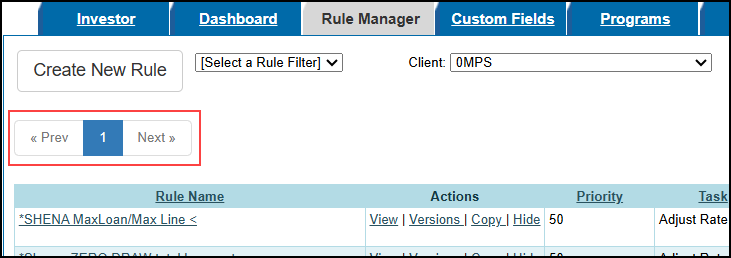
New Pagination Controls Added to Top of Rule Manager Listing Page
The pagination controls currently at the bottom of the Rule Manager listing page has also been added to the top of the page. This will remove the need to scroll to the end of a page to access subsequent pages.
Bulk User Upload
We are introducing the Bulk User Upload, for new and existing Clients, to streamline the creation of a significant number of new Users to ICE PPE at a single time. Clients will enter their new User information into an Excel worksheet file provided by the ICE PPE Technical Operations (Tech Ops) team, and then return the file to that team. Tech Ops will then upload the Users into the system.
| Next Section: Fixed Issues | 
|
|

|
Previous Section: Introduction |