Register Counties window
 Overview
Overview
This topic provides information on how to use the Register Counties window.
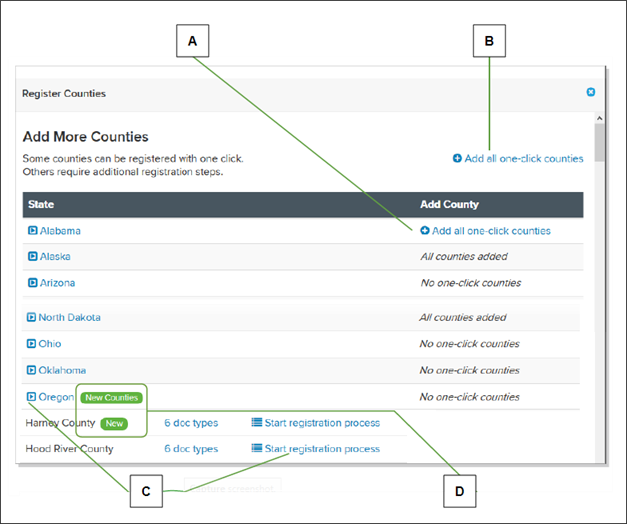
Simplifile makes it easy to find out which counties work with Simplifile and can display those counties in the Counties page. The Register Counties window is used to identify which counties across the United States can interact with Simplifile. You may add all the counties across the United States that interact with Simplifile by selecting the Add all one click counties button above the State ‑ Add County table or you can add the counties a state and county at a time. The choice is yours.
Below is an example.
| Letter | Description |
|---|---|
| A | You may be able to select once to add all one‑click counties in a specific state. |
| B | Select here to add all one‑click counties in all states. |
| C | Select the plus sign beside a state to display individual jurisdictions. Then select the Add button or Start button registration process beside the jurisdictions you want to add. |
| D | New Counties (or jurisdictions) displays beside any state where additional counties have begun eRecording. The new counties display New. |
Some counties have special requirements for setup.
If “No one‑click counties” is displayed in the Add County column, the county or counties need to be added (or registered) manually if you want to use Simplifile with the county because these counties have special requirements. If you select the Arrow icon to the left of the state name, a table of counties appears below the state and may have a Start registration process button. When the button is pressed, Simplifile displays the requirements page for that county. Below is an example.
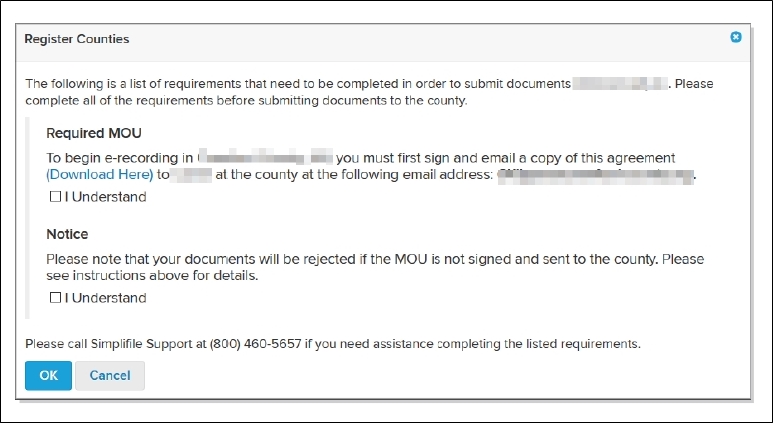
You must follow all of the setup instructions on the special requirements page before you can submit documents to that county.
I want to ...
I want to ...
These tasks let you add (register) more counties to your Simplifile application and enable or disable the counties that may be used.
Open the Register Counties window
Open the Register Counties window
- Do one of the following:
Option 1: In the navigation menu, select the Counties item. The Counties page opens in the right panel.
- Option 2: In the navigation menu:
- Select the Organizations item. The Organizations page open in the right panel.
- Select the name of the organization you want. The Organization Contact Information page opens in the right panel and the navigation menu display the organizations menu options.
- In the navigation menu, select the Counties button. The Counties page opens with the wanted county selected.
- Select the Register More Counties button above the State table. The Add More Counties window opens.
Register all one‑click counties in a single state with a single click
Register all one‑click counties in a single state with a single click
A one‑click county is one that has no special requirements for setup or submission.
- Open the Register Counties window.
- In the State‑ Add County table, go to the state where you want to add all the state’s one‑click counties.
- In the Add County column, select the Add all one‑click counties button. The spinner is displayed while all the one‑click counties for selected state are added. When this is completed, the Register Counties window opens.
- Review the entries in the Register Counties window.
- When done, close the Register Counties window. Select the Close
 button in the upper‑right corner. The Counties page is available in the right panel.
Register all one‑click counties in the United States with a single click
Register all one‑click counties in the United States with a single click
A one‑click county is one that has no special requirements for setup or submission.
- Open the Register Counties window.
- Above the State ‑ Add County table, select the Add all one‑click counties button. The spinner is displayed while all the one‑click counties are added for the United States. When this is completed, the Register Counties window opens.
- Review the entries in the Register Counties window.
- When done, close the Register Counties window. Select the Close button in the upper‑right corner. The Counties page is available in the right panel.
A one‑click county is one that has no special requirements for setup or submission.
Register an individual county
Register an individual county
- Open the Register Counties window.
- In the State‑ Add County table, go to the state where you want to add individual counties.
- In the Add County column, select the Add all one‑click counties button. The spinner is displayed while all the one‑click counties for selected state are added. When this is completed, the Register Counties window opens.
- Review the entries in the Register Counties window.
- When done, close the Register Counties window. Select the Close button in the upper‑right corner. The Counties page is available in the right panel.
This method works best if you submit to only a few jurisdictions. You must use this method for jurisdictions that have special setup requirements.