Enabling and disabling fee‑level invoicing
 Overview
Overview
The Submitter eRecording service has the option for fee‑level invoicing. This gives Simplifile accounting flexibility in managing certain customers who prefer to be invoiced for certain fees. Simplifile accounting typically manages the ability to allow fee‑level invoicing for an organization and it must be enabled per organization.
The user must have an administrator role or accounting role or the required permissions to enable or disable fee‑level invoicing.
I want to ...
I want to ...
Enable fee‑level invoicing
Enable fee‑level invoicing
- Open the Payment Settings page.
- At the top of the navigation menu, select the Simplifile logo. The Packages page opens in the right panel and the navigation menu highlights the Packages item.
- In the navigation menu, select the Organizations item. The Organizations page opens in the right panel and the navigation menu changes and Organizations is selected.
- In needed, use the Search field or Filter to include the organization you want in the table.
- Select the organization name you want. The Organization Contact Information page opens in the right panel and the navigation menu changes to display the options.
- In the navigation menu, select the Services item. The Organization Services page opens in the right panel and the navigation menu changes.
- In the navigation menu, select the eRecording item. The eRecording Licenses page opens in the right panel and the navigation menu changes.
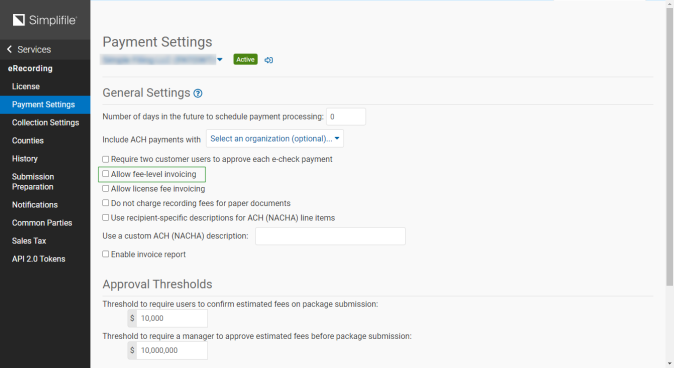
- In the navigation menu, select the Payment Settings item. The Payment Settings page opens in the right panel.
-
Mark the Allow fee‑level invoicing checkbox.
- Go to the Manage Payments Accounts page. (In the navigation menu, select the Simplifile logo, in the navigation menu, select the Payments item, in the navigation menu, select the Payment Accounts item. The Manage Payment Accounts page opens.)
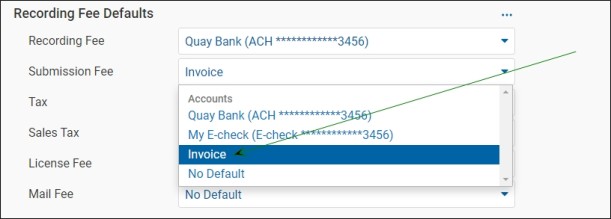
- Set the Recording Fee Defaults dropdown field to Invoice.
- Go to the Package Details page. (In the navigation menu, select the Simplifile logo, in the navigation menu, select the Packages item, in the Packages page, select the package you want. The Package Details page opens.)
-
Verify Invoice is set as the payment account for each fee (it was set as a default for on the Manage Payment Accounts page).
In the example below, Invoice is the default for the Submission Fees field and Sales Tax field. The end user can also change from the default as needed.
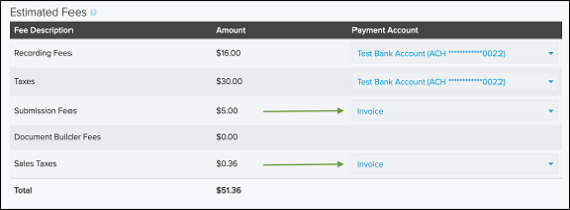
When the billable event happens, which in this example is a successful eRecording, the specified amounts are invoiced to the customer at the determined billing cycle set in their agreement. For example, monthly.
Disable fee‑level invoicing
Disable fee‑level invoicing
To disable the Allow fee‑level invoicing setting, Invoice must not be set as a default for any eRecording fees on the Manage Payment Accounts page. If Invoice is a default for one or more fees, the super user won't be able to uncheck the Allow fee‑level invoicing setting and they will see a tooltip when trying to do so.
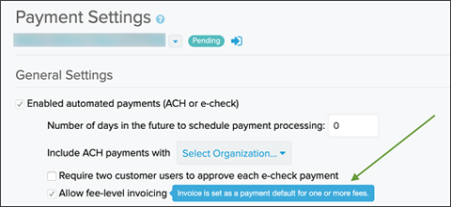
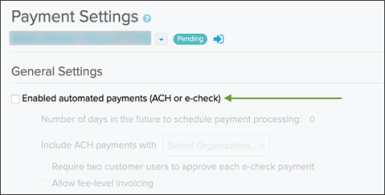
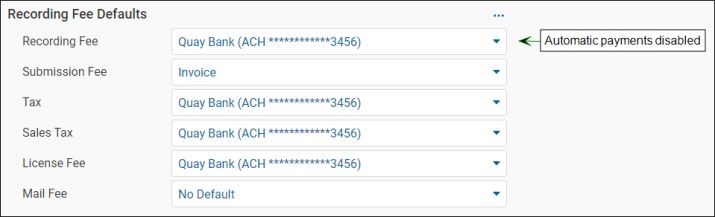
If the super user turns off the Enabled automated payments (ACH or eCheck) setting, all eRecording fees will then be invoiced by default and the end user won't be able to set their defaults on the Manage Payment Accounts page because all fees are now invoiced by default.