Organization Contact Information page
 Overview
Overview
This topic provides information on how to use the Organization Contact Information page.
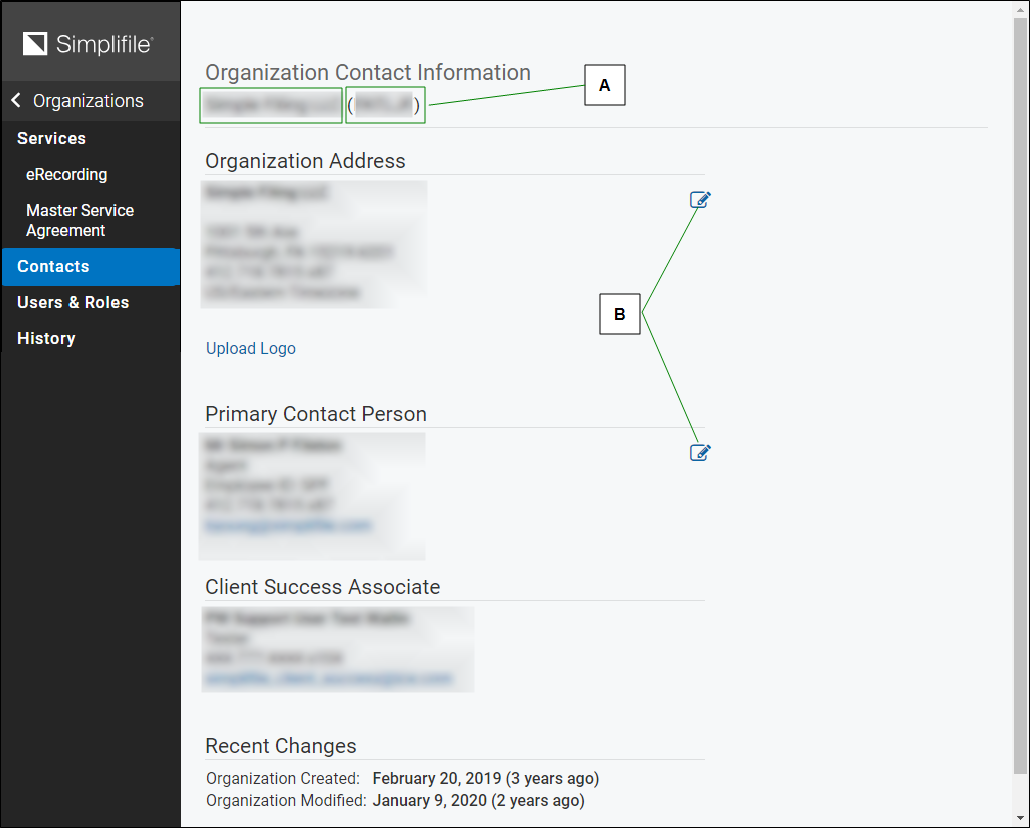
The Organization Contact Information page displays your account ID, information for the Simplifile primary contact at your organization, and the names, telephone numbers, and email addresses of the people at Simplifile who handle your account. Below is an example.
| Letter | Description |
|---|---|
| A | Your organization name and your 6‑digit Simplifile account ID (which displays in parentheses) is displayed under the Organization Contact Information heading. |
| B | The Edit button displays at the right of the Organization Address and Primary Contact Person sections. You can use the Edit button to make changes to the information. |
.
| Letter | Description |
|---|---|
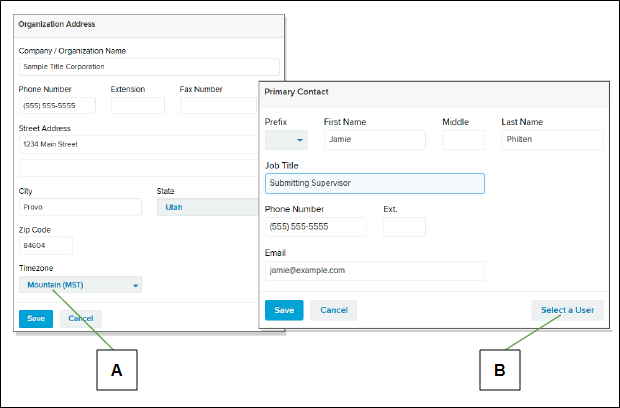
| A | Use the Timezone dropdown list to set the time zone where your company is located. |
| B | Select the Select a User button to choose someone in your organization as the primary contact. Simplifile imports that person’s information into the fields and displays it on the Contact Information page. |
I want to ...
I want to ...
Open the Organization Contact Information page
Open the Organization Contact Information page
- In the navigation menu, select the Organizations item. The Organization page opens.
- If the organization whose content you want to open is not listed in the table, use the Search field and Filters to display it in the table.
- In the table row for the organization whose contacts you want to open, do one of the following:
Option 1
- In the table row for the organization whose contacts you want to open, mark the box at the left side of the row.
- Select the Menu
 (ellipsis) button at the right side of the row.
 - Select the Edit Organization item.
Option 2
- In the table row for the organization whose contacts you want to open, select the Name/ID link of the organization
The navigation menu changes to display the organization’s navigation options and the Organization Contact Information page for the selected organization opens in the right panel.
Review, edit, or email a Simplifile contact
Review, edit, or email a Simplifile contact
- Open the Organization Contact Information page.
- On the Contact Information page, do any or all of the following:
- Set the time zone for your company’s location when you edit the organization information.
Set the organization default alert
Set the organization default alert
- Open the Organization Contact Information page.
- In the navigation menu, select the Document Preparation item. The Document Preparation & Workflow page opens in the right panel.
- Scroll to the Package Preparation section.
- Mark the Sound an alert when packages are recorded or rejected box.
View the Organization Contact Information
View the Organization Contact Information
- Open the Organization Contact Information page.
- Use the elevator bar on the right side to view all the information on the page.
- To contact Simplifile, use the Simplifile Account Manager and Account Executive information on the page.
View your Simplifile account ID
View your Simplifile account ID
- Open the Organization Contact Information page. See Open the Organization Contact Information page.
- Use the elevator bar on the right side to view all the information on the page.
- Look for your company ID displayed in parentheses after your company name.