Recipient Menu page
 Overview
Overview
This topic provides information on how to use the Recipient Menu page.
When you log in to Simplifile, the Recipient Menu page displays by default. Below is an example.
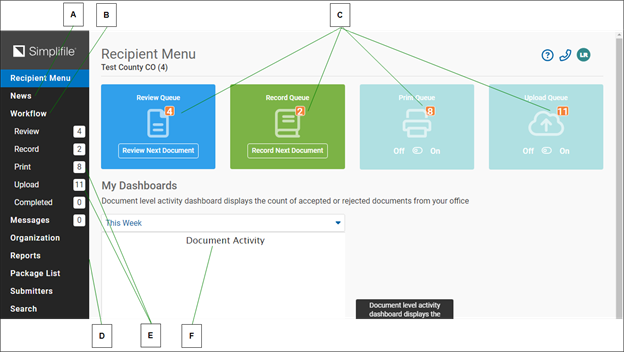
| Letter | Description |
|---|---|
| A | Select the News item to display messages related to your county. |
| B | Use the Workflow links to display package contents and choose documents. |
| C | Select the large buttons to review or record the next document in each category, or to turn a queue on or off. |
| D | Select items on the navigation menu to move to other areas of the software you want to use. |
| E | If a number displays, it means that you have that many unread messages or items in that workflow queue. |
| F | The table at the bottom of the page tracks your most recent activity. |
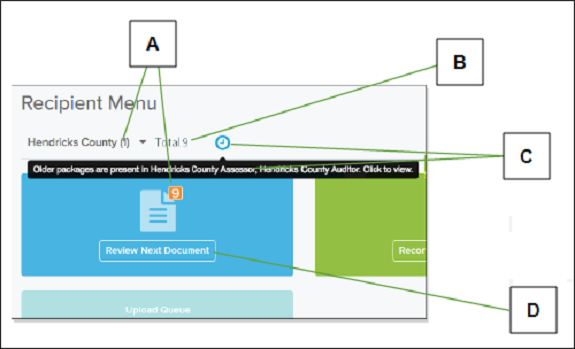
| Letter | Description |
|---|---|
| A | The number of documents that need to be reviewed for a county display after the county name (which identifies the current queue) and on the Review Queue block. |
| B | If you record in multiple jurisdictions, the total number of reviewable documents in all jurisdictions also displays. |
| C | A clock icon indicates that older packages in different queues need to be reviewed. Hover the mouse pointer over the clock for more information. Select the icon to display the queue with the oldest documents. |
| D | Select here to review the next document in the current queue. |
I want to ...
I want to ...
Open the Recipient Menu page
Open the Recipient Menu page
Method 1: At login
If your primary role is a county (or jurisdiction) or if your My Settings page is set to open the Recipients Menu, when you log in the Recipients Menu page opens in the right panel.
- Go to simplifile.com and select the LOG INTO SIMPLIFILE button in the upper right corner. For more information, see Log in to Simplifile.
Method 2: From the Simplifile navigation menu
- In the navigation menu, select the Recipient Menu item.
Open the Document Viewer ‑ Display a document
Open the Document Viewer ‑ Display a document
The easiest way to access a document that needs to be reviewed is to select the Review Next Document button on the Recipient Menu page. This opens the document viewer and displays the document from the current queue that has been waiting for the longest time. In other words, you work with documents in the order in which they were submitted.
QUICK TIP: If you have queues from other submitters and any of those queues have documents that have been waiting longer than documents in the current queue, a clock icon ( ) displays.
- Hover the mouse pointer over the clock for more information.
- Select the icon to display the queue with the oldest documents.
- Open the Recipient Menu page.
- To review the next document in the large blue Review Queue tile, select the Review Next Document
 button.
 - To select a document from the list of packages in the queue, in the navigation menu, select the Review item. Then do any of the following:
- To review the next document in the queue, select the Begin Reviewing Next Document
 button in the upper right corner.
 - To begin reviewing documents in a specific package, at the right side of the package card header, select the Begin Reviewing
 link.
link. - To continue reviewing the documents in a specific package in the order in which they are listed in that package, in the package card header, select the Continue Reviewing
 link.
link. - To work with a specific document, select the document name.
- To take control of a document locked by another person, select the Unlock
 button. Then select the document name.