Manage Hours page (Administrator Role)
Overview
 Overview
This topic provides information on how to use the Manage Hours page.
If desired, you can set weekly hours for your office, as well as for your queues and submitters. The queue hours determine when your recording, print, and upload queues are open. The submission hours indicate when documents can be submitted.
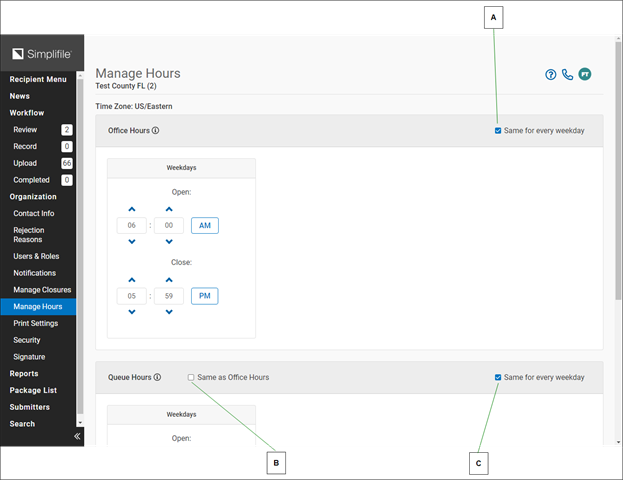
| Letter | Description |
|---|---|
| A | Clear this box in a category to set the open hours for each weekday for the category. You can also set a given weekday in the category as closed. |
| B | Mark this box in a category to have Simplifile use the settings you made in the Office Hours section for this category. |
| C | Mark this box in a category to set the hours for that category once and have Simplifile use the same settings for each day of the week. |
I want to ...
I want to ...
Set office hours
Set office hours
QUICK TIP: To mark a weekday as completely closed, clear the Same for every weekday box. Then find the day that should be closed, and select the  Closed button.
- Open the Manage Hours page.
- Find the Office Hours section.
- To set the hours for each weekday with the same open and closed times, mark Same for every weekday. To set each weekday separately, clear the box.
- In the Open section of the first calendar option, choose the hour and minute when your office opens. Be sure to choose the appropriate AM or PM setting.
- In the Close section of the first calendar option, choose the hour and minute when your office closes. Be sure to choose the appropriate AM or PM setting.
- If necessary, complete the times for each weekday.
- When you finish, select the Save Changes button.
Set queue hours
Set queue hours
- Open the Manage Hours page.
- Find the Queue Hours section.
- To set the hours for the queues as the same as the office hours above, mark Same as Office Hours. To set queue hours different from the office hours, clear the box.
- To set the hours for each weekday with the same open and closed times, mark Same for every weekday. To set each weekday separately, clear the box.
- In the Open section of the first calendar option, choose the hour and minute when your office opens. Be sure to choose the appropriate AM or PM setting.
- In the Close section of the first calendar option, choose the hour and minute when your office closes. Be sure to choose the appropriate AM or PM setting.
- If necessary, complete the times for each weekday.
- When you finish, select the Save Changes button.
Set submission hours
Set submission hours
- Open the Manage Hours page.
- Find the Submission Hours section.
- To set the hours for the queues as the same as the office hours above, mark Same as Office Hours. To set queue hours different from the office hours, clear the box.
- To set the hours for each weekday with the same open and closed times, mark Same for every weekday. To set each weekday separately, clear the box.
- In the Open section of the first calendar option, choose the hour and minute when your office opens. Be sure to choose the appropriate AM or PM setting.
- In the Close section of the first calendar option, choose the hour and minute when your office closes. Be sure to choose the appropriate AM or PM setting.
- If necessary, complete the times for each weekday.
- When you finish, select the Save Changes button.