Click‑Sign Signature page (Administrator Role)
 Overview
Overview
This topic provides information on how to use the Recipient components Click‑Sign Signature page.
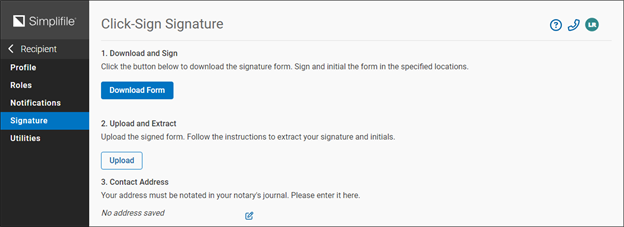
The easiest way to make sure your signature is the correct size is to print, sign, and scan the Click‑Sign Signature form. You find this form within Simplifile.
If you need to sign a document, you may be able to do so electronically instead of with a pen on a printed page. To do this, you need to set up a digital signature called a Click‑Sign Signature that Simplifile can apply to the document. This lets you select a button to automatically apply your digital signature where it is needed.
You can upload a file or scan a page containing your signature from within Simplifile. You can repeat this process at any time to modify your Click‑Sign Signature, if necessary.
I want to ...
I want to ...
Set up the click‑sign signature
Set up the click‑sign signature
Complete the following tasks in order.
1 ‑ Open the Click‑Sign Signature page
From the My Simplifile Toolbar
- In the My Simplifile Toolbar (in the upper-right corner of the page), select the right-most User Settings button (similar to
 ) and select the Signature link. The Click-Sign Signature page opens in the right panel.
From the Recipient component navigation menu Account > Click-Sign Signature page
- In the navigation menu, select the Account > Click-Sign Signature item. The Click‑Sign Signature page opens.
2 ‑ Download and print the form
- In the 1. Download and Sign section, select the Download Form button. The Click‑Sign Signatures form PDF file opens in another tab.
- Move the cursor near the top‑right corner of the Click‑Sign Signatures form to the Print
 button.
 - Select the Print button.
- Use your browser’s print tool to print the form.
- Close the tab that displays the Click‑Sign Signature form.
3 ‑ Sign the printed form
- On the printed form, enter your signature as instructed on the form using the following guidelines.
- Use black ink and a medium or bold pen.
This helps assure that your signature is dark and clear enough for the computer to read easily
- Sign inside the empty box.
No part of your signature can touch or extend beyond the borders of the box.
- Use black ink and a medium or bold pen.
4 ‑ Scan the form to create the signature file
Follow these guidelines when you scan and save a signature file:
- Use a resolution of 300 DPI.
- Scan in black and white, not color or grayscale.
- Scan as a document or text, not a photograph.
- Save the file as a .TIFF or a PDF in the directory where you want it to be located.
- Use a TWAIN driver.
5 ‑ Upload the signature file
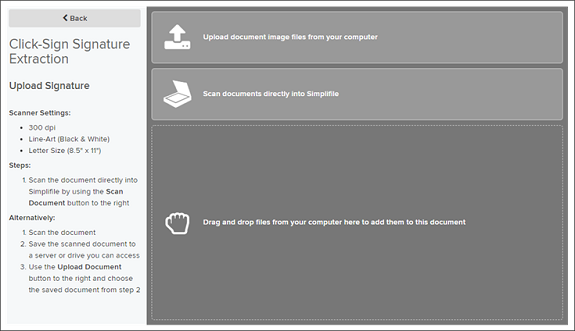
- In the 2. Upload and Extract section of the Click‑Sign Signature page, select the Upload button The Click‑Sign Signature Extraction pages opens.
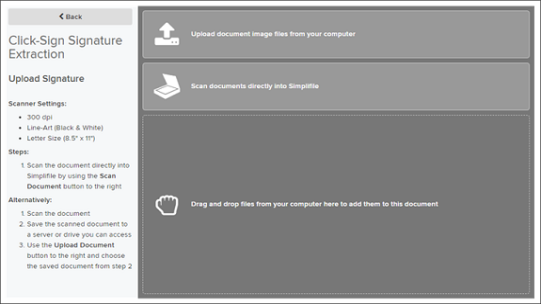
- Scan, upload, or drag and drop the signed form following the instructions on the page. When completed, your signature is displayed under the section heading.
6 ‑ Position the signature box and baseline
-
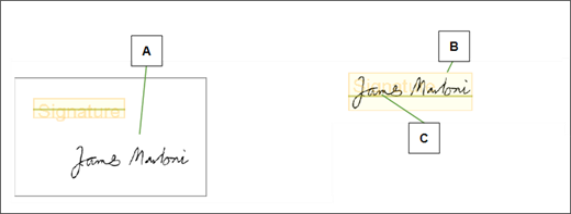
When the signature displays in the right panel, position the signature box around the signature and put the baseline under the signature as if you had signed on the line.
Below is an example.
| Letter | Description |
|---|---|
| A | Your signature displays on the screen after you upload the file. |
| B | Drag the outline of the signature box around your signature. |
| C | Drag the baseline to position it under the signature as if you had signed on the baseline. |
- To move the box, select the box to display a border of lines and small squares. Then left‑click and hold and drag the box.
- To size the box, left‑click and drag any of the small squares on the border of the box.
- To move the baseline, move your mouse pointer over the line until the pointer becomes a two‑way arrow(
 ). Then left‑click and hold and drag the line.
7 ‑ Extract the signature
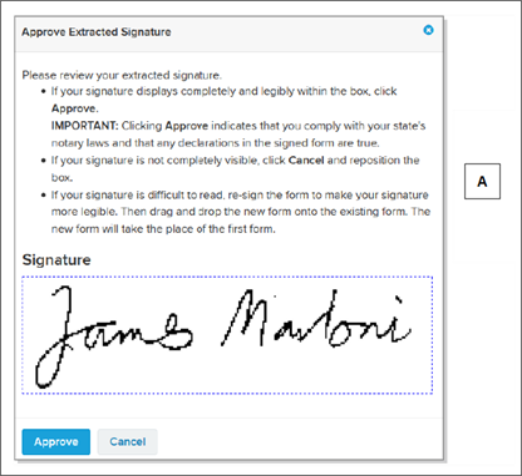
After you position the box and the line, you can extract the signature. The extracted signature displays on your computer so that you can make sure it is acceptable. Below is an example.
| Letter | Description |
|---|---|
|
A |
Read the suggestions on the Approve Extracted Signature window and review your signature. |
- In the Review Extracted Signature window, review the signature to make sure it is acceptable.
- If the signature is acceptable, select the Approve
 button.
 - If the signature is not acceptable, select the Cancel
 button and return to step 6 of this task.
- If the signature is acceptable, select the Approve
Remove the signature
Remove the signature
-
Open the Click‑Sign Signature page.
From the My Settings page
- Log in to Simplifile
- In the lower‑left corner of the navigation menu, select your name or the gear icon (
 ). The My Settings page opens and the navigation menu options change to related content.
 - In the navigation menu, select the My Signature item. The Click‑Sign Signature page opens.
From the Recipient component navigation menu Organization > Click-Sign Signature page
- Log in to Simplifile
- In the navigation menu, select the Organization > Click-Sign Signature item. The Click‑Sign Signature page opens.
- In the 2. Upload and Extract section, select the Remove Signature link. The Remove Signature window opens.
- Read the information in the window.
- Select the Remove button. The window closes and the signature is removed.
Related videos
