Assign User Roles window (Administrator)
 Overview
Overview
This topic provides information on how to use the Assign User Roles window.
Administrators can add roles to individuals or groups of users. When you select an Add  button or mark boxes and use the Actions options to add or remove user roles, an Assign User Roles window box displays.
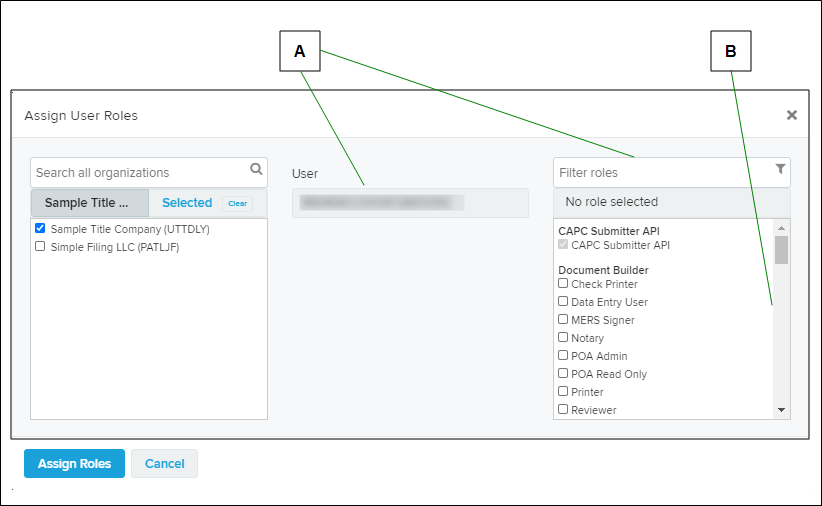
| Letter | Description |
|---|---|
| A | You can use the search fields above the lists to find specific users and roles. Each list lets you choose one or more items. |
| B | If necessary, use a scroll bar to find the user names and roles you want to assign. |
Use the Assign User Roles window to assign and remove roles for users in the displayed in the Manage User Roles page.
The Assign User Roles window opens when the Assign User Roles menu option is selected.
I want to ...
I want to ...
Open the Assign User Roles Window
Open the Assign User Roles Window
Method 1 ‑ From the Recipient’s Account > Users & Roles page
- In the navigation menu under Account, select the Users & Roles item. The Manager Users page opens and the right panel.
- Do one of the following:
-
- At the right side of the row that contains the wanted user, select the Assign User Roles (
 ) button. The Assign User Roles window opens.
 - Use the Actions
 dropdown button.
- Select the wanted user or users.
- Select the Actions dropdown button. A menu appears.
- Select the Assign User Roles item. The Assign User Roles window opens.
- At the right side of the row that contains the wanted user, select the Assign User Roles (
Manage User Roles
Manage User Roles
Use the Search all users field to list the organization’s users in the
- Open the Assign User Roles Window.
- Verify the organization listed under Organization at the right side of the window is the organization on which you want to work.
- Use the Search all users field to list the organization’s users in the field.
To show the currently selected user in the center field, select the Selected tab.
To show the users who have not been selected in the center field, select the No user selected tab.
- In the middle field, mark the user or users that you want to assign or change roles.
- In the right field, mark or clear the roles to assign to the selected user.
- Select the Assign Roles button. The Assign User Roles window closes and the changes are saved.