API Tokens page
 Overview
Overview
API administrators can perform bulk actions on several users at once from the Actions  dropdown button including: Add New Tokens, Remove Tokens, Cancel Pending Requests, and Generate & Export Tokens. The Generate & Export Tokens action is the only way in which an administrator can generate and see the API tokens for themselves. Please note that generating and exporting tokens will replace any existing tokens for the user(s). This should be clear to the user because they will need to confirm this action twice. When the new API tokens are generated, the administrator will have a csv downloaded.
When the action is confirmed, the user will show their API token is Pending on the API Tokens page.
I want to ...
I want to ...
QUICK TIP: API administrators can also perform bulk actions on several users at once from the Actions dropdown button including: Add New Tokens.
Open the API Tokens page
Open the API Tokens page
- In top level of the navigation menu, select the Organizations item. The Organization page opens in the right panel, the navigation menu changes, and Organizations is highlighted.
- If the organization whose content you want to open is not listed in the table, use the Search field and Filters to display it in the table.
- In the table row For the organization page you want to open, do one of the following:
- Select the organization name in the Name/ID column.
- Select the Active
 status button in the Status column
The Organization Contact Information page opens in the right panel, the navigation menu changes, and Contact is highlighted.
- In the navigation menu, select the Services item. The Organization Services page opens in the right panel, the navigation menu has Services highlighted.
- In the navigation menu, select the eRecording item. The eRecording License page open in the right panel, the navigation menu changes, and License is highlighted.
- In the navigation menu, select the Notifications item. The Notifications page opens in the right panel and the navigation menu changes with Notifications highlighted.
- In the navigation menu, select the API 2.0 Tokens item. The Recipient API Tokens page opens, and API 2.0 Tokens is highlighted in the navigation menu.
View accepted API tokens
View accepted API tokens
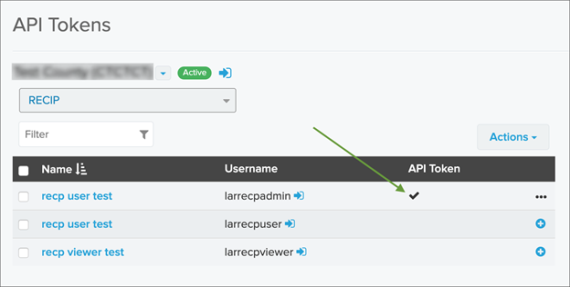
When the new token is accepted by the user, a check mark displays in the API Tokens page API Token column indicating that a token exists for the given user and integration.
- Open the API Tokens page.
- Make sure the wanted organization is displayed in the first dropdown field.
- Make sure the wanted service is selected in the dropdown field. If needed, use the dropdown to select the wanted services.
- Verify the that row with the name contains a check mark in the API Token column.
Request a new API Token
Request a new API Token
- Open the API Tokens page.
- Make sure the wanted organization is displayed in the first dropdown field.
- Make sure the wanted service is selected in the dropdown field. If needed, use the dropdown to select the wanted services.
- In the table, mark the checkbox for the user or users for which you want to request a new token.
-
Select the Actions button. A menu opens.
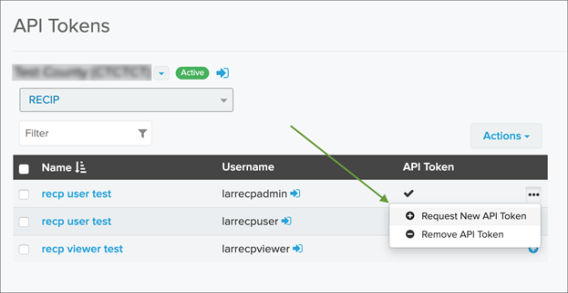
- Select the Request New API Token item.
Remove an API token
Remove an API token
- Open the API Tokens page.
- Make sure the wanted organization is displayed in the first dropdown field.
- Make sure the wanted service is selected in the dropdown field. If needed, use the dropdown to select the wanted services.
- In the table, mark the checkbox for the user or users for which you want to request a new token.
-
Select the Actions button. A menu opens.
- Select the Remove API Token item.