Settlement agent tip sheet
for collaboration with lenders
A. Find loans that need work
- You can go right to the loan page where you have work to do.
- You can access a loan in several ways.
- Select the Loans item in the left navigation menu to display the list of loans.
- In the left navigation menu, select the Pre‑Close item to display loans that have not yet closed.
- At the top of the page, select the Mine item to show loans in your work queue.
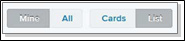
- Select the List view to more easily see action items in your work queue.
- Scroll right or shrink your display to display the Review
column.
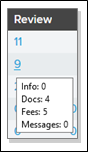
- Hover your mouse over a number to display the number of each type of review you need to make. Fees are on the Disclosures page, Docs are on the Documents page, and Info refers to the Loan Information page.
- Select one of the links to open the loan you want.
- Select a settlement file number.
- On a loan card, select a loan number.
- In the Search Loans field in the upper right corner, enter the borrower's last name or the lender loan number.
B. Understand Simplifile navigation menu items
- ORANGE indicates items you need to review or complete.
- BLUE indicates items the lender needs to review or complete.
- A competed task’s orange indicator changes to blue pending lender approval.
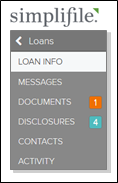
| < Loans | List of loans and loan search. The status of the displayed loans is highlighted on the left navigation menu. |
| Loan Info | Basic loan info. |
| Messages | Lender instructions and instant messages with the lender. |
| Documents | Page where you can upload and download documents shared with and by lenders. |
| Disclosures | Loan estimate and closing disclosure fee collaboration page. |
| Contacts | Contact information for key loan participants. |
| Activity | Loan audit trail. |
| Help and support | Simplifile Support telephone and email contact information, as well as current user guide and tip sheets. |
C. Message collaboration
- Lenders may have specific instructions or information for the sections of Simplifile where they would like your collaboration, including documents and fees. They may also need additional confirmation messages or have important instructions for the closing.
- Agents may want to instantaneously send messages about the loan to the lender.
- You can see new messages on the card view of a loan. Select the message to open the Messages page.
To work with messages:
- Open the loan where you want to send or review messages.
- In the left navigation menu, select the Messages item.
- Review lender messages and instructions.
- If necessary, select the Acknowledge button to let the lender know you received the messages.
- In the Add a message or note here box, enter any messages you may have for the lender.
Simplifile stores the message and sends an email to all lender assignees listed on the Contacts page or on the Loan Information page.
D. Collaborate on loan‑related documents
- Select the name of the loan where you want to collaborate.
- In the left navigation menu, select the Documents item.
- You need to add a document to Simplifile. Do one of the following:
- To upload a single document, select the Upload button on a placeholder.
- To upload a version of a document, select the Actions
 dropdown button on a document card and select the Upload Version item.
 - To add one or more documents at a time, select the Add Docs
 button on the top right of the page and select the Choose Files to Upload item.
 - Drag and drop files from your computer to the area below any existing document cards.
-
The lender is waiting for you to download and review the document. Do any of the following on the document card:
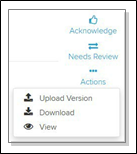
- Select the Actions dropdown button to download or view the document. An Eye button lets you view PDFs without downloading.
- Use the other tools on the right of the document card to acknowledge a document, return a document to the lender for review, or download a document.
- To view or download previous versions of a document, select the document card header and choose Versions on the left navigation menu.
- Select the Actions
- The lender needs to review and acknowledge or suggest changes to the document.
Closing disclosure fee collaboration icons

|
Indicates an added fee. |

|
Indicates required information. |

|
Indicates a changed fee that you can edit. |

|
Select to view an item’s values before a proposed change. |

|
Indicates a proposed removal. |

|
Select to accept an addition or change. |

|
Select to propose a removal. |

|
Select to reject a proposed removal. |

|
Select to view an invoice. A blue button indicates an invoice is already attached. |
 or or  |
Select to send a message to the lender. A blue button indicates the lender has sent you a message. |

|
Select to set a Net Funds value for the fee. |
E. Collaboration on fees
- Select the name of the loan where you want to collaborate.
- In the left navigation menu, select the Disclosures item.
- The lender is waiting for you to work with fee items. Select a fee category name to view the fees that need work. Then do any of the following, as needed:
- To approve a fee, select the Thumbs Up button for the fee.
- To approve all fees in a fee category, select the Accept # Changes in the category header.
- You can select to edit any field that displays an Edit (pencil) button when you hover your mouse over the field. Select the Save
 button if you make any changes.
- You can hover over a changed fee or select the information button to see the fee’s value before the change was made.
- To add a fee, select the Add new fee item at the bottom of a category.
- You can also select the Find / Add Fee button at the top of the page to find and add a specific fee. Only approved fees display in the dropdown lists.
- To propose the removal of a fee, select the trash can
 icon for the fee. A pending label displays beside fees you add or change.
- To approve a fee, select the Thumbs Up
- The lender needs to review and acknowledge or suggest changes to the fee items for the loan.
If you have questions about fee names and categories, contact the settlement agent.
REV‑C