Add a date to a loan
 Overview
Overview
The Loan Information page includes fields for dates, such as the dates for closing and fund disbursement. You can enter these dates manually or choose a date from a calendar.
Manual date entry
Manual date entry
You can select in a date field and enter a date manually, if desired. You can use numerals to enter a date in the numerical MM/DD/YYYY format (for example, 03/25/2016). Be sure to use double digits for the month and date. This means that, if the month or date is a single digit, you must start the month or date with a zero ( 0 ). For example, April would be 04.
The date picker calendar
The date picker calendar
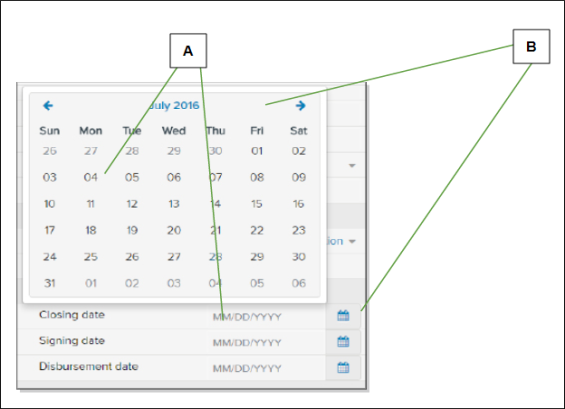
When you select Calendar  button beside a date field, a small calendar pops up. You can find the date you want on the calendar and then select the date to display the date in the field. The calendar is called a date picker.
Below is an example of the date picker.
| Letter | Description |
|---|---|
| A | Select a date in the calendar to enter that date in the field in the MM/DD/YYYY format. After a date displays, you can select in the field to edit the date. |
| B | Select Calendar button to toggle the calendar open and closed. |
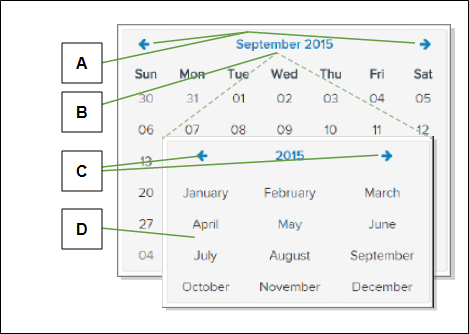
You can do any of the following to move around in the date picker calendar:
| Letter | Description |
|---|---|
| A | Select the left or right arrow to move to the month before or after the displayed month. |
| B | Select the month to display a list of months you can choose. |
| C | From the list of months, select the arrows to move to the year before or after the displayed year. |
| D | From the list of months, select a month to display the calendar for that month of the displayed year. |
When the date you want displays, select it to place the date in the date field.