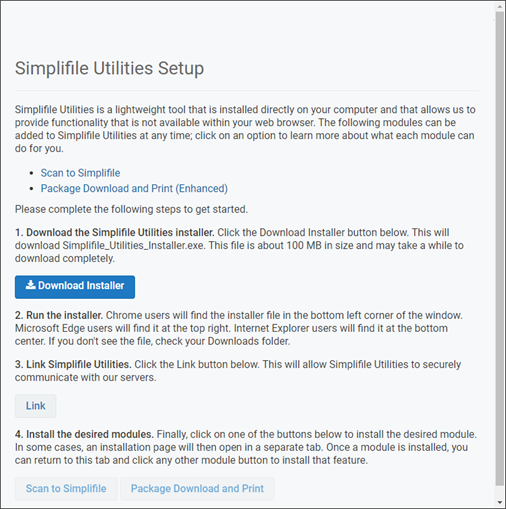
Simplifile Utilities Setup page
 button is displayed in the computer's taskbar "show hidden icons".
 I want to ...
I want to ...
 ) and select the Download and install the Simplifile Utilities
Download and install the Simplifile Utilities
- Open the Simplifile Utilities Setup page.
- Select the Download Installer button. The Simplifile_Utilities.exe is downloaded to the computer's download location.
- Go to the computer's download location and select the Simplifile_Utilities.exe file that was downloaded. The following window opens
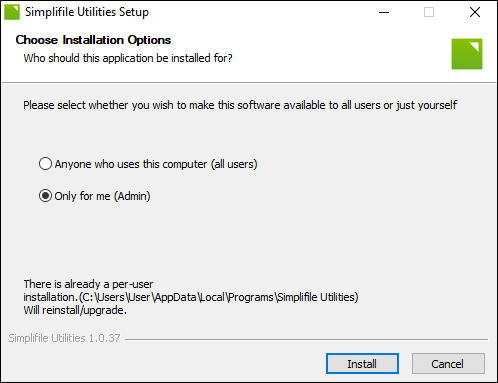
- Choose the wanted option:
- Anyone who uses this computer (all users)
- Only for me (Admin)
- Select the Install button.
- If the Simplifile Utilities Setup window open display "Simplifile Utilities is running. Click OK to close it.", select the OK
 button to close the Simplifile Utilities.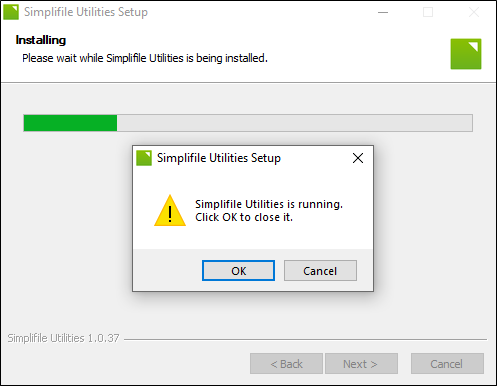
NOTE: The "Simplifile Utilities is running. Select the OK
 button to close it." window only appears when upgrading to a new version of the Simplifile Utilities. It won't appear if this is the first time the Simplifile Utilities are installed.
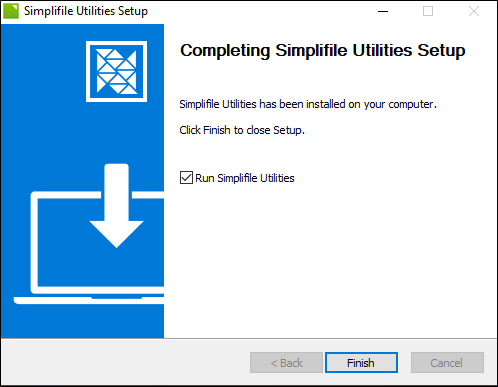
 - When the Completing Simplifile Utilities Setup is displayed, select the Finish button.
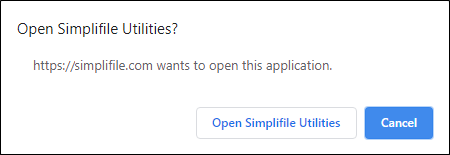
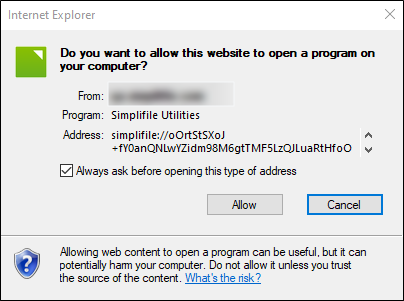
- The Open Simplifile Utilities? window opens.
If you are using Chrome, the window looks like:
If you are using Internet Explorer, the window looks like:
If you are using Edge, the window looks like:
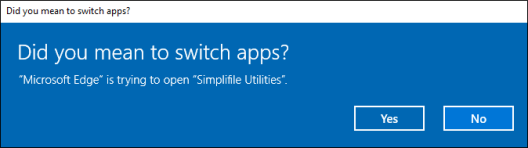
Select the applicable button to open the Simplifile Utilities Setup page.
- In the Simpleminded Utilities Setup page, select the Link button. A spinner appears next to the Link button. When the linking process completes, the spinner goes away and the page displays Linking Successful.
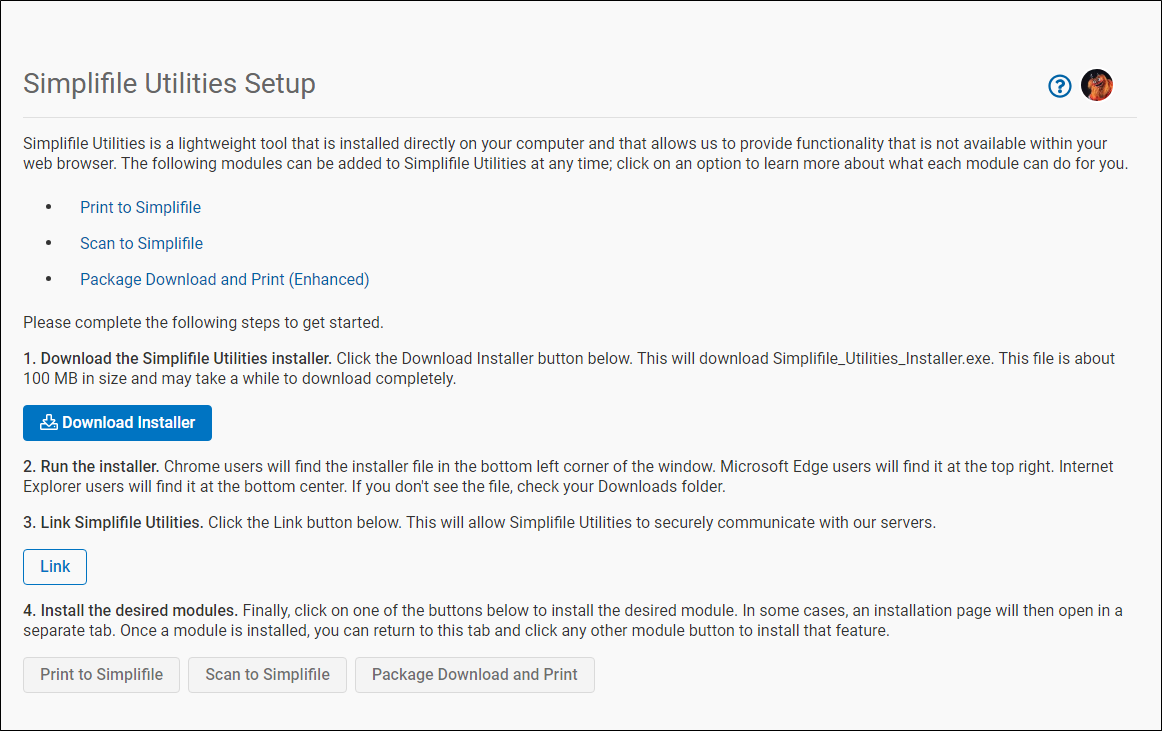
The Simplifile Utilities are now installed and the Simplifile logo (System Utilities) is displayed in the computer's system tray.
When the Simplifile Utilities module is installed, it can be accessed from several windows in the Simplifile user interface.
Related topics
Related topics
-
See the Simplifile Utilities topic.