New Features & Forms in Version 26.1 (Banker Edition)
This section discusses the new features being introduced in this Encompass release.
Introducing Shared Loan Locks (Concurrent Editing)
 Shared Loan Locks for Encompass Desktop Interface and APIs
Encompass has been updated to allow APIs to update a loan while the loan is open by a user in the Encompass desktop interface. Similar to how loans are managed in the Encompass web interface, loans opened in the Encompass desktop interface now acquire a 'shared lock' which allows backend updates to the same loan via APIs. In previous Encompass releases, when the loan was opened in the Encompass desktop interface it acquired an 'exclusive lock' which meant that no other applications (including APIs) could be used to open the loan in edit mode and make changes. APIs were blocked from updating the loan file, which resulted in increased Encompass network traffic (since the backend processes would continuously retry to apply updates) and longer loan processing times. With shared locks in place, these types of updates can be made without having to wait for a user to exit the loan file in Encompass.
Please note this functionality is optional. It is not applied automatically. Please refer to the information below for more details about this feature and instructions for enabling this feature.
Here are two simple examples of the types of updates that can now be made when the loan is open in the Encompass desktop interface:
-
Changes in different areas of the loan: A user opens the loan and is updating data on input forms, while simultaneously a Disclosure Tracking record is created for the loan via an API. When the user saves the loan, the changes made to the forms by the user, along with the new Disclosure Tracking record, are saved and visible in the loan.
-
Changes in the same area of the loan: A user opens the loan and manually updates the Purchase Price (136) on the Borrower Summary - Origination input form, while simultaneously an API is executed that updates the Purchase Price (136) on the Borrower Summary - Origination input form. When the user saves the loan, the change to the price made by the user is saved (it takes precedence over the API update to this field since the save made by the user occurred last). The API update to the price is also saved and displayed on the input form since there were no conflicting changes to this field made by the user.
The following knowledge articles demonstrate how to test these types of concurrent updates in different and the same areas of the loan:
-
000115876 - Steps/Details on How to Demonstrate Encompass Desktop Interface Shared Locking (in different areas of the loan)
-
000115887 - Steps/Details on How to Demonstrate Encompass Desktop Interface Shared Locking (in the same area of the loan)
In addition to these types of simple data changes, additional updates to the loan that are driven by APIs such as automated service ordering or automated task workflows are also permitted.
When backend changes like the examples above are made to a loan via an API, a new message - New updates to the loan are available - is added to the Alerts & Messages tab in the Loan Log to notify the user in the Encompass desktop interface.
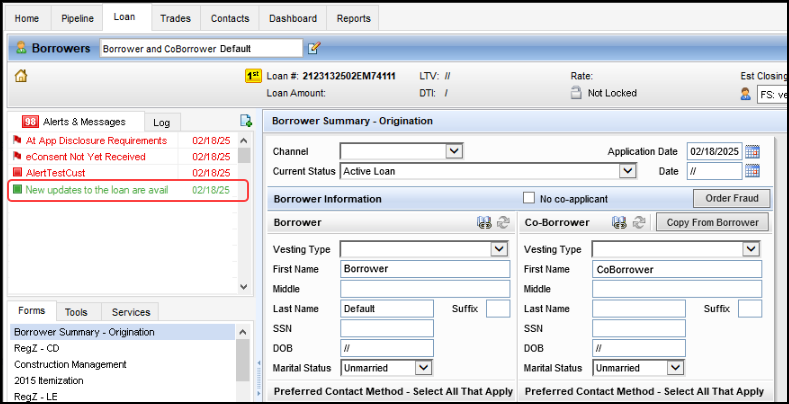
When the user clicks the message, a pop-up message informs them that new updates to the loan are available.
-
Users can select Yes to save their changes along with any changes made by the API(s) at that time.
OR
-
Users can select No to confirm that they will not save any changes at that time.
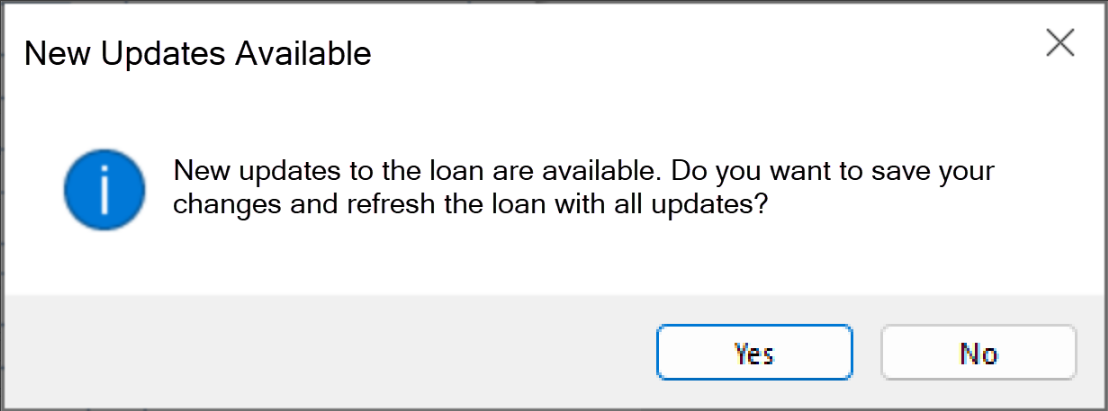
If the user clicks Yes, all changes are saved and the loan is refreshed to display the most current values. The pop-up message is closed and the message notification in the Loan Log is then removed. If the user clicks No, the pop-up window is closed and no changes to the loan are saved. The message notification in the Loan Log remains. If changes were made to the same area of the loan and there is a conflict, the manual change performed by the user always takes precedence.
If the user later manually saves their changes to the loan, the backend changes made by the API will also be saved at that time and the loan is refreshed to display the most current values. The message notification will then be removed from the Loan Log. If the user elects to close the loan without saving any of the changes they made, the backend changes made by the API will still be saved. When a user re-opens the loan later, the backend changes made by the API will be displayed (and the message notification will no longer be displayed in the Loan Log).
Please note, two or more physical Encompass users cannot manually update the same loan file at the same time using Encompass in the desktop or web interfaces. Concurrent updates can only be applied to a loan while it is open in the Encompass desktop interface if they are made via an API.
How to Enable
You must request that this functionality be enabled in your Encompass instance.
-
Request: After upgrading to Encompass 26.1 or later, submit a Standard Support Case through the ICE Resource Center to enable this feature.
-
Test first: Request the new functionality be applied to your Encompass instance in a UAT or other test environment so you can determine how this type of concurrent editing works and affects your loan workflows and processes with non-Production loans.
-
Removal: To remove this functionality from your Encompass instance later, submit a new Standard Support Case.
Before enabling this feature, please review the Known Issues list for shared loan locks. Impacts on system performance and other issues that will be addressed in future releases are included.
NICE-56929, NICE-52893
Encompass Web Plugins 2.0 Now Available in Encompass Desktop Interface
Using Encompass Web Plugins 2.0 in Encompass Desktop Interface
Using Encompass Web Plugins in Encompass Desktop Interface
With Encompass 26.1, ICE Mortgage Technology is providing a Plugins 2.0 initiative that enables you to integrate and run your Encompass web interface plugins within Encompass desktop interface. Plugins are extensions to the Encompass and Encompass TPO Connect applications, managed as JavaScript files and hosted in the administration portals for each application. Plugins are automatically launched at the point of sign-in, after a user has been authenticated during the process of logging into each application. As soon as a user logs in, plugins are loaded within an HTML iFrame element for the entire duration of the session. Based on the user’s actions (e.g., opening a loan, saving a loan, etc.), loan-specific events are raised to each plugin, and every plugin is allowed to respond accordingly. Prior to Encompass 26.1, these plugins were only available for use with the Encompass web interface.
The ICE Scripting Framework allows for two-way communication between the plugin and each application. The Scripting Framework is the mechanism for each application to publish loan-specific events, for plugins to subscribe and respond to these events, and for each application to take the feedback and perform necessary action.
The plugins provided by ICE Mortgage Technology are reliable, run efficiently, and blend in naturally with Encompass features. These development guidelines were developed by our engineering team through collaboration with our different teams and partners, and through observations/research of many plugins in our customer environments. Many lessons were learned through this process on how greatly plugins can affect the stability of Encompass and its performance.
Note that there are several different approaches to introduce your logic and extend functionality in the Encompass lending platform. It is important to ensure that a custom plugin is actually necessary. For example, you can avoid creating plugins for customizations that can be achieved using built-in means developed by ICE Mortgage Technology such as business rules for field triggers, custom fields, field data entry rules, persona checks, and/or workflow rules.
Please note the following:
At this time, not all Encompass web interface plugin features are supported in the Encompass desktop interface, and vice versa.
While web plugins are generally available in this 26.1 release, a script header is required to enable plugin scripts to run on the Encompass desktop interface. If you do not use or create plugins with this header, there will be no changes to your existing workflow in the Encompass desktop interface. The script header to apply is:
/* $PLG:TARGET=Multi*/
Before starting your plugins journey and while maintaining existing plugins, review the Plugin Best Practices page along with these additional resources for more information and guidelines using Plugins in the Encompass desktop interface.
Coming Soon: Single Sign-On and Multi-Factor Authentication Settings Moving to Encompass Web Interface
SSO and MFA Settings in Encompass Web Interface
Currently, administrators managing their company's Single Sign-On (SSO) and Multi-Factor Authentication (MFA) setup and preferences utilize the setup screens located in Encompass Developer Connect. With the Encompass 26.2 release currently planned for July 2026, these settings will be removed from Developer Connect. Beginning in 26.2, these settings will now be provided in the Encompass web interface's Admin portal (in addition to the settings in Encompass desktop interface). Existing setup and configuration settings will not be impacted, so administrators will not be required to reconfigure their existing SSO and MFA setup. More information will be provided about this update in the coming weeks.
| Next Section: Feature Enhancements | 
|
|

|
Previous Section: Introduction |