Feature Enhancements in Version 25.3
(Broker Edition)
This section discusses the updates and enhancements to existing forms, features, services, or settings that are provided in this release.
Encompass Forms & Tools
 New Option to Keep Subordinate HELOC Open After Pay Off
Encompass 25.3 includes an update for the scenario where an existing subordinate HELOC is being paid off with a refinanced first mortgage, but the subordinate HELOC is to be left open.
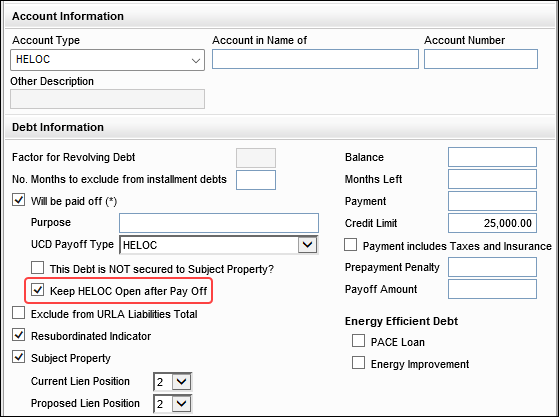
In previous versions of Encompass, when refinancing a loan there was no option to roll an existing subordinate Home Equity Line of Credit (HELOC) into the new mortgage. As a workaround, users were required to close to the existing HELOC and then open a new subordinate HELOC in the refinanced loan. In Encompass 25.3, users can now utilize the new Keep HELOC Open after Pay Off field (FL0019) on the Verification of Liabilities (VOL) input form to keep the existing subordinate HELOC open and roll it over to the new refinanced loan (where it remains in 2nd position).
Please note:
-
In order to properly set up a 2nd lien HELOC that you want to pay off with a new 1st mortgage and keep it open, you must select the Keep HELOC Open after Pay Off field (FL0019) and the Resubordinated Indicator checkbox (FL0126).
-
Any time you have a HELOC 2nd lien VOL, you must select the Resubordinated Indicator checkbox (FL0126) when financing a new 1st Mortgage when you want to keep the HELOC open- whether you are paying it off or you are not paying it off.
Migration Notes:
-
For non-active loans (1393) created prior to Encompass 25.3, the value in the HELOC Line Total field (CASASRN.X168) will be locked/retained if the loan includes a liability on the VOL that is a HELOC account (FL0008) for the Subject Property (FL0027) in lien position (FL0029) 1 or if this field is left blank.
Update to the LTV Factor of FHA Maximum Mortgage for Cash Out Refinance Transactions
On the FHA Management input form's Prequalification tab, the system calculation for MORNET.X42 has been updated to use 80% as the maximum LTV/CLTV for cash out refinance loans. Previously, this field was calculated using 85% of the LTV factor. This change was made in accordance with HUD Mortgagee Letter 2019-11, which states that the maximum LTV/CLTV for cash out Refinance transactions for case numbers assigned on or after September 1, 2019 is 80%.
Please note, the new 80% LTV calculation will be applied to FHA cash out refinance loans with FHA Case Number Assignment Dates (3042) on or after 9/1/2019 (or is blank). FHA cash out refinance loans with FHA Case Number Assignment Dates (3042) prior to 9/1/2019 will continue to use the 85% LTV calculation.
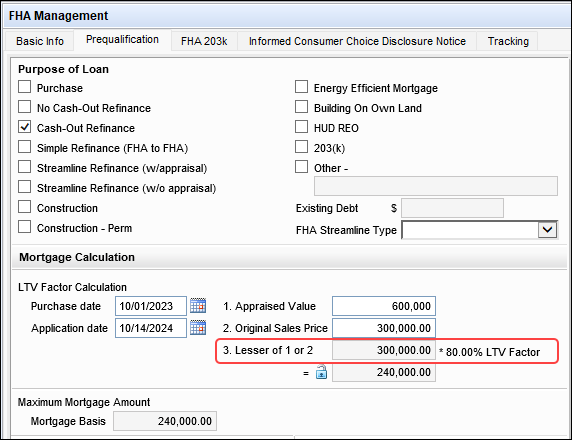
When the loan is an FHA cash out refinance and the Purchase date (1518) is 12 calendar months or less from the Application date (745), the Lesser of 1 or 2 field (MORNET.X42) is populated with the lesser of the Appraised Value (356) or the Original Sales Price (EEM.63). The Maximum Mortgage Value field (1154) is then populated with that lesser value multiplied by 80% of the LTV/CLTV.
When the loan is an FHA Cash out refinance and the Purchase date (1518) is greater than 12 calendar months from the Application date (745), the Lesser of 1 or 2 field (MORNET.X42) is hidden and the Maximum Mortgage Value field (1154) is populated with the Appraised Value (356) multiplied by 80% of the LTV/CLTV.
New Fields in Encompass
New fields that have been added to the Encompass Reporting Database and/or to various forms and tools are described below.
New Grantor/Donor Name Field Added to Verification of Gifts and Grants
A new Grantor/Donor Name field (URLARGG0026) has been added to the Verification of Gifts and Grants input form to enable users to document the name of a grantor or donor. This can be useful when multiple gifts or grants are present in the loan and it can also be used to check the donor's name against fraud watchlists.
New Service Provider Fields Added to VOE and VOM
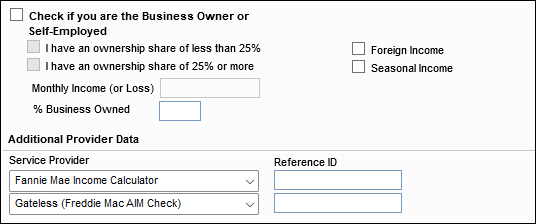
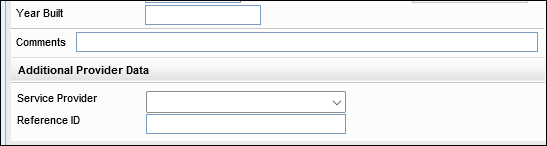
The following new dropdown fields have been added to the Verification of Employment (VOE) and Verification of Mortgage (VOM) in a new Additional Provider Data section to provide users with more options to add service provider information:
On the VOE:
-
Service Provider [for borrower] (BE0085, BE0086)
-
Service Provider [for co-borrower] (CE0085, CE0086)
-
Reference ID [for borrower] (BE0087, BE0088)
-
Reference ID [for co-borrower] (CE0087, CE0088)
VOE
On the VOM:
-
Service Provider (FM0062)
-
Reference ID (FM0063)
VOM
Please note that AUS (automated underwriting service) is not currently mapping to these new fields, so when AUS results are returned to Encompass, these fields will not be auto-populated. This mapping and auto-population is planned for a future Encompass release.
GSE Services & Integrations
For more GSE Integrations and Services 25.3 updates, see the GSE Release Notes.
Updates for the Rep and Warrant Tracker Input Form
In Encompass 25.3 the Rep and Warrant tool in the Encompass web interface is being expanded with additional fields specific to digitally verified loans. This information will be useful for Encompass users leveraging the Fannie Mae and Freddie Mac automated underwriting integrations. As part of this update, a new collection of Employment and Income fields have been added to the Encompass Reporting Database. These fields will be used in the sections of the tool indicated below in the Encompass web interface only.
Please note that the new fields will not be populated with data from the income and employment verification fields in the Encompass desktop interface at this time. The data synchronization for these fields in both interfaces will be provided in a future Encompass release.
| Field Name | Field ID |
|---|---|
| Fannie Mae Employment Verification Section: | |
| Investor (string) | RWT0002 |
| Verification Type (string) | RWT0001 |
| Borrower Type (string) | RWT0003 |
| Employer Name (text field, string) | RWT0005 |
| Vendor Name (test field, string) | RWT0006 |
|
Report Type (test field, string) |
RWT0007 |
| Report ID (alphanumeric) | RWT0008 |
| Close By Date (date) | RWT0009 |
|
Status (Yes/No field) |
RWT0010 |
| Comments | RWT0011 |
| Fannie Mae Income Verification Section | |
| Investor (string) | RWT0002 |
| Verification Type (string) | RWT0001 |
| Borrower Type (string) | RWT0003 |
| Income Type (string) | RWT0004 |
| Vendor Match (text field, string) | RWT0012 |
| Report Type (test field, string) | RWT0007 |
| Report ID (alphanumeric) | RWT0008 |
| Validated Amount ($) | RWT0013 |
| Close By Date (date) | RWT0009 |
| Status (Yes/No field) | RWT0010 |
| Comments | RWT0011 |
| Freddie Mac Employment Verification Section | |
| Investor (string) | RWT0002 |
| Verification Type (string) | RWT0001 |
| Borrower Type (string) | RWT0003 |
| Employer Name (text field, string) | RWT0005 |
| Vendor Name (test field, string) | RWT0006 |
| Report ID (alphanumeric) | RWT0008 |
| Close By Date (date) | RWT0009 |
| Status (Yes/No field) | RWT0010 |
| Comments | RWT0011 |
| Freddie Mac Income Verification Section | |
| Investor (string) | RWT0002 |
| Verification Type (string) | RWT0001 |
| Borrower Type (string) | RWT0003 |
| Income Type (string) | RWT0004 |
| Employer Name (text field, string) | RWT0005 |
| Vendor Name (text field, string) | RWT0006 |
| Report ID (Alphanumeric) | RWT0008 |
| Income Amount ($) | RWT0013 |
| Close By Date (Date) | RWT0009 |
| Status (Yes/No) | RWT0010 |
| Comments | RWT0011 |
These fields are displayed in the Rep and Warrant tool in the Encompass web interface, but the field IDs are hidden and cannot be located with the Search Field ID tool. Since these fields are available in the Encompass Reporting Database, they may be added to a custom input form. These fields will be located with the Search Field ID tool when they are on a custom input form.
CBIZ-64811
Electronic Document Management (EDM)
eSign Events: New eSigning Provider
For the past several years, electronic signing (eSigning) within Encompass has been facilitated by a third-party, Docusign, in all areas where eSigning is supported (except for hybrid eClose). Beginning with this Encompass 25.3 release, the signing platform has transitioned to ICE's eSign Events for all electronic documents in all environments. No setup or user action is required. This change has no impact on non-platform signing solutions.
Lenders will start using eSign Events in their Encompass instance when they upgrade to Encompass 25.3 or shortly thereafter. All lenders will eventually be transitioned to eSign Events in phases up until the release of Encompass 25.4.
Additional Information
While eSign Events is a new signing provider, the user experience is intuitive and will be familiar to Encompass users who previously utilized Docusign for eSigning.
When a borrower or other signer clicks eSign to begin signing, they are taken to a new eSign Events location with a slightly different theme, but the tasks the borrower or other signers need to complete are the same as they were with Docusign.
Review KA #000116011 - eSign Events: New eSigning Provider Coming in Encompass 25.3 to learn more about the benefits of eSign Events and to view a feature comparison to understand how the eSign Events flow compares to the Docusign experience.
eFolder's Send to Lenders Option is Removed
In Encompass 25.3, the Send button in the eFolder has been changed from a dropdown component to a standard button. As part of this update, the Send Files to Lender... option has been removed and is no longer available in Encompass. In previous versions of Encompass, this option was provided to users so they can submit loans to their lenders and investors from the eFolder. This functionality is provided in Encompass Investor Connect. Users can utilize that application going forward to submit loans to their lenders and investors.
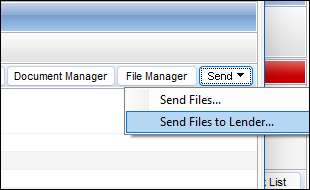
In Encompass 25.3, clicking the Send button can be used to send files to borrowers. Prior to this update, users were required to click the Send button, and then select the Send Files option to send files to borrowers.
DOCP-77366
Encompass Settings
New Option for Administrators to Set the Client IDs to Use for the Loan Mailbox
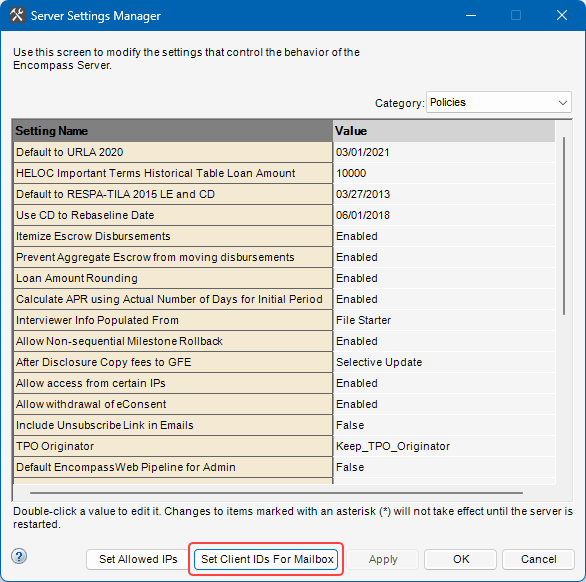
A new option has been added to the Server Settings Manager in the Encompass Admin Tools to give administrators the ability to manage the list of available Encompass Client IDs that will be available to users when they are transferring a loan via the Loan Mailbox. Some lenders were having issues with Encompass users entering an incorrect Client ID when transferring a loan, which results in the loan being transferred to the wrong Encompass instance. To help reduce the risk of transferring a loan to the wrong instance, administrators will now use this new option to provide the list of eligible Client IDs that can be used for transferring loans.
With the introduction of this new option in Encompass 25.3, users are no longer able to manually type in Encompass Client IDs when they want to transfer loan files. Instead, they must select from a list of Client IDs managed by the Encompass administrator.
To add a Client ID, administrators will navigate to the Encompass Admin Tools > Settings Manager, and then select Policies from the Category dropdown list. Then click the Set Client IDs For Mailbox button.
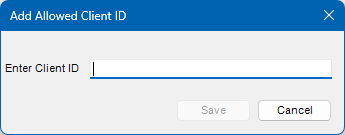
In the resulting Allowed Client IDs For Loan Mailbox pop-up window, click the New icon, and then type the Client ID. When finished, click Save.
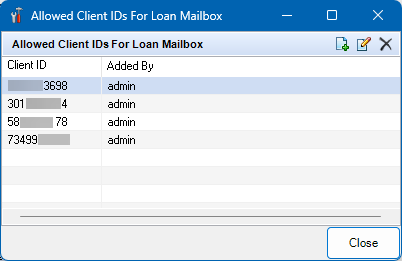
Use the icons provided to add, edit, or delete client IDs here. When finished, click Close.
When an Encompass user is transferring a loan from one Encompass instance to another, the list of Client IDs provided by the administrator is provided in the Client ID dropdown list. Users are not permitted to manually type a Client ID here.
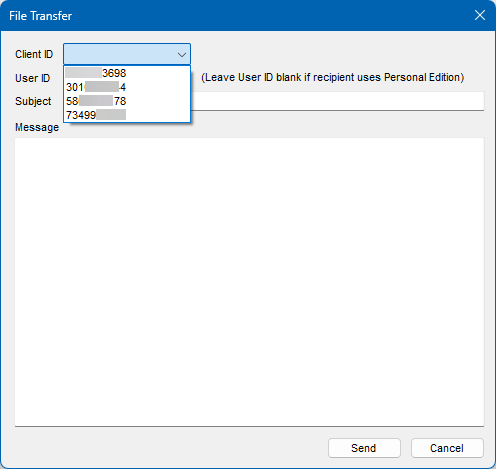
It is important to note that beginning in Encompass 25.3, the Client ID field and dropdown list in the File Transfer pop-up window will be blank/empty by default. The administrator must use the new Set Client IDs For Mailbox option to add at least one Client ID to the list of allowed Client IDs before users will be able to transfer a loan. Since users are no longer permitted to manually type a Client ID when transferring a loan, they cannot transfer a loan until the administrator provides a Client ID for them to use.
Please see knowledge article #000116106 - New Option for Administrators to Set the Client IDs to Use for the Loan Mailbox for additional information and instructions for transferring loans to ICE Mortgage Technology Support team members.
Update to Loan Custom Field Editor to Prevent Extra Spaces in the Field ID
Updates have been made to the Encompass Settings > Loan Setup > Loan Custom Fields setting to prevent extra spaces from being included at the beginning or end of the field ID provided by administrators creating new custom fields. It was determined that once a custom field with extra spaces in the field ID was added to the Encompass Reporting Database, it resulted in an 'Invalid Column' error being triggered when users attempted to create and save a new loan file in Encompass. To prevent this issue, extra spaces at the beginning or end of the field ID are now automatically removed from the Field ID field when a new custom field is created. Administrators were already prevented from including extra spaces in the field IDs when they were manually typed, but they were permitted when the field ID was copied and pasted from another source. Now the extra spaces in the field IDs are automatically removed if they have been copied and pasted into the field when the new custom field is created.
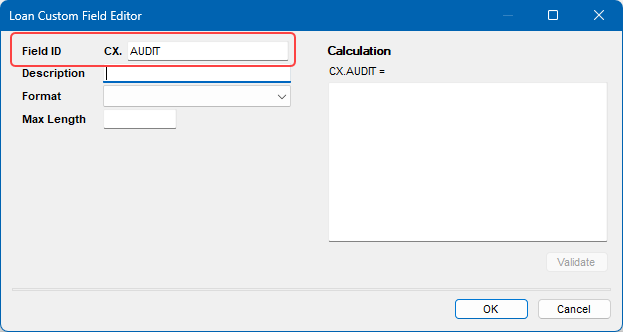
Please note, this new update applies only to new custom fields created in Encompass 25.3 or later. If you have any existing custom fields in the Encompass Reporting Database with extra spaces at the beginning or end of the field ID, they will not be updated. To address this in your instance, you can remove the custom field from the Encompass Reporting Database. Once the field is removed, users will no longer receive the 'Invalid Column Name' error when creating a new loan. If you want to re-add the custom field to the database, update the field ID in the Loan Custom Field Editor to remove the extra spaces from the beginning and end of the ID. Then you can add the updated custom field to the Encompass Reporting Database.
New 50 Character Limit when Naming New Loan Folders
When creating a new loan folder in the Encompass Settings > Loan Setup > Loan Folders, the folder name is now required to be 50 characters or less.
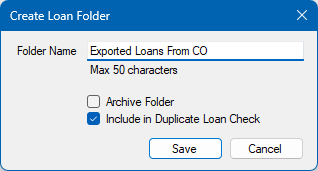
This limit has been put in place to help reduce the possibility of the network path of the loan folder being so long that it causes errors when users attempt to open the folder from their Pipeline.
This character limit applies to new loan folders created in Encompass 25.3 or later. Existing loan folders created in previous versions of Encompass with folder names that exceed 50 characters will not be updated and the original folder names will remain.
New Loan Template Option to Use the Left Navigation Menu Provided with the Web Interface
A new option - Web Left Navigation Template - is now provided in the Loan Template Sets setting. Here the administrator can select a Loan Left Navigation template that’s been configured in the Encompass web interface Admin portal to include with the loan template. When a loan using the loan template is opened in the Encompass web interface, the Loan Left Navigation template is applied and the left navigation menu is displayed accordingly. For more information about Loan Left Navigation templates, review the online help.
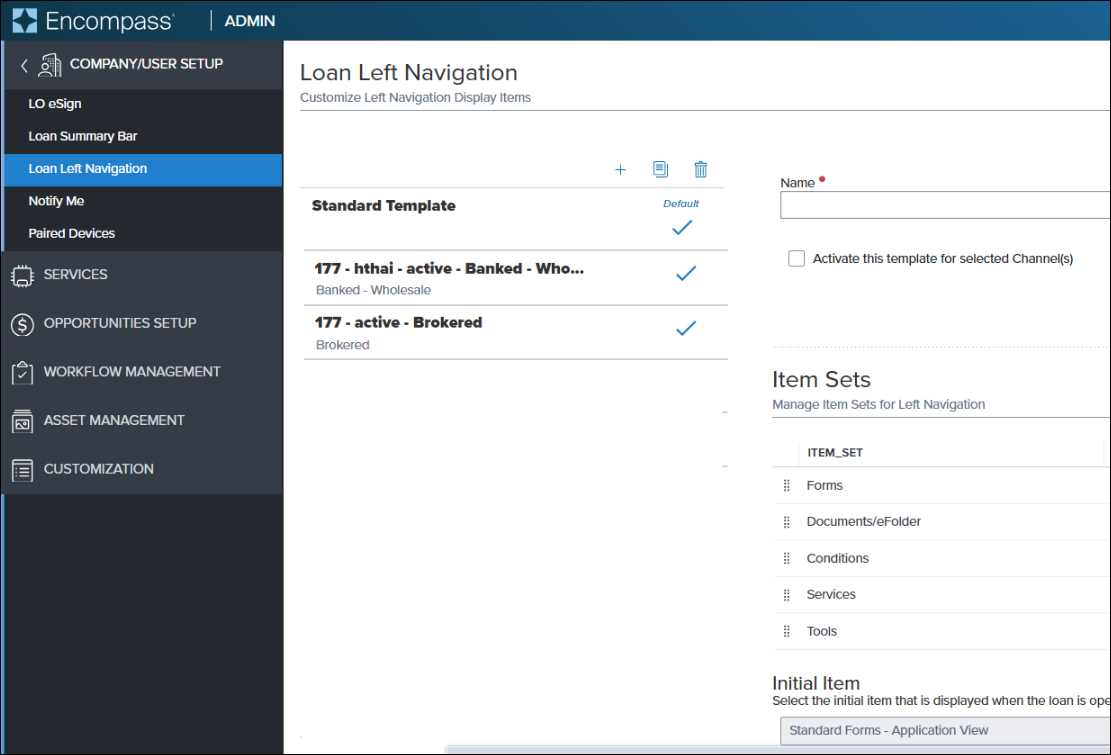
The available templates to select for this field are all the templates stored in the Encompass web interface Admin portal (in the Company/User Setup > Loan Left Navigation page). Note that the Standard template, which is the default template for all instances in the Encompass web interface, is not included for this new Web Left Navigation Template feature. It will be used in the web interface only when no other template is selected.
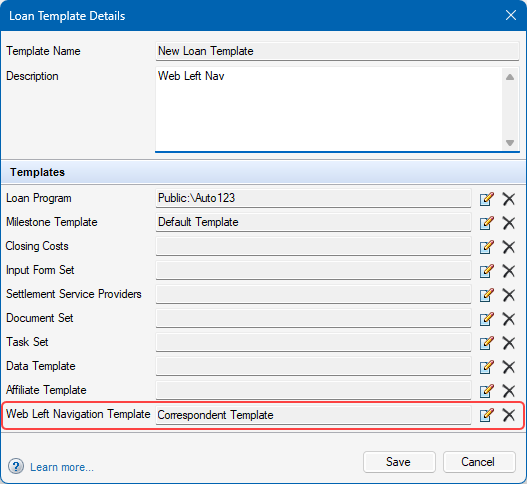
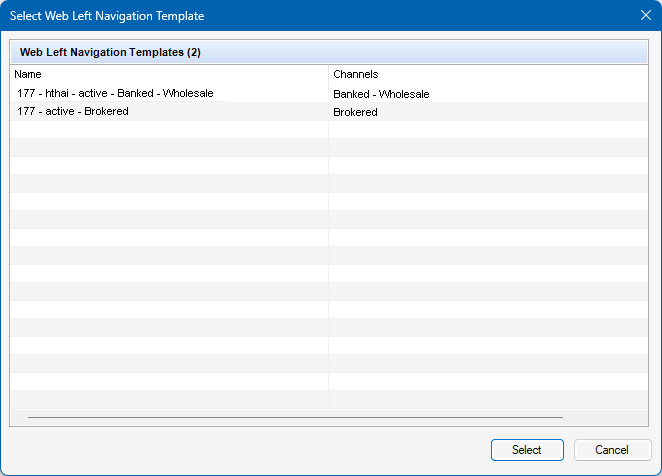
Again, the templates listed in this pop-up window are all the templates located in the Loan Left Navigation setting in the Encompass web interface:
-
If you select a template to apply, and then later that template is deleted from the Loan Left Navigation admin page in the web interface, the Web Left Navigation Template field in the Loan Template Details pop-up window will be blank the next time the administrator opens it. The administrator will need to select a different template for this field if needed.
-
There is no indication or warning message in the Loan Template Details pop-up window to indicate that the selected Web Left Navigation Template is deactivated. It is the responsibility of the administrator to select a different template if needed.
CBIZ-64601, NICE-54177, NICE-52023
| Next Section: Fixed Issues | 
|
|

|
Previous Section: Introduction |