Loan App Workflows
You can create, manage, and publish multiple loan application workflows on your site to meet the needs of your borrowers.
To configure the loan application workflows, click Loan App Workflows in the left navigation menu.

 About Workflows
What Is a Workflow?
A workflow contains preset settings that specify all attributes and conditions of the loan application such as style, required fields, whether the borrower should create an account and if services should be ordered. For example, you may want to create an application workflow that requires the borrower to create an account, provide eConsent, and orders credit before submitting the application. For the same site, the administrator may also want to create an application workflow that includes a short loan application to collect minimal information about the borrower so the lender can follow up.
Using Workflows
Each Encompass Consumer Connect site has a default workflow. You can create new workflows using the Loan Application Workflows page. Each workflow has a unique and logical name. For example, you might name a workflow for a short loan application, "Short Application". A setting in the Website Builder Apply Now widget allows you to enter the name of the workflow that will be initiated when the borrower clicks the button. If a site has a dedicated section for mortgage inquiries, the Apply Now button on that section might be linked to the "Short Application" workflow.
Managing Workflows
In the Loan App Workflows page, you can view high-level details about activated and archived workflows, create a new workflow, set and duplicate the default workflow, set the loan application style, enable services and eConsent, and archive unused workflows.
Using Manage Templates, you can generate custom workflows with preconfigured sections, pages, and form elements. For more information, refer to Application Customization Tool (ACT).
Create Workflows
You can create a workflow that specifies attributes and conditions of the loan application, including style, required fields, whether the borrower should create an account, and if services should be ordered.
To Create a New Workflow
-
Browse to the Encompass Consumer Connect Administrator Portal, and log into your instance.
-
In the left menu, click Loan App Workflows. If necessary, click the site drop-down on the top of the page and then click your site.
-
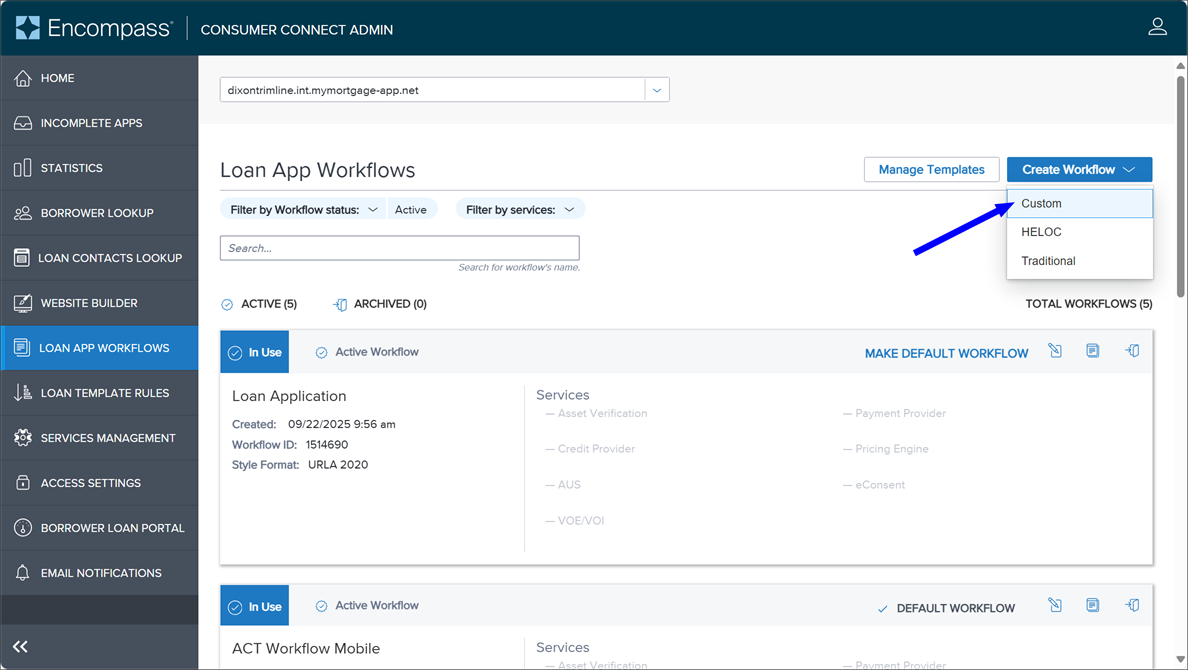
Click Create Workflow, and then click one of the workflow types:
-
Custom: Create a loan application workflow with the contents, order, and conversational tone that you need, which will be designed in the Encompass Consumer Connect Application Customization Tool (ACT). For more information, refer to Application Customization Tool (ACT).
-
HELOC: Create a loan application workflow optimized for home equity loans, allowing borrowers to provide the information through a simplified workflow and see their eligibility, based on their current home value and existing liens.
-
Traditional: Create a loan application workflow using the traditional application format.
-
-
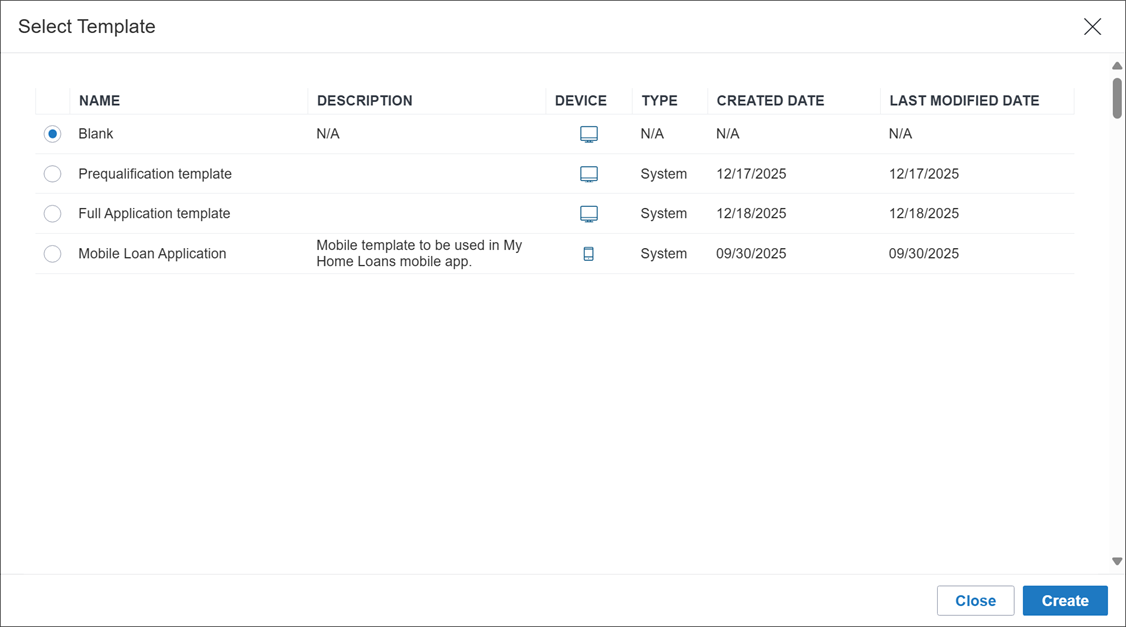
(Custom Workflows Only) In Select Template, click the custom workflow template that is optimized with preconfigured sections, pages, and form elements:
-
Blank: Create an empty ACT loan application workflow without preconfigured sections, pages, and form elements.
-
Prequalification template: Create an ACT loan application workflow with preconfigured sections, pages, and form elements optimized for a prequalification loan application.
-
Full Application template: Create an ACT loan application workflow with preconfigured sections, pages, and form elements optimized for a complete loan application.
-
Mobile Loan Application: Create an ACT loan application workflow with preconfigured sections, pages, and form elements optimized for a My Home Loans mobile app loan application.
-
(User): Create an ACT loan application workflow with preconfigured sections, pages, and form elements designed by an ACT administrator.
Click Create. For more information, refer to Application Customization Tool (ACT).
-
-
In Name, enter the name for your workflow.
-
In Description, enter a brief description of your workflow.
-
Customize the loan application choosing using the options provided on the page. For detailed instructions, refer to Loan Applications Settings.
-
Click Save.
-
To return to the Loan App Workflows landing page, click the Back to Loan App Workflows link at the top of the page.
Edit Workflows
You can edit existing workflows, modifying the current settings as needed.
To Edit a Workflow
-
Browse to the Encompass Consumer Connect Administrator Portal, and log into your instance.
-
In the left menu, click Loan App Workflows. If necessary, click the site drop-down on the top of the page and then click your site.
-
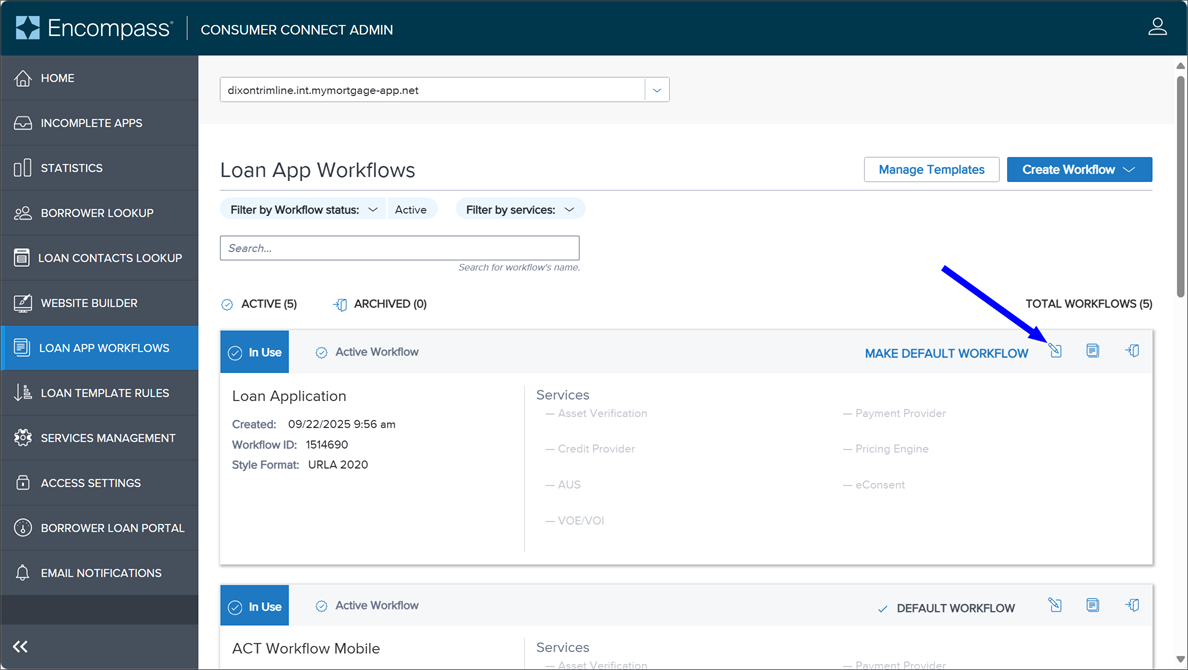
In the workflow, click Edit
 .
.
-
In Name, enter the name for your workflow.
-
In Description, enter a brief description of your workflow.
-
Customize the loan application choosing using the options provided on the page. For detailed instructions, refer to Loan Applications Settings.
-
Click Save.
-
To return to the Loan App Workflows landing page, click the Back to Loan App Workflows link at the top of the page.
Duplicate Workflows
A loan application workflow can be duplicated. A copy can be saved either on the current site or on another site.
-
Current Site: When duplicating and saving a loan application workflow on the current site, a copy of the loan application workflow is added to the site. All loan application settings are duplicated in the loan application workflow.
-
Another Site: When duplicating and saving a loan application workflow on another site, a copy of the loan application workflow is added to the site specified by the lender. Loan application workflows can be duplicated from site to site OR from embedded site to embedded site. All loan application settings are duplicated in the loan application workflow, except for Service Settings. Service Settings must be configured in the duplicate loan application workflow.
To Create a Duplicate Workflow on the Current Site
-
Browse to the Encompass Consumer Connect Administrator Portal, and log into your instance.
-
In the left menu, click Loan App Workflows. If necessary, click the site drop-down on the top of the page and then click your site.
-
In the workflow, click Duplicate
 and then click Current Site.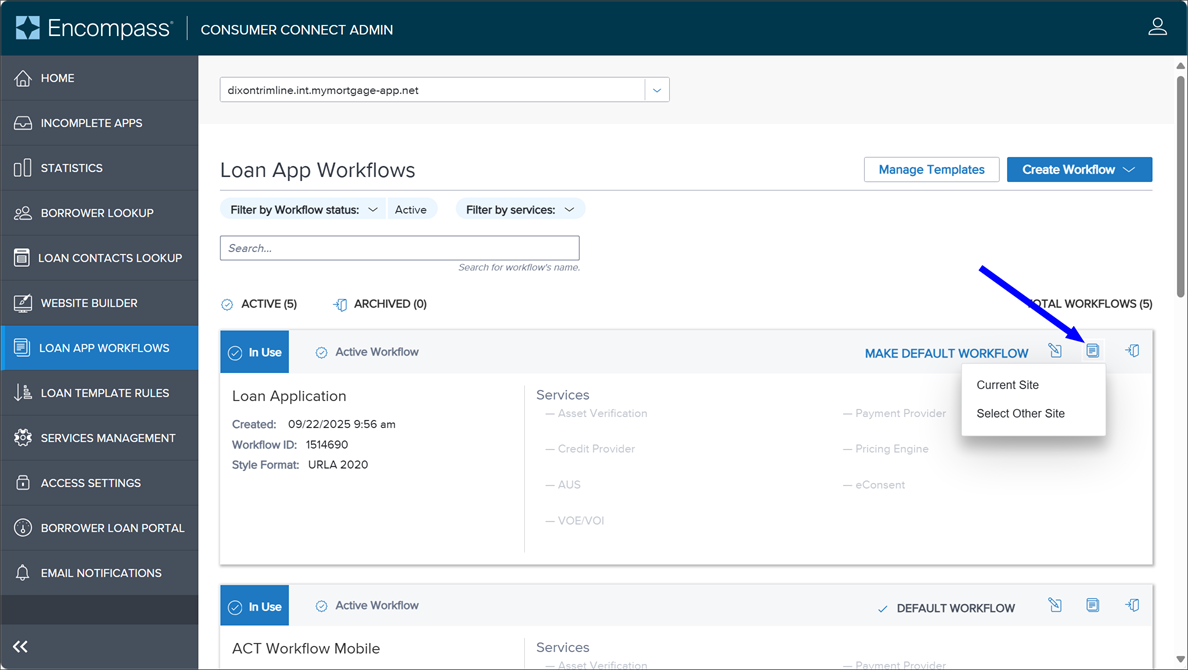
-
In Name, enter the name for your workflow.
-
In Description, enter a brief description of your workflow.
-
Customize the loan application choosing using the options provided on the page. For detailed instructions, refer to Loan Applications Settings.
-
Click Save.
-
To return to the Loan App Workflows landing page, click the Back to Loan App Workflows link at the top of the page.
To Create a Duplicate Workflow for Another Site
-
Browse to the Encompass Consumer Connect Administrator Portal, and log into your instance.
-
In the left menu, click Loan App Workflows. If necessary, click the site drop-down on the top of the page and then click your site.
-
In the workflow, click Duplicate
and then click Select Other Site.
-
In Duplicate Workflow - Other Site, click the drop-down and then click the destination site.
Note that sites created before 2019 might not be displayed in the drop-down menu.
-
Click Submit. The duplicated workflow copies to the selected site, added to the top of the workflow list with (Copy) appended to the workflow name.
When duplicating a loan application workflow, all loan application settings are copied over except for Service Settings. Service Settings must be configured on the receiving site after duplication.
Archive Workflows
You can move workflows to the Archive tab so that they are removed from your active workflow view, but are easily accessible by filtering the archived workflows.
To Archive a Workflow
-
Browse to the Encompass Consumer Connect Administrator Portal, and log into your instance.
-
In the left menu, click Loan App Workflows. If necessary, click the site drop-down on the top of the page and then click your site.
-
In the workflow, click Archive
 .
.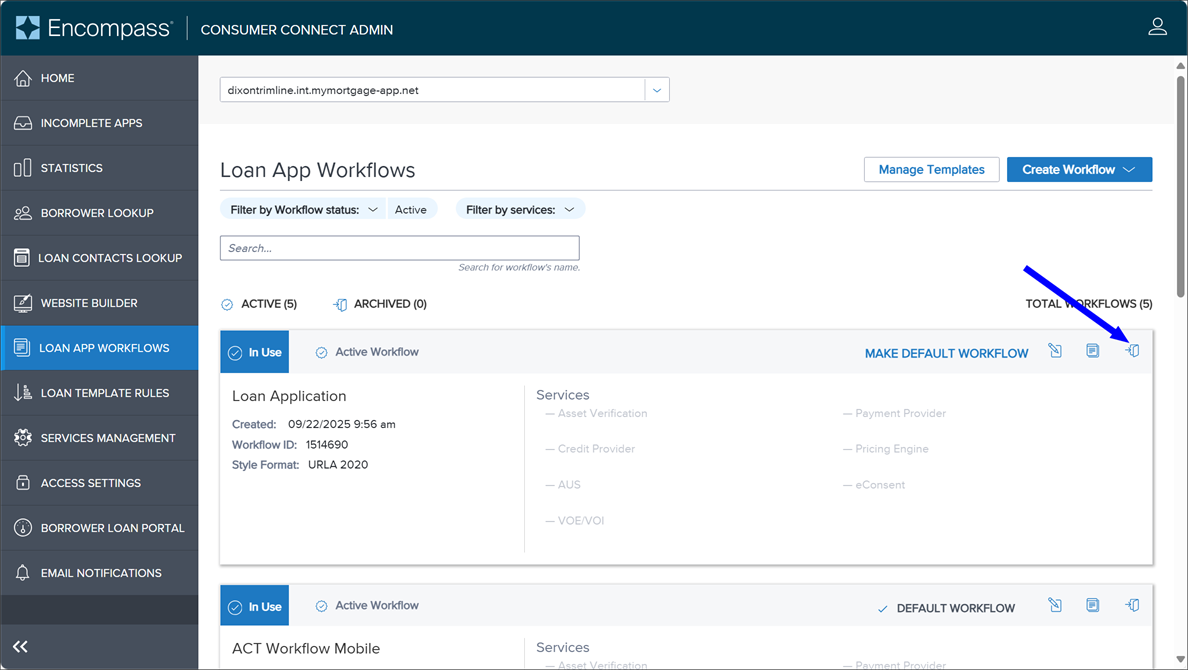
If you select the default workflow, you must select a new default workflow in the Warning prompt drop-down, and then click Archive.
-
Click Yes.
To reactivate an archived workflow, filter the Workflow status to Archived, and then click Unarchive
.